
Logic Pro's arpeggiator and chord memorizer are powerful features that, by using MIDI FX, let you produce complex chord progressions efficiently. With the chord memorizer, you can instantly play any chord from a single key regardless of your keyboard skills. Combining them with a cable switcher also makes it easy to switch between normal programming, arpeggiation and the chord memorizer, greatly increasing your freedom and speed in composing and arranging. Mastering Environment setup makes DTM production more efficient and broadens your musical expression.
Combining Logic's arpeggiator and chord memorizer
In the previous section, we introduced a basic "arpeggiator" setup using the "Environment".
This time we introduce a more advanced application of it.
- Switching between multiple arpeggiators
- Turning the arpeggiator on and off
- Building chords
These become possible.
- Logic X
- Logic 8/9
Using a chord memorizer with MIDI FX
A "chord memorizer" is a feature that lets you register any chord for each key.
It doesn't matter if you can't play the keyboard.
You can quickly play a chord with a single key.
By using "MIDI FX", introduced in Logic X,
you can now easily work with a "chord memorizer".
The "Arpeggiator", which can also be controlled with "MIDI FX",
is explained at the following link.

Using a chord memorizer with MIDI FX

The area outlined in red is the new "MIDI FX".
It can only be applied to MIDI and gives a variety of effects.
Apply "Chord Trigger" here.

When using two or more [MIDI FX], click where a green line appears.
Otherwise, the previous FX will be replaced.

"Chord Trigger" and "Arpeggiator" are now working together.
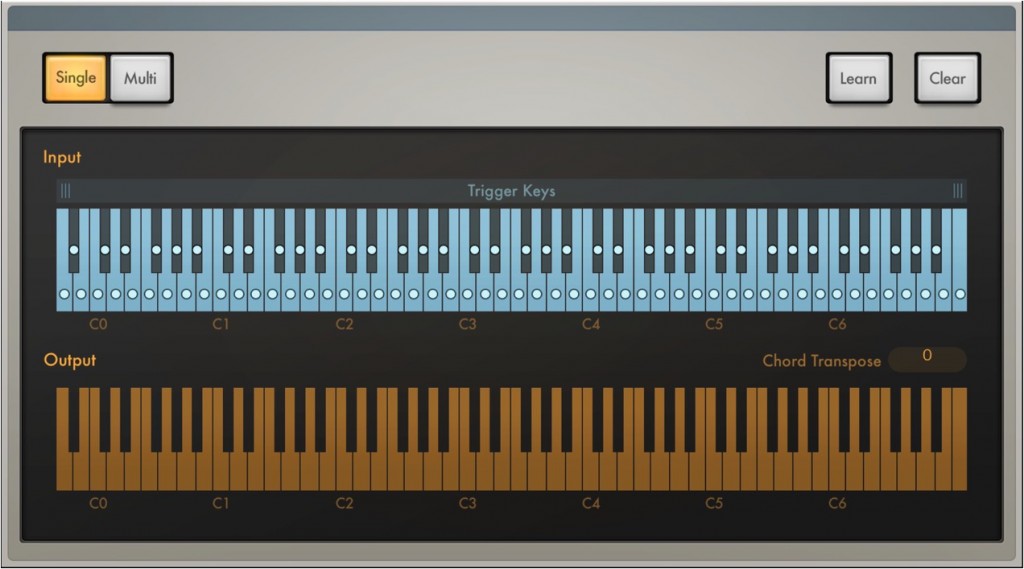
"Chord Trigger" is displayed like this.
Then assign the chords you like to each key.
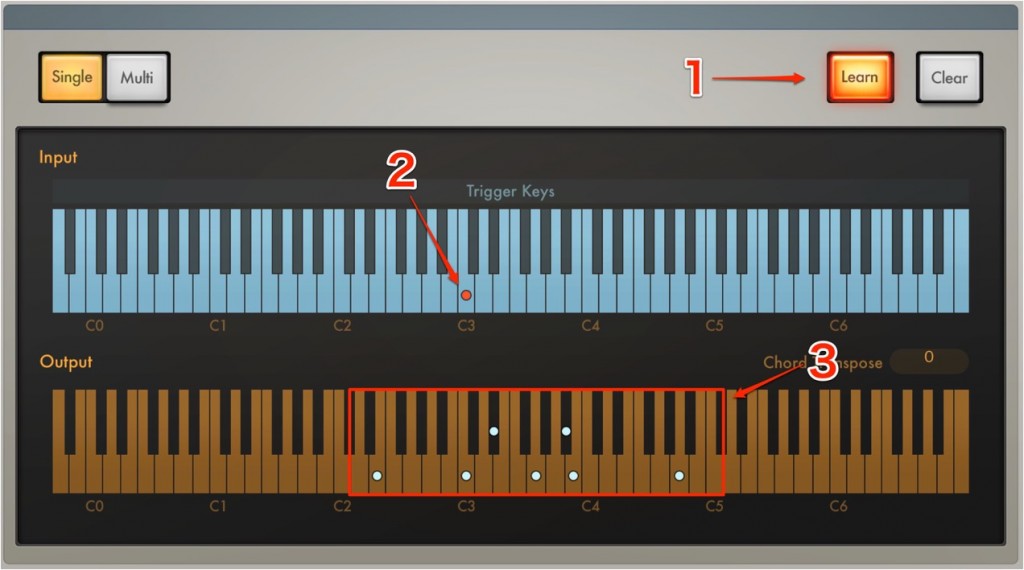
- 1_Select "Learn" to light it up
- 2_Click the key you want to assign a chord to
- 3_Select which chord to assign to the selected key.
After setting up, press "Learn" again to turn it off.
Now pressing the key specified in "2" plays the chord specified in "3".
Selecting Clicks & Ports

From the top menu, go to "Window" → "Environment"
and switch the display to "Clicks & Ports".
Set up the "arpeggiator" and other objects on this screen.
Creating an arpeggiator

Select "Arpeggiator" from "New".

Connect the created "arpeggiator"
between the "Input View" and the "Sequencer Input".
That completes the "arpeggiator" setup.
When you play a chord on your MIDI keyboard,
the MIDI is automatically played/recorded as an "arpeggio".
*The "arpeggiator" does not work unless Logic is playing

Using the chord memorizer
The "chord memorizer" lets you play the chord you like
from a single key.
You can also have the "arpeggiator" above play that chord.

↑ As with the arpeggiator,
select "New" → "Chord Memorizer" to create one.

↑ Connect it between the "Input View" and the "arpeggiator".
Next, register the chord.
Double-click the "chord memorizer" to show its details.

The upper keyboard is "which key",
and the lower keyboard is "which chord to place there".
Just click to select the notes.
In the photo above, it is set so that pressing "C3" plays "C E G B".
You can now play the chord you set with a single key.
However, as it stands, every note will be entered through the "chord memorizer" + "arpeggiator".
The "switcher" below lets you switch between them.
Using a cable switcher
Using a "cable switcher",
you can switch where the MIDI signal is sent.
This lets you easily switch between using "normal programming", the "arpeggiator"
and the "chord memorizer".

Select "New" → "Fader" → "Specials" → "Cable Switcher".

Place a "cable switcher" at each branch point.
To switch, you just click.
Like railway points, you can switch depending on where you want the effect.
- Logic X
- Logic 8/9

Frequently Asked Questions
Q1. How do Logic Pro's chord memorizer and arpeggiator differ?
The chord memorizer assigns multiple notes to a single key, and the arpeggiator plays those notes one after another. Combining them enables complex chord expression from a single key press.
Q2. Can I use the chord memorizer even if I can't play the keyboard?
Yes. In fact, a major advantage of the chord memorizer is that you can assign any chord you like to any key regardless of your keyboard skills. You can set it up just by clicking to select notes.
Q3. What should I do if the arpeggiator does not work?
You need to start Logic's playback. The arpeggiator does not function unless Logic is playing. Also check that the arpeggiator is correctly connected in the Environment.
Q4. What does a cable switcher do?
A cable switcher switches the path of the MIDI signal, letting you easily switch between three kinds of processing: normal programming, the arpeggiator and the chord memorizer. Like switching railway tracks, you can choose the function.
NEW ARTICLES
Latest English Articles











