
The stamp function built into FL Studio's Piano roll is a powerful tool that makes entering MIDI pitches far more efficient. By using stamps divided into four categories, such as chords, scales, drum patterns and bass lines, you can move forward intuitively with music production even with limited knowledge of music theory. Notes entered with a stamp can be moved together thanks to the link function, and entering an entire scale displays a color guide on the keyboard so you can see which notes are available, dramatically improving your composing efficiency.
Automatically enter suitable pitches in the Piano roll
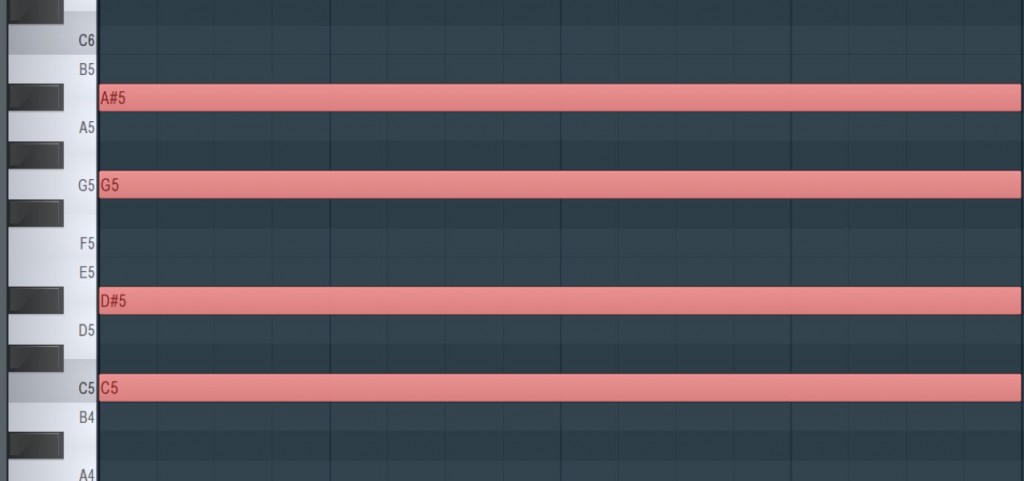
The "stamp function" built into the Piano roll supports entering MIDI pitches; it is
a very powerful feature.
It lets you enter the pitches and chords used in a song with minimal knowledge,
so even people who struggle with music theory can enjoy using it.
How to use stamps
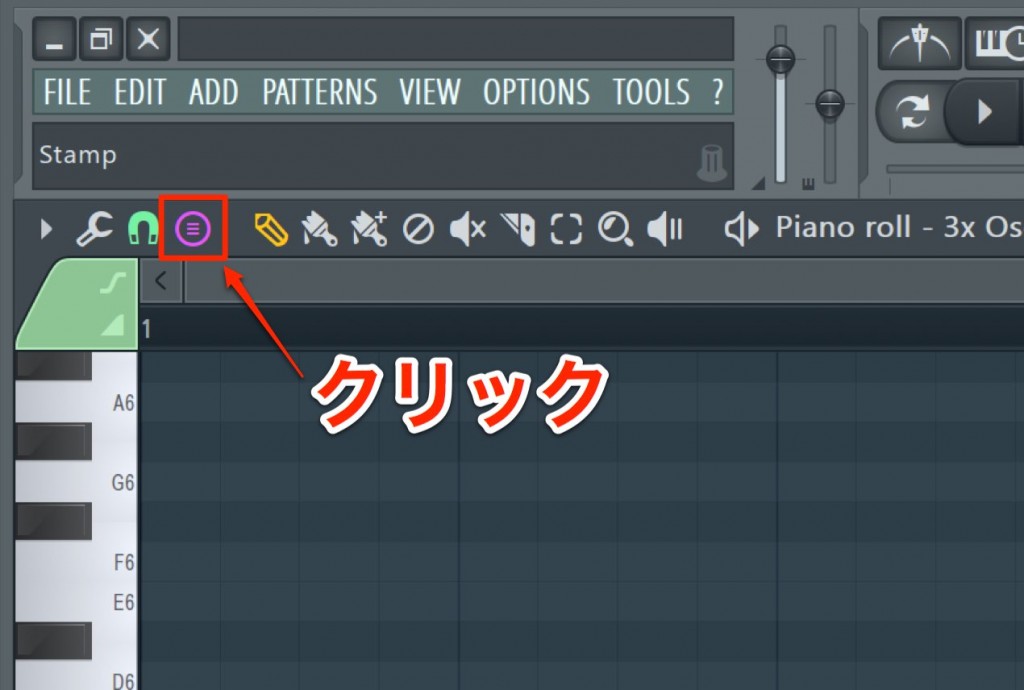
Click the stamp icon at the top of the Piano roll.
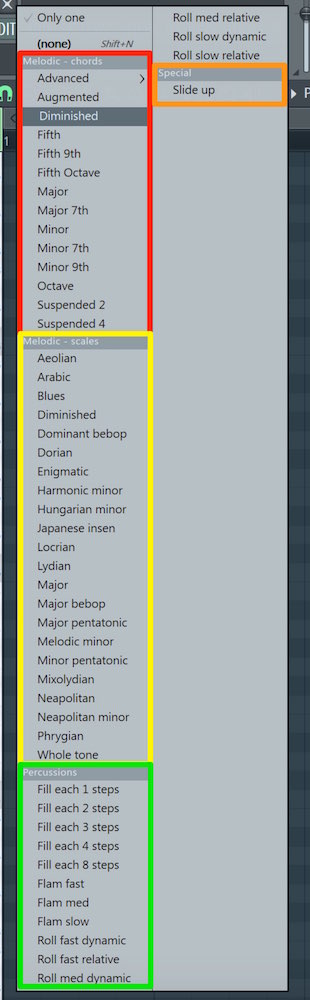
A dialog then appears.
Stamps are broadly divided into four groups.
(The colored frames were added for this explanation.)
- Red: Enter the notes that make up a chord
- Yellow: Enter all the notes of a scale
- Green: Suited to drums; enter notes at 8th-note or 16th-note intervals
- Orange: Call up slides that can be used for bass, piano, strings and so on
Entering chords
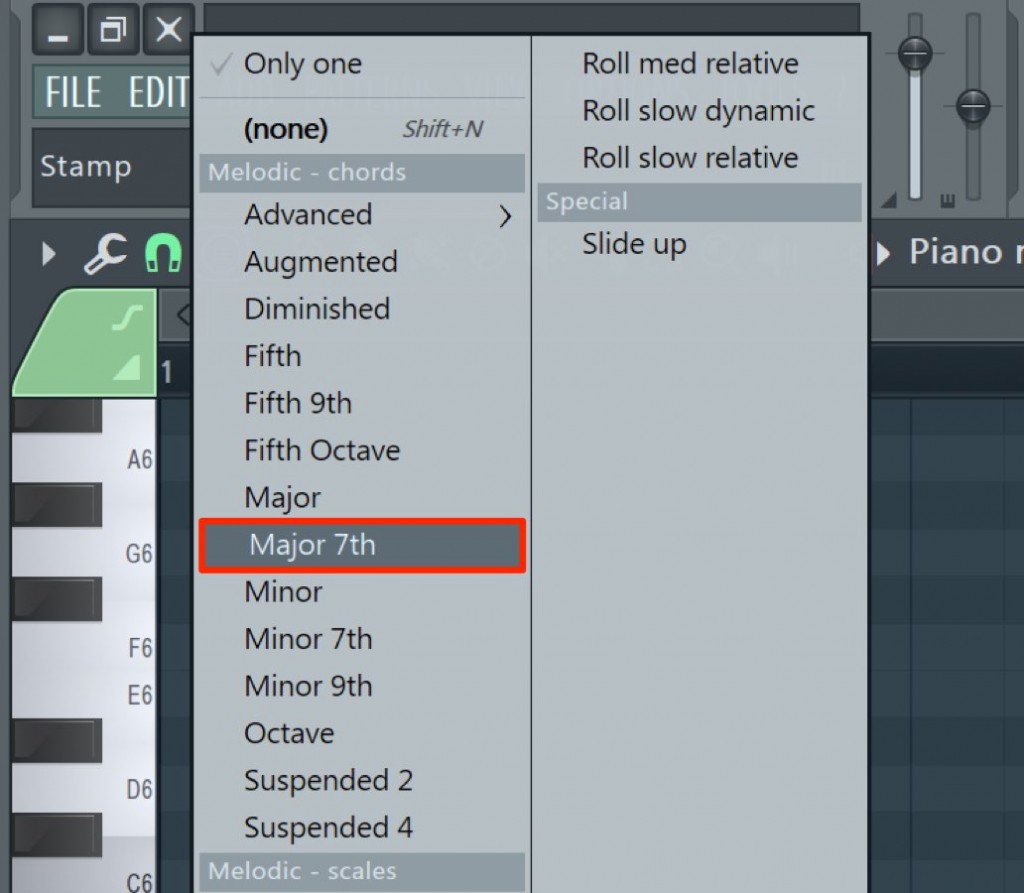
As an example, we selected the chord "Major 7th".
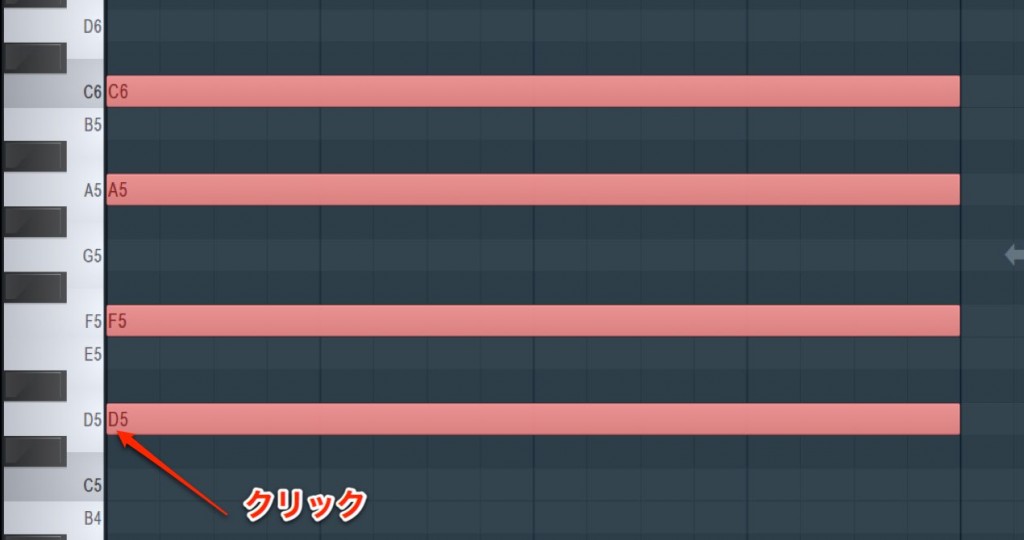
A "Major 7th" chord is created automatically from the pitch you click.
By default, once you enter a chord, the next click goes back to entering a normal note.
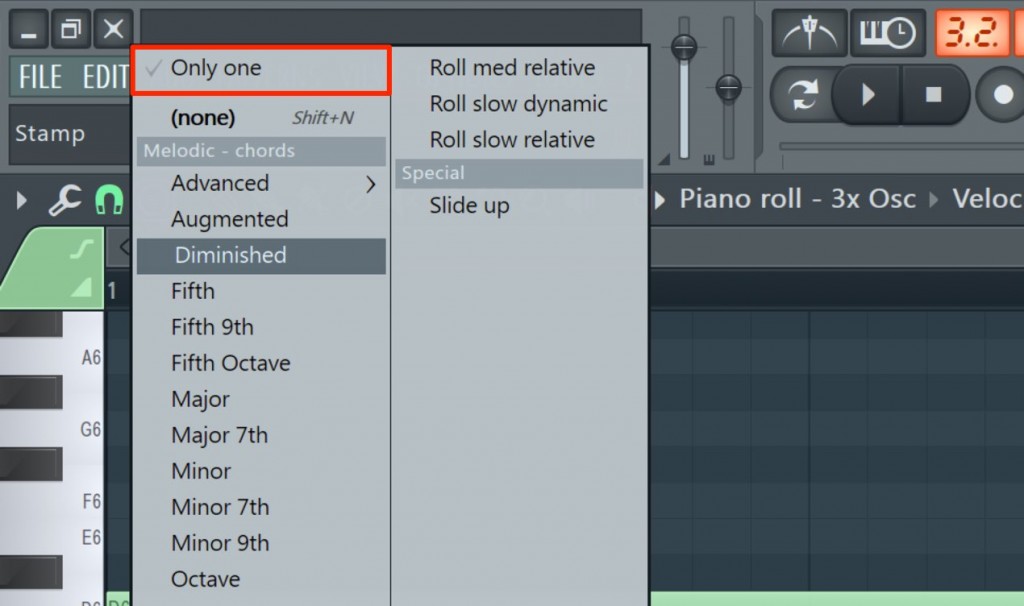
Clicking "Only one" in the stamp dialog to disable it
makes every entry use the specified stamp.
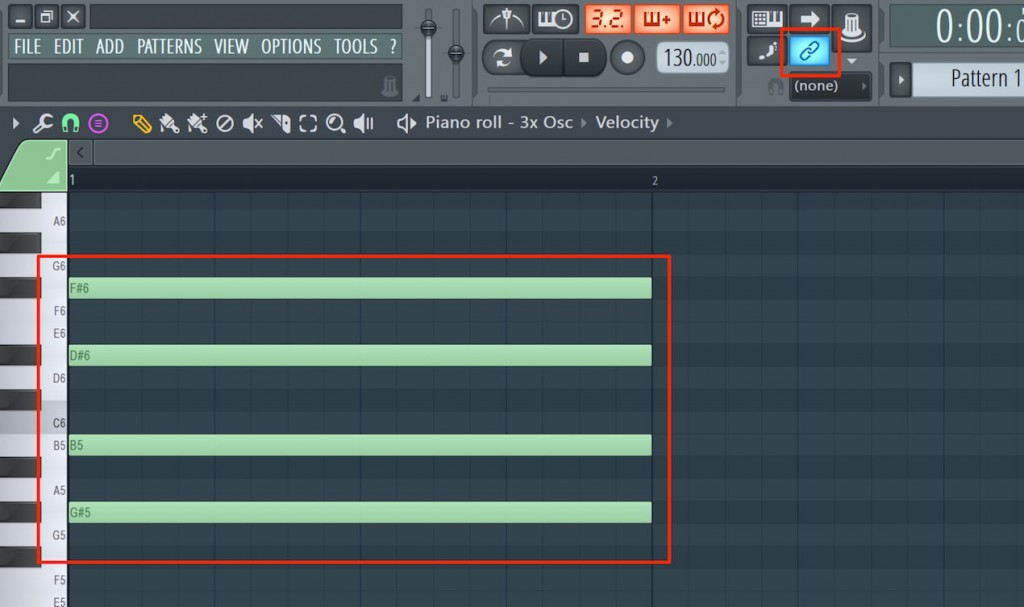
MIDI notes entered with a stamp are linked.
So if you move any one note, all the notes move with it.
If you want to remove this link, click the "Link" icon to turn it off.
After editing, enabling the link again fixes the spacing between the notes once more.
Entering scales
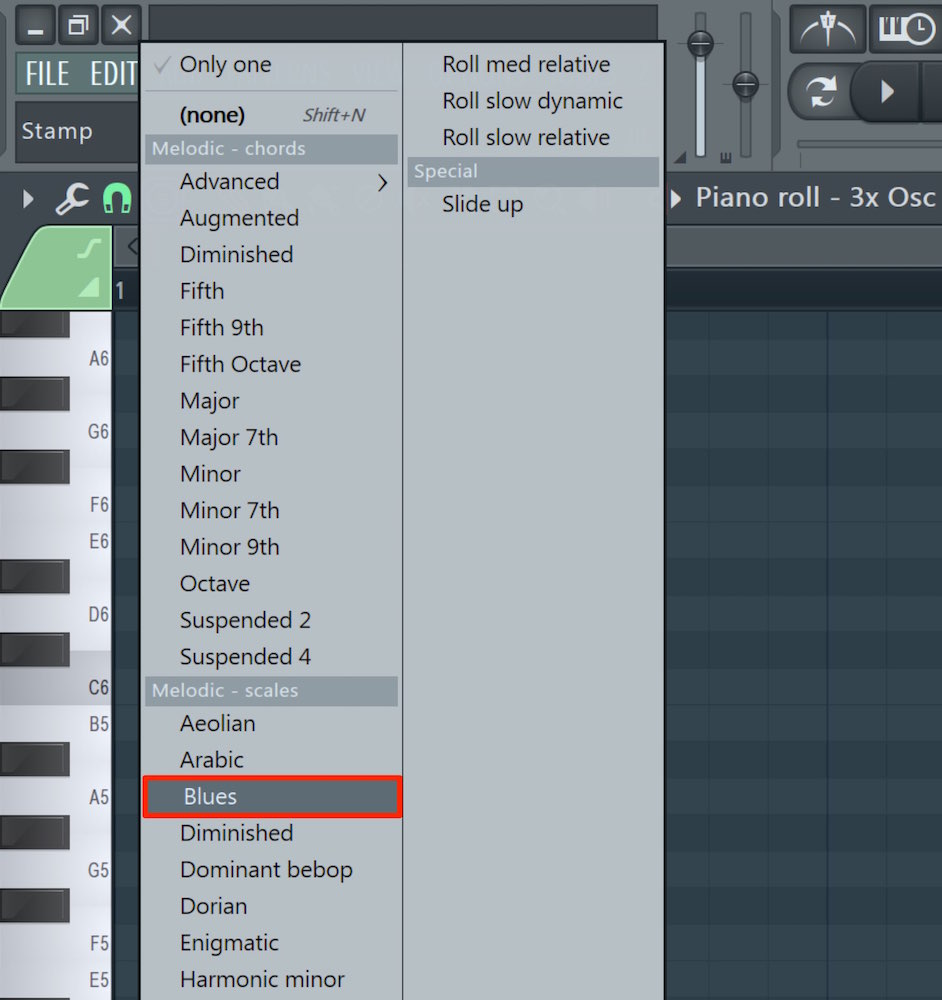
Next, let's use a scale stamp too.
Here we selected "Blues".
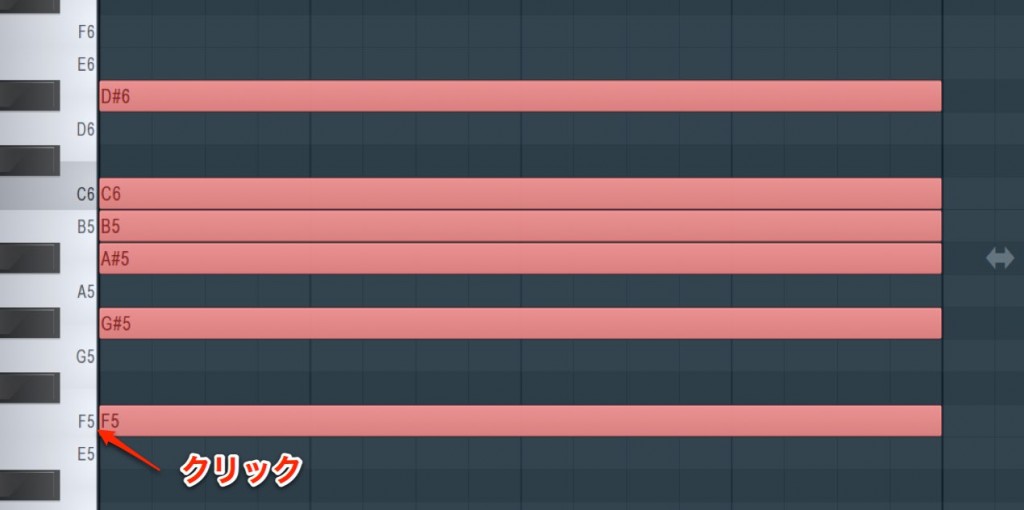
Clicking F writes a blue note scale starting from F.
This is very convenient because you can see the sounds used in the song's scale.
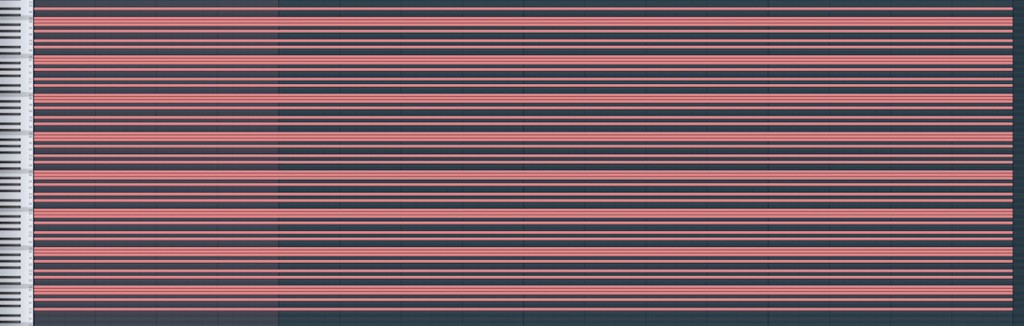
If you use this stamp to make a MIDI clip with the scale entered across every octave,
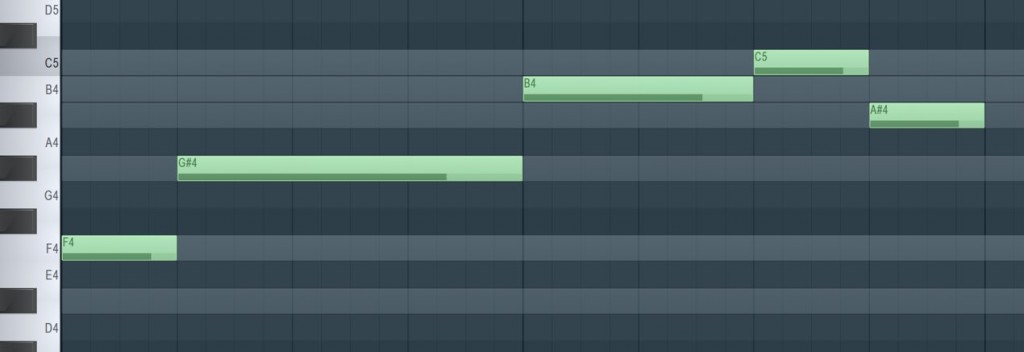
the keyboard colors change when you program other channels.
This is very convenient because you can immediately see which sounds to use.

Frequently Asked Questions
Q1. What is FL Studio's stamp function?
It is a function that automatically enters pitches and chords in the Piano roll. It offers several templates, such as chord tones, scales and drum patterns, so you can generate MIDI efficiently with a single click.
Q2. Can I edit notes entered with a stamp individually?
Yes. Disabling the "Link" icon in the stamp dialog removes the link between the notes so you can edit them individually. Enabling the link again after editing fixes the spacing between the notes.
Q3. What are the benefits of using scale stamps?
When you enter the song's scale across every octave, the keyboard display changes color in other channels so you can visually recognize which notes are available, speeding up decisions while composing.
Q4. Can I use it without any knowledge of music theory?
Yes. The stamp function can be operated intuitively with minimal musical knowledge, so you can move forward effectively with music production without deeply understanding complex theory.
NEW ARTICLES
Latest English Articles











