When producing songs in FL Studio, backing up your projects is an important task to guard against the risk of losing data after completion. Audio files in particular are saved outside the project file, so it's recommended to use the "Zipped loop package" function to compress and save all the audio files the project needs in one go. Saving to a location separate from the system, such as an external hard drive, further reduces the risk of losing data.
Once a Song Is Finished, Back It Up Just in Case
After a song is finished, you may not open the project for a while.
However, it often happens that you need the data again after some time has passed.
So that you can respond quickly in cases like this,
we recommend making a backup of the project.
Also, saving the project to a location separate from the system,
such as an external hard drive, further lowers the risk of losing data.
How to Back Up
What you especially need to be careful about when managing projects is "audio files".
MIDI programming is saved inside the project file,
but audio files are saved outside the project.
For details, please refer to the following article.
In FL Studio, recorded audio files are saved in
"C drive" > "Program Files (x86)" > "Image-Line" > "FL Studio 12" >
"Data" > "Patches" > "Recorded" or "Sliced beats."
This folder is shared by all projects,
which is a little inconvenient when you only want the files for a specific project.
Making a backup also solves that problem.
Now let's look at the steps.

Open the project you want to back up,
and select "FILE" > "Zipped loop package" from the upper-left menu.
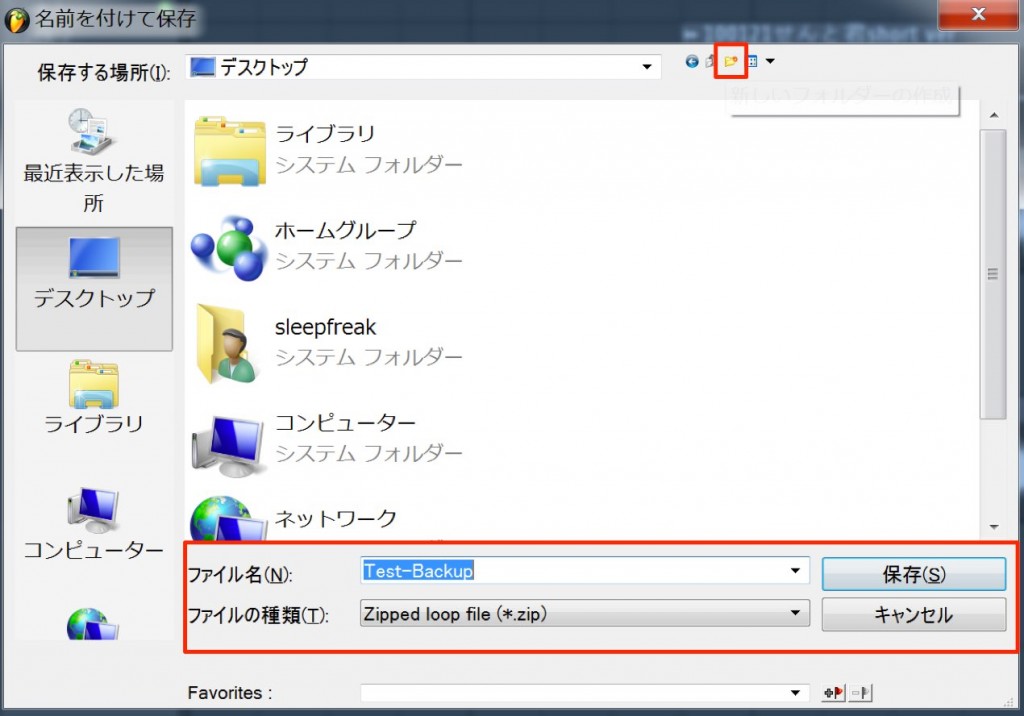
Create a new folder in any location (here, the desktop) and save it there.
That's it.
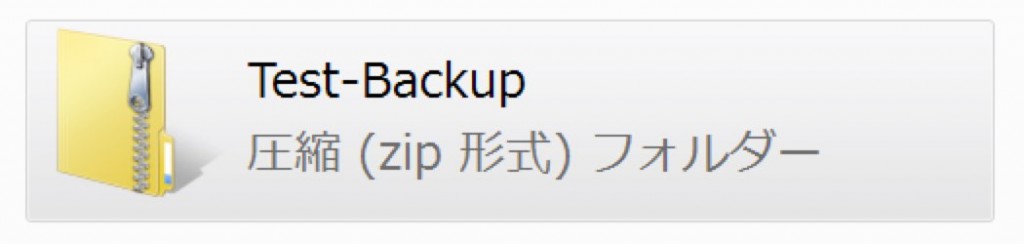
The project and the audio files needed for the song are compressed into a Zip file and saved.

Frequently Asked Questions
Q1. Where are FL Studio's audio files saved?
For FL Studio 12, recorded audio files are saved in the "Recorded" or "Sliced beats" folder under "Program Files" > "Image-Line" > "FL Studio 12" > "Data" > "Patches" on the C drive.
Q2. What are the benefits of backing up with "Zipped loop package"?
The project and the audio files needed for the song are automatically compressed into a single Zip file, so you can easily manage the files for a specific project and move or share them easily.
Q3. Where should I save backup files?
To guard against data loss, it's recommended to save them to a location separate from the system, such as an external hard drive. This protects your data even if the computer itself fails.
NEW ARTICLES
Latest English Articles