
The "freeze" function, which converts a software synth to audio in FL Studio, is a very effective solution when CPU usage gets high. Converting tracks whose programming is finished into audio files not only greatly reduces CPU load, but also lets you use audio-specific editing functions such as waveform editing. Understanding the correct settings and steps lets you improve production efficiency while optimizing sound quality.
For reducing CPU load and editing waveforms
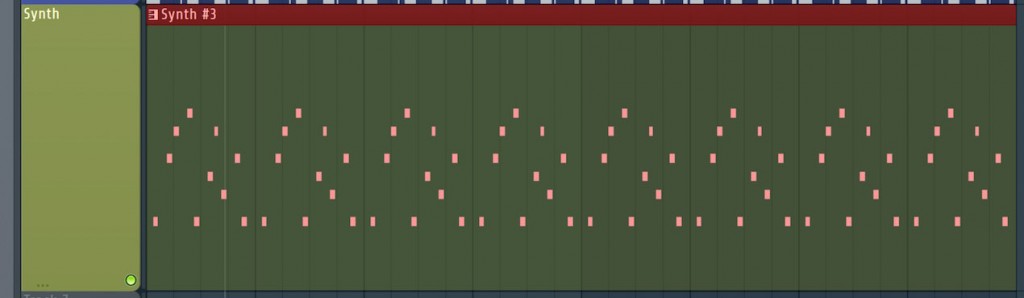
As the number of software synth instruments increases, CPU usage rises in proportion.
If you have a track whose programming you will not change any more,
"freezing" it into an audio file is recommended.
Another benefit is that once it is an audio file,
you can use audio-specific editing functions.
Let's get into the explanation.
Freeze procedure
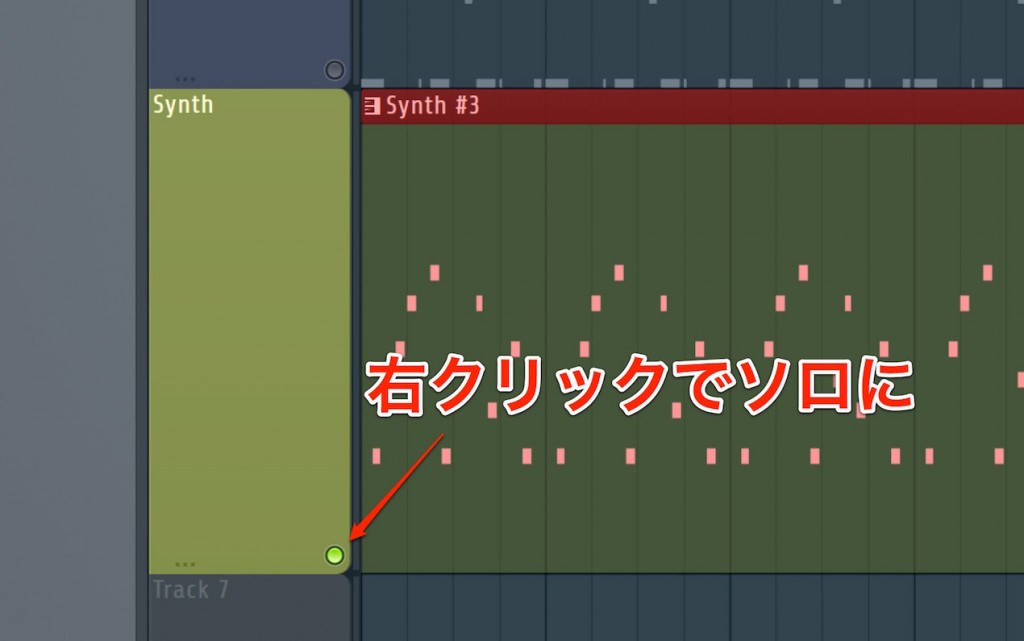
Right-click the track you want to convert to audio to solo it.
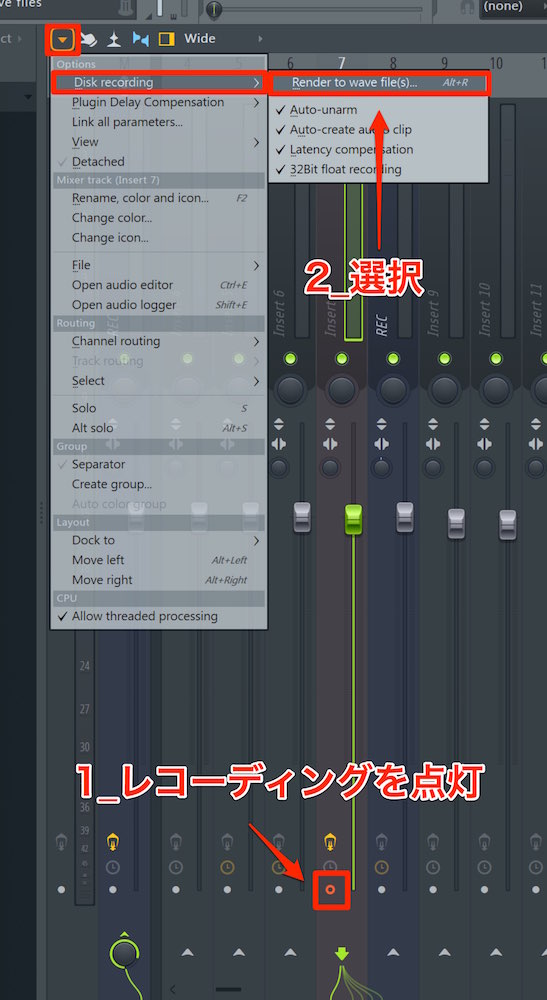
Turn on the record icon of the track to be converted to audio.
Then select "Disk recording" → "Render to wave" from the top menu.
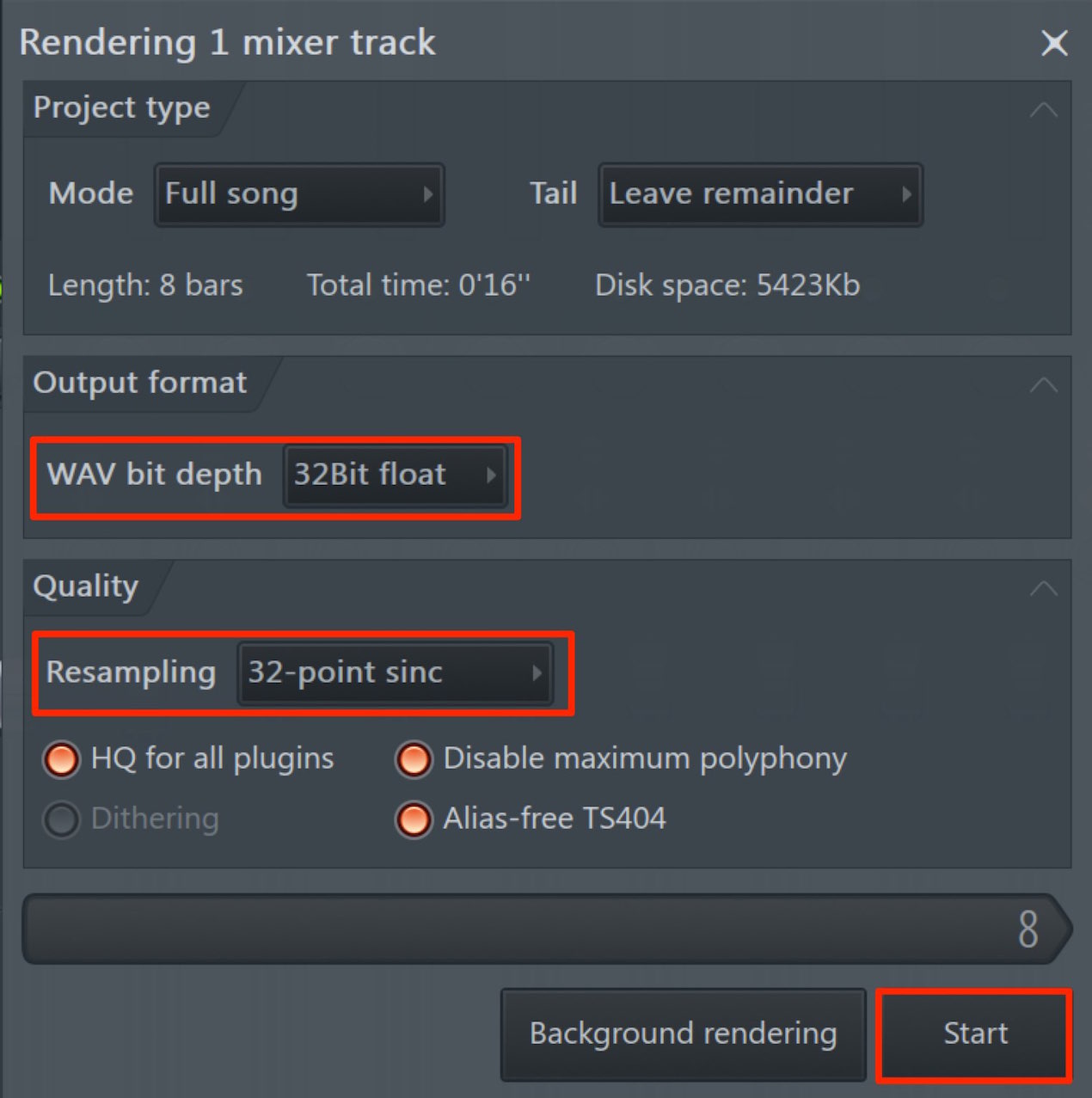
Setting "WAV bit depth" to "32bit float" is the best choice.
For Resampling, "32-point sinc" gives standard sound quality and export speed,
but if you feel the sound quality has deteriorated, try selecting 64 or higher.
(The higher the value, the slower the export.)
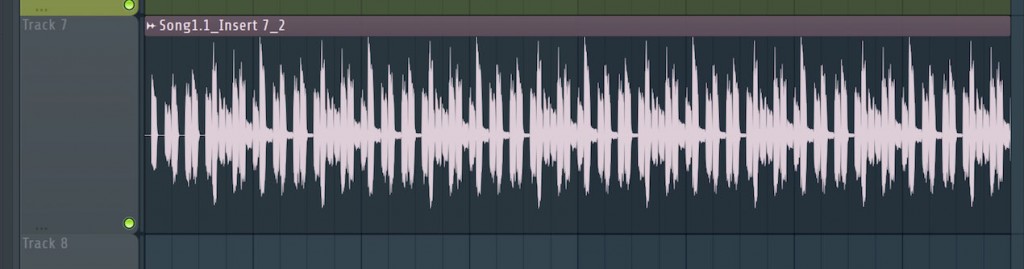
The track has been converted to audio like this.
Then mute the programmed clip or delete the instrument itself, and the freeze is complete.
(Note that muting the track alone does not change the CPU load.)
After freezing, you cannot change the performance.
You may want to go back, so if you delete the instrument or clip,
we recommend backing up the project first.

Frequently Asked Questions
Q1. What are the best WAV settings when freezing in FL Studio?
"32bit float" is best for WAV bit depth. For Resampling, select "32-point sinc" as standard, and if you feel the sound quality is poor, try a value of 64 or higher. Higher values improve sound quality but take longer to export.
Q2. What should I do if I want to change the performance after freezing?
You cannot change the performance after freezing, so we recommend backing up the project beforehand. If changes are needed, you will restore from the backup and edit the original track again.
Q3. Is muting the track not enough when finishing a freeze?
Muting the track alone does not change the CPU load. To reduce CPU usage, you need to delete the original programmed clip or the instrument itself.
NEW ARTICLES
Latest English Articles











