
In music production with FL Studio, using the marker function lets you efficiently manage a song structure that keeps getting more complex. Marking the ruler to divide the song into sections makes it quicker to move to the place you want and greatly improves your overall production workflow. Once you master basic operations such as keyboard shortcuts and dragging, you can work without getting lost even in long songs. It is a practical technique that directly helps both production efficiency and keeping up your creative motivation.
Mark the structure to understand and manage it efficiently
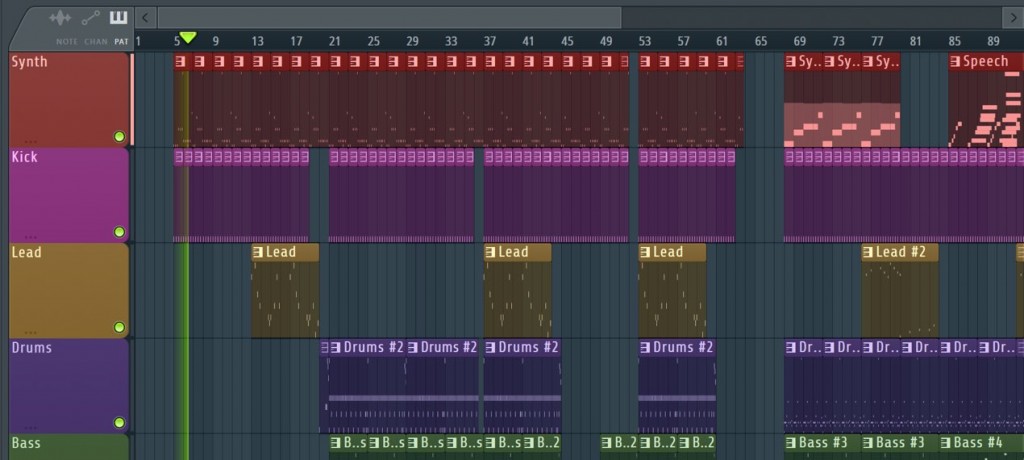
As music production progresses, the structure gradually becomes more complex and the number of bars increases.
Grasping the song structure, which was easy at first, becomes hard to do at a glance,
and moving to the place you want will often become a chore.
That is when the "marker function" comes in handy.
You can manage the song by placing marks on the ruler (the area showing bar numbers).
How to set markers
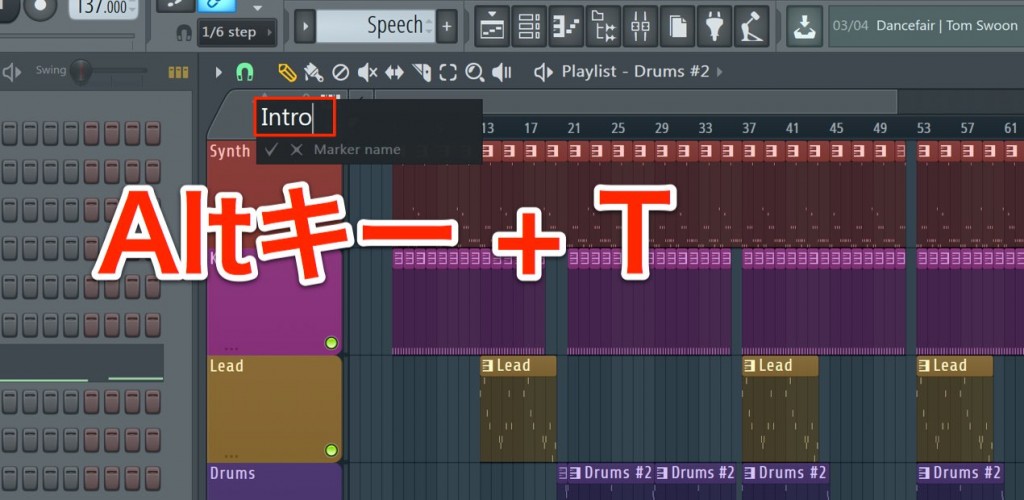
First, press "Alt + T".
A dialog for naming appears, so give it any name you like.
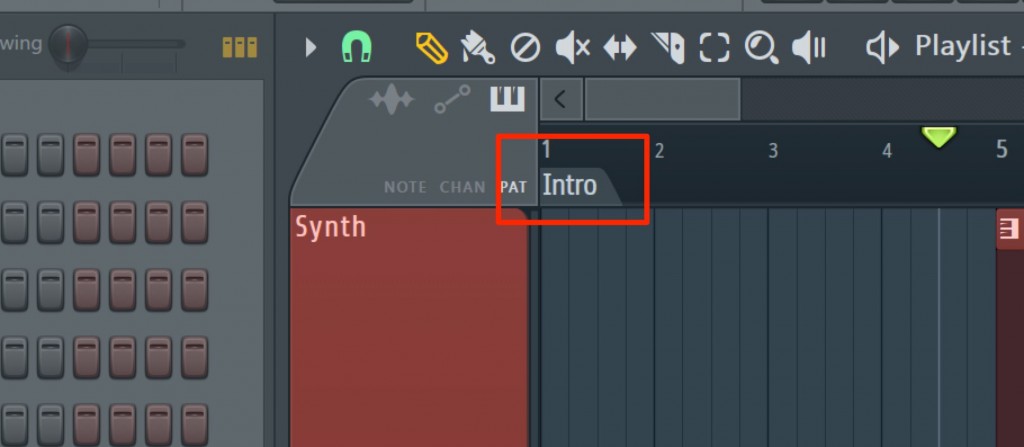
A marker has been created like this.
Adding markers
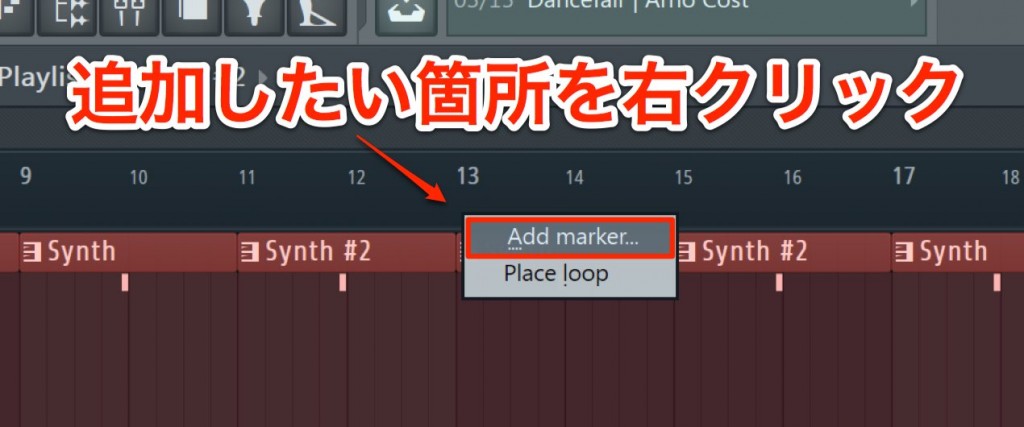
From then on, you can create a marker by right-clicking where you want to add it.
Moving markers
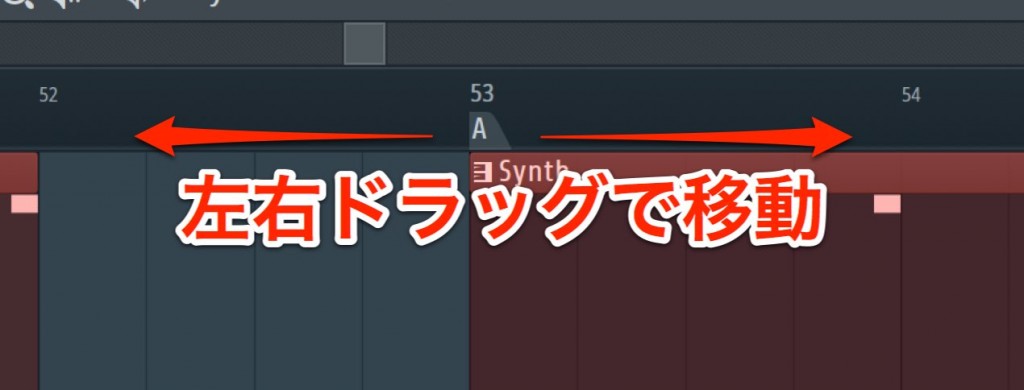
Drag a marker left or right to move it.
Deleting and renaming markers
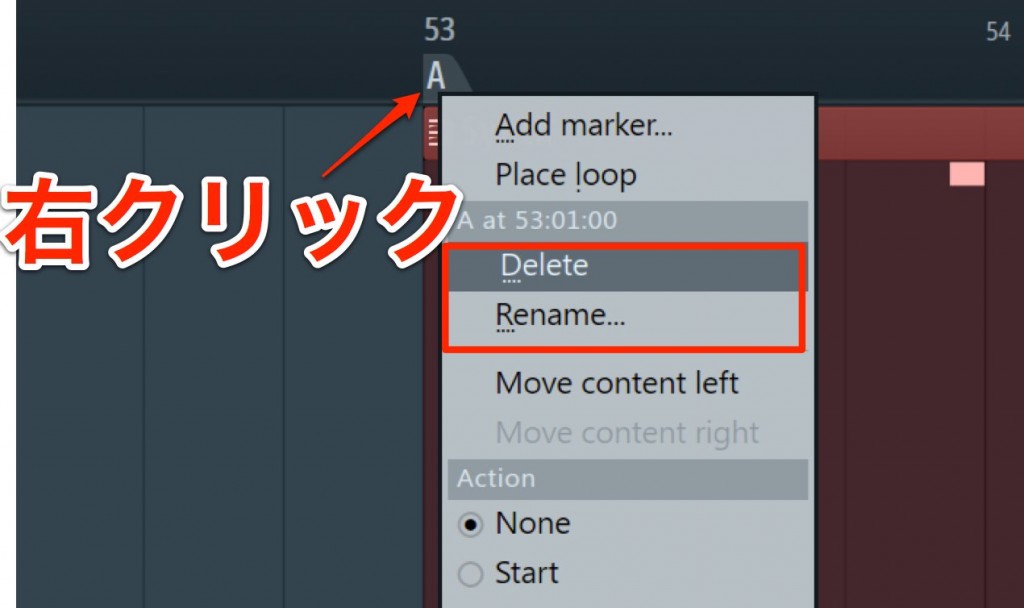
From the menu that appears when you right-click a marker,
choose "Delete" to delete it or "Rename" to rename it.
Moving between markers
- Go to the next marker: Alt + numeric keypad "*"
- Go back to the previous marker: Alt + numeric keypad "/"

Also, double-clicking a marker sets the range between markers as the loop range.

Frequently Asked Questions
Q1. Which keys set a marker in FL Studio?
You can start setting a marker by pressing "Alt + T". A dialog for entering the marker name then appears, so you can set any section or point name you like.
Q2. Can I change the position of a marker after creating it?
Yes. You can freely change a marker's position by dragging it left or right. It is easy to adjust if you need to make corrections after placing it, so you can explore the song structure through trial and error.
Q3. Are there shortcut keys for moving quickly between markers?
Use "Alt + numeric keypad *" to go to the next marker and "Alt + numeric keypad /" to go back to the previous one. This speeds up moving around the song and improves your work efficiency.
Q4. Can I set a marker range as the loop range?
Yes. Double-clicking a marker sets the range between markers as the loop range, so you can repeatedly play back only a specific section to edit and check it.
NEW ARTICLES
Latest English Articles











