
The major FL Studio 21 update brings big advances in efficiency and convenience for DTM production. Fading audio clips has become intuitive, and the user interface now supports customizable color themes. In particular, tags and favorites have been added to the Browser, greatly reducing the time spent searching for samples. In addition, powerful new plug-ins such as LuxeVerb have been included, dramatically improving the expressiveness of reverb effects and sound design. These features make every step from beat making to mixing more comfortable and creative.
FL Studio Evolves into a Much Easier-to-Use DAW!!
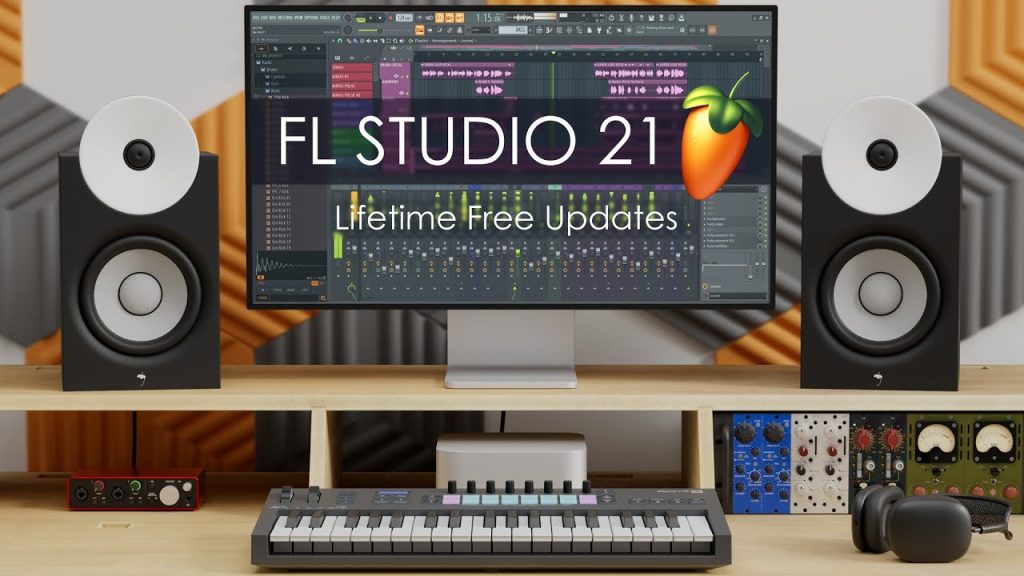
The recently released major update "FL Studio 21"
It adds many features useful for beat making and features that help streamline your workflow.
Here, we explain together the new features and changes we felt were especially important.
FL Studio 21 New Features Explanation Video
- 1Fade processing for audio clips
- 2Customizable appearance
- 3A Browser that makes things easier to find
- 4Newly added, ready-to-use plug-ins
- 5Other new workflow features
Fade Processing for Audio Clips
From this version, fades and gain adjustments for audio files are more flexible.
Earlier versions could also apply "fades" and "volume adjustments" to audio clips.
In FL Studio 21, these operations can be done more simply and intuitively.
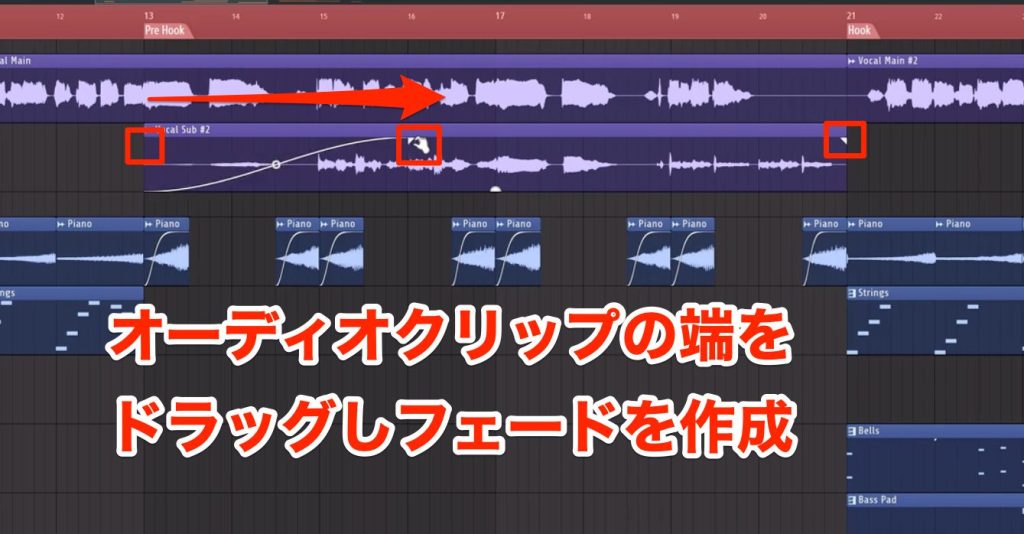
By moving the buttons at the top right and top left of an audio file left and right, you can apply gain fade-ins and fade-outs.
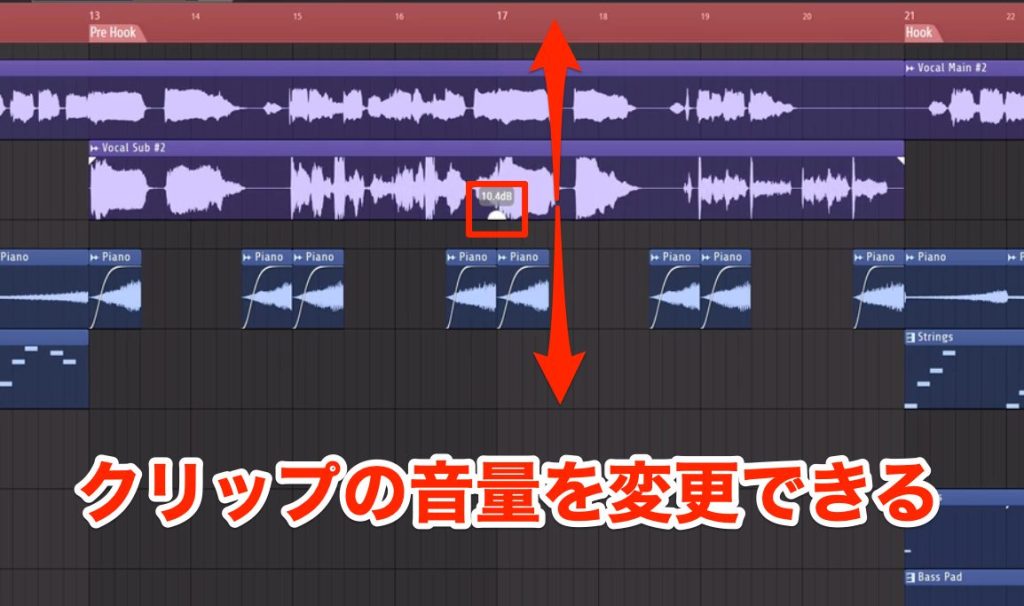
You can also adjust the gain (volume) with the button at the bottom of the audio file.
These operations apply only to the specific clip.
This is convenient because you can edit only some of the clips used in a loop.
Customizable Appearance
There are also major changes to the appearance: you can now change the color and design of the whole software.
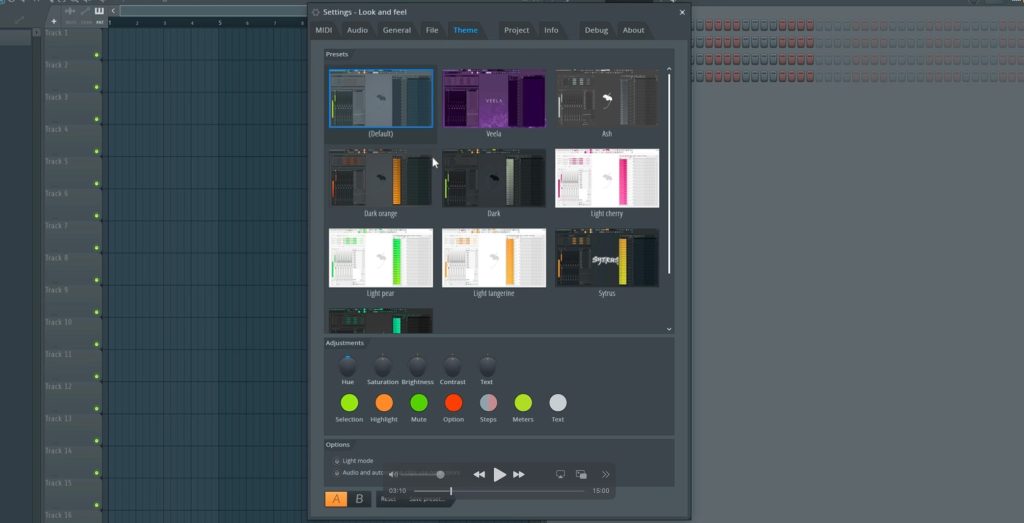
As shown, various color themes are available, and the overall colors change with a single click.
From the selected theme, you can finely customize the hue, brightness and so on, and enjoy your own original settings.
Changes in appearance like this also help keep you motivated.
I felt it was a wonderful change that is considerate of creators!
A Browser That Makes Things Easier to Find
Features have also been added to the Browser.
It has become very easy to do "sample selection," which is important to the beat-making workflow.
Tags and Favorites Added

Clicking "TAG" at the bottom of the Browser shows a list of the tags in use.
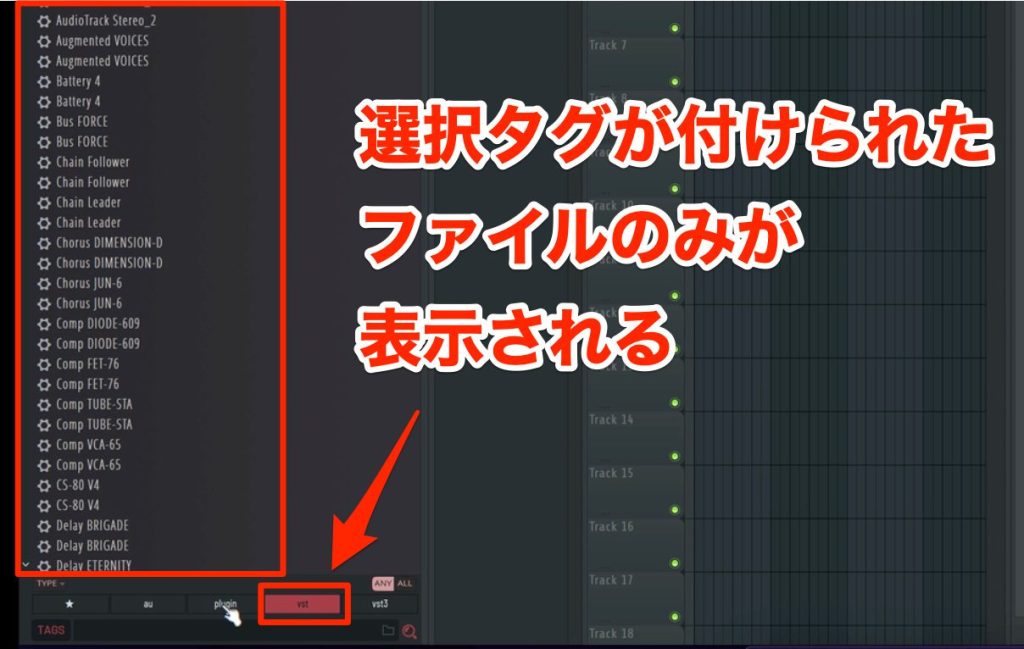
Then, selecting a specific tag shows only the files associated with it.
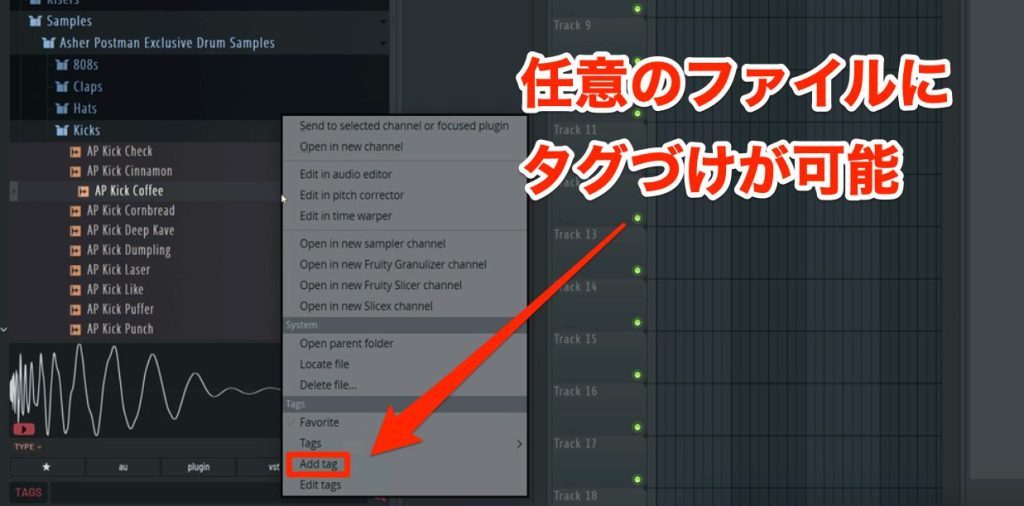
You can also create these tags yourself.
Select the sample you want and choose "Add Tag" from the right-click menu.
Enter a tag name here, and the new tag is added to the tag list above.
A "Favorite" feature that lets you mark any files as favorites and display them together has also been added.

When you hover over a file in the Browser, a "☆ icon" appears to the right of its name.
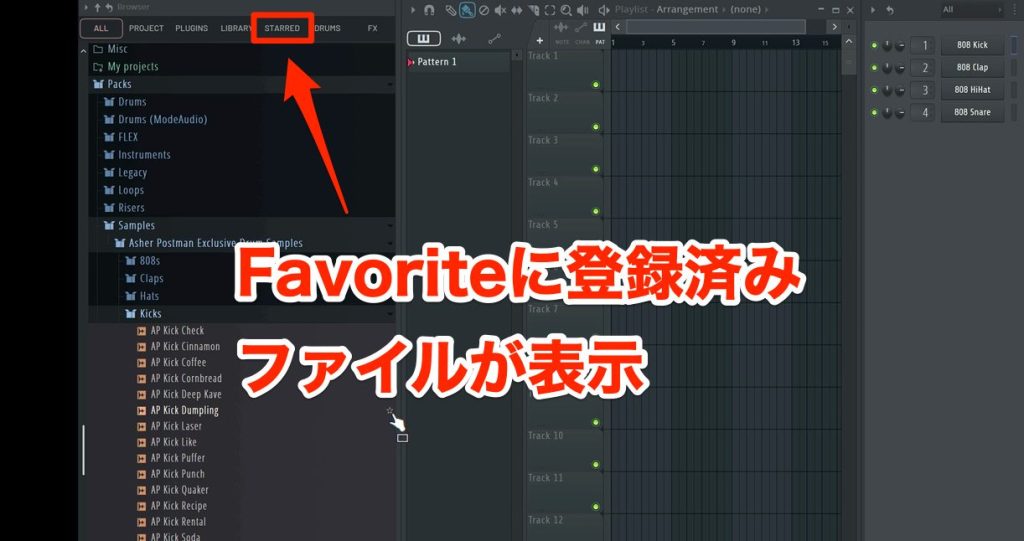
Click it to add it to Favorites, and you can access it instantly from the "STARRED tab" at the top of the Browser.
Using these, you can quickly reach the samples you want.
Please make use of them.
Improved Sample Preview
As part of the Browser update, the "preview function" has been improved.

Waveforms that were not shown before are now displayed, and right-clicking at any position plays the sample from there.
Using these, you can spend the effort and time you used to spend searching on your songs instead.
I found this particularly meaningful and welcome.
Newly Added, Ready-to-Use Plug-ins
This update adds
- 1"LuxeVerb," an advanced algorithmic reverb plug-in *All Plugins Edition
- 2"Vintage Phaser," modeled on 1970s analog phasers
- 3"Multiband Delay," a delay plug-in specialized for sound design
- 4"VFX Sequencer," which fuses an arpeggiator and a step sequencer
these plug-ins.
Here, we look at the reverb plug-in "LuxeVerb."
LuxeVerb is an algorithmic reverb plug-in,
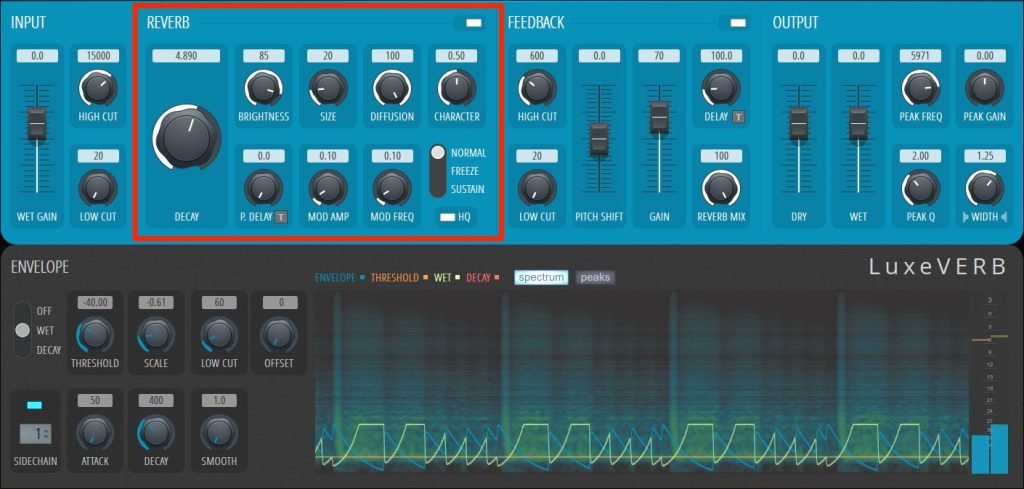
with parameters such as the length of the reverb [Decay], the size of the room [Size], and [Pre Delay], which delays the onset of the reverb for a natural sound.
Its parameters are made up of the standard reverb controls.
It also has [Brightness] for adjusting brightness, [Character] for adding its own flavor, and even a freeze function, enabling a very wide range of sound design.
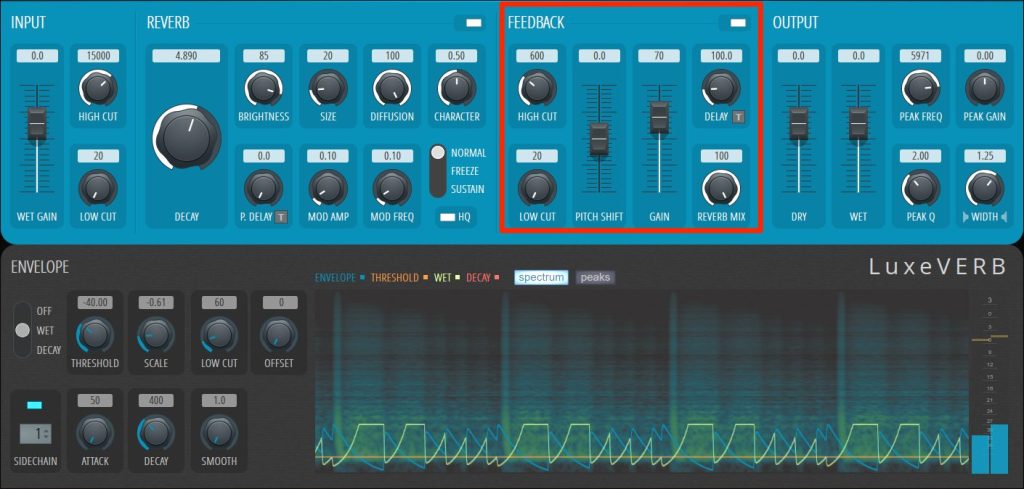
The "Feedback" section provides a function that adds echoes separate from the reverb: [Gain] adjusts the volume of the feedback itself, and Delay controls the delay of the reverb sound.
You can refine the frequency range with [High Cut] and [Low Cut], and adjust the pitch of the feedback within one octave up or down with [Pitch Shift].
Using these, you can even create a dreamy sound with strong high-frequency content called "shimmer reverb," making it a product with a very wide range.
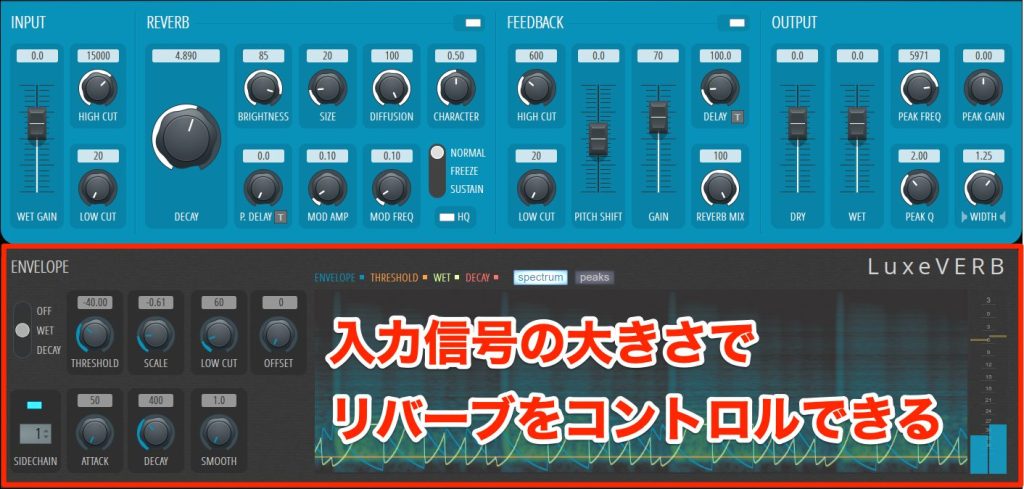
The Envelope section at the bottom is very unique: it can control the volume of the reverb sound (WET) with the input signal of the original sound (DRY).
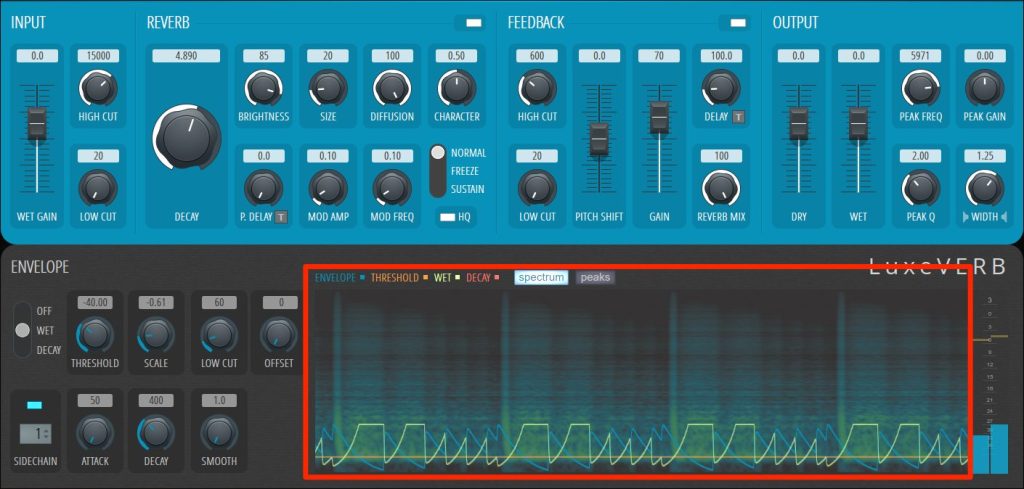
On the spectrum, the blue line is the input envelope, the orange line is the threshold, and the yellow or red line is the reverb envelope (volume curve).
Set the value with THRESHOLD, and with SCALE decide how the reverb behaves when the dry input exceeds the THRESHOLD value.

Let's take using it on vocals as an example.
We set the THRESHOLD value low and SCALE slightly below the default.
Where the vocal gets louder, the reverb volume goes down, and where the vocal volume drops, the reverb volume goes up.
This avoids the vocal and reverb ringing loudly at the same time, letting the vocal track come through clearly.
Normally you would need to use mixer sends and combine several plug-ins, but LuxeVerb achieves this on its own.
You can easily create sounds and techniques that are standard in recent dance music and more, so please try it in your songs.
Other Smaller New Features
Mixer Updates
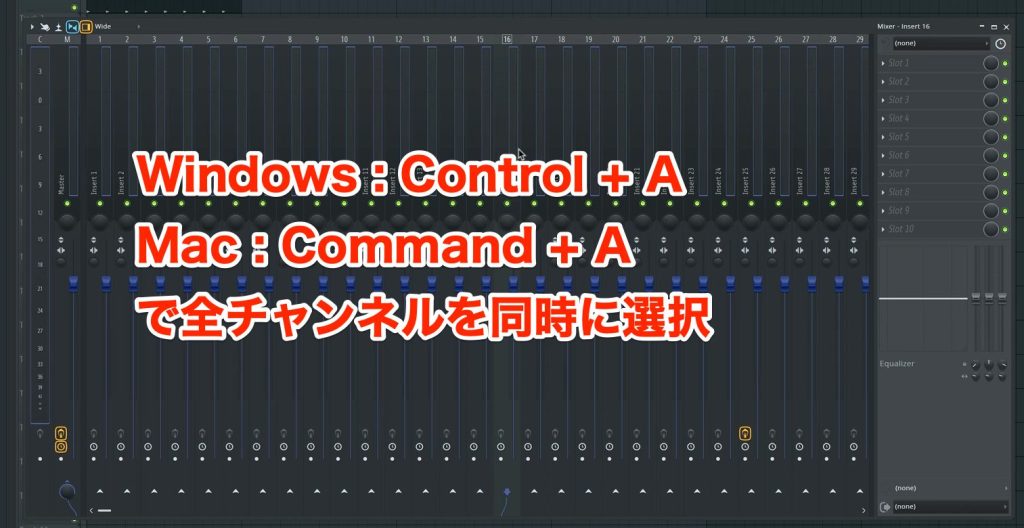
You can now select all channels in the mixer.
- Windows: [Control+A]
- Mac: [⌘+A]
Likewise, you can render multiple selected channels together (export to the arrangement).
Automation Updates
You can now apply automation used for one plug-in to plug-ins on other tracks.
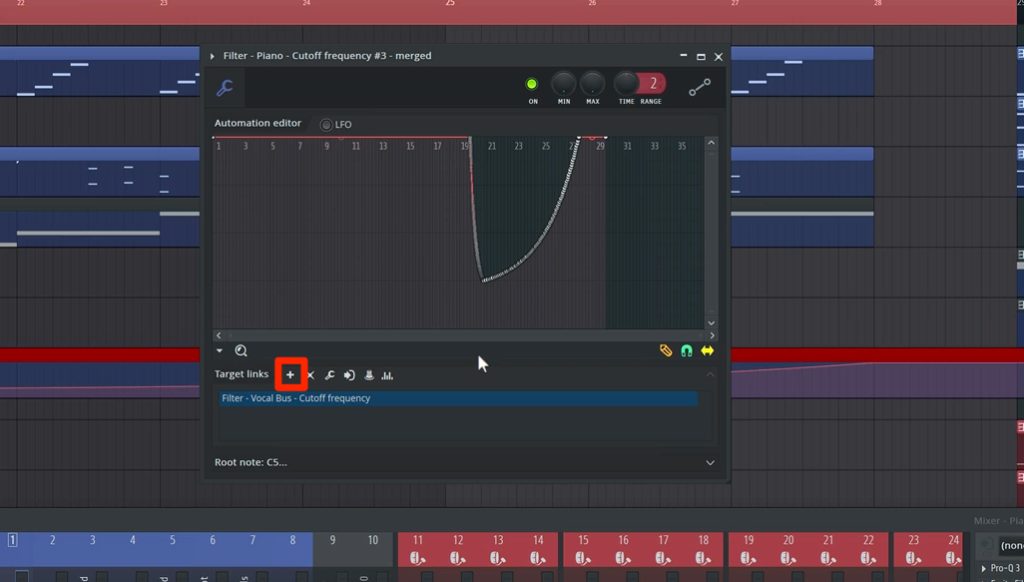
Double-click the automation you want to apply to open it.
Then click the [+] button at the bottom.
It enters standby, so click the parameter you want to control at the same time.

The parameter is added to the [Target links] list like this.

To remove this setting, just click [×].
It is a powerful feature, especially for genres such as EDM that use a lot of automation.
Project Saving Updates
There are often situations where you want to save the audio files in a project together.
In such cases, you used to need to save the project as a zip file,

but from this version, checking [Copy used samples to the project folder] when saving a project lets you save it including the audio files in use.
Patcherize, Which Puts Things into Patcher
The Channel Rack has also been updated, and you can now place instruments into Patcher afterward.

Select "Patcherize" from the instrument's right-click menu.
This places the open plug-in into Patcher with its settings intact.
If you save that Patcher as a preset, you can call it up anytime in any song, which is convenient.
Arrangement View Updates

You can now add tracks with the [+] button at the top left of the arrangement view.
Selecting a plug-in creates an instrument track, and right-clicking "+" adds an audio track.
It is very convenient because you can create tracks quickly!
That concludes our explanation of the new features in FL Studio 21.
The greatest appeal of FL Studio is its specialization in particular genres.
In particular, for loop-centered workflows that make heavy use of audio samples, such as hip-hop and EDM, it stands a head above other companies' products.
And this update has further sharpened that strength.
Also, thanks to FL Studio's "Lifetime Free Updates," once you buy the product, you can update it free of charge for life.
This is a big attraction in terms of cost as well.
A trial version of the product is also available, so you can try FL Studio for free.
If you are curious about what FL can do, we encourage you to try it.
Thank you for reading to the end!

Frequently Asked Questions
Q1. How is the audio fade function in FL Studio 21 different from older versions?
Fades were possible in older versions, but in FL Studio 21 you can apply fade-ins and fade-outs more simply and intuitively just by moving the buttons at the top of the audio clip. The operation is much easier.
Q2. What are the benefits of using the Browser's tag feature?
The tag feature lets you classify and manage frequently used samples and quickly reach the samples you want. You can spend the time you used to spend searching for samples on making music, greatly improving workflow efficiency.
Q3. What are the features of the LuxeVerb reverb plug-in?
LuxeVerb can create sounds such as shimmer reverb, which previously required combining several plug-ins, on its own, and its Envelope section can automatically adjust the wet signal according to the dry signal. You get high-quality reverb effects while keeping sources such as vocals clear.
FL Studio 21 major update! A roundup of new features
It adds many features useful for beat making and features that help streamline your workflow.
Here, we explain together the new features and changes we felt were especially important.
Video: https://t.co/oZCeAoj8jJArticle: https://t.co/iEFrr3Xz3q#DTM #Flstudio pic.twitter.com/oM1AmHDsM0
— SLEEP FREAKS (@SLEEPFREAKS_DTM) February 4, 2023
NEW ARTICLES
Latest English Articles











