Fade-ins and fade-outs in FL Studio are easy to set up using the automation function. Beyond adjusting the volume of individual tracks, applying fades to the whole song's 2-mix during mastering gives a professional finish. This article explains how to create an automation clip from the Mixer and draw a volume curve by adding points. Mastering this technique, essential for remixing and mastering, enables more polished productions.
Fades, Used Heavily When Remixing and Mastering
Fade-ins and fade-outs are operations that control volume.
- Fade-in: an effect where the volume gradually rises
- Fade-out: an effect where the volume gradually falls
Besides doing them per track, there are many cases where you apply fade-ins and fade-outs
to the 2-mix containing the whole song.
Here, let's look at how to do fade-ins and fade-outs (fades).
Setting Fade-Ins and Fade-Outs
Fades are done using "automation."
Automation is also explained in detail in the following article, so please read it as well.
Here, let's apply a fade to the 2-mix of the whole song.
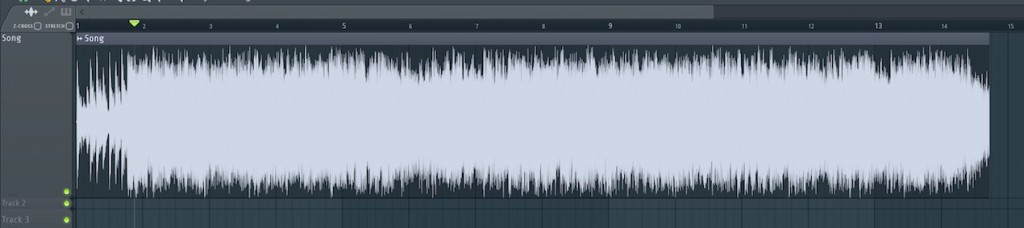
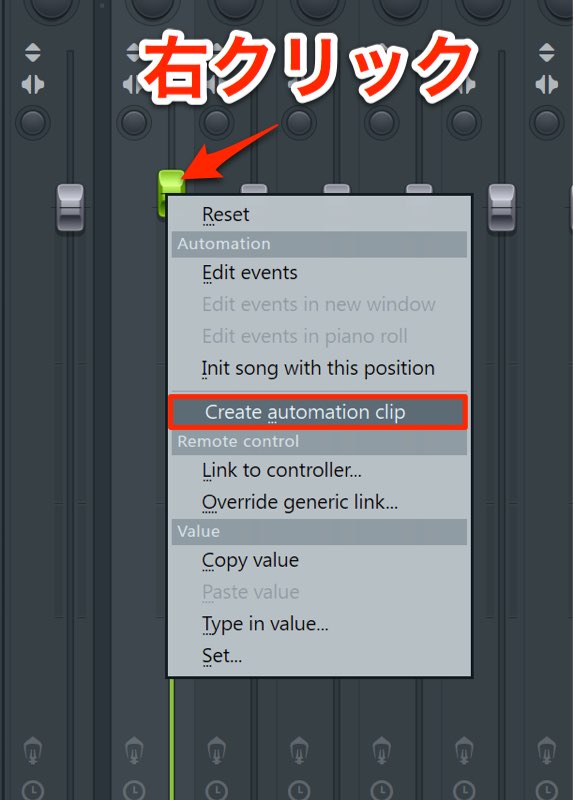
Go to the Mixer,
and right-click the volume of the track to which the audio above is assigned.
Select "Create automation clip" from the menu.
You can now draw automation on the clip in the playlist.
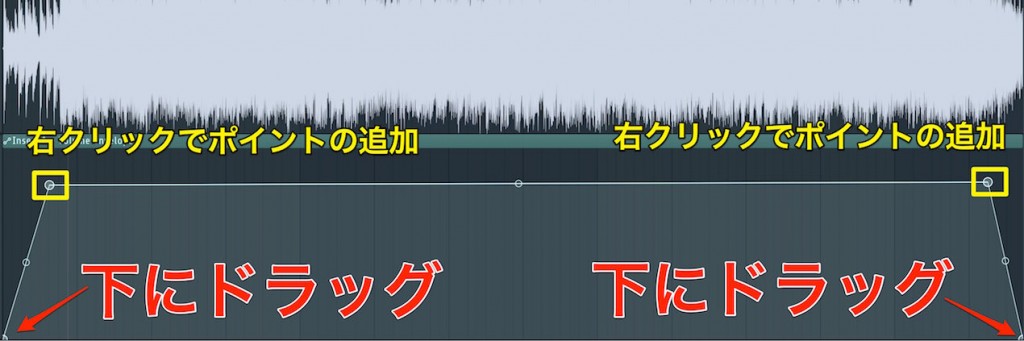
Right-click to add points and move them up or down to control the volume.
This time it's a fade-in/out, so set it so the volume slowly rises at the beginning
and slowly falls at the end.

Frequently Asked Questions
Q1. What do I use to set fade-ins and fade-outs in FL Studio?
Use the automation function. Right-click the volume in the Mixer and select "Create automation clip" to create an automation clip in the playlist, and you can then adjust the volume by adding points.
Q2. Can fades only be used per track?
No. Besides per-track settings, it's common to apply fades to the 2-mix containing the whole song. Applying them at the mastering stage lets you finish the beginning and end of the song effectively.
Q3. Can I adjust the length of a fade-in or fade-out?
Yes. By adjusting the position and timing of the automation points as you move them up and down, you can freely control the length and slope of the fade. Both slow, gentle fades and quick fades are possible.
NEW ARTICLES
Latest English Articles