
Managing effect presets in FL Studio makes music production more efficient. A major benefit is that saving frequently used plug-in settings as templates saves you from repeating the same steps every time. This also works with VST plug-ins such as Waves Q10, and saved presets can be recalled easily from the plug-in window or from Plugin presets in the browser. This workflow improvement speeds up production and creates an environment where you can focus on creating.
Save frequently used plug-in settings and recall them easily
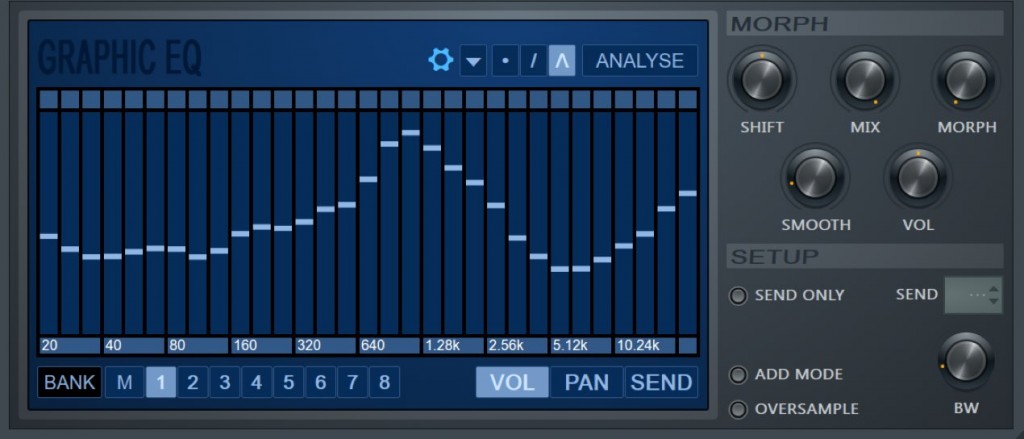
As you work, you will notice that there are plug-ins and settings you use often.
If you find yourself repeating similar steps every time,
it is convenient to turn those settings into a template so you can recall them right away.
Here we explain how to set up and manage plug-in presets.
Saving settings
This preset management can also be used with VST plug-ins you have added.
This time we will use Waves "Q10" as an example.

First, adjust the plug-in settings the way you like.
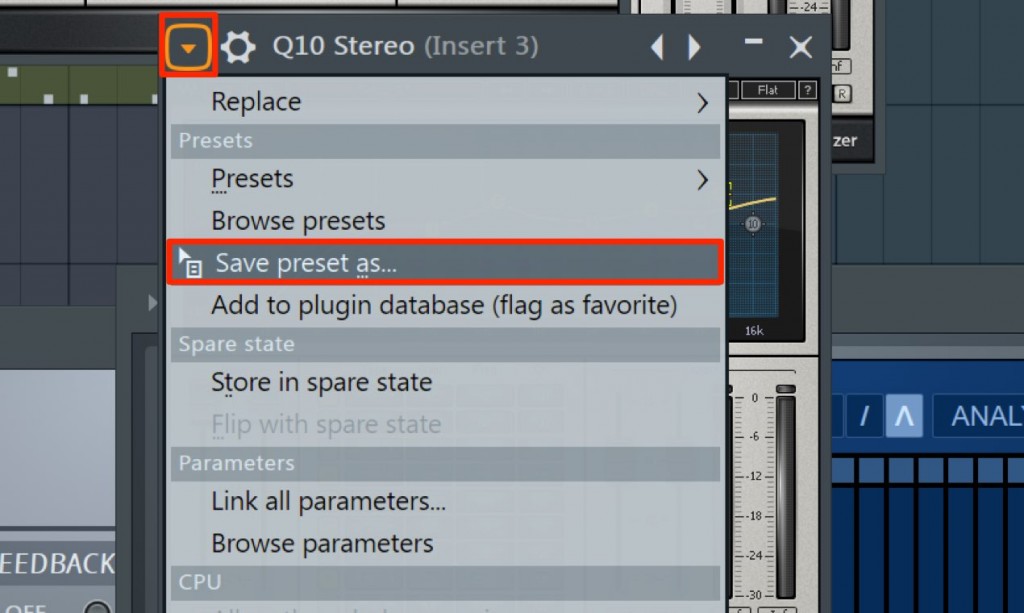
Click the icon at the top of the plug-in and select "Save preset as".
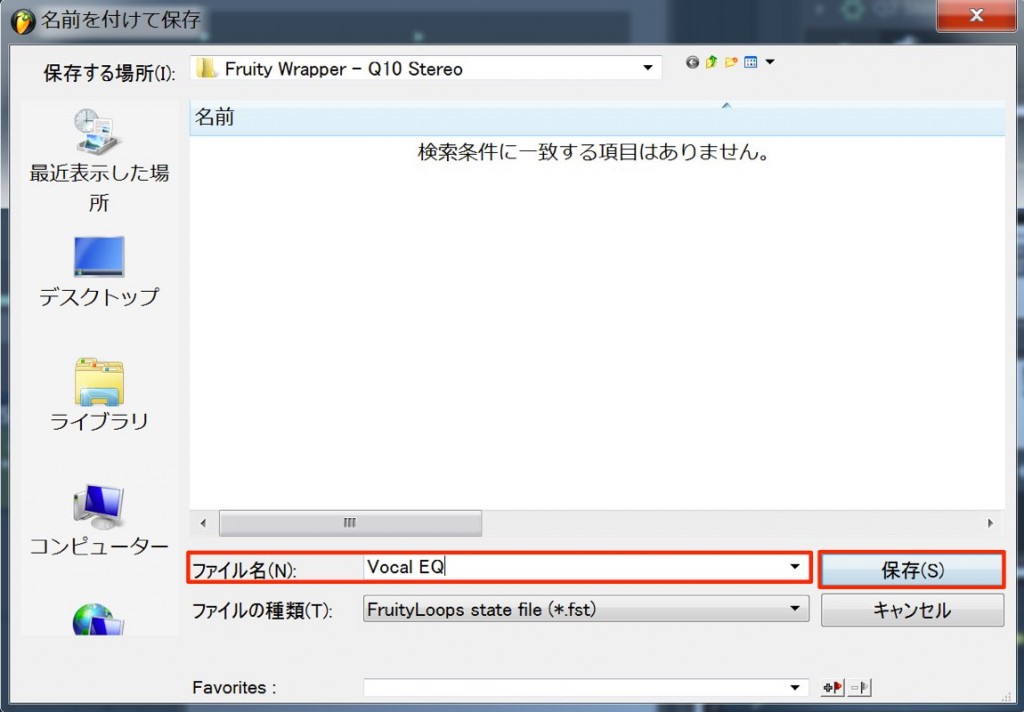
Give it any name and save it.

To recall a preset,
click the icon again and use "Presets".

Presets also appear under "Plugin presets" in the browser,
so you can apply them to a channel from there as well.

Frequently Asked Questions
Q1. Does FL Studio's preset function also work with additional VST plug-ins?
Yes, the preset management function can also be used with VST plug-ins you have added. Many plug-ins, including Waves products, are supported, and you can save and recall settings the same way.
Q2. Where can I recall saved presets from?
You can recall saved presets by clicking the icon at the top of the plug-in and using "Presets". They also appear under "Plugin presets" in the browser, from where you can apply them directly to a channel.
Q3. Are there any tips for naming presets when saving them?
It is important to give names that make the purpose obvious at a glance when you look back later. For example, names that include the character or purpose of the sound, such as "Kick_Bright" or "Pad_Warm", make them easier to manage.
NEW ARTICLES
Latest English Articles











