
This article explains how to export and import SMF (Standard MIDI Files) in Cubase. It walks through the steps for reusing MIDI data in other DAWs and songs, with practical examples such as saving drum patterns, sharing MIDI files with others, and reusing programming in multiple songs. You can also learn the difference between SMF type 0 and type 1 and how to export individual tracks, gaining practical know-how that makes DTM production more efficient.
Export Your Song's MIDI Files
These are the steps for using MIDI files created in a song in other songs and DAWs.
- You want to save a favorite drum pattern.
- You want to give someone just the MIDI file so they can swap in their own sounds.
- You want to bring your programming into another song.
It can be used in many situations like these.
This kind of MIDI file is called an SMF (Standard MIDI File).
The file contains no sounds, only MIDI data, so it is very small.
SMF (Standard MIDI File) Explained
Cubase: How to Export SMF

First, specify the export range in the ruler.
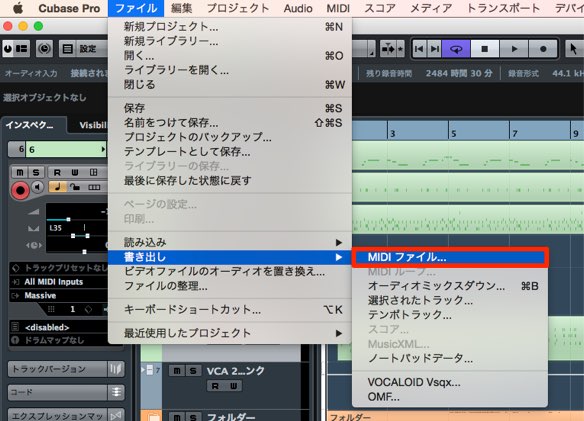
From the top menu, choose "File" → "Export" → "MIDI File."
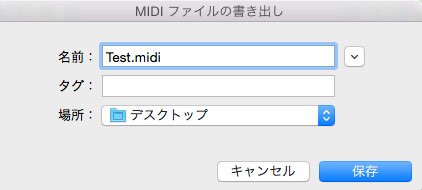
When the dialog appears, choose the export location and name, then press "OK."
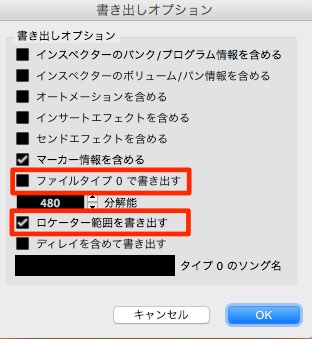
Next, the dialog above appears. Check or uncheck the options as needed and press "OK."
The option to watch out for is "Export as Type 0".
SMF comes in two types: 0 and 1.
- Type 0 packs all MIDI tracks into a single track.
- Type 1 exports each track separately, keeping the track layout of your project.
How to Import SMF
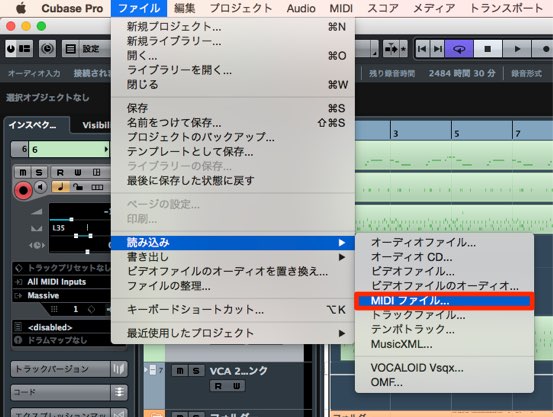
From the top menu, choose "File" → "Import" → "MIDI File."
Alternatively, drag and drop it into the project.
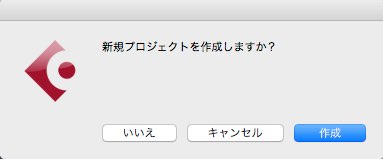
A dialog appears.
- Create: A new project opens with the MIDI file in it
- No: The file is imported into the current project
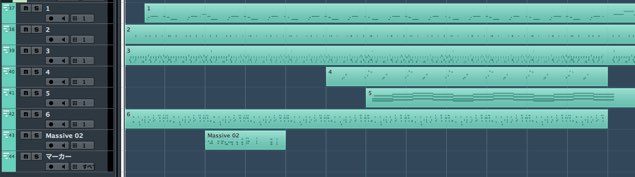
↑ It has been imported perfectly.
Now you can swap sounds or edit the MIDI file.
What If You Want to Export Only Specific Tracks?
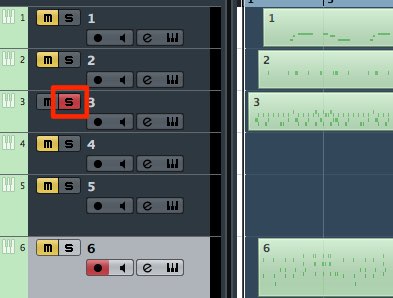
Solo the specific tracks and export in the same way as above.
Frequently asked questions
Q1. How do I export a MIDI file in Cubase?
Specify the export range in the ruler, then choose "File" → "Export" → "MIDI File" from the top menu. You can choose between file type 0 and type 1.
Q2. What is the difference between SMF type 0 and type 1?
Type 0 merges all MIDI tracks into one track. Type 1 exports each track separately, keeping the original project's track layout, which gives you more freedom when editing.
Q3. Can I change the sounds of an imported SMF file?
Yes. Imported MIDI files contain no sound information, so you can freely swap sounds and edit the MIDI data.
Q4. How do I export only specific tracks?
Solo the tracks you want to export and follow the usual export steps to export only those tracks as an SMF file.
NEW ARTICLES
Latest English Articles











