
This article explains how to add a turntable-like pitch change effect to your songs with Cubase. This technique, often used in hip-hop and R&B, is easy to achieve with the pitch shift function on audio events. By choosing Envelope mode and creating and dragging multiple points, you get highly flexible pitch control over time, letting you create accents and interesting sound effects throughout your song.
Cubase: Pitching Down and Up Within a Song
The kind of sound you often hear in hip-hop and R&B:
a turntable-style pitch-down.
It's really cool, isn't it?
It works very well as an accent in a song.
In Cubase, you can do this easily on audio events.
You can also control pitch freely within a song to create very interesting effects.
How to Set It Up
First, here is the source material.
Let's apply a pitch-down to it.
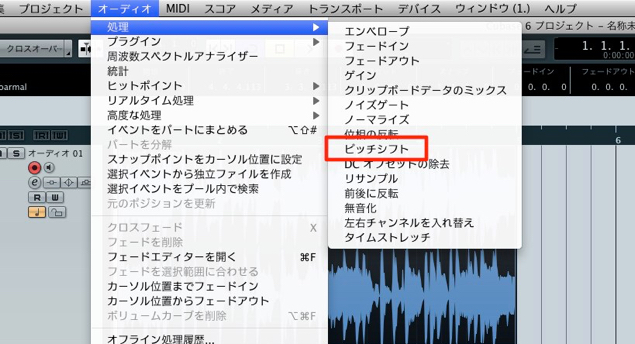
↑ Select the audio event whose pitch you want to change,
then go to Audio → Process → Pitch Shift from the menu bar.
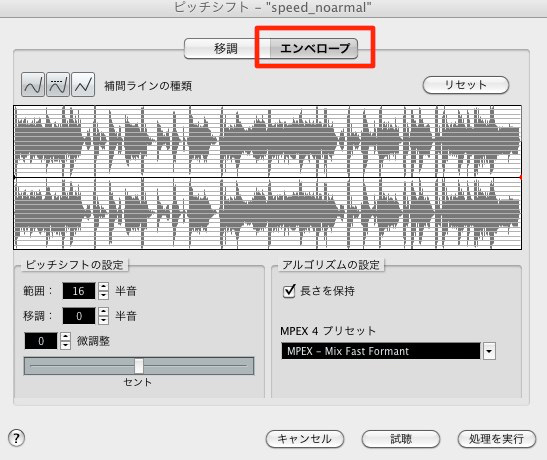
↑ Choose "Envelope" mode,
which lets you adjust the pitch of the event finely over time.
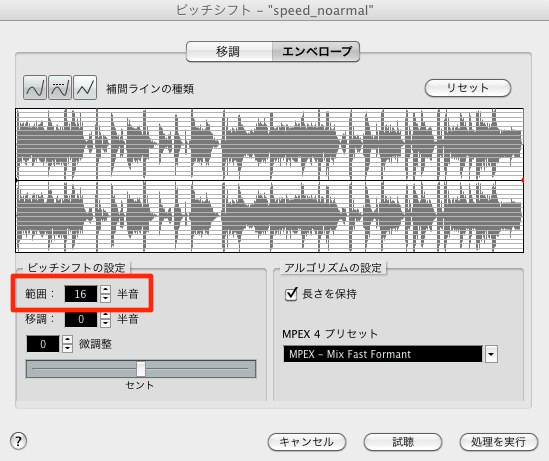
↑ Set the range to the maximum of 16 semitones.
A larger number here lets you change the pitch over a wider range.
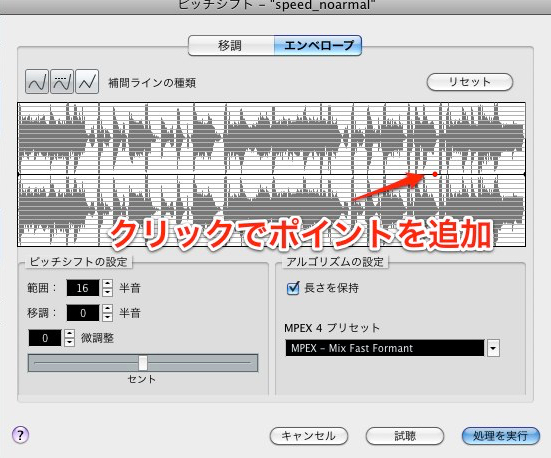
↑ Click in the window to create pitch change points.
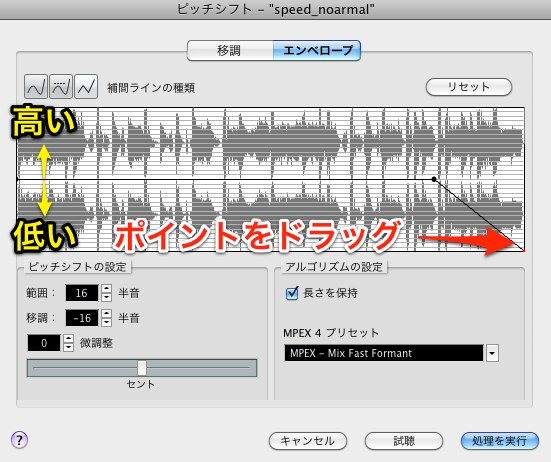
↑ Drag a point to change the pitch.
The pitch changes from the previous point toward the next one.
The middle is the normal pitch; above is higher and below is lower.
The range set above determines how far the pitch can change.
In this case, it is set to 16 semitones,
so the top of the graph is 16 semitones up and the bottom is 16 semitones down.
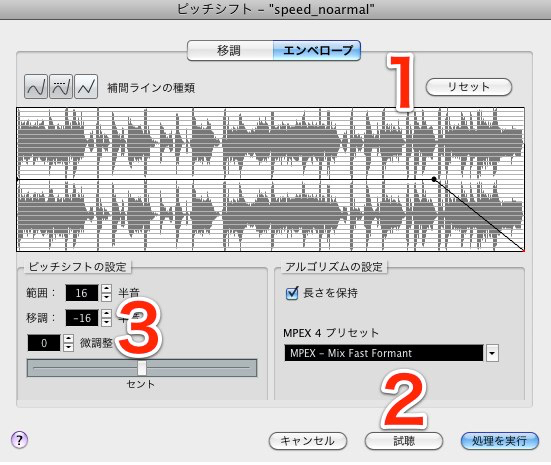
- 1_Deletes all points and curves
- 2_Lets you audition while working, before applying the curve
- 3_Shows the pitch information of the currently selected point.
Pay particular attention to cents. If you end up with an in-between pitch, setting the cents to 0 is a good idea.
Finally, select "Process" to apply the result.
That was a long explanation, but here is how it sounds.
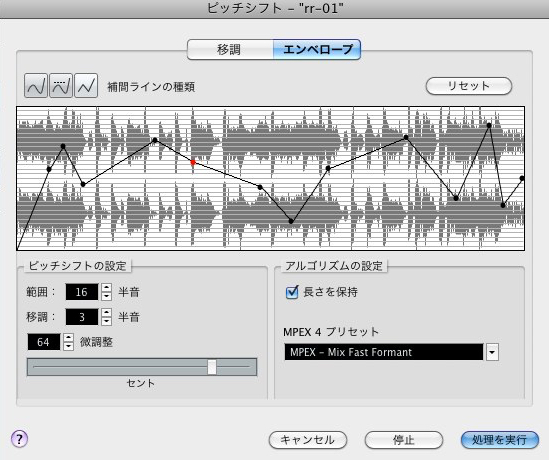
↑ You can add as many points as you like,
so drawing a random curve like this also gives interesting effects.
Frequently asked questions
Q1. How do I create a pitch-down effect in Cubase?
Select the audio event and go to Audio → Process → Pitch Shift from the menu bar. Choose Envelope mode, create points, and drag them to adjust the pitch to achieve a pitch-down effect.
Q2. How do I set the range of the pitch change?
Setting the "Range" to a value such as 16 semitones determines how far the pitch can change. A larger number allows bigger pitch changes for a more dramatic turntable effect.
Q3. Can I create multiple pitch change points?
Yes, you can add as many points as you like. Drawing random curves with multiple points creates more complex and interesting effects.
NEW ARTICLES
Latest English Articles











