
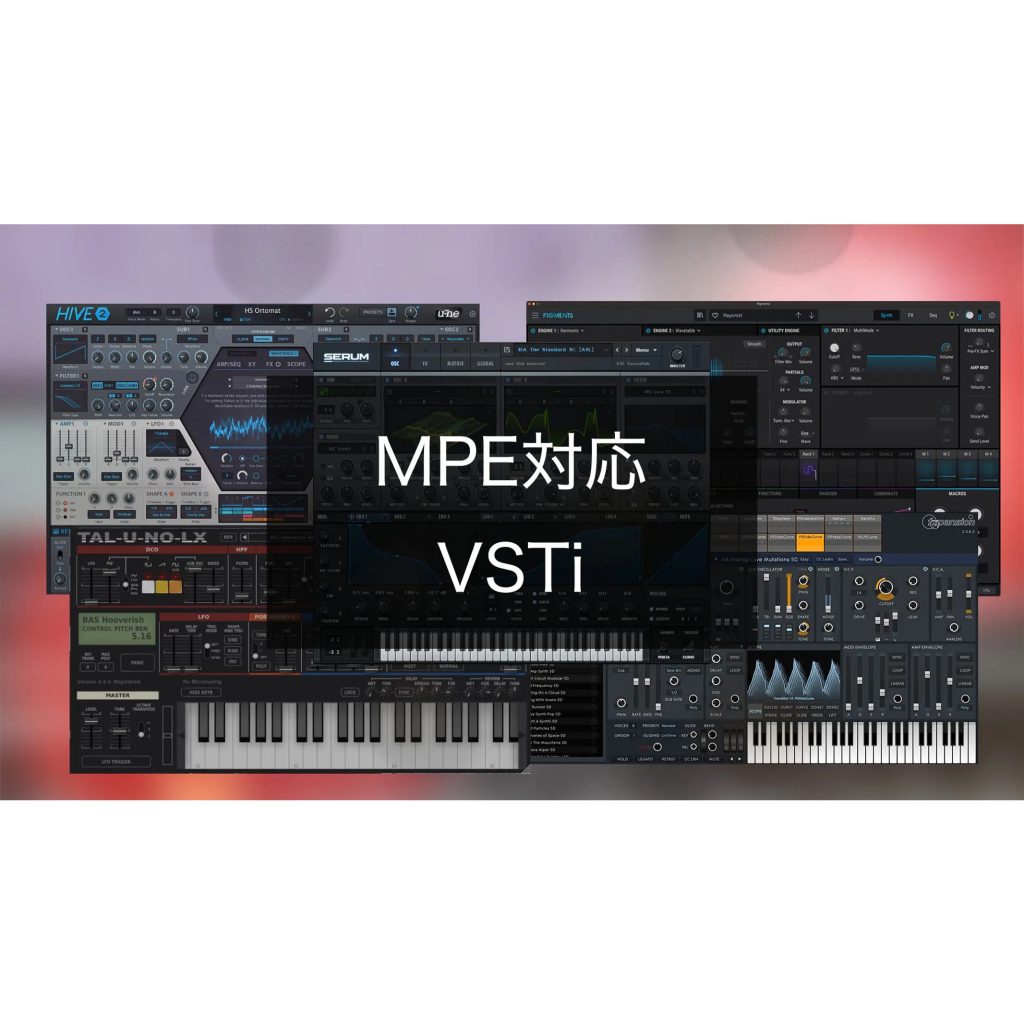
Cubase's Note Expression feature greatly expands expressiveness in MIDI production. Unlike conventional track-level MIDI control, it lets you set pitch, volume and various parameters independently for each individual note. By combining MPE (MIDI Polyphonic Expression) devices and synthesizers, you can achieve finely detailed expression, such as applying a slide only to the melody even when the bass and melody are played on the same track. This article explains practical usage from setup to real-time recording, essential knowledge for producers who want to recreate acoustic instruments or achieve advanced synthesizer expression.
Note Expression Widens the Range of Performance Expression
When programming with MIDI, MIDI controls such as pitch bend and the modulation wheel are indispensable.
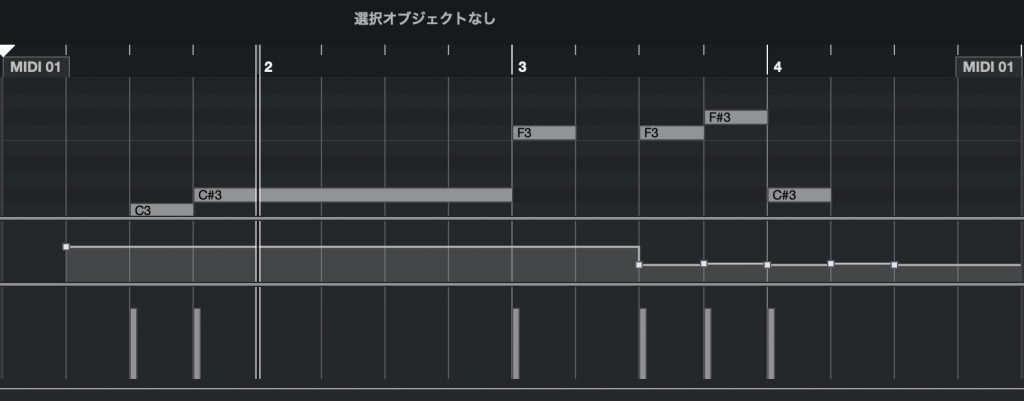
The "Note Expression" feature in Cubase covered here lets you widen the expression of such MIDI performances even further.
What exactly is Note Expression?
And how do you use it? We will focus on these points.
What Is Note Expression?

Note Expression is a feature that lets you set MIDI performance information such as pitch, volume and control changes on notes rather than on tracks or events.
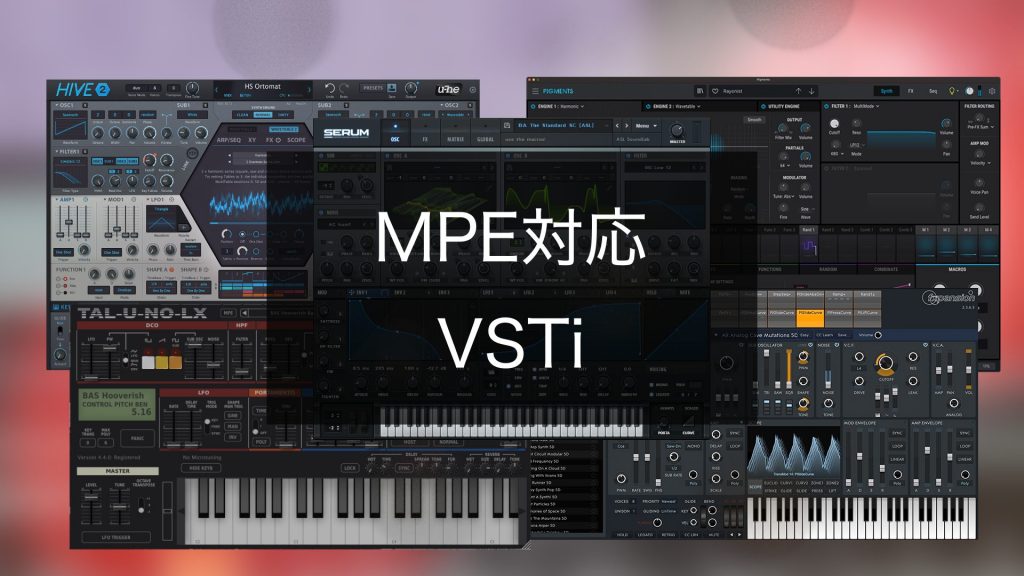
A standard similar to Note Expression is MPE (MIDI Polyphonic Expression), and products that support MPE can use the Note Expression feature.
What Can You Actually Do?
Here are some examples of using Note Expression.
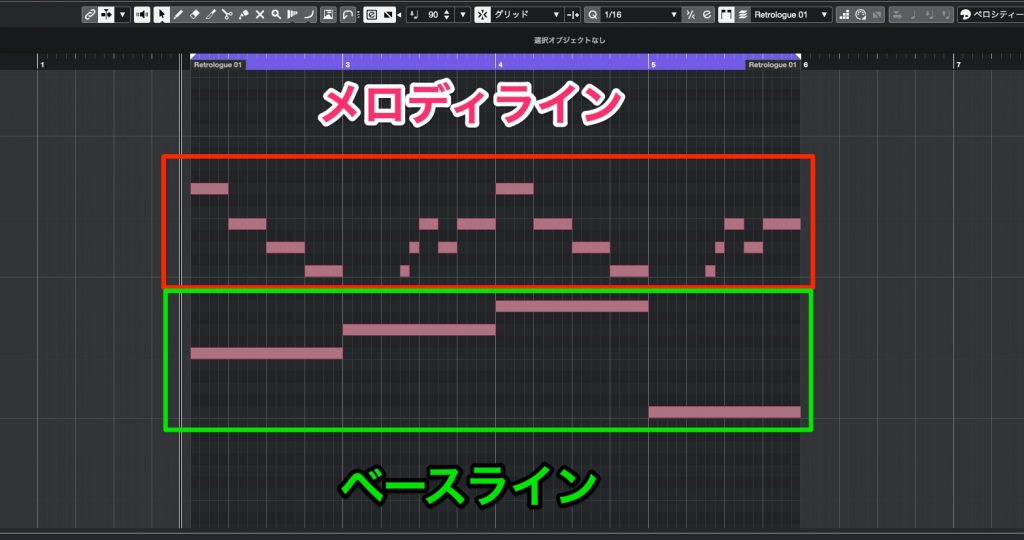
Consider a case where the bass and melody are played on a single track.
If you want to apply a slide only to the melody notes here,
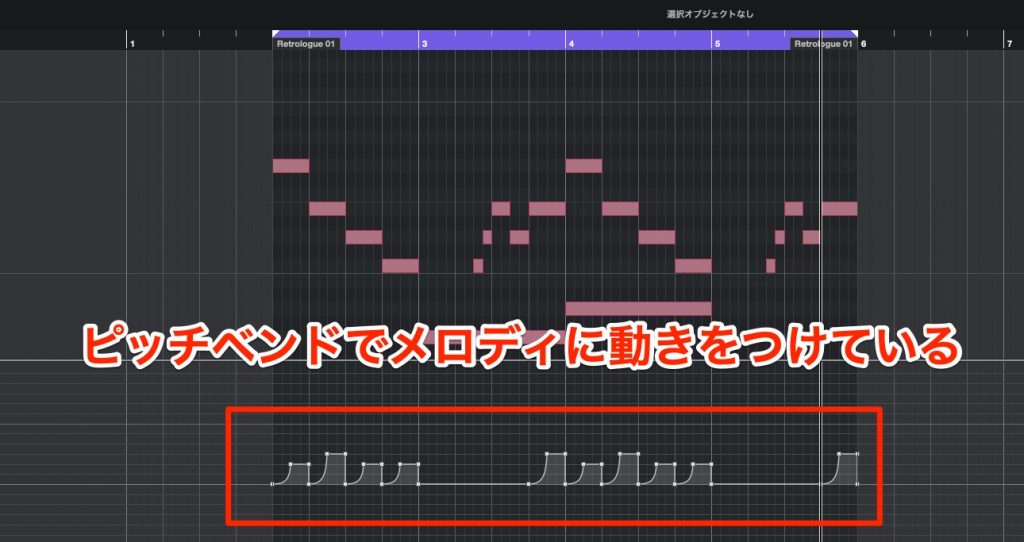
the pitch of the accompaniment notes changes along with the melody.
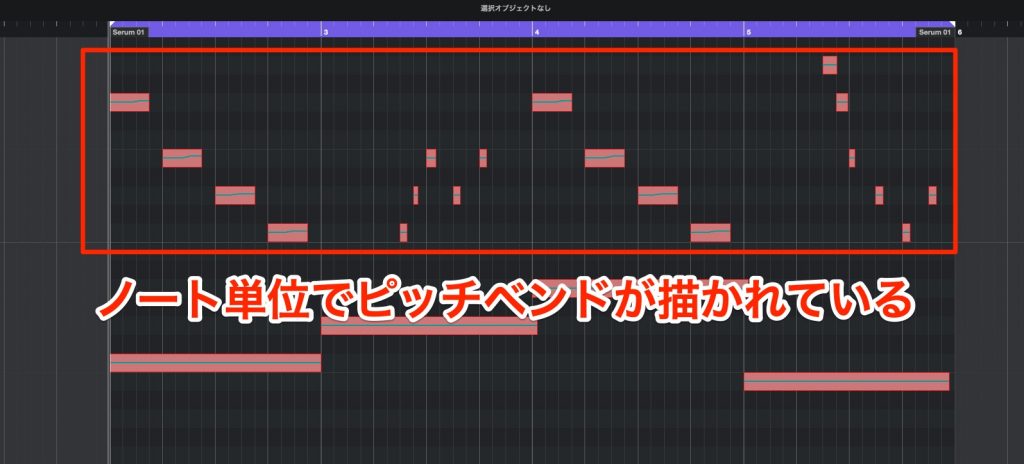
With Note Expression, you can change the pitch for each note.
In this case, you can apply a pitch curve only to the melody (specific notes).
Note Expression's hallmark is that it offers expression and convenience impossible with conventional MIDI control.
Setting Up Note Expression
Here are the actual steps to set up Note Expression.
One thing to note is that the instrument you use must support Note Expression.

Here, we use the MPE-compatible synthesizer "SERUM."
Settings differ by product, but to use Note Expression, you need to switch the instrument to MPE mode.
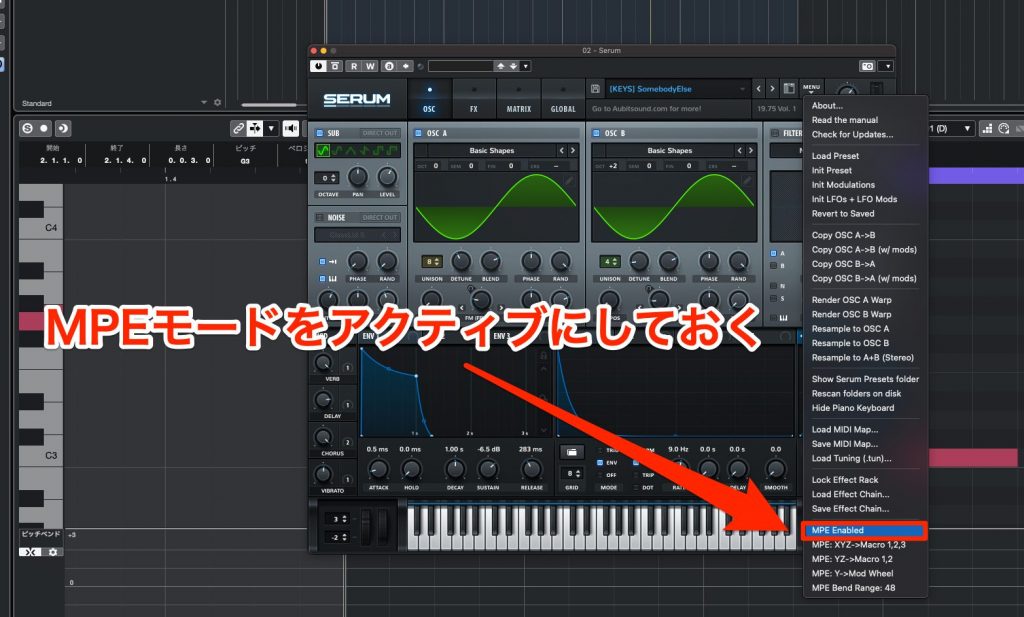
In SERUM, check [MENU] > [MPE Enabled].
Showing the Note Expression Editor
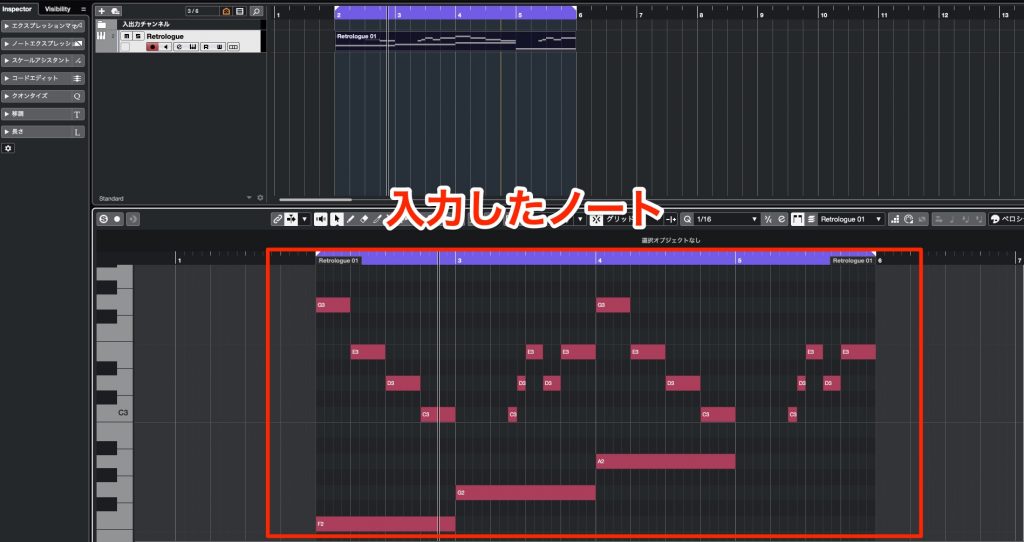
First, create a MIDI event and enter MIDI notes.
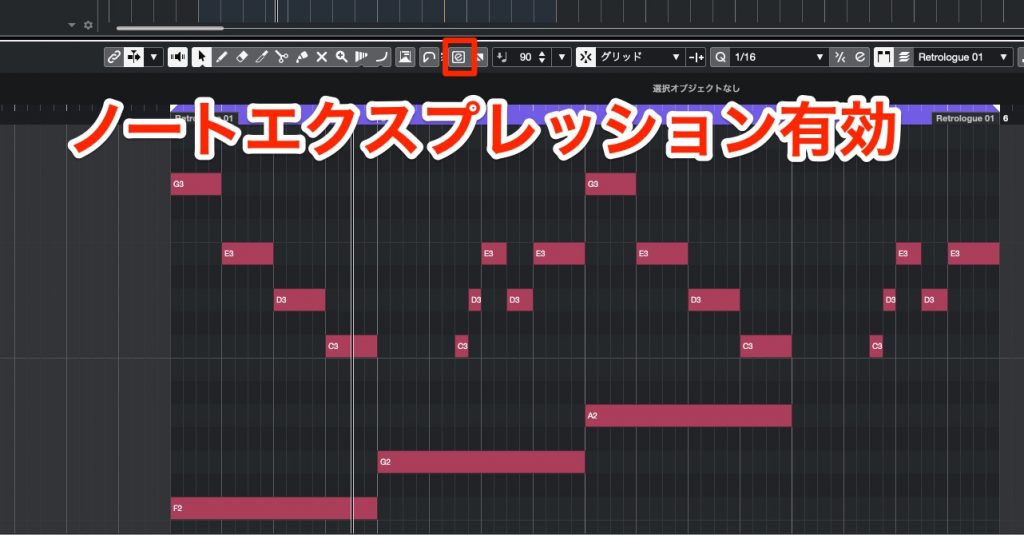
Turn on the [e button].
If this "e button" is not shown,
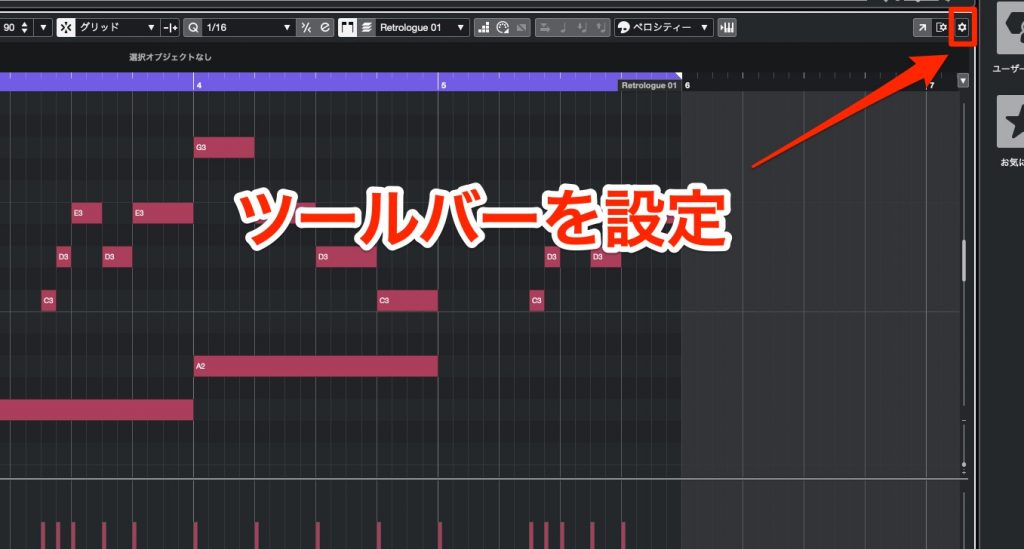
press the gear icon [Set up Toolbar] at the top right.
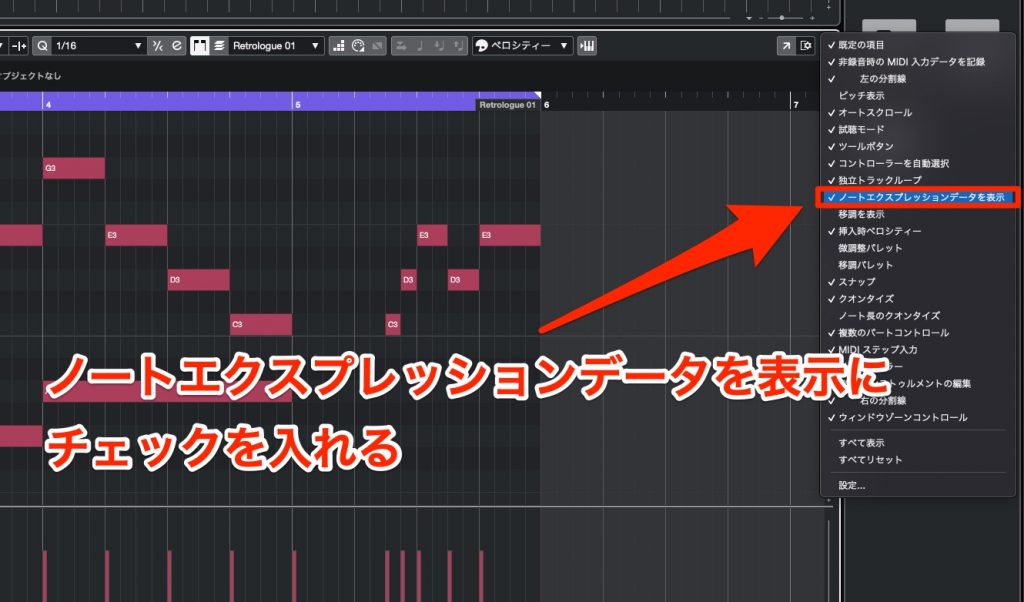
Check [Show Note Expression Data].
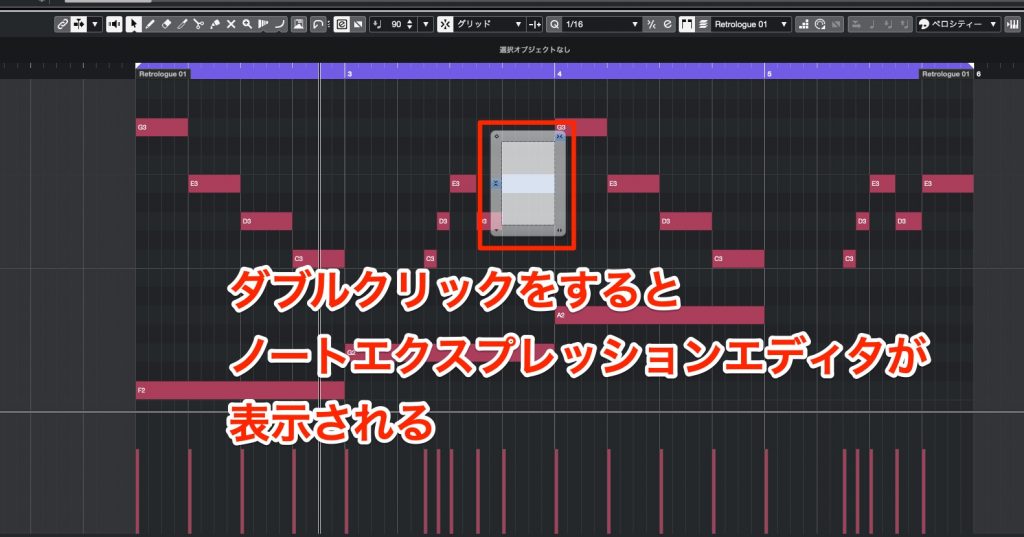
Double-clicking the target MIDI note lets you show and edit the Note Expression editor.
Selecting What to Edit
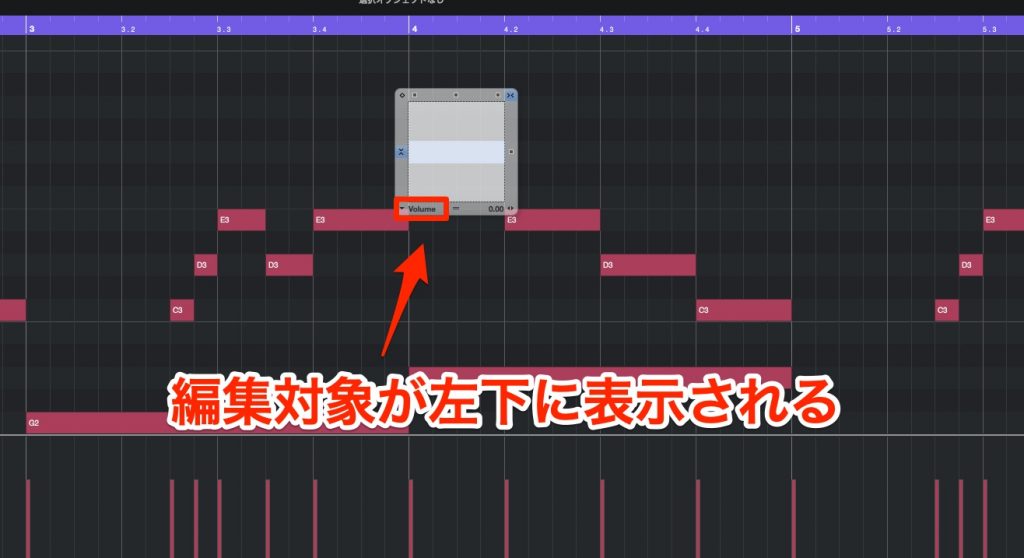
For each note, you can operate and edit the various parameters the instrument supports, such as pitch and volume.
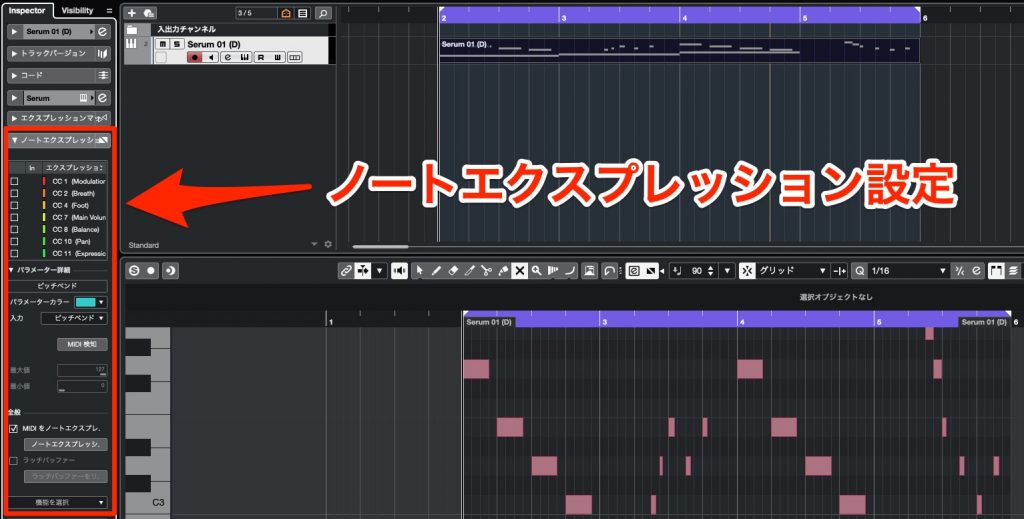
Specify the item to edit in [Note Expression] in the Inspector.
If Note Expression is not shown in the Inspector,
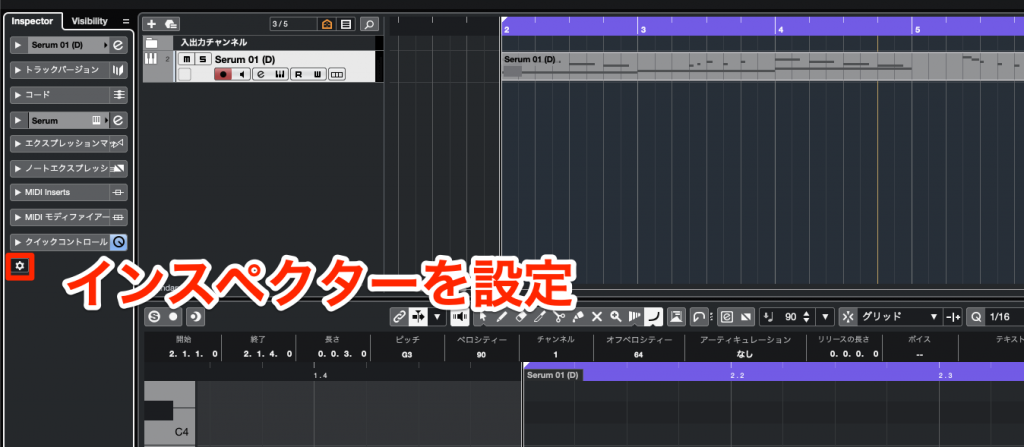
click [Set up Inspector]
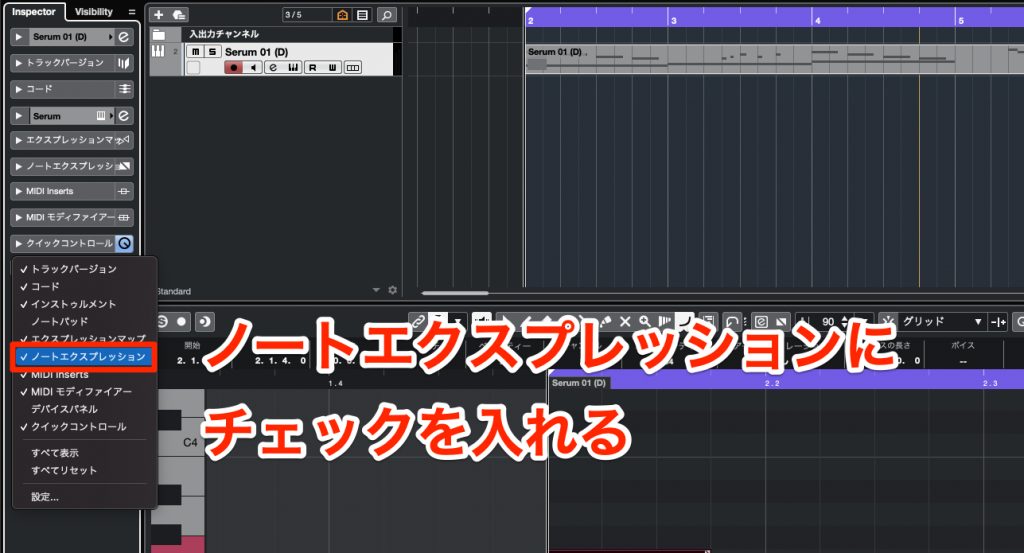
and check [Note Expression].
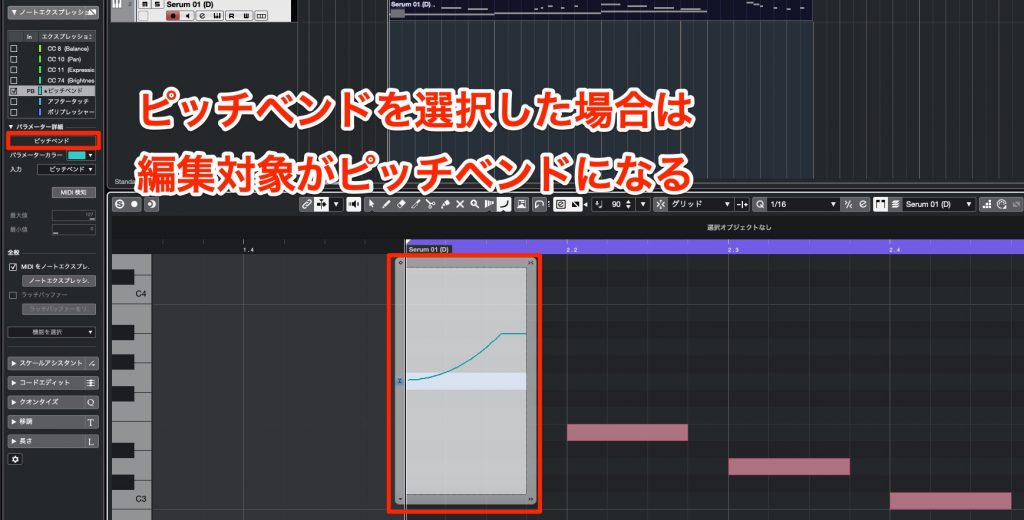
Selecting the item you want to edit switches the note parameter display.
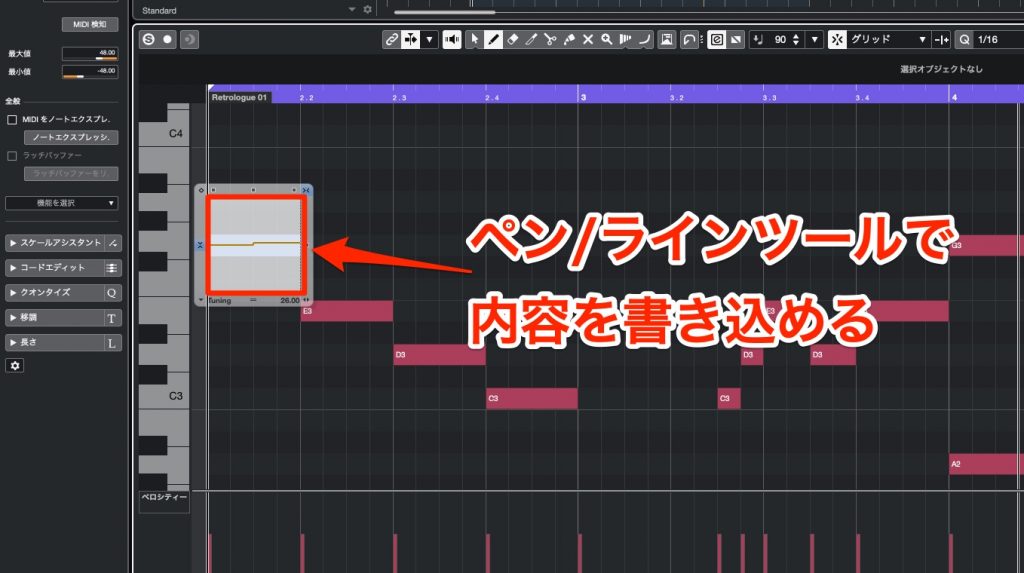
After selecting the item to edit, write in the values with the Draw/Line tool.
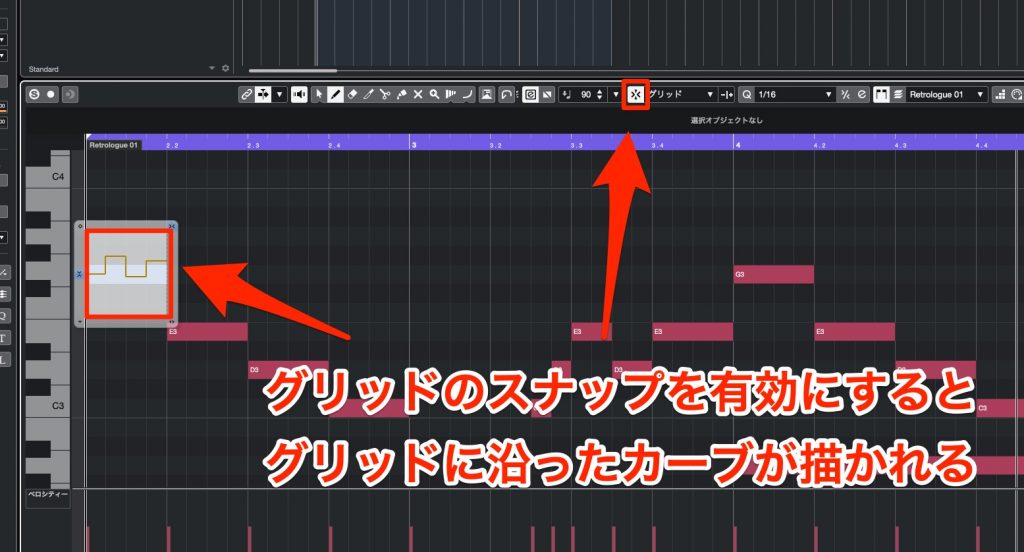
Turning on [Snap to Grid] syncs the resolution of written values to the quantize value.
If you do not need this sync, it is a good idea to turn snap off.

Dragging the points shown in the frame lets you fine-tune the curve, for example tilting or flattening the line.
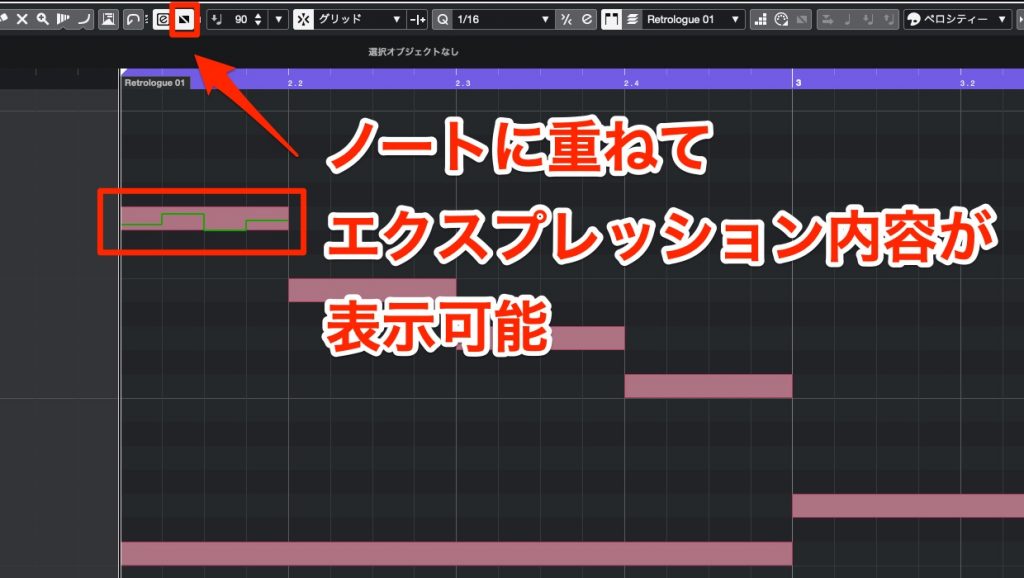
The expression curves recorded on notes are shown inside the notes when you turn on [Show Note Expression Data].
It also makes them easier to grasp visually, so we recommend enabling it.
Recording Note Expression with an MPE Device
Next, let's look at how to capture Note Expression's rich expression by recording in real time.
To do this, you need a MIDI controller that supports MPE (MIDI Polyphonic Expression).

Here, we use the MPE-compatible ROLI "Seaboard."
Setting Up the MPE Device
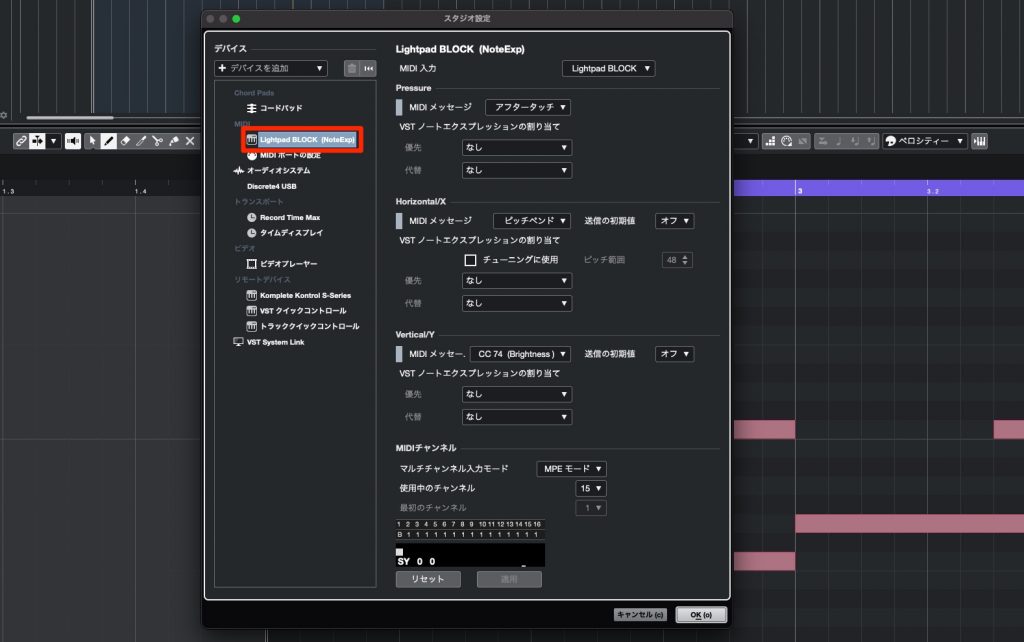
When you connect an MPE-compatible device to your computer, it appears in the [MIDI] list in Studio Setup.
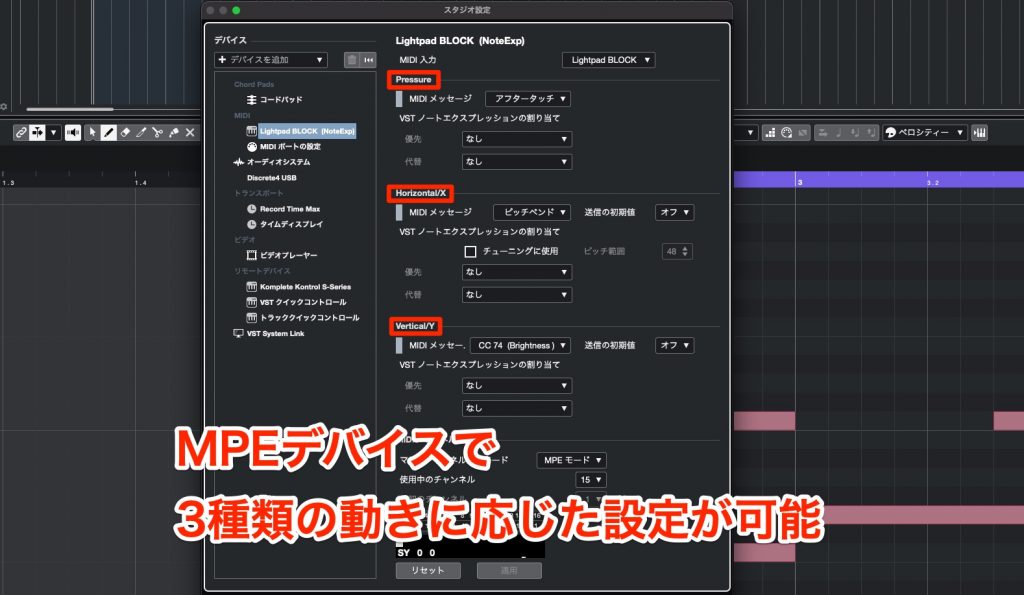
As shown, you can set up the three parameters that can be controlled with the MPE device.

[Pressure]: what signal is sent when you press into the controller?

[Horizontal/X]: what signal is sent when you move left and right?

[Vertical/Y]: what signal is sent when you move up and down on the MPE controller?
These are the items.
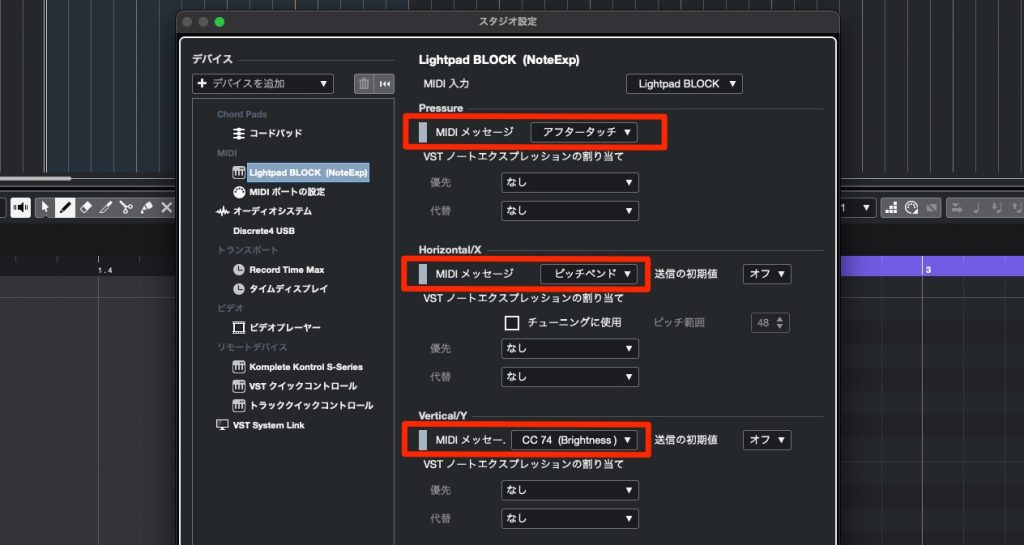
Here, we set them as follows.
- [Pressure = Aftertouch]
- [Horizontal/X = Pitchbend]
- [Vertical/Y = CC74 Brightness]
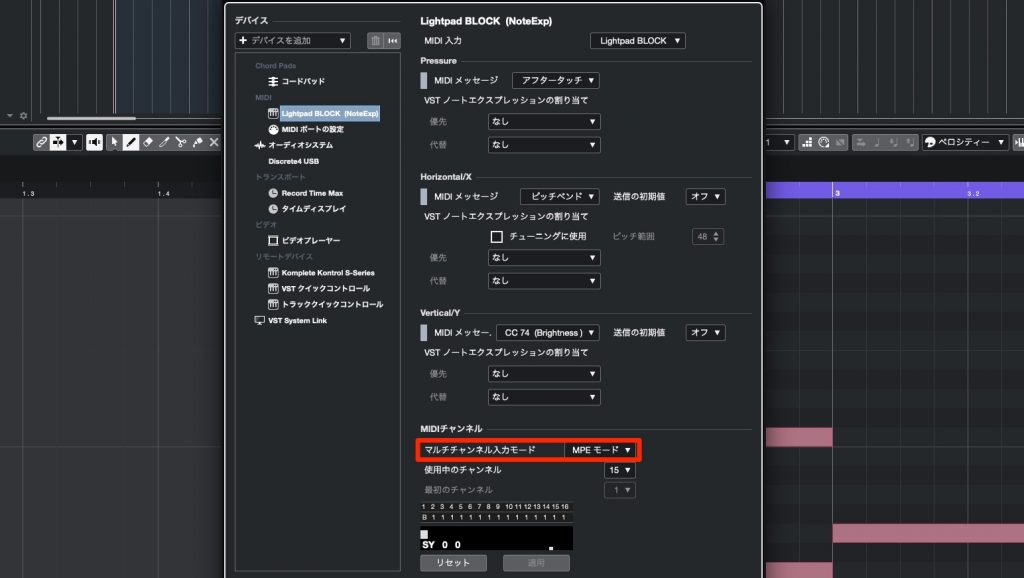
Also set the MIDI channel's "Multi-Channel Mode" to [MPE mode].
Setting Up the Instrument Track
Next, set up the track you will record on.
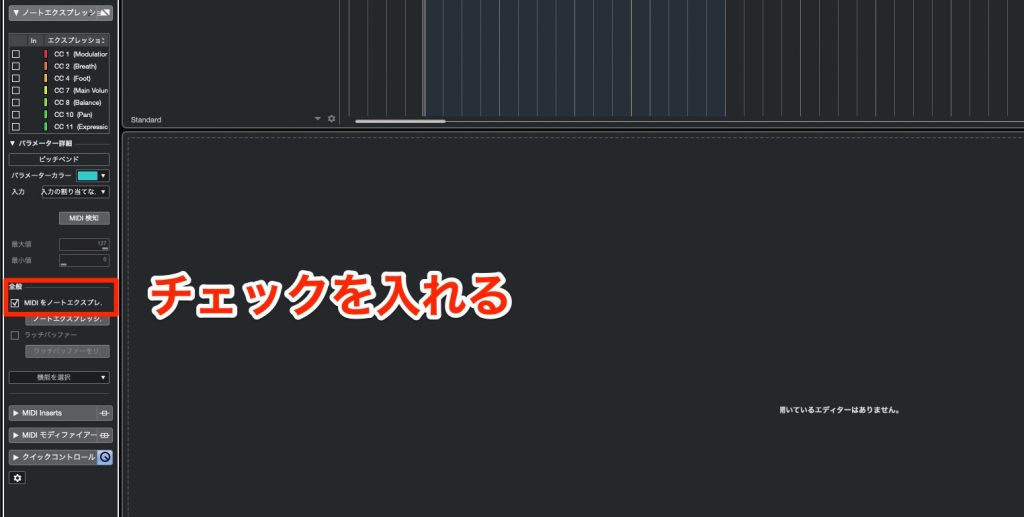
Check [Record MIDI as Note Expression].
The MPE performance is now reflected in Note Expression.
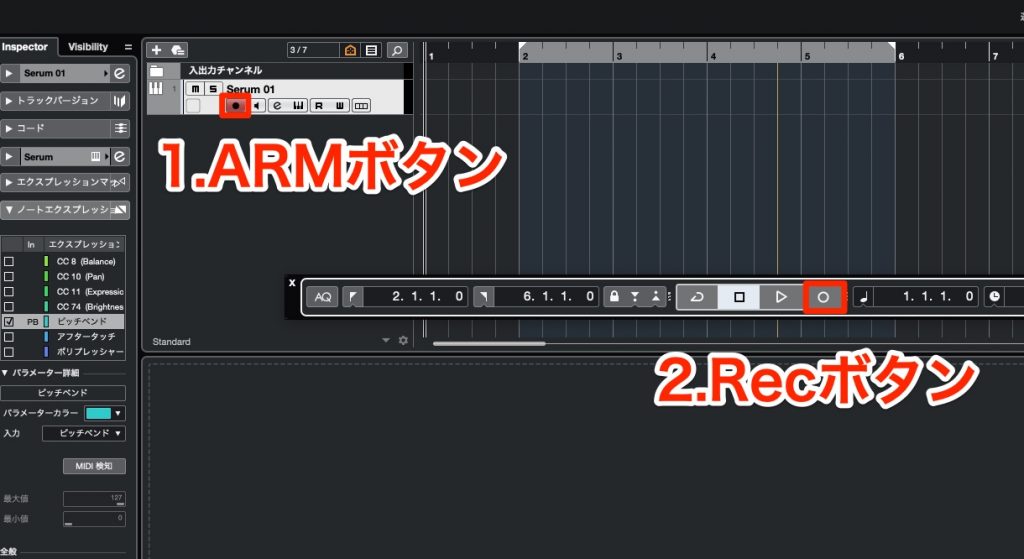
The rest is the same as regular MIDI recording.
Turn on the track's [Record Enable button], press the record button in the Transport and play.
Checking That Note Expression Was Recorded
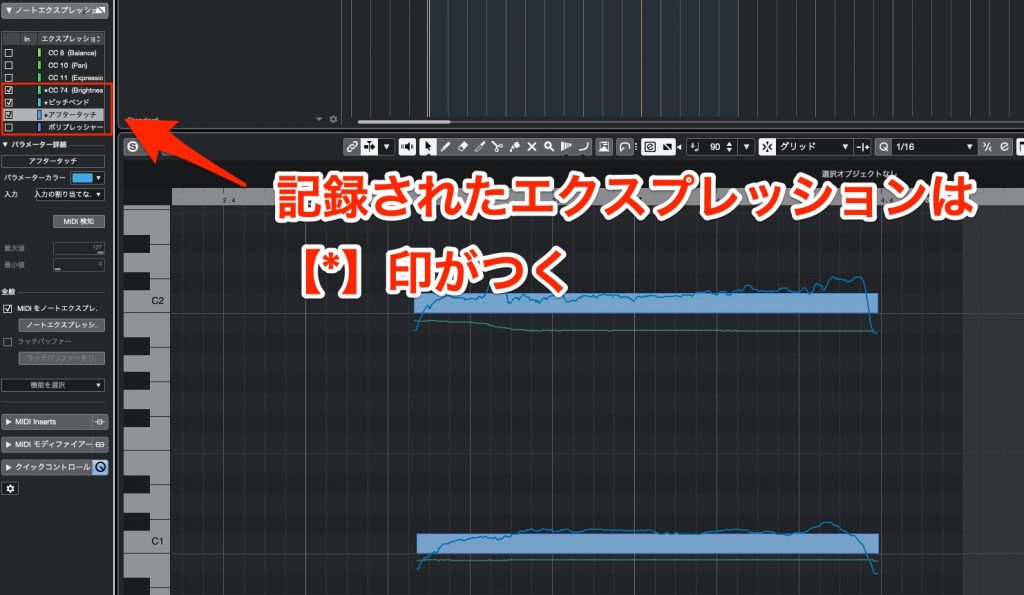
After recording, check the Inspector, and an [*] appears to the left of the Note Expression names.
This indicates items whose signals were recorded by the MPE device.
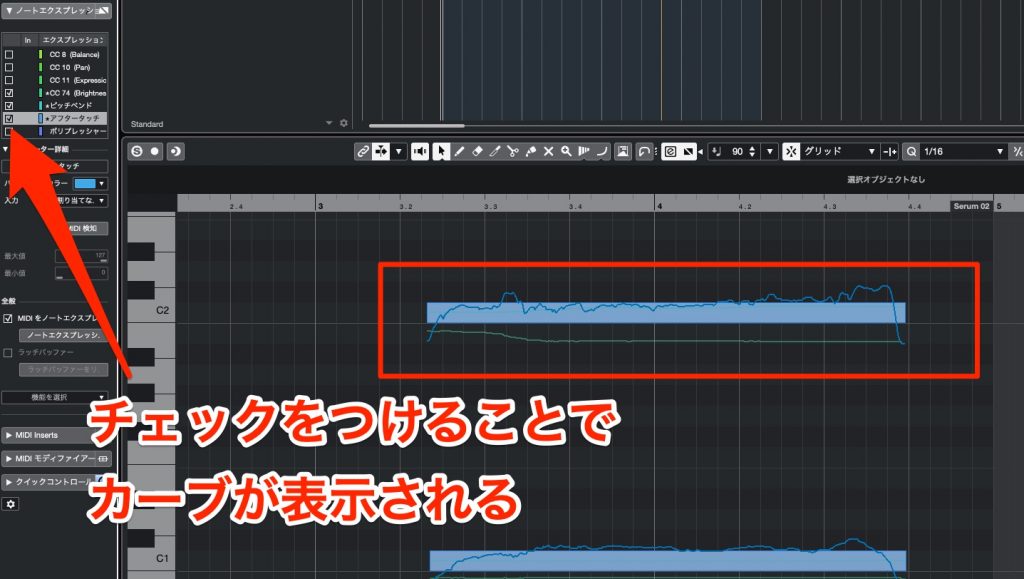
Checking an item shows its curve in the editor.
What did you think?
In recent years, more and more products and devices support MPE, so I think there will be more situations to make use of Note Expression.
This article used a synthesizer track for explanation, but Note Expression is also suited to recreating acoustic instruments, which require a lot of pitch expression and expression techniques, and compatible products are increasing, so I'm looking forward to future developments.
Please consider bringing it into your production!
Frequently Asked Questions
Q1. What equipment do I need to use Note Expression?
You need a synthesizer or plug-in that supports Note Expression, and an MPE-compatible MIDI controller. You need to choose compatible products such as Serum (synthesizer) and Seaboard (MIDI controller) introduced in the article.
Q2. How does it differ from conventional MIDI control (pitch bend and modulation)?
Conventional MIDI control applies to the whole track, whereas Note Expression can be set for individual notes. This lets you add different expression independently to different notes within the same track.
Q3. How do I record Note Expression in real time?
Connect an MPE-compatible MIDI controller to your computer, check "Record MIDI as Note Expression" on the instrument track, and then record your performance in the same way as regular MIDI recording.
Q4. What kinds of instruments is Note Expression suited to?
Besides synthesizers, it is especially suited to recreating acoustic instruments such as piano and violin, which require a lot of pitch expression and expressive techniques, and compatible products are on the rise.
NEW ARTICLES
Latest English Articles











