
This article explains how to use modifier keys to greatly improve your efficiency in Cubase. Combining the Control/Command, Alt/Option, and Shift keys enables many techniques in DTM work, such as moving precisely between tracks, resetting to default values, applying the same value to multiple objects, switching tools, duplicating regions and notes, and fine adjustment. Mastering these shortcuts reduces mouse work and speeds you up, so you can focus on more creative music production.
Modifier Keys: Useful in All Kinds of Situations in Cubase
Cubase Shortcut Mastery, Part 1
Cubase Shortcut Mastery, Part 2

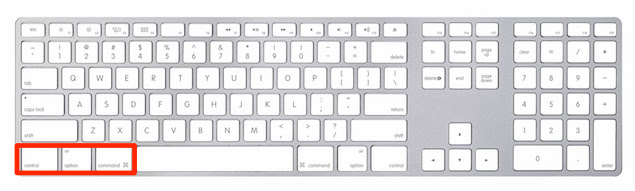
Modifier keys are the keys on your keyboard such as
Control, Alt, and Shift.
Pressing a modifier key on its own does nothing,
but using them together with specific operations has all kinds of effects.
Here are some combinations that are very handy to know.
Mac: Command
Windows: Control
Moving Precisely Between Tracks
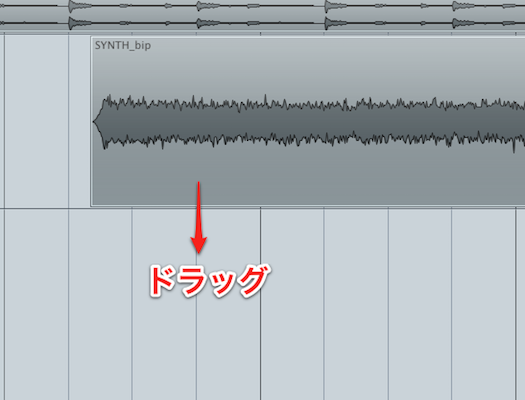
↑ When moving an event to another track, holding this key
prevents it from shifting while you move it, so it lands at the exact position.
Resetting to the Default Value
Hold the key and click a fader or knob
to reset its value to the default.
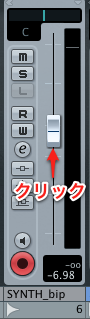
↑ Hold the key and click the volume.
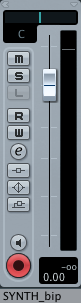
↑ It returns to the default value of "0."
Applying the Same Value to Multiple Items
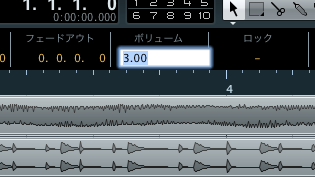
↑ This is numeric entry, which you use often while working.
Normally, when you enter a number for multiple events or notes,
they change relative to their current values.
If you hold the key while entering the number,
all the events or notes are set to the same value.
Event Techniques
Mac: Option
Windows: Alt
Switching to the Draw Tool

↑ When you have the Object Selection tool, the most frequently used tool, selected,
holding the key switches temporarily to the Draw tool.
It is very handy for programming in the MIDI editor.
Duplicating
Hold the key while moving a region or note to duplicate it.
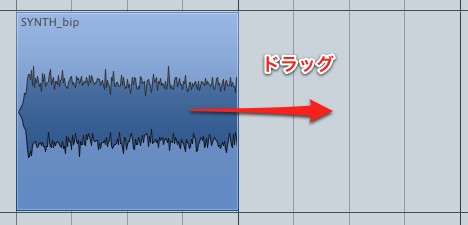
↑ Hold the key and move it to the next bar.
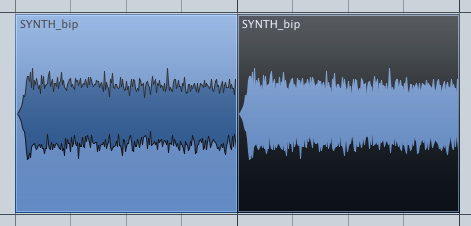
↑ A copy has been created.
You can also copy insert effects and more.
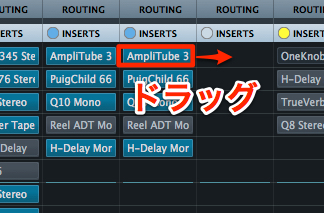
↑ Hold the key and drag the plugin (the number area).
Everything, including the settings, is copied.
Mac/Windows: Shift
Selecting Multiple Regions or Notes
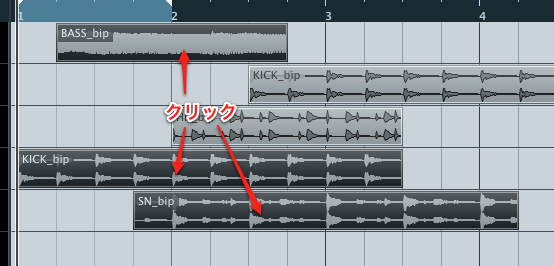
↑ Hold the key and click them one after another.
Fine-Tuning Faders and Knobs
You can fine-tune faders and knobs, which otherwise tend to move too much.
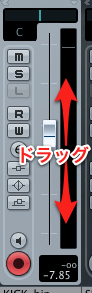
↑ Hold the key and move the fader up or down as usual.
Mac: Option + Shift
Windows: Alt + Shift
Changing the Inputs and Outputs of Multiple Tracks at Once
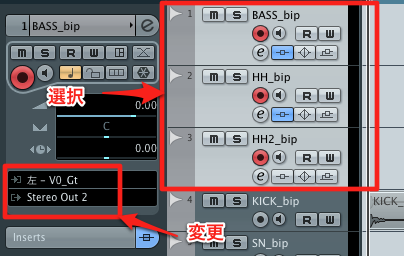
↑ Select the tracks you want to change, then hold the keys and change the input or output.
Frequently asked questions
Q1. How can I switch tools quickly in Cubase with a modifier key?
Holding Option (Mac) or Alt (Windows), one of the modifier keys, switches temporarily from the Object Selection tool to the Draw tool. It is very handy for programming in the MIDI editor.
Q2. How do I reset a fader to its default value in Cubase?
Hold Control (Windows) or Command (Mac) and click a fader or knob to reset its value to the default. For volume, for example, it instantly resets to "0."
Q3. What is the advantage of using the Option key when copying regions or notes in Cubase?
Holding Option (Mac) or Alt (Windows) while moving a region or note creates a duplicate while leaving the original in place. You can easily make multiple copies, and when dragging plugins, everything including their settings is copied, which is efficient.
NEW ARTICLES
Latest English Articles











