
Cubase's macro function is an advanced feature that lets you combine multiple shortcuts and run them all at once. By automating repetitive everyday production tasks, such as making notes the same length after quantizing, applying fades after deleting audio events, or expanding a selection and playing it automatically, you can greatly improve your efficiency. Just create a new macro from the Key Commands menu and add multiple commands, and depending on your ideas, you can build an optimal production environment of your own.
The macro function: combining multiple shortcuts
In Cubase, you can assign a shortcut to almost any operation.
Taking this a step further is the "macro function".
The "macro function" lets you
combine multiple shortcuts and run them all at once.
- After applying quantize, make all notes the same length
- After deleting unnecessary audio events, apply fades
- After expanding the selection, play it back automatically
And so on.
Depending on your ideas, you can greatly improve your work efficiency.
This article will deepen your understanding.
Cubase: how to set up macros
Setting up a macro
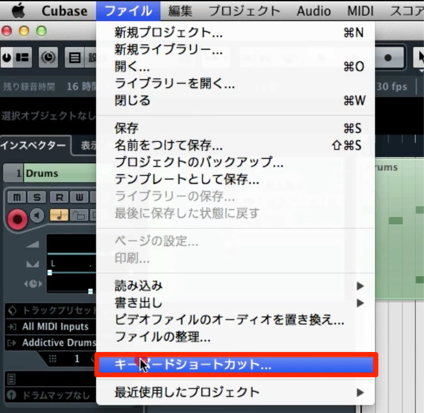
From the top menu, select "File" → "Key Commands."
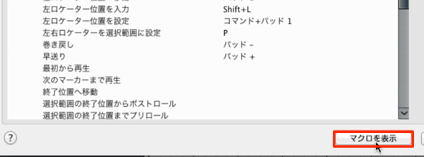
Click "Show Macros" in the window.
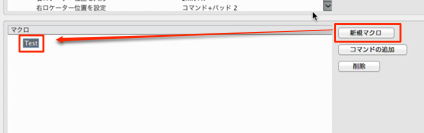
Select "New Macro" and give it a name.
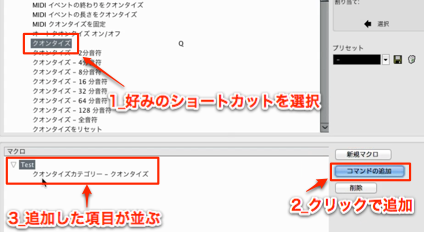
Select the shortcut command you want to add and click "Add Command."
The command is now added to the macro.
Add more commands in the same way.
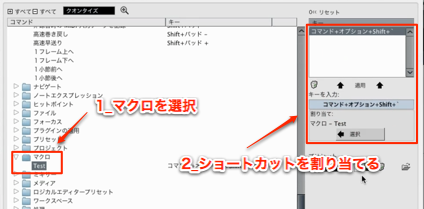
An item called "Macro" has been created,
so assign a shortcut to it.
That completes the setup.
Simply use the macro shortcut while editing,
and all of the added commands are applied.
Frequently asked questions
Q1. What is Cubase's macro function?
It lets you combine multiple shortcut commands and run them at once. You can automate repetitive operations and greatly improve your efficiency.
Q2. How do I set up a macro?
Open File → Key Commands, click "Show Macros," and name a "New Macro." Then add commands, and finally assign a shortcut to the macro itself.
Q3. What kinds of tasks can macros make more efficient?
Multi-step operations such as making notes uniform after quantizing, applying fades after deleting audio, and expanding a selection and playing it automatically can be done with a single key press.
Q4. Are there limits on the commands I can add to a macro?
You can add any command that can be assigned a shortcut in Cubase, so almost unlimited combinations are possible.
NEW ARTICLES
Latest English Articles











