
Using Cubase's send/return function lets you manage CPU-heavy reverb effects efficiently. By sharing one reverb among multiple tracks, you can greatly reduce CPU usage while giving the whole song a sense of unity. Following the specific steps, from creating an FX channel track to setting the send switch, lets you achieve a professional mixdown and get high-quality spatial effects while lightening the load on your computer.
Reverb Puts a Heavy Load on the CPU
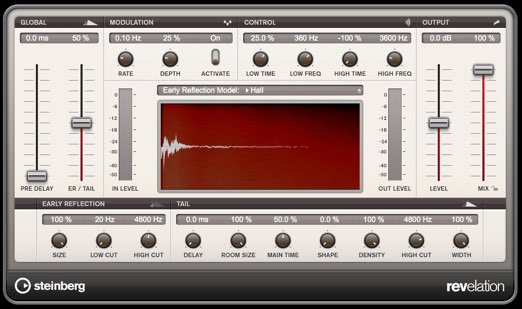
Among plug-ins, reverb places a particularly heavy load on the CPU.
If you insert it on every track,
playback may stop or your computer may become sluggish.
That is where send/return comes in.
This method shares a single reverb among multiple tracks.
Benefits of Using Send/Return
- It saves CPU, as explained above
- Sharing one reverb gives the song a sense of unity
- Turning the reverb on and off is easy (just mute the one reverb)
Send/Return Explained
Here you can understand how send/return works
and its underlying mechanism.
Cubase: How to Set Up Send/Return
The explanation starts at 2:10.
*Cubase 7 is used here, but the setup is the same in all versions.
Send/Return Setup Steps
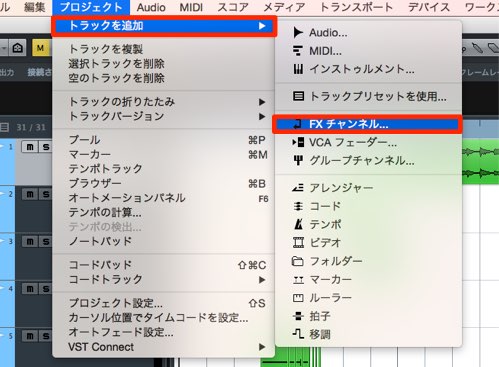
Create an FX channel track from the Project menu as shown in the image.

Set up a reverb on the FX channel track.
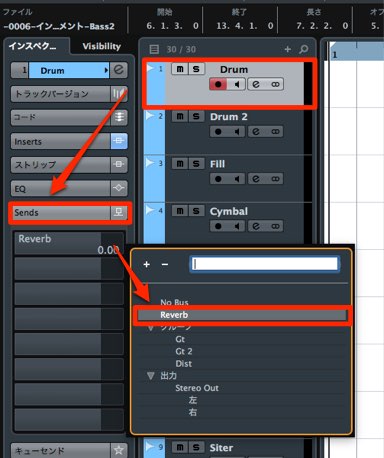
Open the Sends of the track you want to add reverb to.
Click a slot, and the FX channel track created above appears.
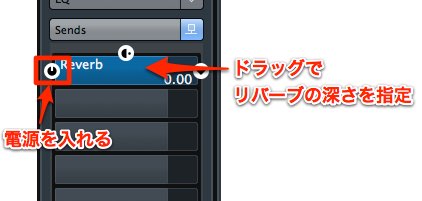
Turn on the send switch so it lights up.
Adjust the depth of the reverb with the slider.
*You can reuse this reverb on other tracks in the same way.
Frequently asked questions
Q1. What are the benefits of setting up reverb with send/return?
There are three main benefits: lower CPU usage, a more unified sound across the song, and simpler on/off control of the reverb. Because one reverb is shared among multiple tracks, the load on your system is reduced and playback becomes stable.
Q2. Please briefly explain the steps for setting up send/return.
Create an FX channel track from the Project menu and set up a reverb on it. Then open the Sends of the tracks you want to use the reverb on, select the FX channel you created, and enable the send switch.
Q3. Is the setup the same in all versions of Cubase?
Yes. The send/return setup is the same in all versions from Cubase 7 onward. The menu layout may differ slightly between versions, but the basic workflow does not change.
NEW ARTICLES
Latest English Articles











