
Cubase's track split function greatly improves your efficiency by keeping specified tracks always visible in the window. It can be used flexibly for purposes such as checking the chord track or markers, comparing with a reference song, and keeping important tracks in view when mixing. You can display multiple tracks by drag and drop, and they stay visible even when you scroll, which makes it especially useful later in production when the track count grows.
Keep Some Tracks Always Visible!!
With the split function, which divides the track display,
you can keep specified tracks always visible in the window.
- You want to be able to check the chord track or markers at all times
- You want a reference song track always visible so you can switch solo/mute
- You want important tracks such as rhythm and bass always visible when mixing
Depending on your ideas, it can be very useful in many ways.
Track Split Function Explained (Video)
*The explanation starts at 5:55.

- Cubase 7 and later
- Cubase 6 and earlier
The Track Split Function Explained
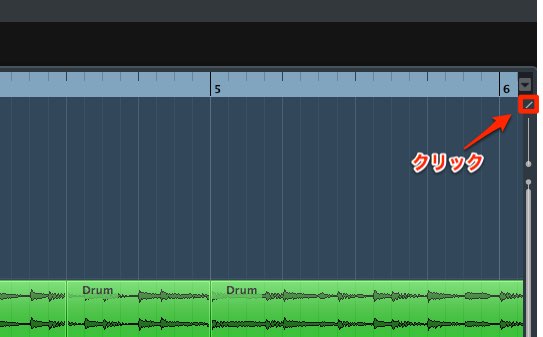
↑ It is a little small, but click the area outlined in red.
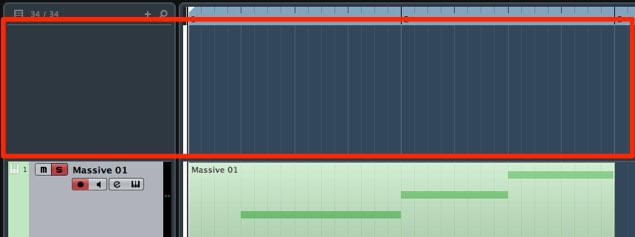
↑ A window opens like this that lets you display tracks separately from the usual ones.
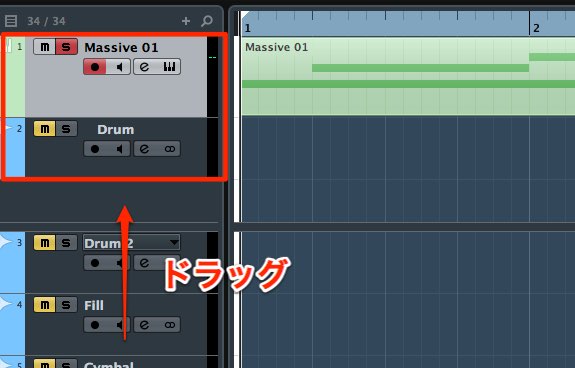
↑ Drag the tracks you want to always display.
Even when you scroll the screen up and down, these tracks are always displayed,
which is very convenient when the number of tracks grows.
Besides uses like copying a song,
it is also useful for loading a reference song to compare against when mixing.
You can also move the tracks you want to split by drag and drop,
and you can display multiple tracks.
The Track Split Function Explained

↑ Click the area outlined in red.

↑ A window opens like this that lets you display tracks separately from the usual ones.
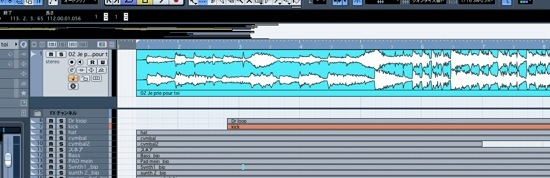
↑ This time, we put the song we are copying here.
Then even when you scroll the screen up and down, this track is always displayed,
which is very convenient when the number of tracks grows.
Besides uses like copying a song,
it is also useful for loading a reference song to compare against when mixing.
You can also move the tracks you want to split by drag and drop,
and you can display multiple tracks.
Make good use of this function and work efficiently!!
- Cubase 7 and later
- Cubase 6 and earlier
Frequently asked questions
Q1. What is Cubase's track split function?
It divides the track display and keeps specified tracks always visible in the window. The displayed tracks do not move when you scroll, so you can work while referring to multiple tracks.
Q2. Can the track split function be used in all versions of Cubase?
This article explains it for both Cubase 7 and later and Cubase 6 and earlier. The location of the button and the look of the screen differ by version, so follow the steps for your version.
Q3. Can I display multiple tracks at once with the split function?
Yes. You can add multiple tracks by drag and drop. When mixing, you can display and manage several important tracks, such as rhythm and bass, at the same time.
Q4. How can I use this function when mixing?
You can place a reference song in the split window to compare against, or keep important tracks (rhythm, bass, and so on) always visible while balancing.
Q5. Is there a way to release split tracks?
The article does not state it explicitly, but you can drag the tracks back out of the window opened by clicking the area outlined in red, or close it to release them.
NEW ARTICLES
Latest English Articles











