
When producing audio in Cubase, inconsistent sample rate, bit depth, and channel settings can cause the speed or pitch of audio to change. This article explains how to use the Pool to convert audio files optimally to match your song. Simply open the Pool from the Media menu, right-click the target file, and select "Convert Files" to solve most format problems that arise when working across multiple computers or collaborating with others. By running it after making a backup, you can unify your audio files safely and efficiently.
Audio settings you should understand and set properly
In music production, you'll always come across
units such as "sample rate" and "bit depth."
It's easiest to think of these as defining the song's audio quality standard in advance.
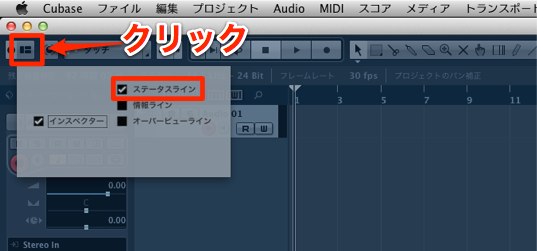
To check the current state,
click the "display icon" at the top left and check "Status Line."
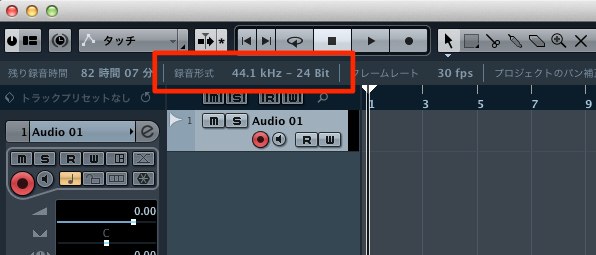
You can check it in the part outlined in red.
When you work alone, everything is consistent, so problems are unlikely,
but when you work with others or use multiple computers, the audio formats created can differ.
If you feel that a file's speed and pitch are somehow off, this is usually the cause.
Here we'll explain how to use the "Pool" to fix this kind of situation.
How to convert in the Pool
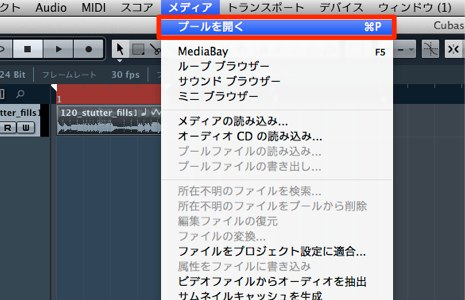
From the top menu, select "Media" → "Open Pool."
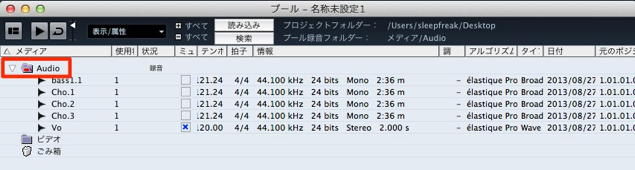
The audio files used in the song are stored in "Audio."
Select the audio file you want to optimize for the song and right-click it.
From the menu, select "Convert Files".
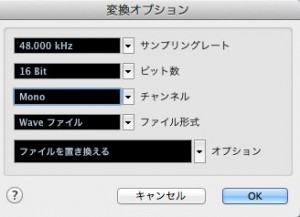
A new window appears.
- Sample rate/bit depth: Choose the same values as the song
- Channels: Handy for converting to stereo or mono
- File format: Choose what you need. Normally "No Change" is fine
- Options: Selecting "Replace"
replaces the audio files used in the song with the converted ones
This solves most audio file format problems.
*This overwrites files, so be sure to make a backup first!
Sample rate explained
Bit depth explained
Frequently asked questions
Q1. How do I convert audio file formats in Cubase's Pool?
Media → Open Pool → select the audio file in use → right-click → select Convert Files, then set the sample rate, bit depth, channels, and file format to match the song. Choosing the "Replace" option automatically replaces the files in the project.
Q2. What causes the playback speed or pitch of audio files to change?
The main cause is inconsistent sample rate, bit depth, and channel settings. This problem tends to occur when working across multiple computers or with others, and you can solve it by converting optimally with the Pool.
Q3. What should I be careful about when converting audio files?
This overwrites the files directly, so always make a backup before running it. You can't revert to the original files after converting, so be especially careful with important projects.
NEW ARTICLES
Latest English Articles











