
When a Waves demo plugin expires, you run into a warning message that keeps appearing every time you launch your DAW. This article gives a concrete fix for that annoyance. By going to the file path on Mac or Windows and deleting only the demo plugins, you can get rid of the warning completely and get back a comfortable production environment. Cleaning up expired plugins is important maintenance that also directly improves your production efficiency.
Deleting expired demo plugins
A powerful ally for mixing and mastering: "Waves."

High-quality plugins are released at a very fast pace,
and many of you probably try them out in demo versions first.
However, once the demo period expires,
a warning message appears every time you launch your DAW.
Here we'll explain how to delete the demo versions so the warning no longer appears.
Solution
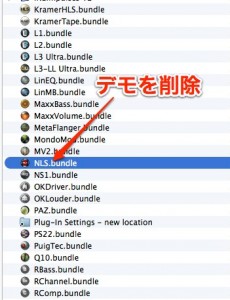
- Mac: "Main HDD" → "Applications" → "Waves" → "Waves Plug-Ins"
- Win: "C drive" → "Program Files (x86)" → "Waves" → "Waves Plug-Ins"
Go to this location and delete only the demo plugins.
The warning message will no longer appear.
Frequently asked questions
Q1. Where are Waves demo plugins stored?
On Mac, they're in the Applications → Waves → Waves Plug-Ins folder on the main HDD. On Windows, they're in the Program Files (x86) → Waves → Waves Plug-Ins folder on the C drive.
Q2. Does deleting demo plugins affect purchased plugins?
No. You delete only the demo plugins, so plugins you've already purchased and activated are not affected at all.
Q3. Why does the warning message appear?
Because the demo period has expired. When your DAW launches, Waves detects the expired demo plugins and displays a warning.
NEW ARTICLES
Latest English Articles











