
The main reason audio files sound different after you import them into Cubase is a sample rate mismatch. This article explains how to convert files whose sample rate differs from the project to the correct setting. By using the Pool to identify the problem files and the file conversion function to match the song's sample rate, you can fix degraded sound and abnormal playback speed. It's a problem beginners often run into, but it's easy to fix if you follow the right steps.
Sample rate settings
The vocals or material you commissioned are finished, and you bring them into your Cubase project.
It's the moment your anticipation peaks.
But when you play it back, the sound is clearly off.
"Normal"
"After the problem"
This is a problem everyone experiences at least once.
You can solve it by changing the "sample rate" settings.
Sample rate explained
Solution
*Be sure to back up your files before doing this.
First, check the "sample rate" of the song itself.
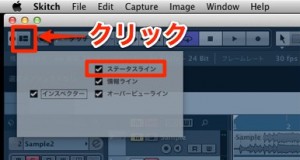
Click the part outlined in red at the top of Cubase
and check "Status Line" in the window that appears.
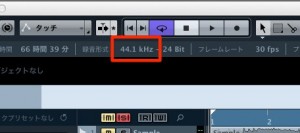
This is the sample rate. It shows "44.1 kHz."
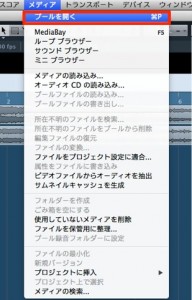
From the top menu, select "Media" → "Open Pool."
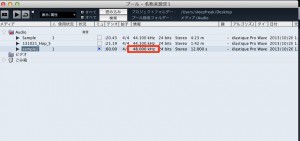
When you check the audio files in the Pool,
you'll find files with a different sample rate (the ones that sound wrong on playback).
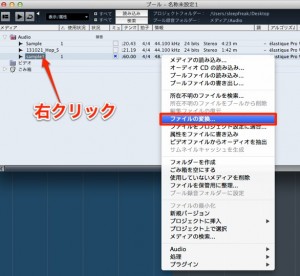
Right-click that file and select "Convert Files."
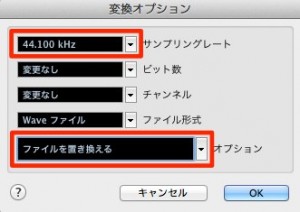
Set the sample rate to the same value as the song,
leave the others at "No Change," and select "Replace Files" at the very bottom.
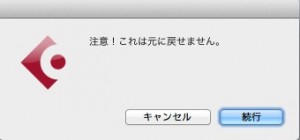
A scary message appears,
but since you have a backup, don't worry and click OK.
The audio file now plays back normally.
Frequently asked questions
Q1. Why does imported audio sound higher or lower in Cubase?
It's caused by a sample rate mismatch. When you import an audio file with a sample rate different from the project, the playback speed changes and so does the pitch. You can solve this by checking in the Pool and converting the file.
Q2. Where can I check the sample rate?
You can check it in the Status Line at the top of Cubase. Click the part outlined in red and check Status Line, and the current project's sample rate (e.g., 44.1 kHz) is displayed.
Q3. Do I need a backup before converting files?
Yes, it's essential. A confirmation message appears when converting, and having a backup lets you recover if something goes wrong. Always copy your files before doing this.
NEW ARTICLES
Latest English Articles











