
When recording audio in Pro Tools, you may run into a problem where you can't select an input. This is caused by the connection settings between your audio interface and Pro Tools, and you can solve it easily by selecting Setup → I/O from the top menu and clicking the Default button in the Input tab. This article explains how to optimize these settings in detail, giving beginners the basic knowledge they need to set up their production environment correctly.
Reviewing the I/O settings
Audio recording is explained in this article,
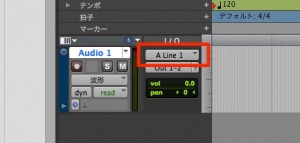
but sometimes you can't select an "Input" at this step.
This is caused by a problem with the settings that link your audio interface and Pro Tools.
Solution
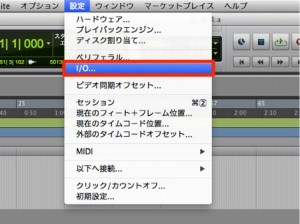
From the top menu, select "Setup" → "I/O."
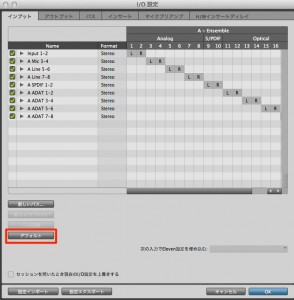
Select the "Input" tab and click "Default," outlined in red.
This optimizes the settings,
so you can now select an "Input" in the "I/O" shown above.
Frequently asked questions
Q1. Why can't I select an input in Pro Tools?
In many cases, there's a problem with the connection settings between your audio interface and Pro Tools. You can fix this by reviewing the I/O settings and restoring the defaults.
Q2. How do I configure the I/O settings?
From the top menu, select "Setup" → "I/O," open the "Input" tab, and click "Default," outlined in red. This optimizes the settings and lets you select an input.
Q3. What should I do if the input still doesn't respond after changing the settings?
Check that your audio interface driver is the latest version and that the device is connected correctly. If that doesn't solve it, try restarting your equipment.
NEW ARTICLES
Latest English Articles











