
If plug-ins don't appear in Logic Pro even though you installed them, you can solve it by checking the settings in the Audio Units Manager (Plug-in Manager). This article explains specifically what to do when purchased plug-ins aren't recognized after a crash, letting you quickly fix the problem with a simple menu operation that enables the plug-in's checkbox. Learning efficient solutions to common DAW problems helps your music production go smoothly.
Additional plug-ins don't appear in Logic after a crash
Plug-ins you bought don't show up and can't be used...
Here is something to try in that case.
If this method doesn't work, please also see
"Installed Plug-ins Don't Load 2 (Logic Pro X)".
Solution
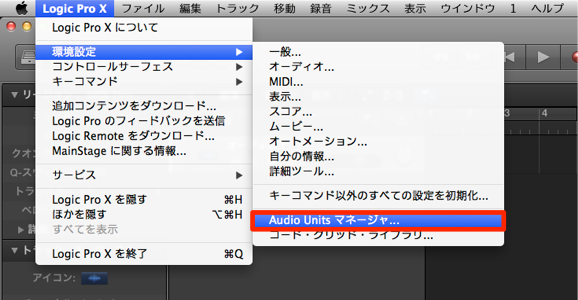
From the top menu,
open "Logic Pro" → "Preferences" → "Audio Units Manager."
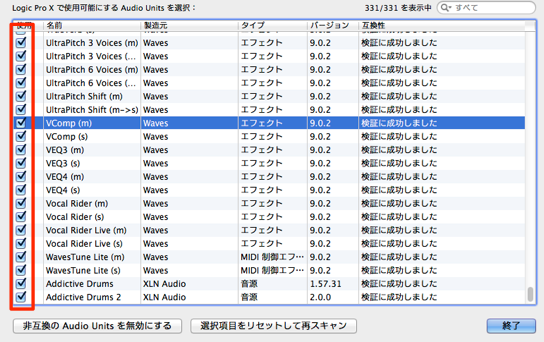
Check the checkbox of the plug-in that doesn't appear.
If it's unchecked, check it.
The plug-in should now be recognized and displayed.
Frequently asked questions
Q1. A plug-in I installed in Logic Pro doesn't show up properly. What should I do?
First, open "Preferences" → "Audio Units Manager" from the Logic Pro menu. Check that the installed plug-in is in the list and that its checkbox isn't unchecked; if it is, check it so the plug-in is recognized.
Q2. My plug-in stopped appearing after a crash, and this method didn't solve it. What should I do?
We recommend referring to the related article "Installed Plug-ins Don't Load 2 (Logic Pro X)." It explains causes and solutions in more detail and covers more complex cases.
Q3. How do I remove a plug-in that can no longer be used because of compatibility problems?
For plug-ins that lost compatibility after a DAW or computer update, you can solve the problem by unchecking them in the Audio Units Manager or removing them completely from your system.
NEW ARTICLES
Latest English Articles











