
Songs, presets, and other data you create in music production are at risk of being damaged or lost due to hard disk failure or system errors. This article explains why backing up your whole computer matters and how to do it. Using built-in OS features, Time Machine on Mac and the backup tool on Windows, you can easily set up automatic backups to an external hard drive. The first backup takes time, but afterward it continues automatically, so you can recover all your production work if trouble ever strikes. It's essential knowledge for protecting your production environment.
Why backups matter
Remember: everything you create on a computer is data.
"Data" itself has no physical form and can be copied.
What's frightening about data is "damage" and "loss."
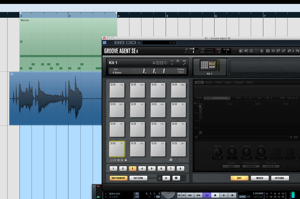
"Songs," of course, as well as "presets you've made," "photos of memories," and "important emails":
when you lose data, all the results of your work are gone.
The insurance that prevents this trouble is backing up.
The simplest approach is
to "back up" your entire computer.
Both Mac and Windows have handy backup functions,
so we'll explain them.
What you need for backups
You need only one thing to "back up":
a "hard disk" that can store data
We explain hard disks in detail in the article below.
URL: https://sleepfreaks-dtm.com/start-dtm/about-hdd/
For the hard disk you use for backups,
we recommend an affordable, high-capacity type.
- Mac
- Windows
Backing up with Time Machine
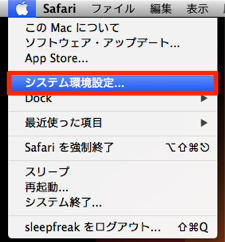
From the top menu, select "Apple menu" → "System Preferences."

Select "Time Machine" from the list.

- 1. Select the separate HDD mentioned above
- 2. Set the switch to "On"
The first backup may take quite a long time.
Basically, you just leave it until it finishes.
This performs the "backup."
Using "Back up your computer"

Click "Start" and select "Control Panel."

- 1. Change "View by" to "Category"
- 2. Select "Back up your computer"

Select "Set up backup."

Select the separate HDD mentioned above and click "Next."

You can specify which folders to back up yourself,
but here we recommend "Let Windows choose," which backs up everything.

Select "Save settings and run backup."
Depending on the situation, it may take quite a long time.
Basically, you just leave it until it finishes.
- Mac
- Windows
Frequently asked questions
Q1. How often do I need to back up for music production?
If you enable automatic backups, they run regularly on their own, so there's no manual effort. After the first backup, only the changes are saved automatically, so the latest state is always protected.
Q2. What capacity should I choose for a backup hard disk?
Because you'll store DAW project files, audio data, presets, photos, and so on, we recommend a capacity at least equal to or larger than your computer's. An affordable, high-capacity external HDD (1 TB or more) is ideal.
Q3. Why does the first backup take so long?
The first time, all the data on your computer is copied to the hard disk, so depending on the amount of data it can take several hours. After that, only the changes are saved, so it takes much less time.
NEW ARTICLES
Latest English Articles











