
When unexplained problems occur in Logic Pro, you can solve them by resetting the preference files. If you run into problems such as no response from your MIDI keyboard or mixer faders not working, moving the files in the Preferences folder inside the Library folder to the desktop and restarting Logic returns the system to its initial state. This improves many unexplained behaviors and gives you back a comfortable production environment.
Fix problems in Logic

"Certain keys on the MIDI keyboard don't sound," "mixer faders don't move,"
and similar unexplained behavior: here is a method to try when this happens.
*Settings you have made, such as preferences, will also be reset. Please be careful.
Please perform this at your own risk.
Solution
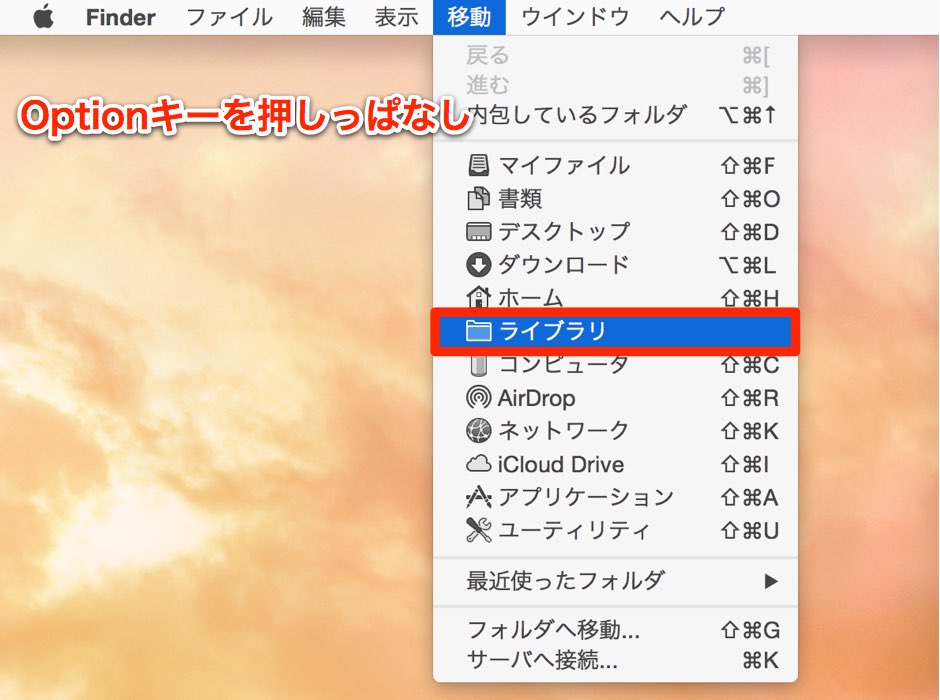
Click the desktop,
then select "Go" → "Library" (appears while holding the Option key).
Then open "Preferences" inside it.
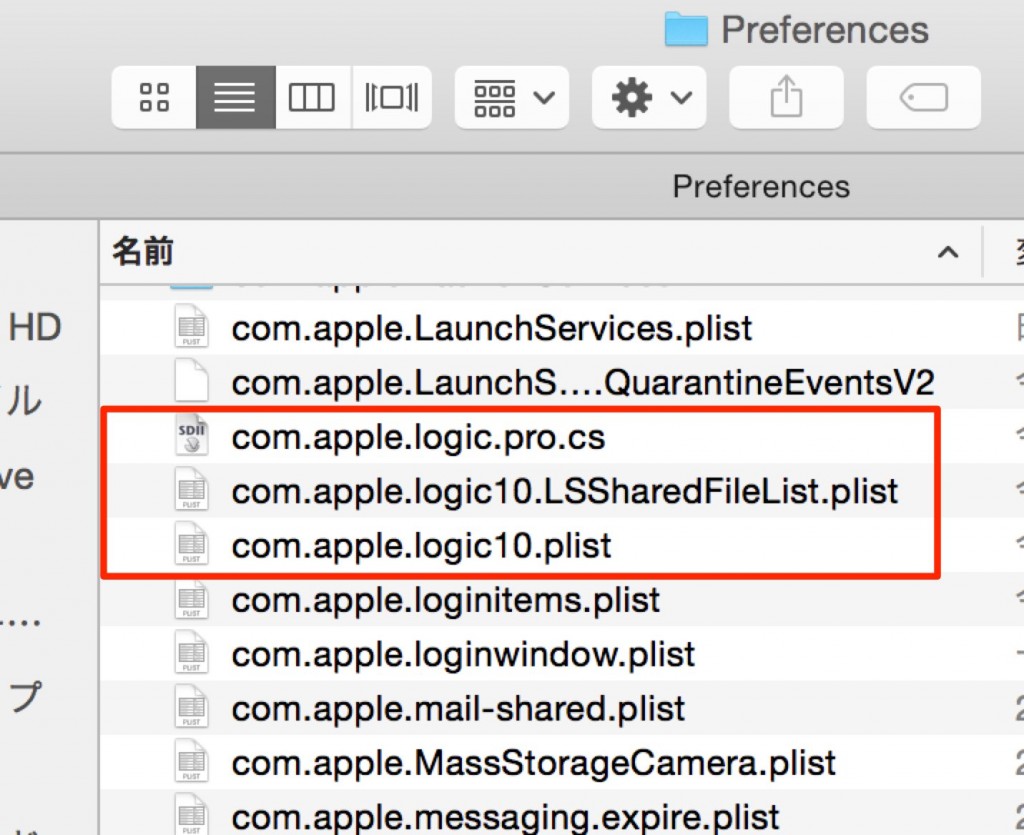
Move these three files to the desktop and launch Logic to reset it.
Frequently asked questions
Q1. Will resetting the files in Logic Pro erase my settings?
Yes, everything is reset, including preferences and customizations. If you have important settings, we recommend backing them up first.
Q2. Where are the preference files stored?
They are stored in your Mac's Library folder. In Finder, select "Go" → "Library" (shown while holding the Option key) to access it.
Q3. What should I do if Logic's problems don't improve after the reset?
Try restarting the whole system and checking for macOS updates. If that still doesn't solve it, consider other approaches such as recovering a corrupted project file or optimizing CPU usage.
NEW ARTICLES
Latest English Articles











