
If Pro Tools shows the error message "could not complete the New Document command" at launch, the cause lies in the audio device settings. This article explains how to solve the problem by holding the "N" key while launching and changing the interface/device setting. Mac users facing this Pro Tools problem get a practical solution for restoring a normal launch with simple steps.
Launch problems in Pro Tools
When launching Pro Tools,
"Could not complete the New Document command because: Assertion in "/Volumes/Development/ws.Ludwig/AlturaPorts/DFS/MacBuild/../Views/UMenu.MacOS.mm", line 1350"
This is the solution when that message appears.
Solution
The cause is an error related to the audio device.
When launching Pro Tools, hold down the "N" key as it starts.
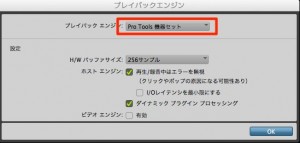
The window above appears, so change the "Interface/Device."
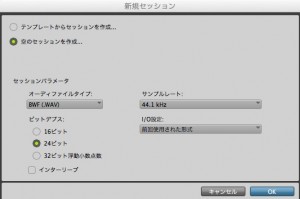
Pro Tools now launches normally.
Frequently asked questions
Q1. What causes Pro Tools to show an error message at launch?
It's caused by a problem with the audio device's connection or settings. This error is especially likely when Pro Tools tries to use an audio interface that isn't connected, so checking the device settings is important.
Q2. What does pressing the "N" key at launch do?
This key opens the "Playback Engine" settings window at launch. This lets you access the audio device settings and identify and fix the cause of the problem.
Q3. What should I change in the interface/device setting?
Change the setting to match the audio interface currently connected. If the setting doesn't match what's connected, an error occurs at launch, so correctly selecting the device you actually use is the key to solving it.
NEW ARTICLES
Latest English Articles











