
If you use Cubase 12 on an Apple silicon Mac, it may be running in Rosetta mode (compatibility mode) even if your settings are correct. This article explains how to check whether Cubase is launching in Native mode, which takes full advantage of Apple silicon performance, and the troubleshooting steps to take when the setting does not take effect. From checking the message at startup to changing the setting in the "Get Info" window, you can learn concrete steps to get the most out of performance in DTM production.
You Think It Is Enabled, but It May Actually Not Be...
Some time has passed since Macs with Apple silicon CPUs appeared, and most DTM-related products now support this CPU.
The popular DAW "Cubase" also supports Apple silicon from Ver12, allowing comfortable production.
However, even after installing and setting up Cubase 12, there are cases where it runs in "Rosetta mode," in which the CPU's performance cannot be fully utilized.
Here, we explain how to check whether your Cubase is running in the optimal state, and the points to note in the settings.
Checking the Current Launch State
Which mode is your Cubase launching in?
You can check this easily with the message shown when the software starts.
If it is launching properly with Apple silicon support,
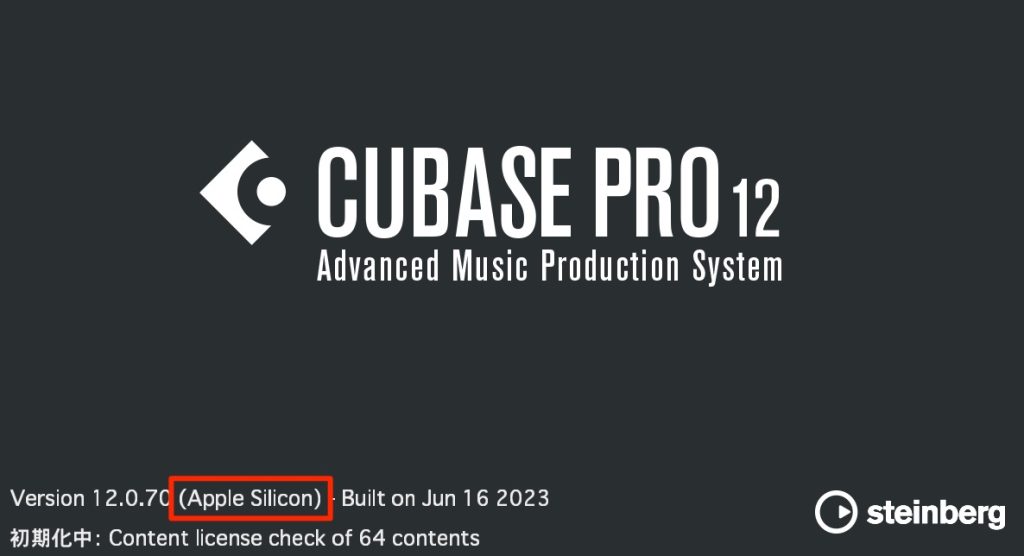
↑ it looks like this.
If it launches as shown in the image, everything is fine, so rest assured.
On the other hand, if it is not optimized for Apple silicon (Rosetta),
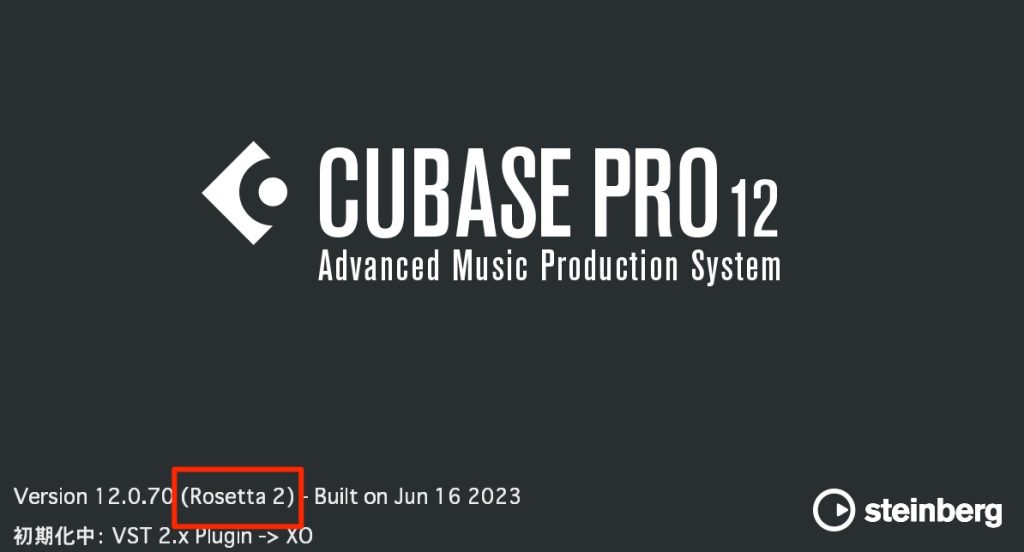
↑ it shows "Rosetta 2" like this.
Set it up so that it launches with Apple silicon support.
How to Launch in Apple Silicon Mode
First, let's check the setting method.
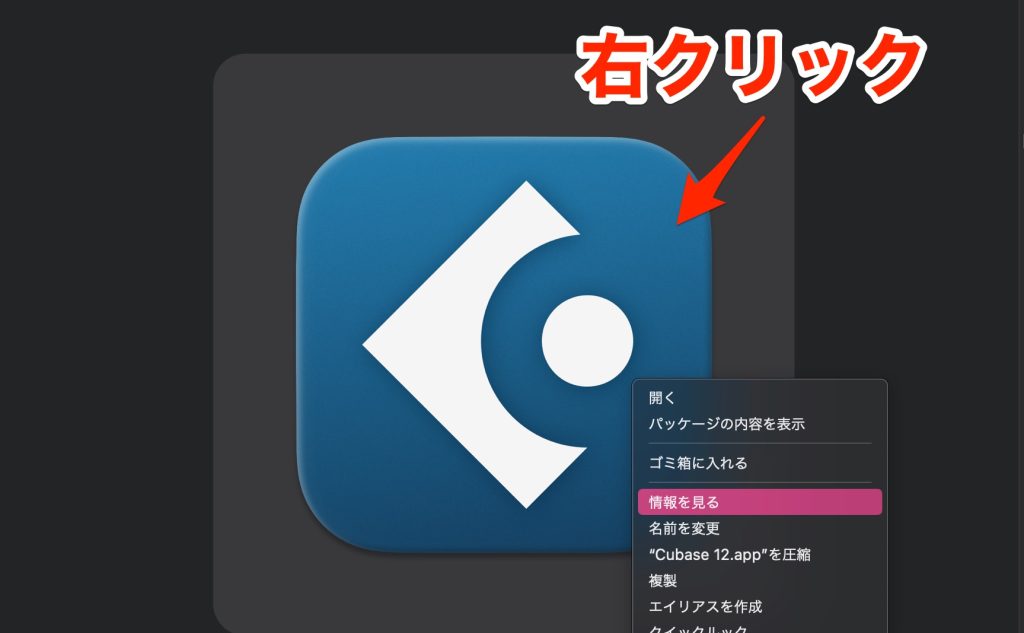
Right-click the Cubase 12 icon installed in the Applications folder and choose "Get Info."

Unchecking "Open using Rosetta" here makes it launch in Apple silicon mode.
However, some readers of this article may be thinking:
- I thought I had checked the launch setting before... but it says "Rosetta 2"
- "Open using Rosetta" is unchecked... but it says "Rosetta 2"
Some of you may be in this situation.

In fact, there are cases where the setting does not take effect even though it is unchecked like this.
In that case,
check the box once.
Then close this Info window.
Open the Info window again.
Uncheck "Open using Rosetta."
Then close this Info window, and the setting is complete.
When you launch Cubase, it should now start on Apple silicon like this.
Please give it a try!
Frequently Asked Questions
Q1. How can I check whether Cubase is launching in Rosetta mode?
You can check with the message shown when Cubase starts. If "Rosetta 2" is shown, it is in Rosetta mode; if not, it is launching in Apple silicon Native mode. The message appears only briefly right after startup, so check carefully.
Q2. "Open using Rosetta" is unchecked, but it still launches with Rosetta 2. What should I do?
The setting may not have taken effect. Check the box once, close the Info window, open it again, and then uncheck the box. This reset operation applies the setting correctly.
Q3. What is the difference between Apple silicon Native mode and Rosetta mode?
Native mode can make full use of Apple silicon's performance, allowing stable music production with low CPU load. Rosetta mode, on the other hand, runs code made for Intel Macs through a compatibility layer, which lowers processing efficiency and limits performance.
NEW ARTICLES
Latest English Articles











