
If the audio interface essential for DAW production is recognized on your Mac but no sound comes out, the solution is to update the driver and check Audio MIDI Setup. This article explains specifically how to install the latest driver distributed by the manufacturer and how to configure your audio environment correctly with Audio MIDI Setup, the tool built into the Mac. Following these steps resolves most sound output problems.
The device is recognized, but there is no sound output
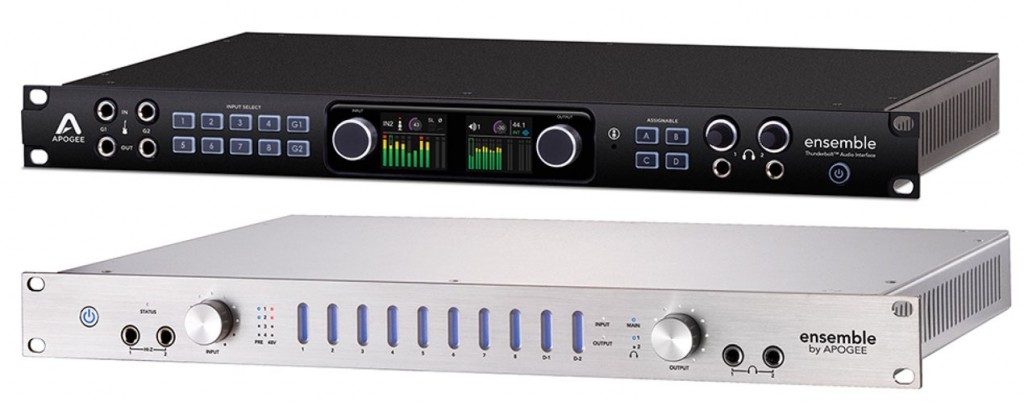
Most people who use a DAW use an "audio interface."
It is essential equipment for recording.
Suddenly no sound comes out of the audio interface...
We explain how to deal with this kind of problem.
Install the latest updater
A "driver" is needed for the device and the computer to work together.
Each manufacturer distributes improved drivers that fix bugs and support the latest OS.
First, we strongly recommend going to the manufacturer's product page
and downloading and installing the driver.
"Manufacturer name + product name + driver"
Searching for this makes it easy to find.
Check your audio environment

The Mac has "Audio MIDI Setup" for controlling sound.
First, press "Command + Shift + U" to open Utilities.
Launch "Audio MIDI Setup" from there.
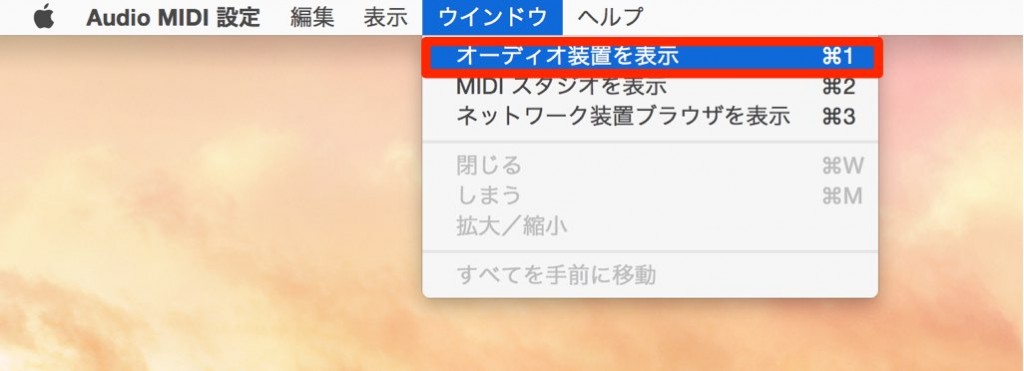
From the top menu, select "Window" → "Show Audio Devices."
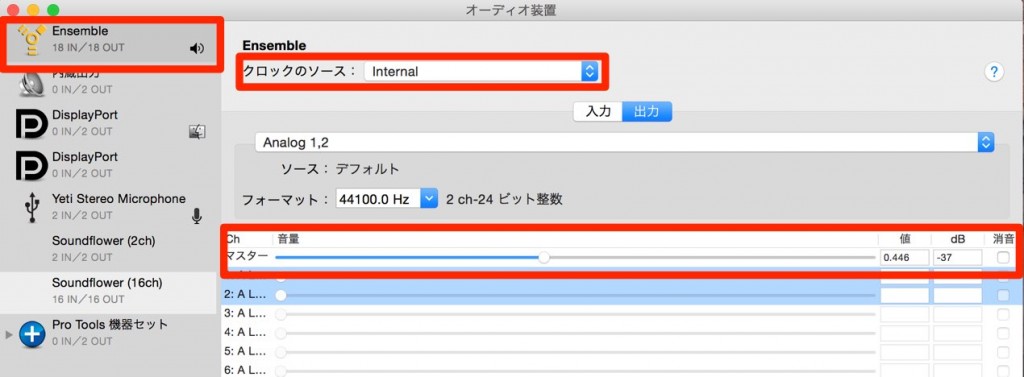
Select the audio interface you are using,
and change "Clock Source" to "Internal".
Also check that the output levels below it are turned up.
Frequently asked questions
Q1. If my Mac recognizes the audio interface but there is no sound, what should I check first?
First, download and install the latest driver from the manufacturer's site. Drivers include bug fixes and support for the latest OS, so this solves most sound output problems.
Q2. What settings are needed in Audio MIDI Setup?
Select the audio interface you use and change "Clock Source" to "Internal." Also check that the output levels are turned up. You can access it from Utilities with the shortcut "Command + Shift + U."
Q3. If installing the driver doesn't solve the problem, what else should I check?
Besides checking Audio MIDI Setup, we recommend avoiding USB hubs, reviewing the sample rate setting, and checking whether your computer lacks performance.
NEW ARTICLES
Latest English Articles











