
SoundCloud is the go-to platform where music producers can publish and share their own songs for free. This article explains the specific steps in detail, from registering an account and uploading to getting the URL, embedding tracks on websites, and managing track information. It can also be used for interacting with other creators and as a business card for your music activities, and embedding tracks in your blog or website lets you reach more listeners. You'll learn how to use a service every music producer, from beginner to experienced, should sign up for.
Publish your songs on the web

Once you've made something you're proud of, getting as many people as possible to hear it
is very important.
Here, we explain how to sign up for "SoundCloud", the go-to service for publishing songs.
- Interacting with other creators
- Embedding songs on your website
- As a business card for your music activities
There are many ways to make use of it.
It's free to use, so be sure to try it.
How to sign up for SoundCloud
First, go to the website.
https://soundcloud.com/logout
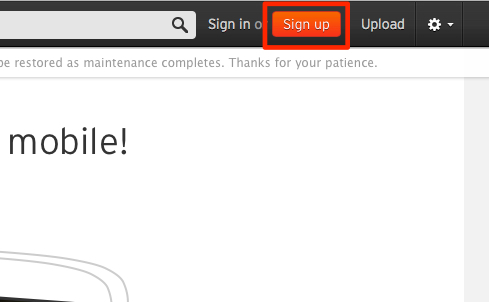
Select "Sign up" on the page.
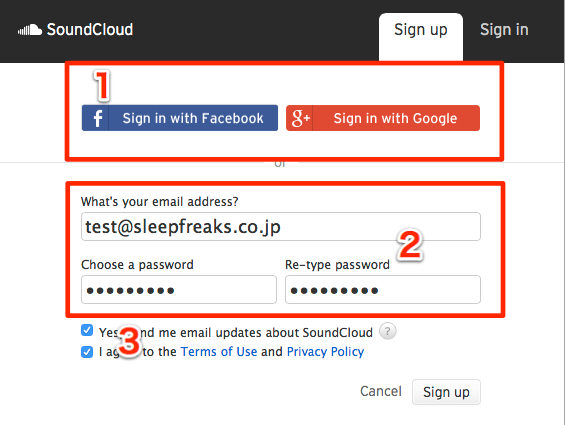
- 1. If you have a social media account, you can use it
- 2. Enter your email address and choose a password
- 3. Check the box to agree to the terms
Then press "Sign up."
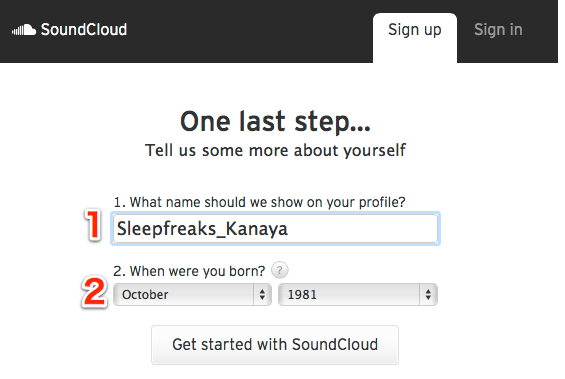
- 1. Enter the username you want
- 2. Enter your date of birth
Then press "Get Started with SoundCloud."
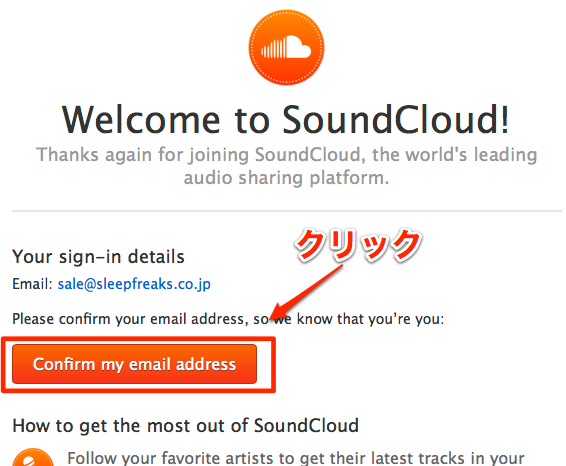
You will receive a confirmation email from "SoundCloud."
Click "Confirm my email address" in it.
Your account is now created.
How to upload a song
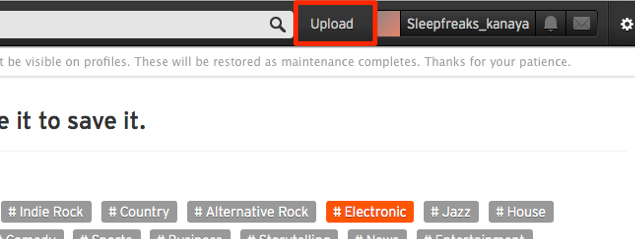
After logging in, select "Upload" at the top of the page.
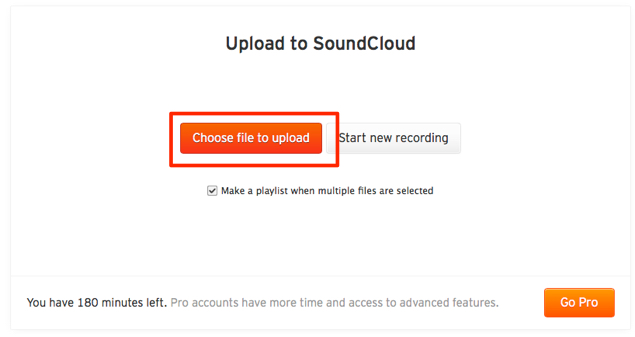
Click "Choose file to upload" and select the file to upload.
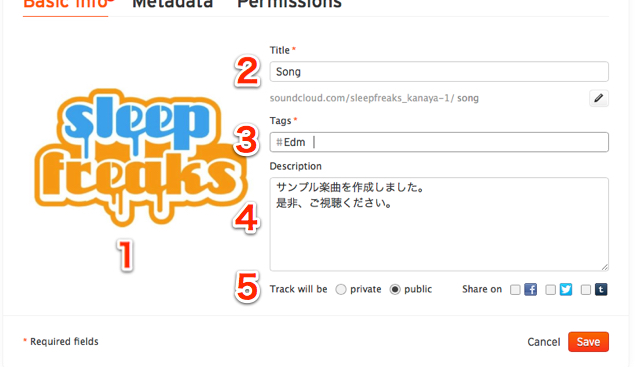
- 1. You can upload an image for the track
- 2. Enter the track title
- 3. Enter at least one piece of information about the track, such as the genre
- 4. Enter a description of the track
- 5. Select public to make the track available to everyone
Then select "Save."
The upload is now complete.
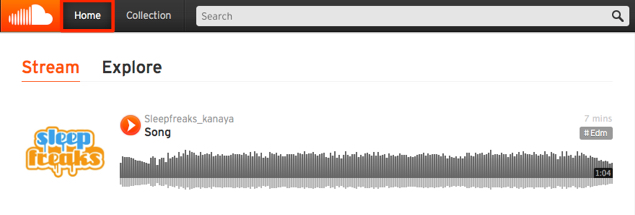
Check and manage your published tracks from "Home" at the top of the page.
Track URLs and embedding
Next, let's look at URLs and embeds for sharing your track with others.
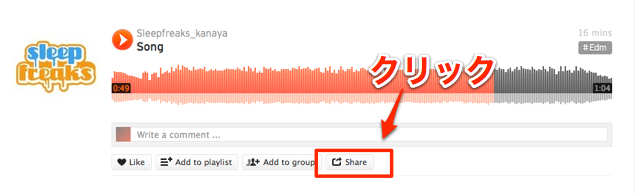
Click "Share" below the track.
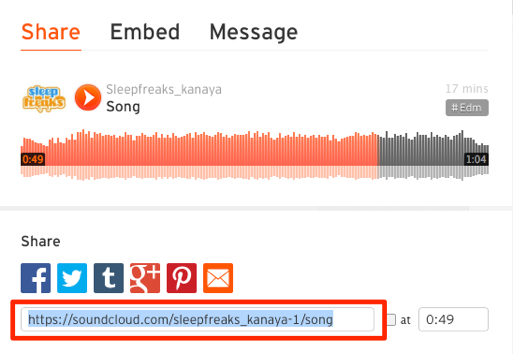
A link for accessing the track is displayed.
Copy it and send it to the people you want to hear it.
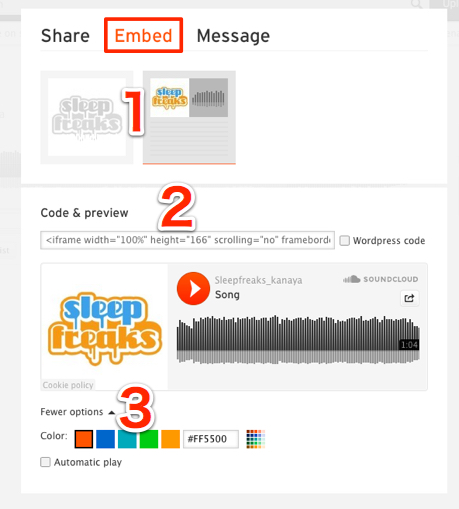
If you want to embed it on your website, blog, or elsewhere, select "Embed."
- 1. Select the type of embed design
- 2. Copy this code into the article where you want to embed it
- 3. Click Fewer options to change the player's color.
Also, "Automatic Play" below it plays the track automatically when the page is opened.
Managing tracks
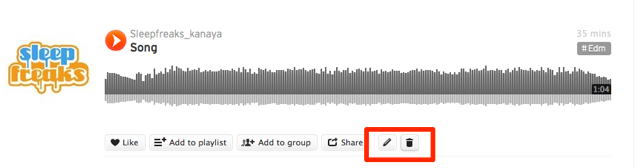
You can edit the information for published tracks at any time.
You can edit from the area outlined in red.
The pencil on the left is for editing, and the trash can on the right deletes the track.
Frequently asked questions
Q1. Is signing up for SoundCloud really free?
Yes, SoundCloud can basically be used for free. You can sign up with a social media account or an email address and start uploading right after confirming your email. Paid plans are available if you need extra features, but the free version is enough for publishing songs in general.
Q2. What file formats can I upload?
SoundCloud supports many audio formats, including WAV, MP3, FLAC, OGG, and AIFF. Just export your song from your DAW in one of these formats and upload it. See the official SoundCloud site for details.
Q3. Can I edit track information after uploading?
Yes, at any time. Click the pencil icon below the track to change the title, genre, description, and so on later. You can also delete the track with the trash can icon on the right.
NEW ARTICLES
Latest English Articles











