
LISTENTO is Audiomovers' service for sending and receiving DAW audio as a high-quality live stream. The version covered in this October 2023 tutorial supports up to 32-bit/96 kHz audio and VST, Audio Units and AAX plug-in formats for use in compatible DAWs. The sender inserts the plug-in and generates a link; listeners open it in a web browser or application on a computer or supported mobile device. This can save the time otherwise spent exporting and sending audio files.
Stream your DAW audio in real time
Audiomovers' LISTENTO is an audio-streaming service for music creators.
It lets you send high-quality DAW audio to listeners on different devices, who can easily receive the stream in a web browser.
Audio quality in the version demonstrated reaches up to 32-bit audio at a 96 kHz sample rate
. It supports VST, Audio Units and AAX plug-in formats, making it usable in a wide range of compatible DAWs. Check the requirements for your particular DAW, operating system and plug-in version.
We cover LISTENTO in two parts: this basic guide and an advanced tutorial. Software features and edition names in this article describe the October 2023 workflow demonstrated.
LISTENTO Basic Video Tutorial
LISTENTO Advanced Video Tutorial

Setting Up LISTENTO
At the time of this tutorial, the two editions available in Japan were LISTENTO PRO and LISTENTO BUSINESS.
Pro includes the basic audio-streaming functions covered here, so we will use that edition for the demonstration.
First, let us look at how to stream audio with LISTENTO.
Sender setup
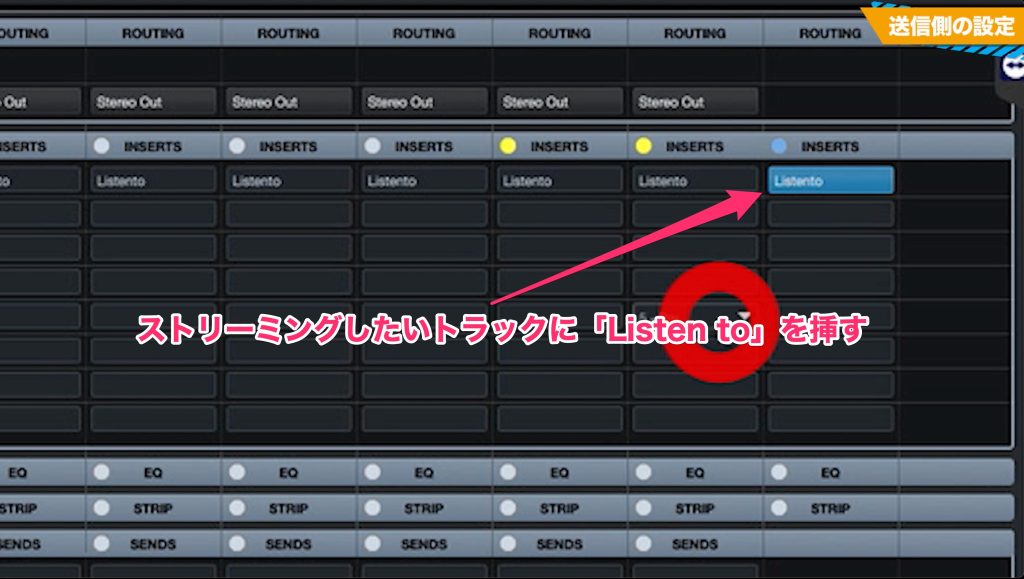
1. Insert the LISTENTO plug-in on the track you want to stream.
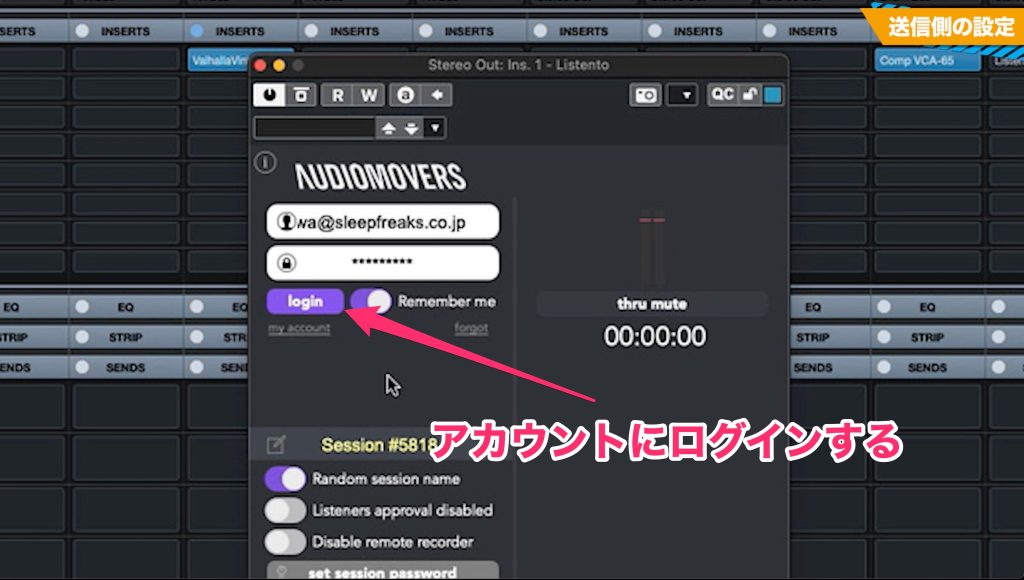
2. Open the plug-in, click Login and sign in to your account.
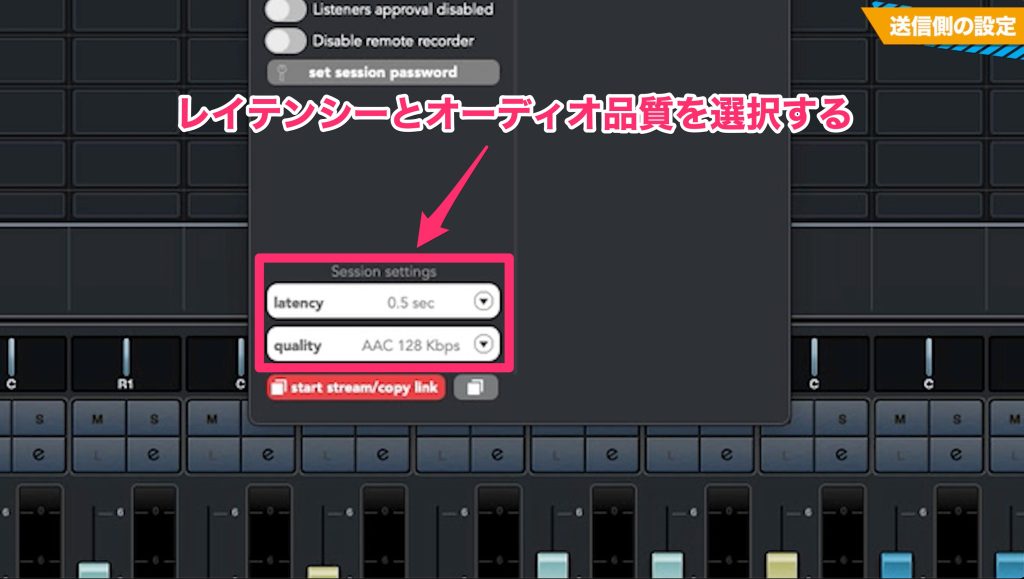
3. Under Session Settings, select latency and audio quality.
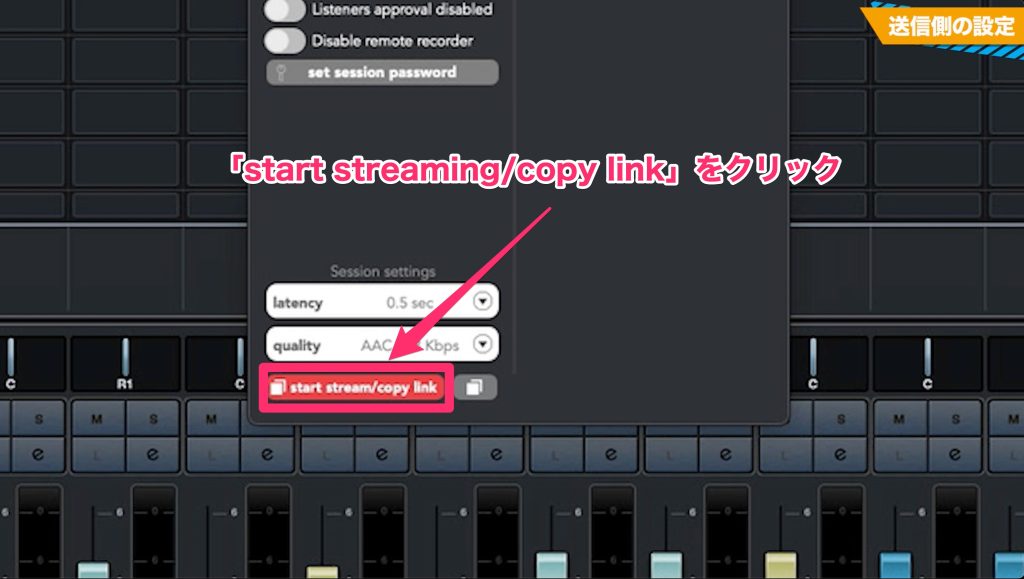
4. Click start streaming/copy link to generate and copy a streaming URL.
Receiver setup
We will cover these three ways to listen:
Here is how to set up each one.
Google Chrome
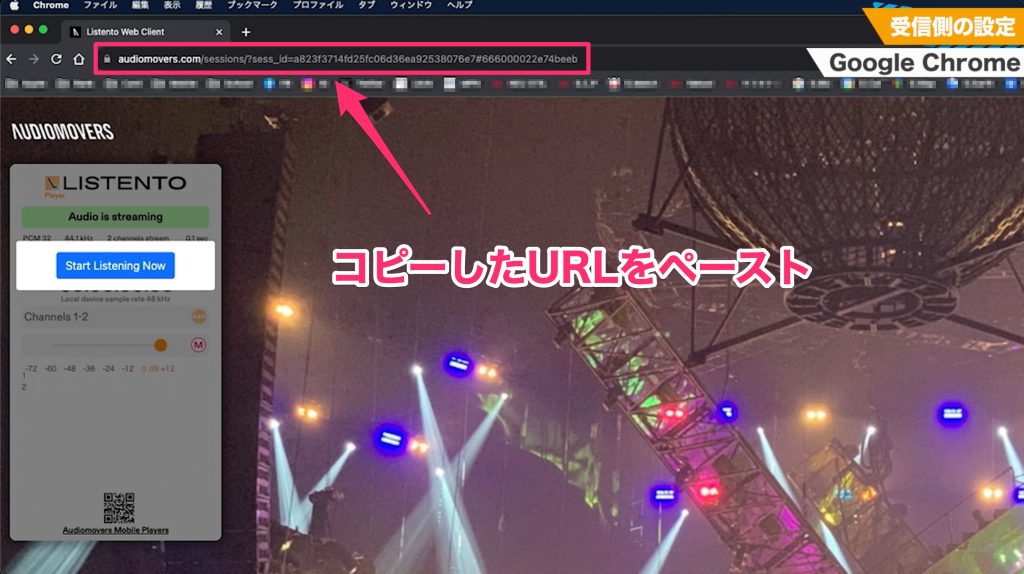
1. Paste the sender's URL into the address bar and open the streaming page.
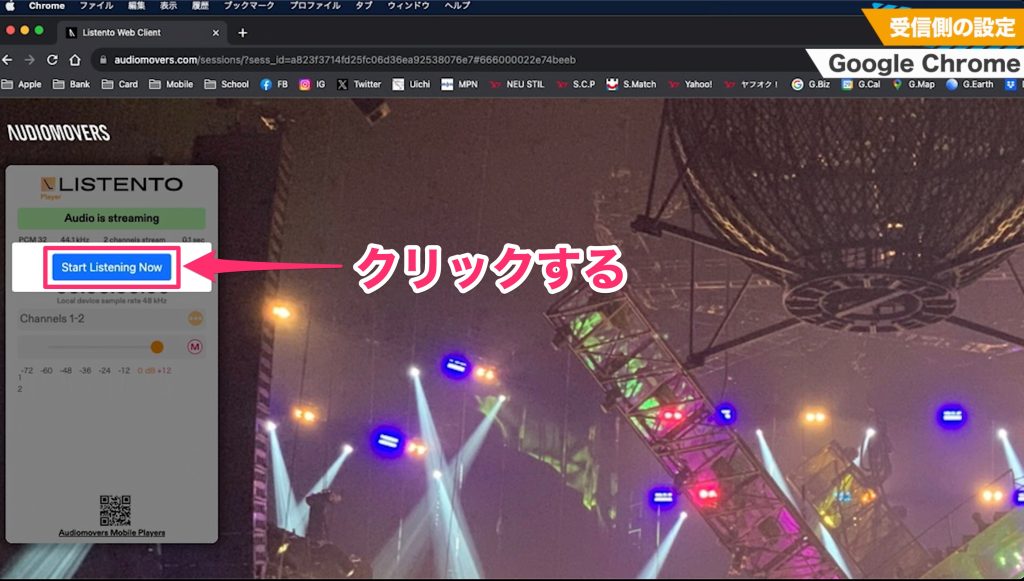
2. Click Start Listening Now to begin listening.
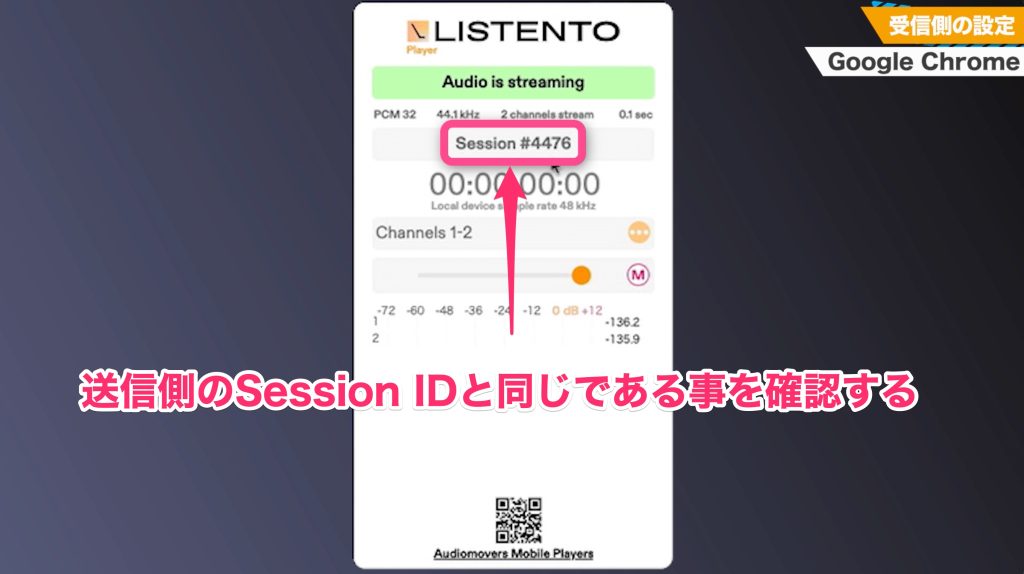
Check that the Session ID matches the sender's session.
LISTENTO application
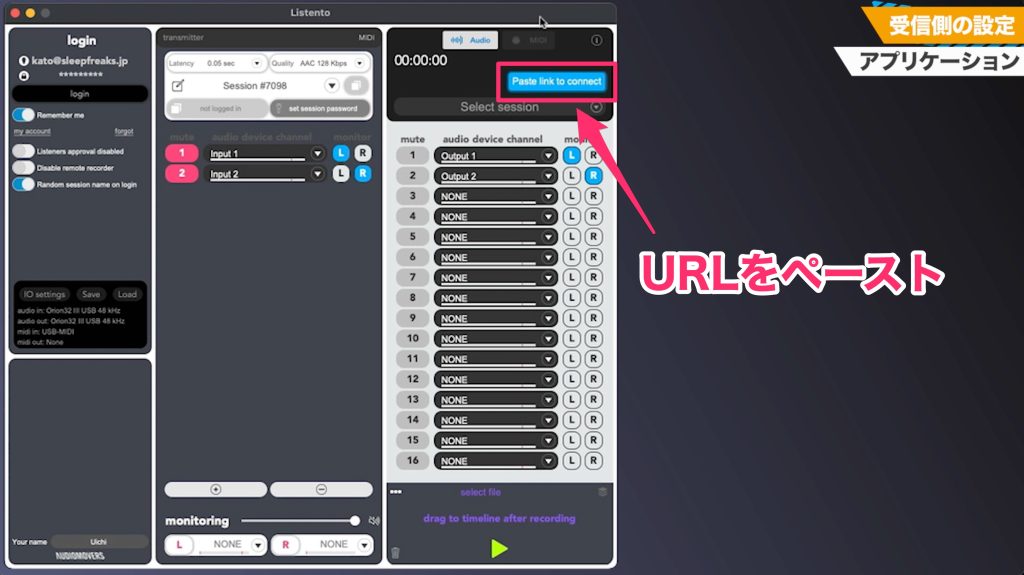
1. Launch the application and paste the URL into Paste Link to Connect in the right-hand area.
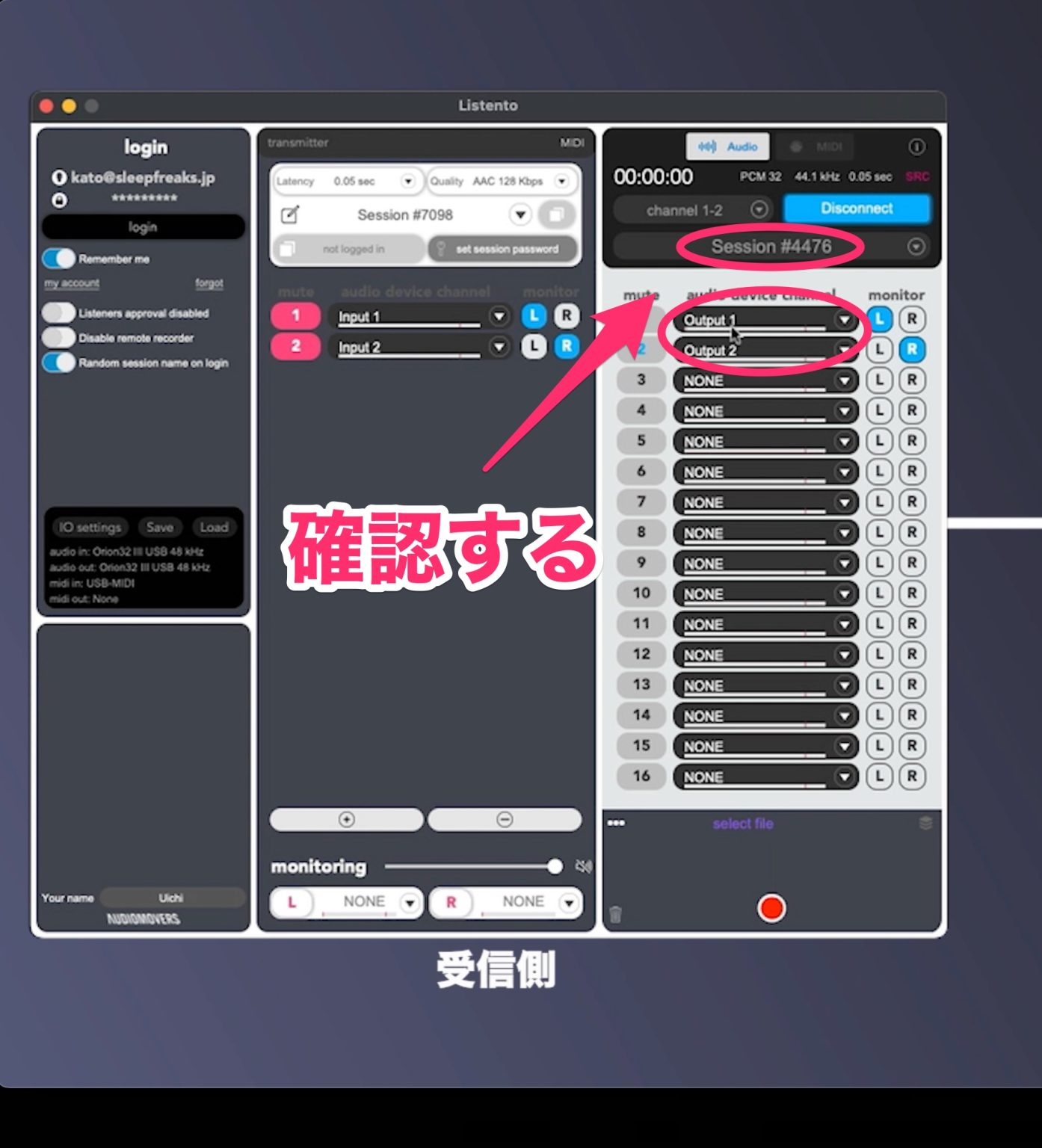
2. Once the stream is ready, check the Session ID. Also confirm that Output under audio device channel matches the channels of the audio device you are using.
LISTENTO Receiver
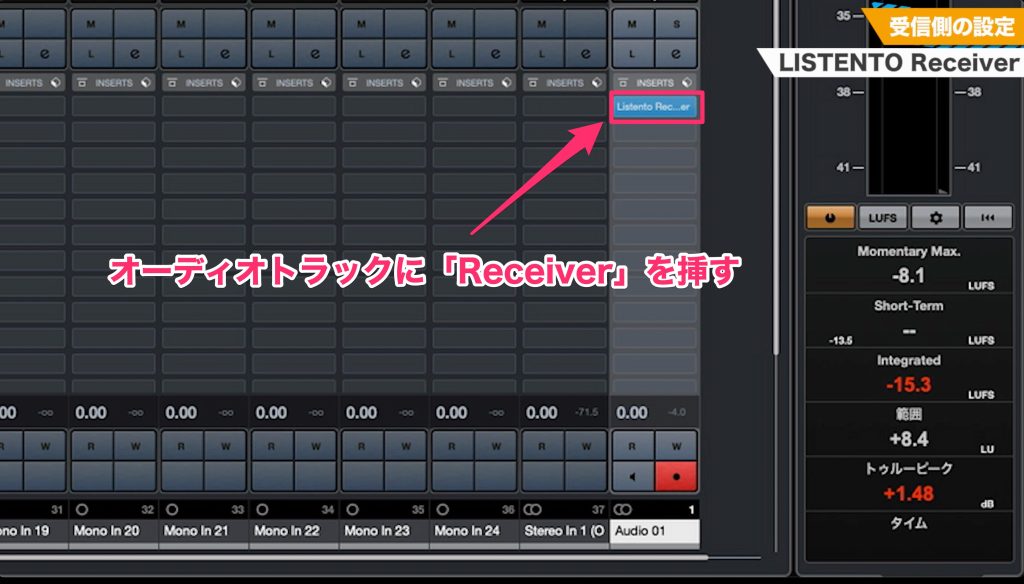
1. Create an audio track and insert LISTENTO Receiver.
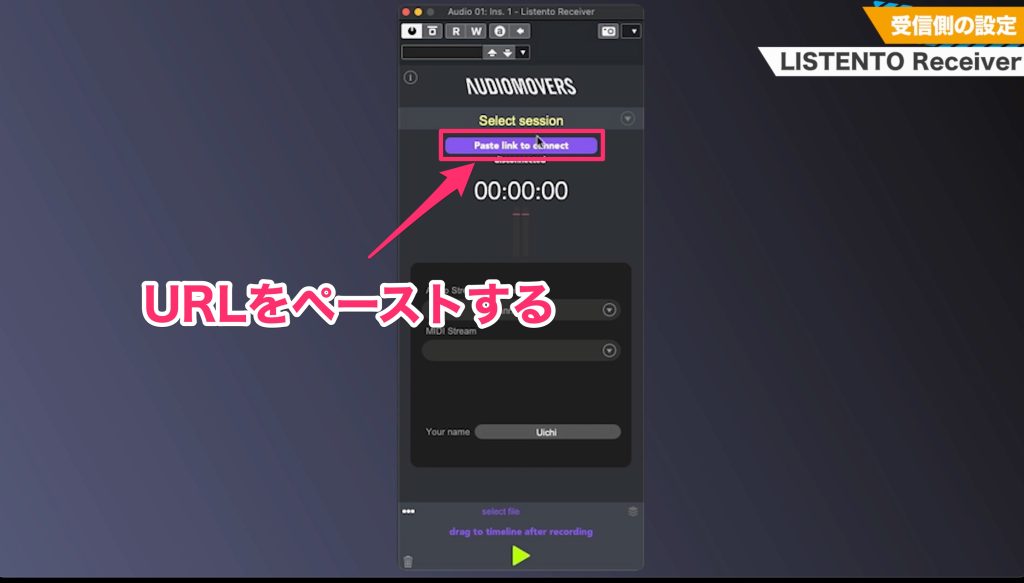
2. Open LISTENTO Receiver and paste the URL into Paste Link to Connect.
Listening on Mobile Devices
LISTENTO can stream to supported mobile devices as well as computers.
You can use a smartphone or tablet to receive the stream using the methods described below.

The two mobile listening options demonstrated are Google Chrome and the LISTENTO Player app.
You can download LISTENTO Player from the App Store or Google Play. Availability and compatibility depend on your device and region.
Sender setup
The audio-sending procedure is the same as described above.
Receiver setup
The following two listening methods are available in the demonstrated workflow:
- Google Chrome
- LISTENTO Player application
Google Chrome
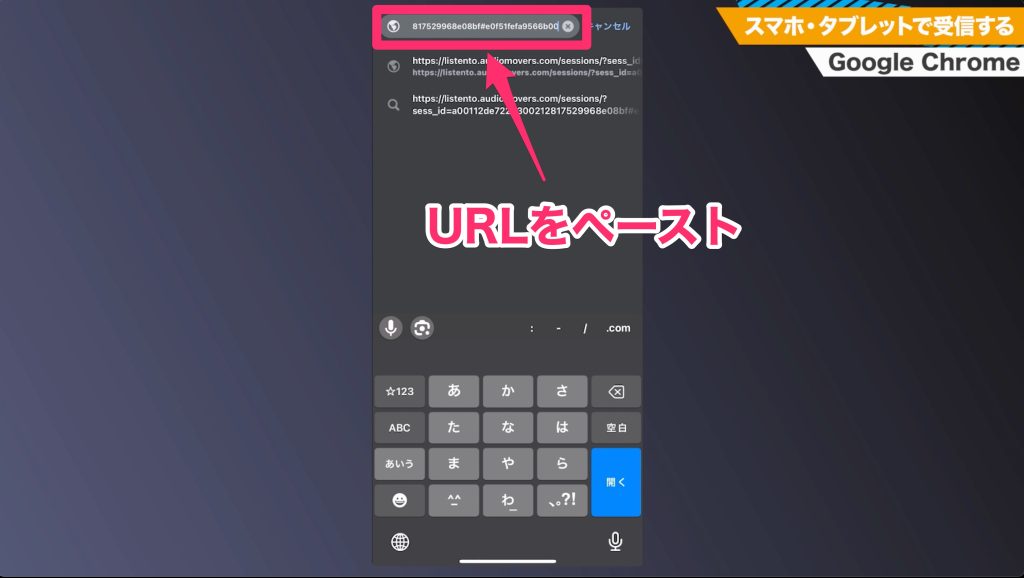
1. Paste the sender's URL into the address bar and open the streaming page.
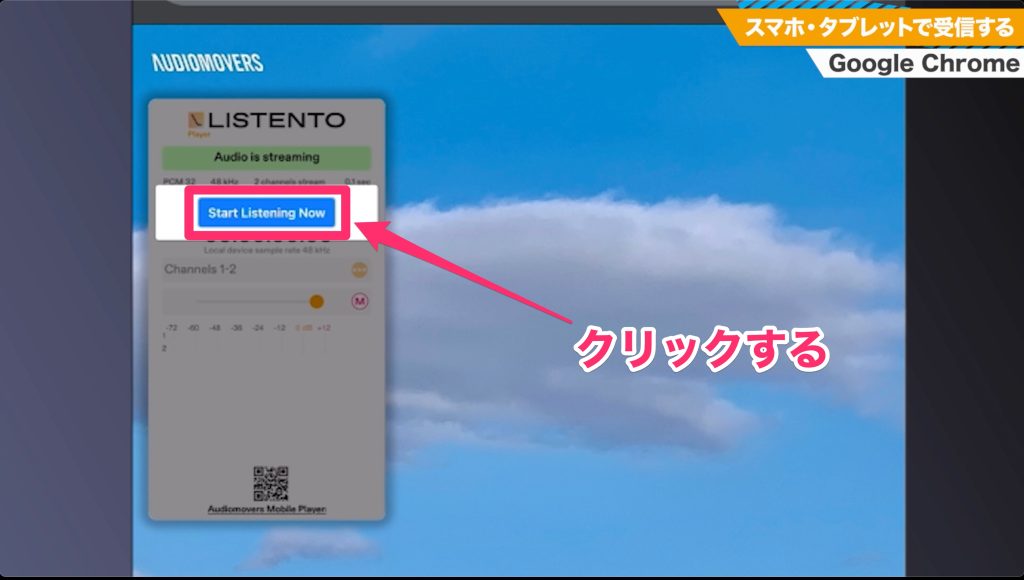
2. Click Start Listening Now to begin listening.
LISTENTO Player
You can download LISTENTO Player from the App Store or Google Play for supported devices.
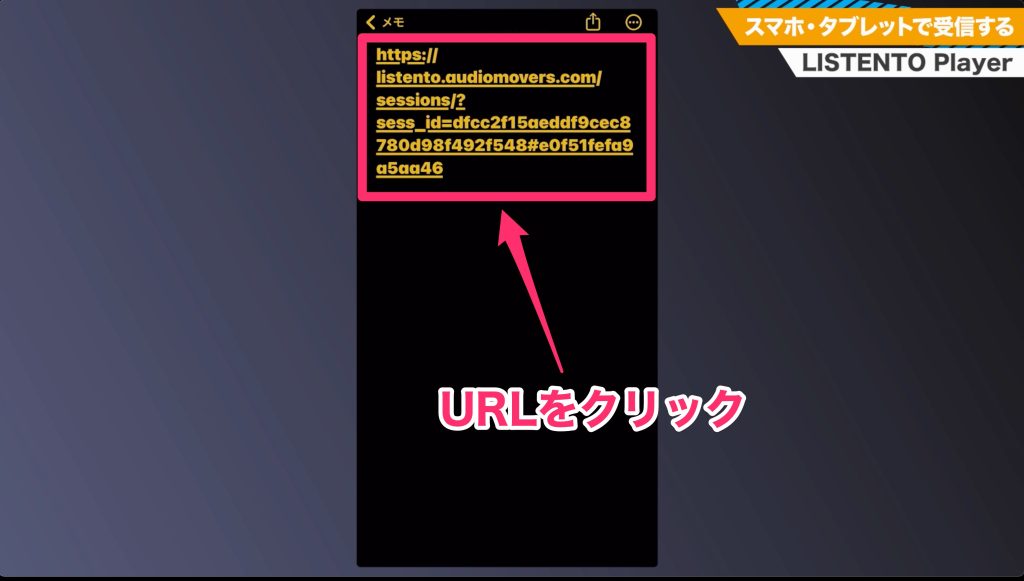
Receive the URL generated by the sender and tap the link.
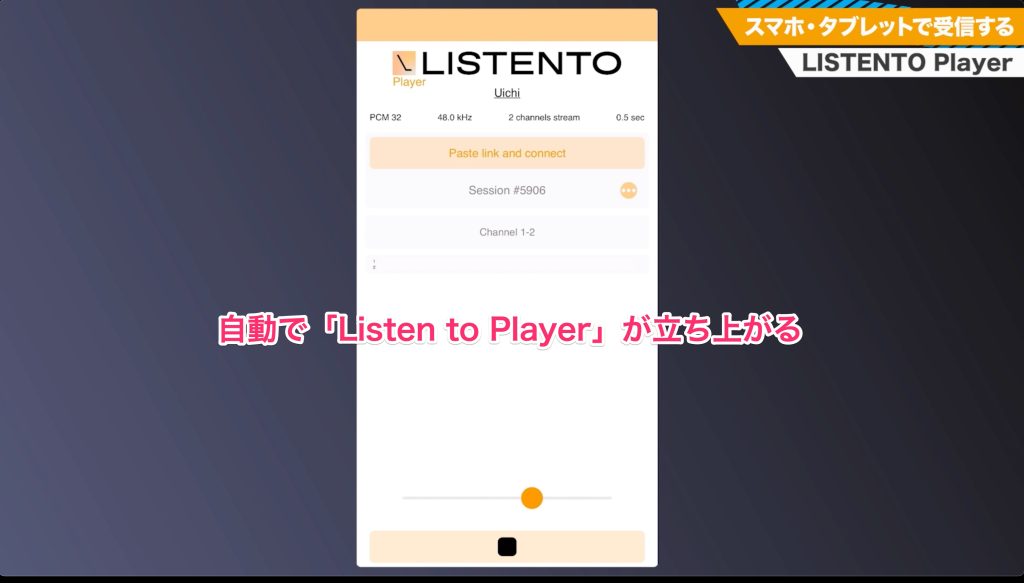
With the app installed and configured to open the link, LISTENTO Player launches and is ready to receive the stream.
Why LISTENTO Is Convenient
That covers the basic workflow: generate a URL, then paste it into a web browser or application.
It is a simple and convenient way to stream audio.
It can also speed up collaboration by removing the need to export and send an audio file each time you want someone to listen.
In the advanced tutorial, we explore remote recording and other more involved workflows.
Frequently Asked Questions
Q1. Which DAWs can use LISTENTO?
The version covered supports VST, Audio Units (AU) and AAX plug-in formats, allowing use in many DAWs, including compatible versions of Logic Pro, Cubase and Ableton Live. Check the requirements for your particular host, operating system and LISTENTO version.
Q2. What audio quality does LISTENTO support?
The version demonstrated supports streaming up to 32-bit audio at a 96 kHz sample rate. The latency setting lets you balance delay against the requirements of your connection; it does not eliminate network delay.
Q3. Can I use LISTENTO on a mobile device?
Yes, supported smartphones and tablets can receive the stream using Google Chrome or LISTENTO Player. Open the sender's URL in the chosen browser or app and start listening as described above.
Q4. Does LISTENTO require complicated setup?
The basic workflow is straightforward: the sender signs in, chooses the session settings and generates a URL. The listener opens that URL in a supported browser or application and starts listening. Application and DAW routes may also require selecting the correct output channels.
Q5. Which LISTENTO edition should I choose in Japan?
In the October 2023 tutorial, Pro includes the basic streaming functions demonstrated and is sufficient for those tasks. Business was the other edition available for more advanced needs. Check the current edition details before purchasing.
NEW ARTICLES
Latest English Articles











