
LISTENTO enables remote MIDI and audio recording over the internet. Set up the LISTENTO application or plug-in at the sending end and LISTENTO Receiver at the receiving end to stream high-quality audio and MIDI. This October 2023 tutorial covers recording keyboard performances and vocals, plus multichannel audio streaming with up to 16 mono channels in the version demonstrated. Recording the backing track and performance together can help preserve their relative timing, but does not eliminate network latency. The workflow can support remote music production and education.
Record MIDI and audio from a remote location

Our basic LISTENTO tutorial introduced the essentials. This article explores more advanced workflows.
- Direct vocal and instrumental recording sessions remotely.
- Share demos in real time.
- Check a mix in real time without exporting it from your DAW.
- Record arrangement ideas remotely as MIDI.
These are just some of the possible uses.
Let us walk through the settings. This guide describes the software and features demonstrated in October 2023.
LISTENTO Advanced Video Tutorial
LISTENTO Basic Video Tutorial

Remote MIDI Recording
For MIDI recording, use the LISTENTO application together with LISTENTO Receiver.
You can obtain them from the download page.
Sender setup
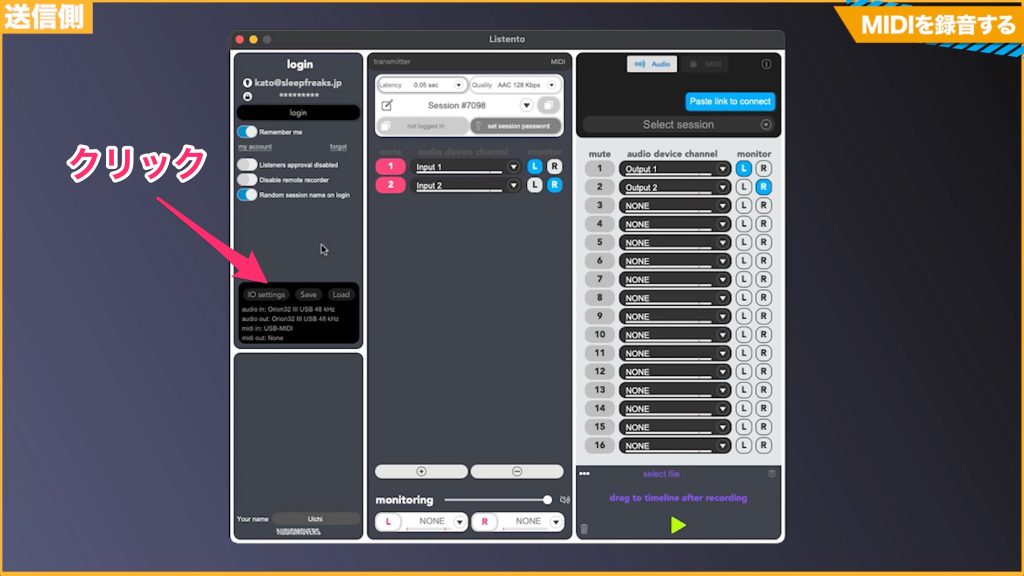
Launch the LISTENTO application and click IO Setting.
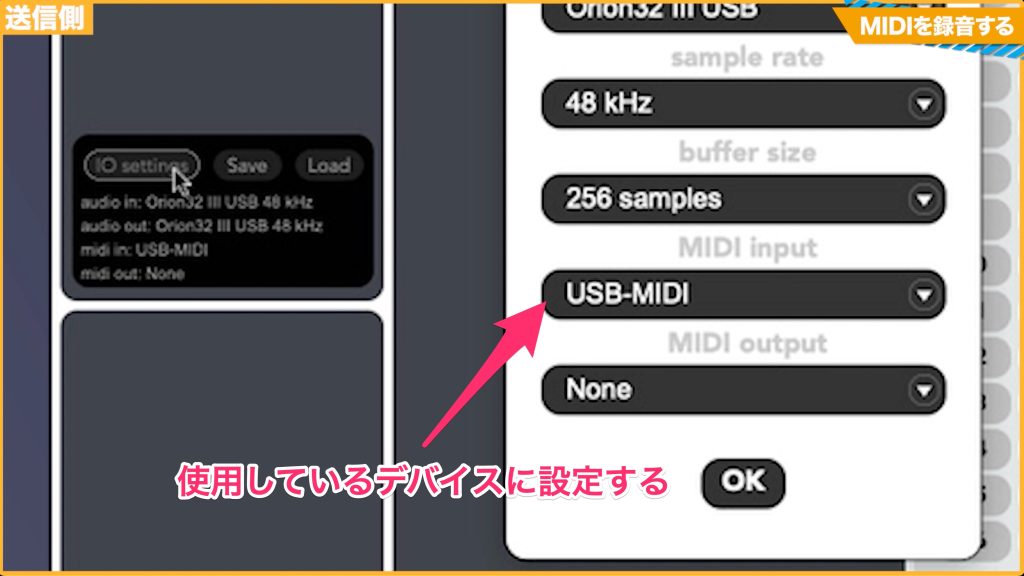
Check that MIDI Input is set to the MIDI keyboard you want to transmit.
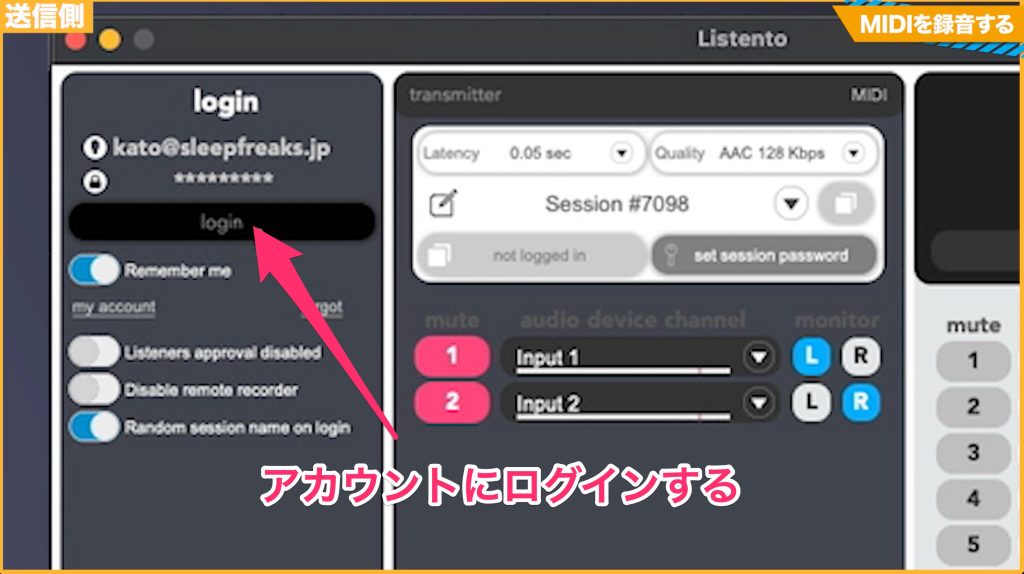
Sign in using the account fields.
Once signed in, a Session ID is issued and MIDI transmission becomes available.
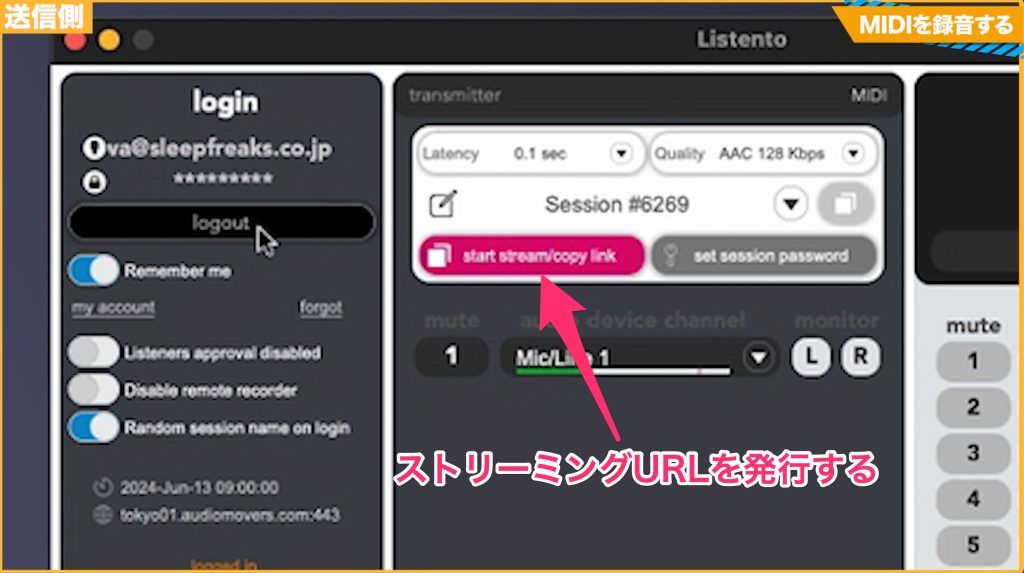
Click start streaming/copy link to generate and copy the session URL.
You will use this URL in the Receiver that receives the MIDI signal.
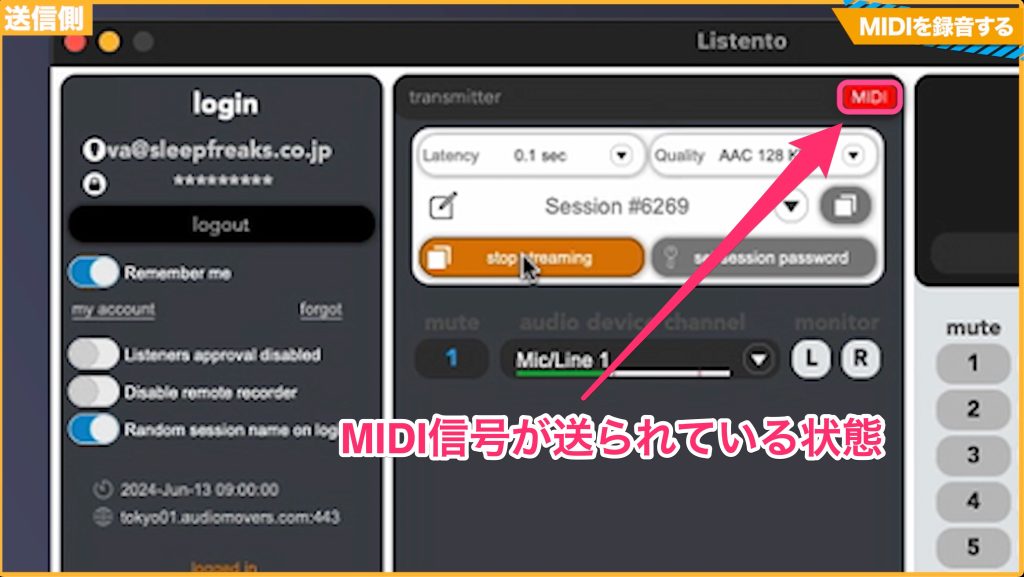
When you play the MIDI keyboard, the MIDI indicator at the upper right turns red.
That completes the sender setup.
Receiver setup
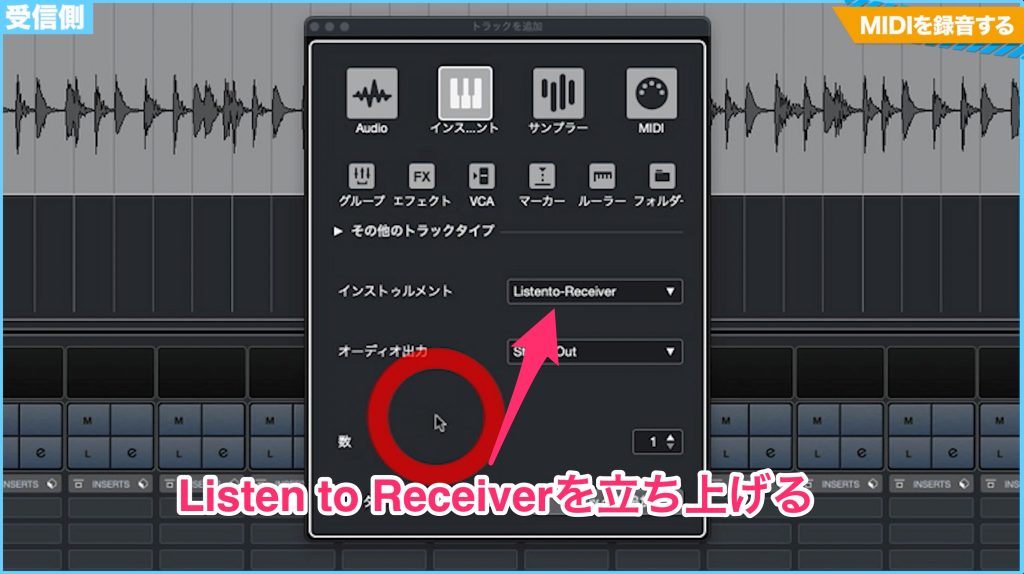
Create an instrument track in your DAW and select LISTENTO Receiver as its instrument.
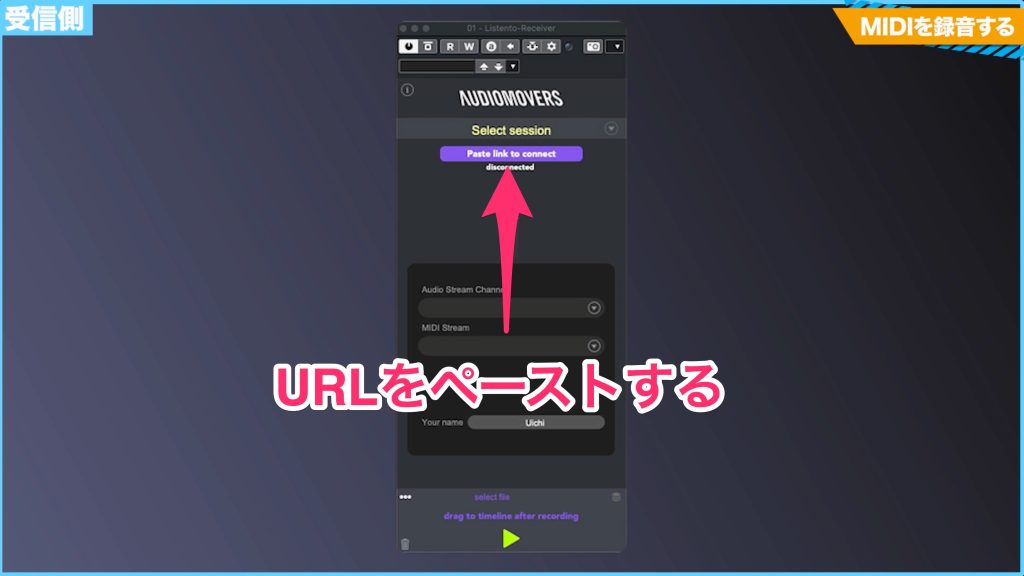
Click Paste Link to Connect and paste the URL copied at the sending end.
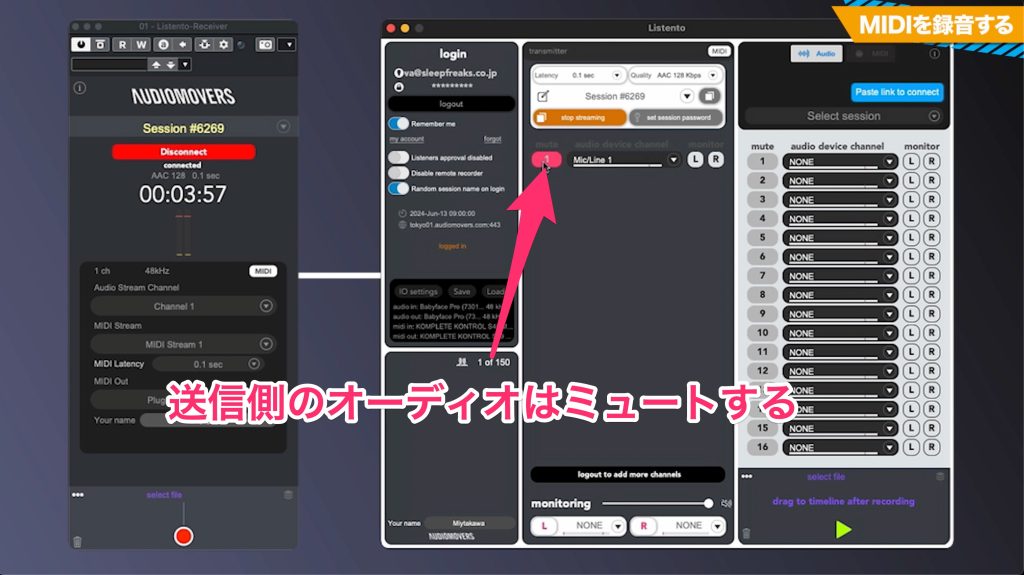
Because we are transmitting only MIDI in this example, mute the sender's audio device channel.
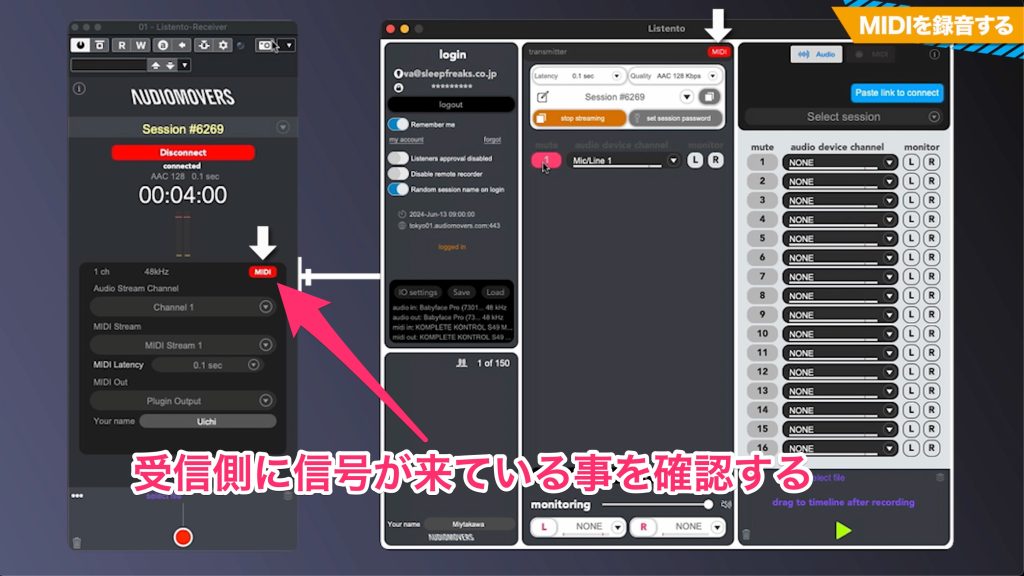
Confirm that the MIDI signal is being received.
A red MIDI indicator, as shown in the screenshot, indicates successful reception.
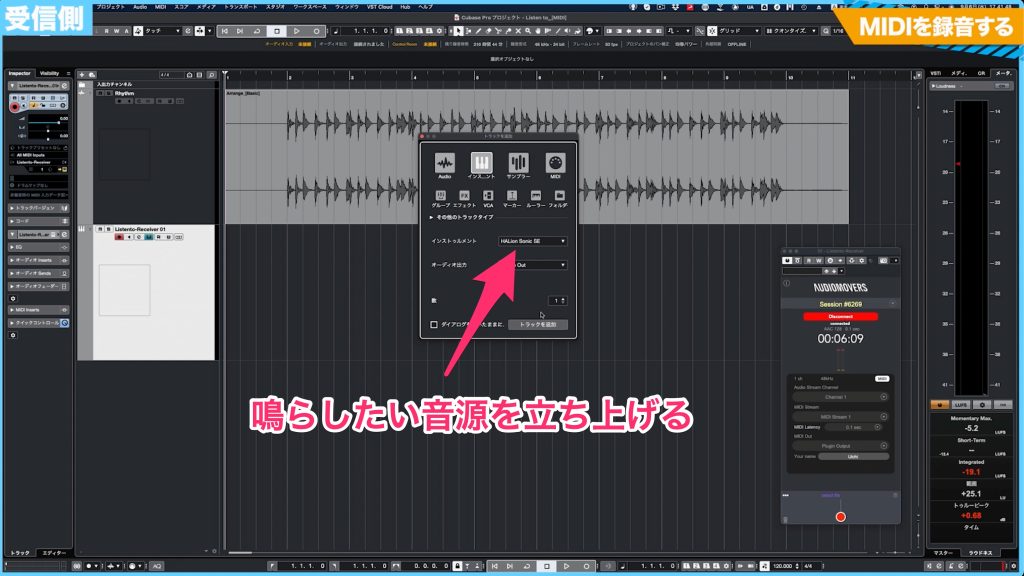
Create a track for the instrument you want to play, then
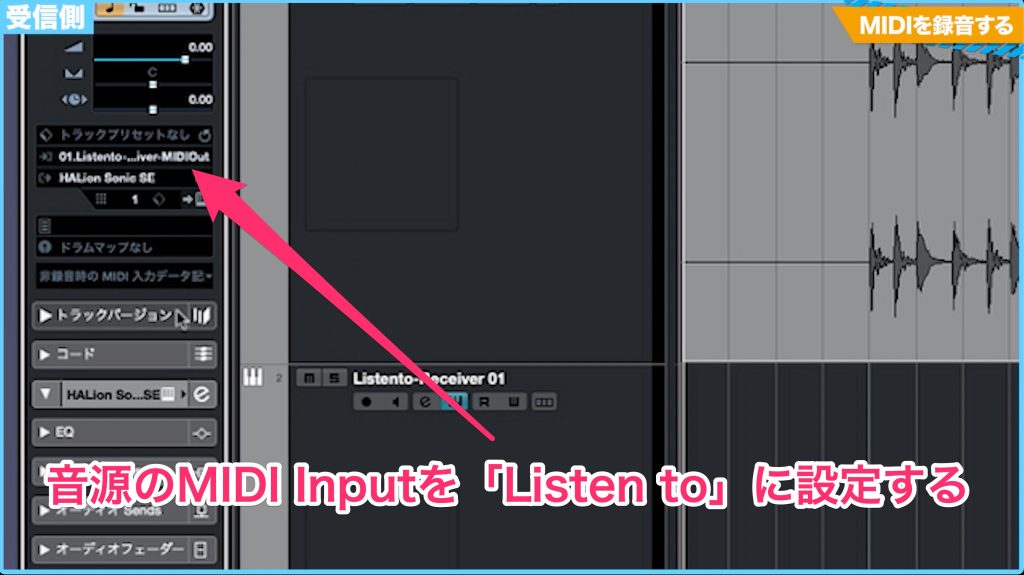
set that instrument track's MIDI Input to LISTENTO Receiver and record the incoming MIDI.
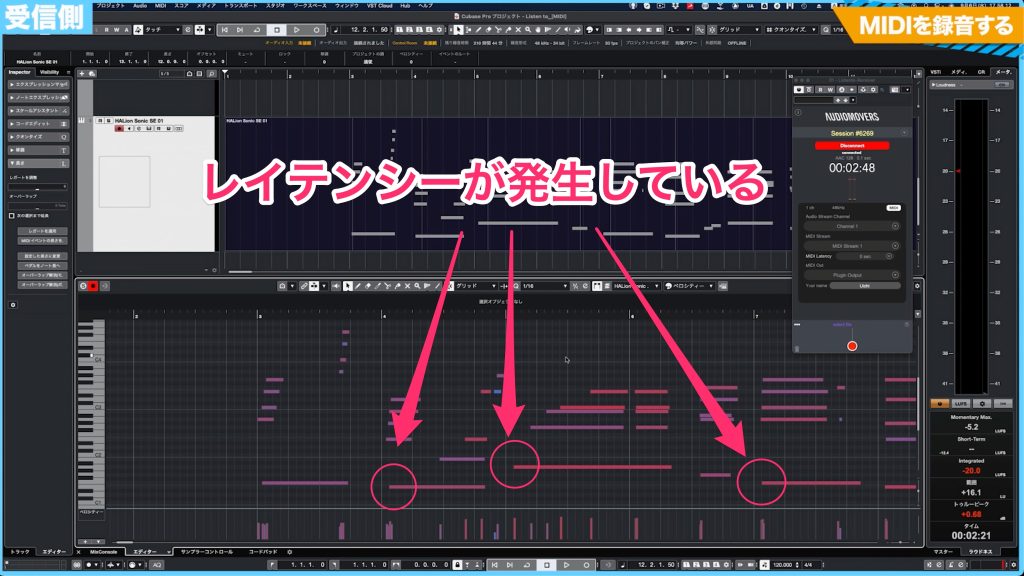
The recorded MIDI will have some timing offset caused by latency.
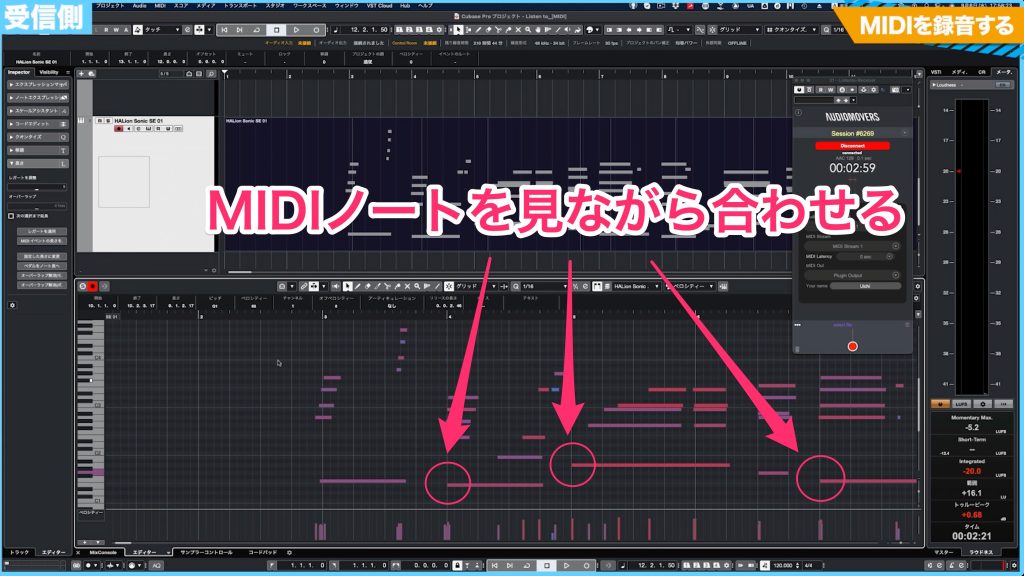
Use the MIDI editor to align it as needed.
Audio Recording
For audio recording, use LISTENTO and LISTENTO Receiver.
Sender setup
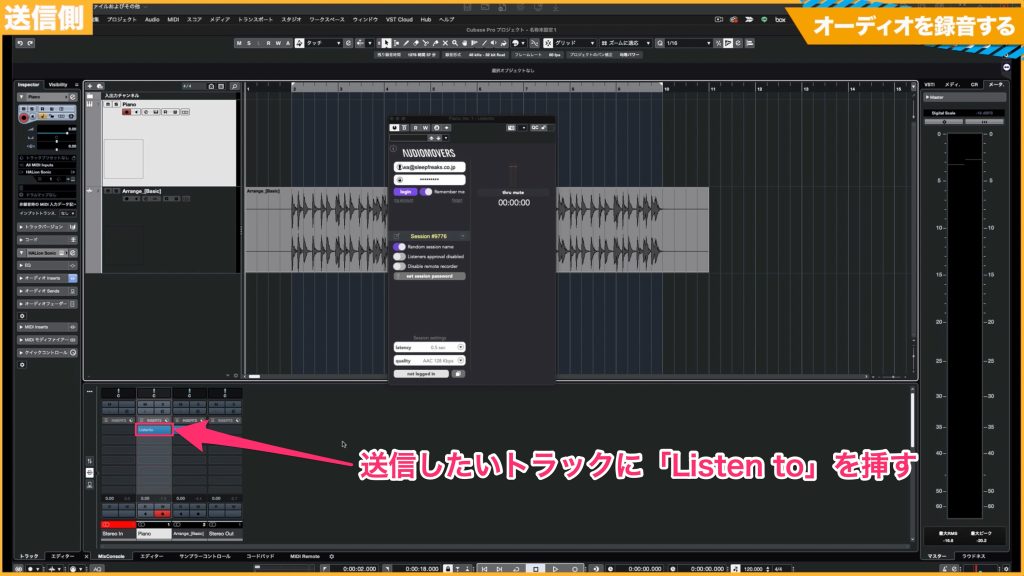
On the instrument or performance track you want to transmit, insert the LISTENTO plug-in.
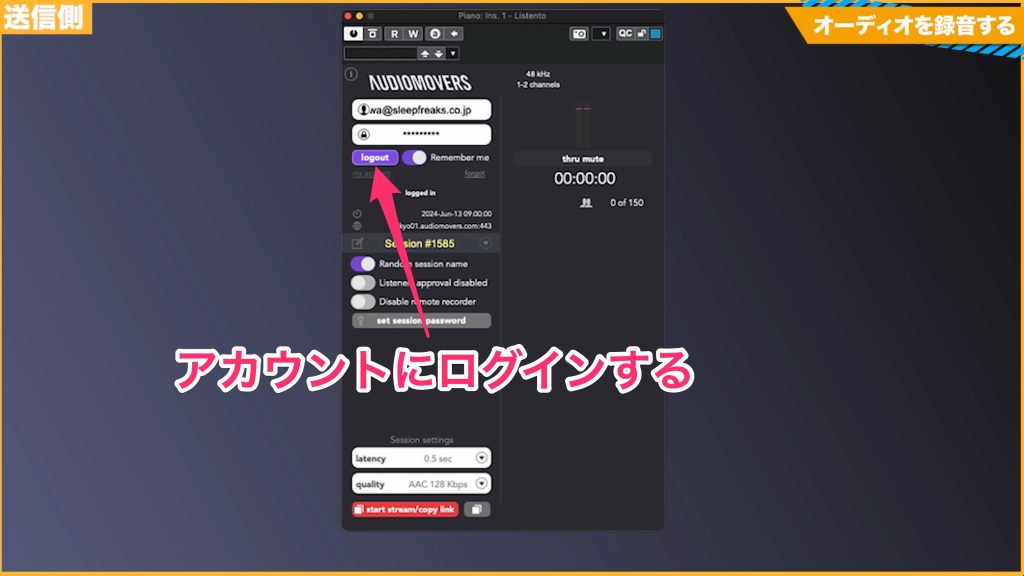
Sign in to your account, then
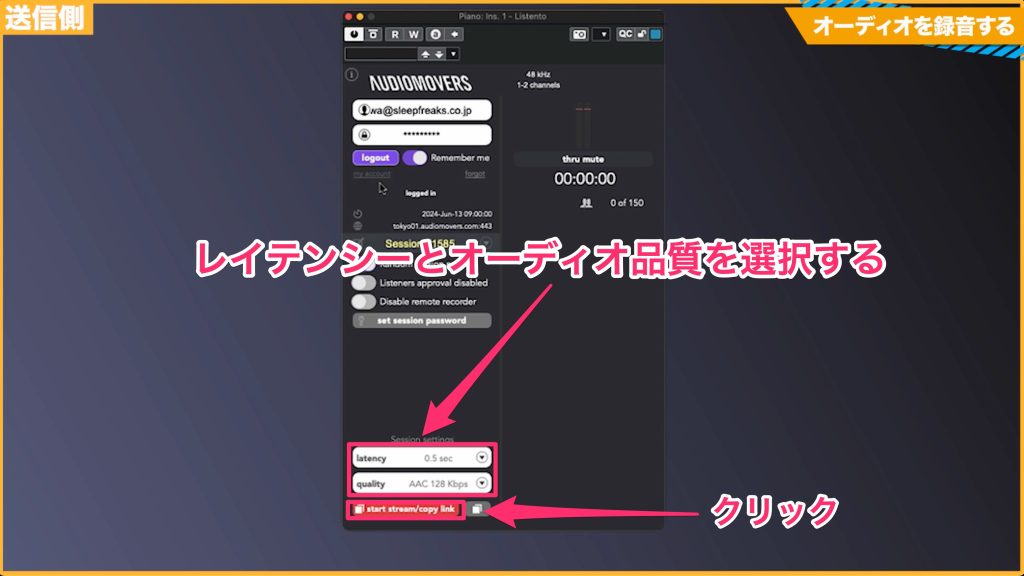
set the latency and audio quality.
Click start streaming/copy link.
The sending end is now ready.
Receiver setup
The precise setup varies slightly between DAWs, but the basic approach is the same.
We will use Cubase as the example here.
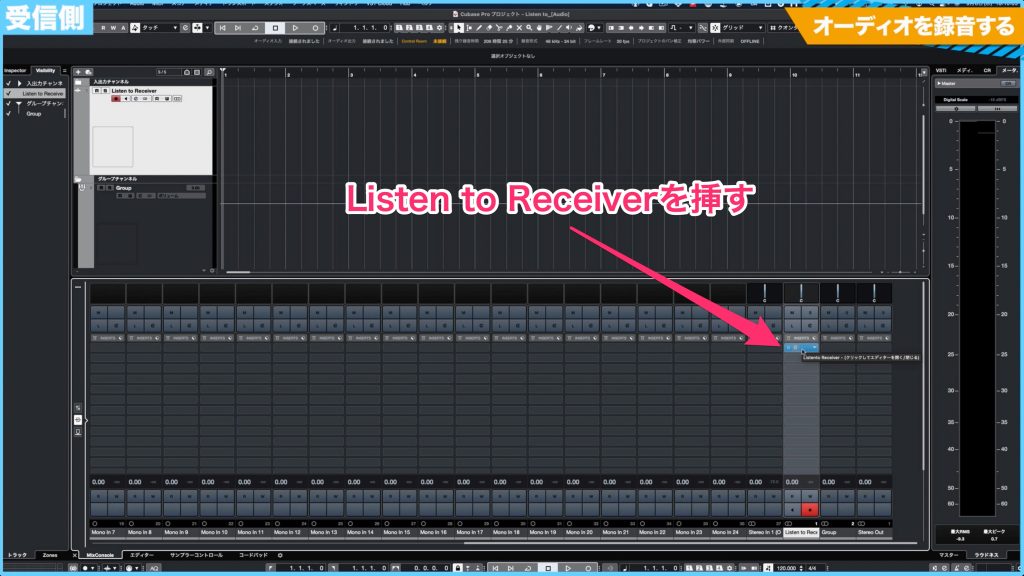
Create an audio track and insert LISTENTO Receiver on it.
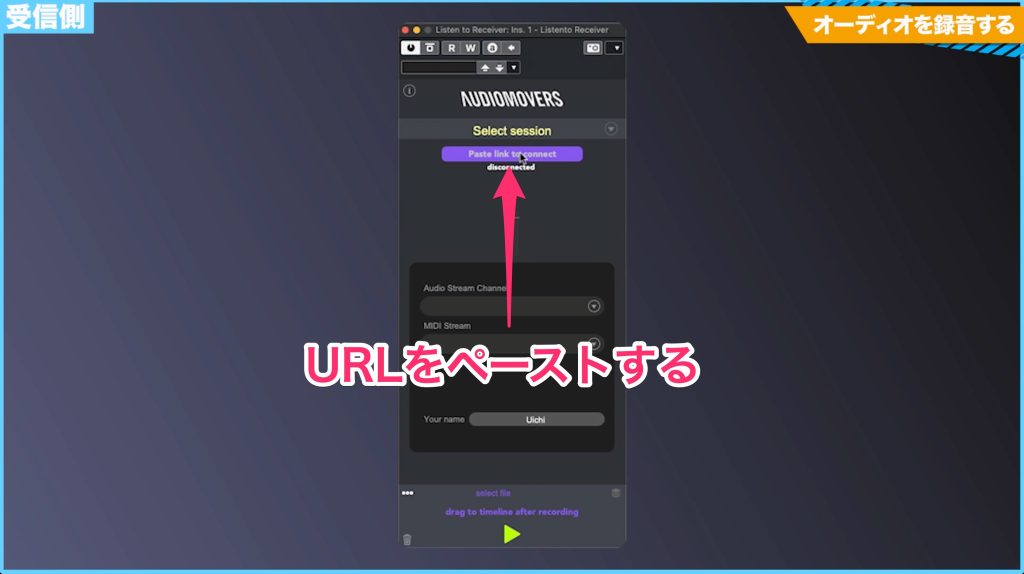
Open LISTENTO Receiver, click Paste Link to Connect and paste the URL generated at the sending end.
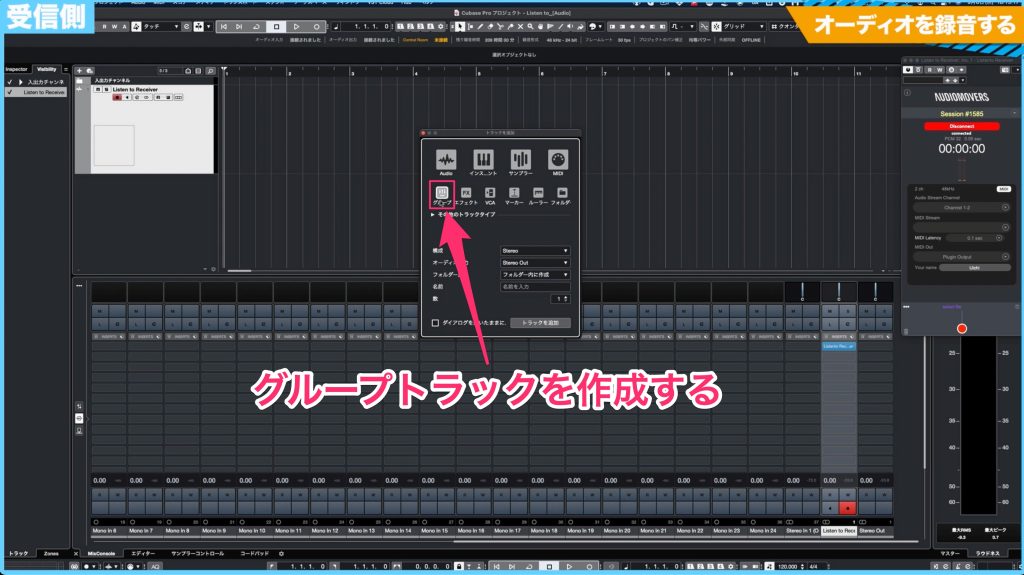
Create a group track, then
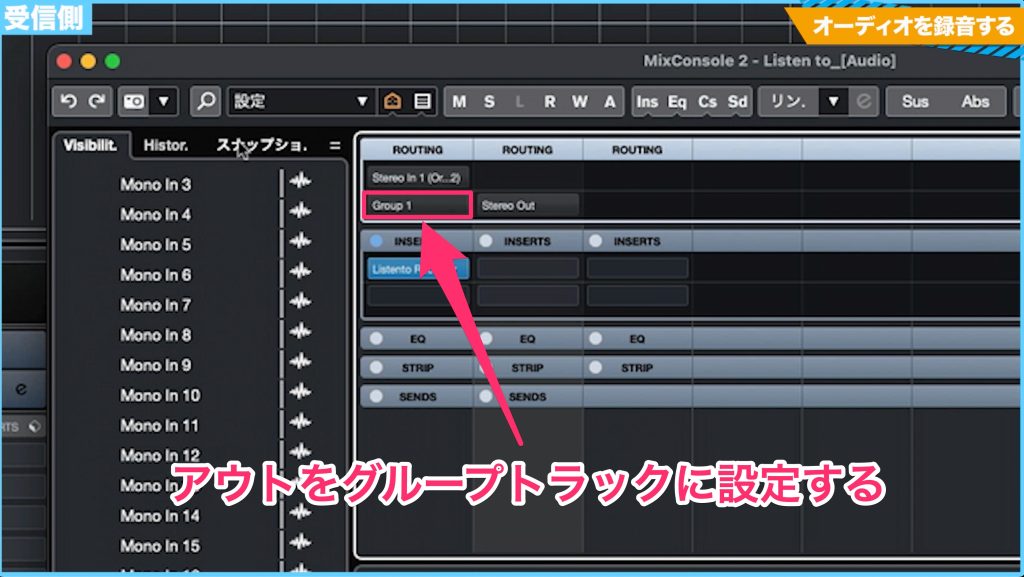
route the output of the track containing LISTENTO Receiver to that group.
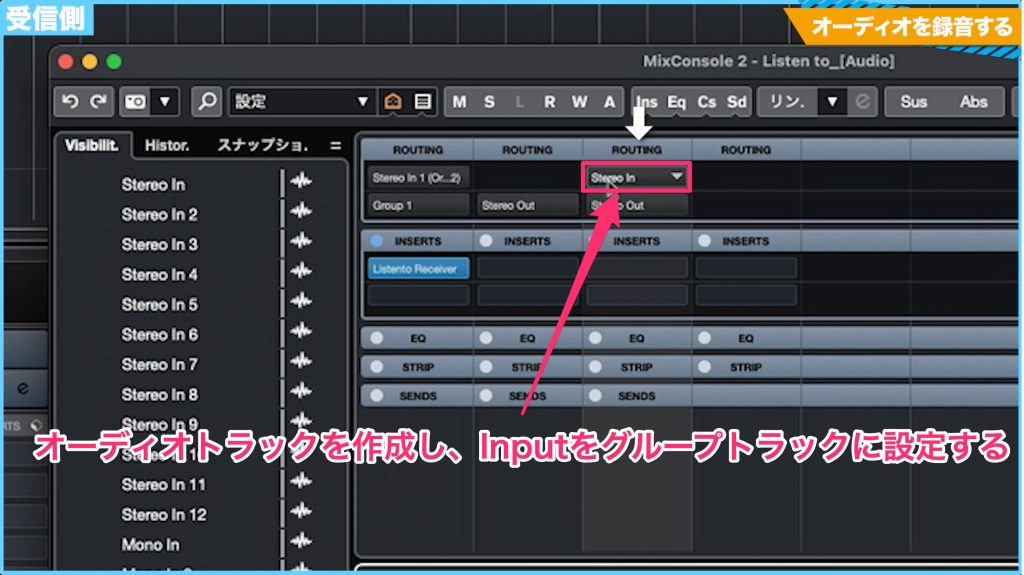
Create another audio track and set its input to the group track.
The incoming audio is recorded onto this last audio track.
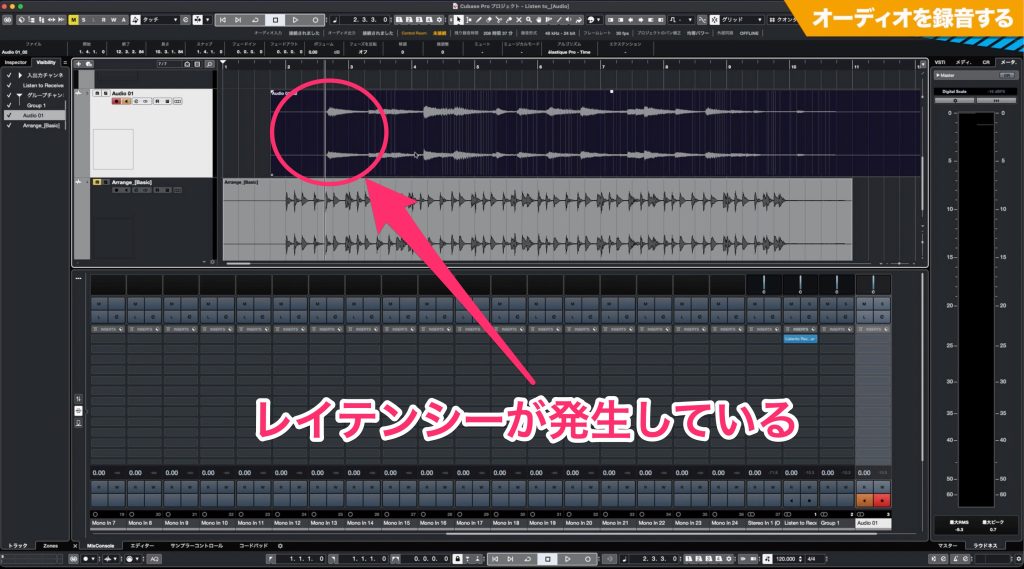
Audio recording also introduces latency.
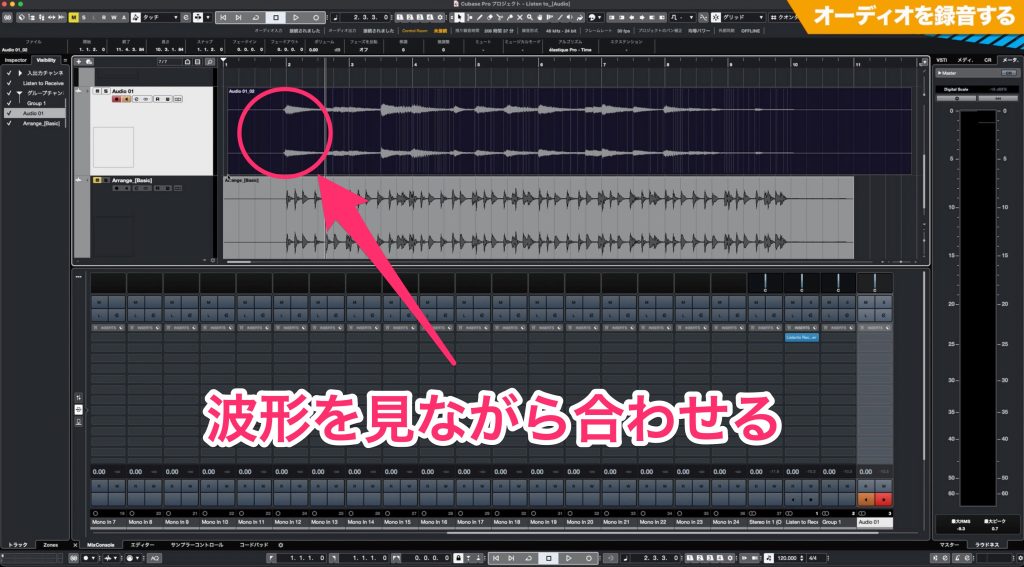
Check the waveform and adjust its timing manually as needed.
If the sender also transmits a click track and you record it in the same way, it is easier to align the recording in your DAW.
Dealing with latency
You can record the performance track alone in real time, but it will arrive with latency.
Receive and record the backing track and performance together to preserve their timing relative to each other more easily. This addresses alignment of the recorded tracks; it does not remove the underlying network delay.
Multichannel Audio Streaming
The LISTENTO version demonstrated here supports streaming up to 16 mono audio channels.
Sender setup
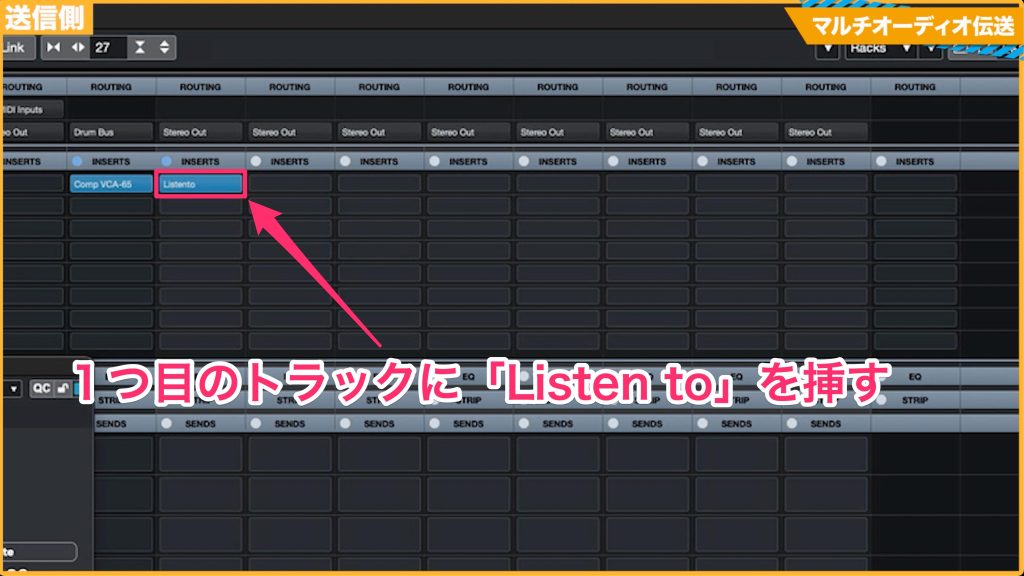
Insert LISTENTO on the first track you want to transmit.
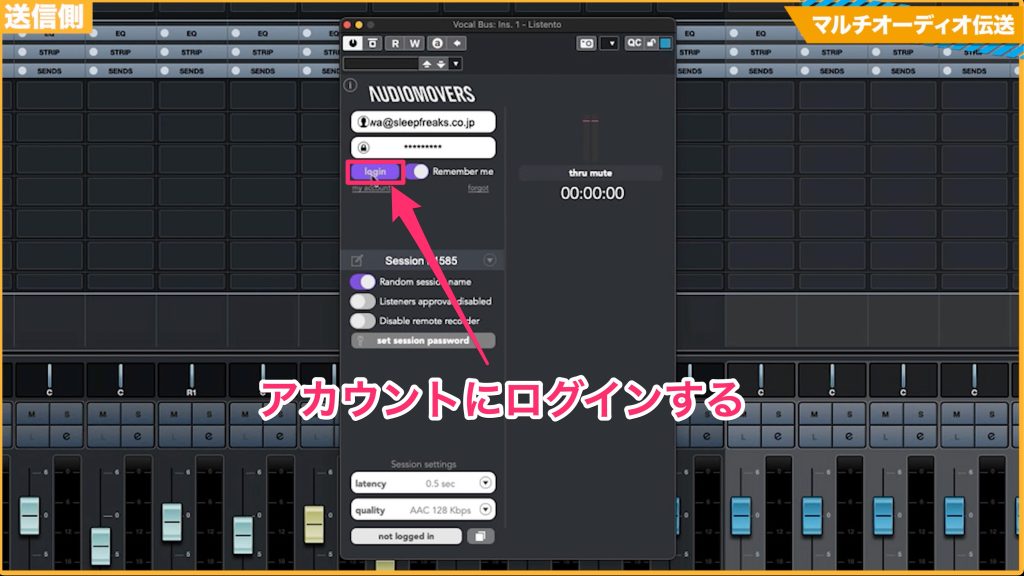
Sign in to your account.
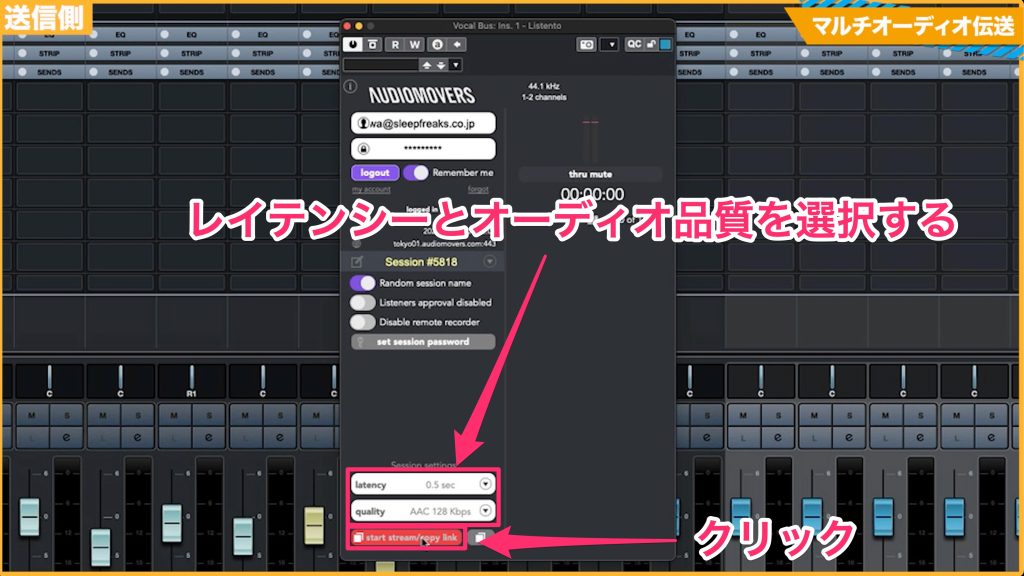
Set latency and audio quality, then click start streaming/copy link and copy the URL.
You can change latency and audio quality after signing in as well.
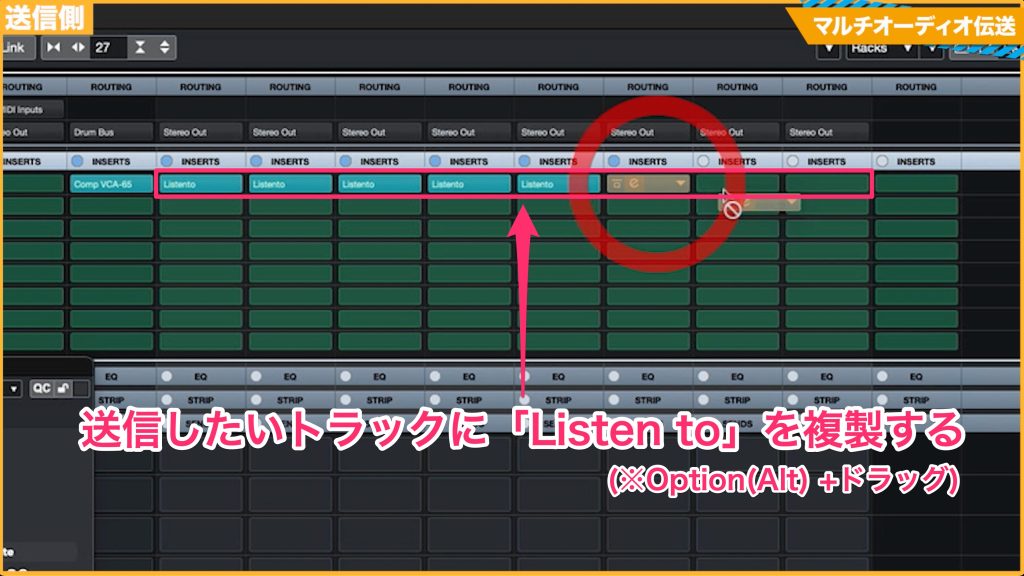
Duplicate the first LISTENTO plug-in onto the other tracks you want to transmit.
In Cubase, use Option (Alt) + drag.
Receiver setup
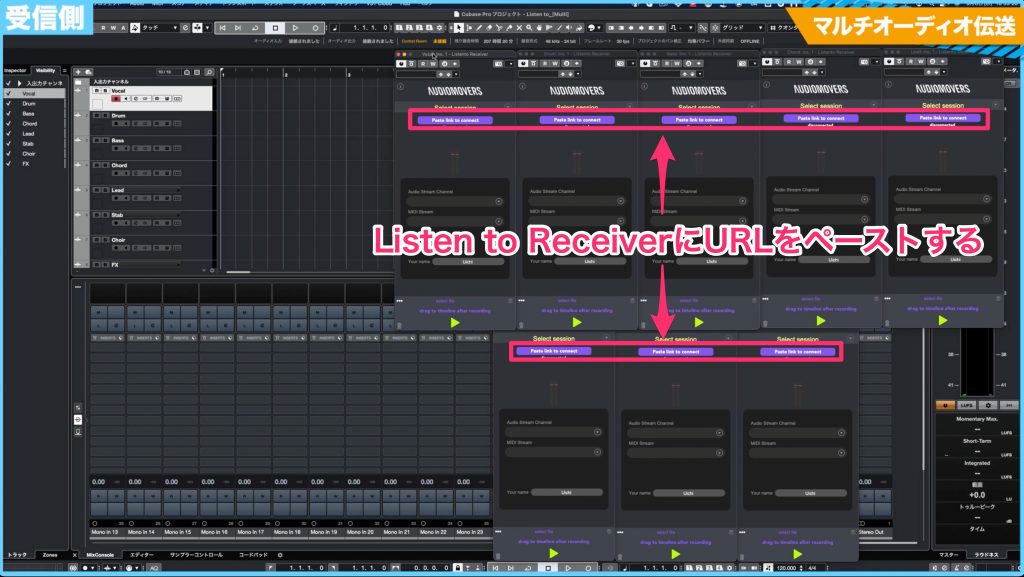
Create an audio track for each track being transmitted, and insert LISTENTO Receiver on each one.
Open LISTENTO Receiver and paste the URL you copied into Paste Link to Connect.
Paste the same URL into the Receivers on the other tracks too.
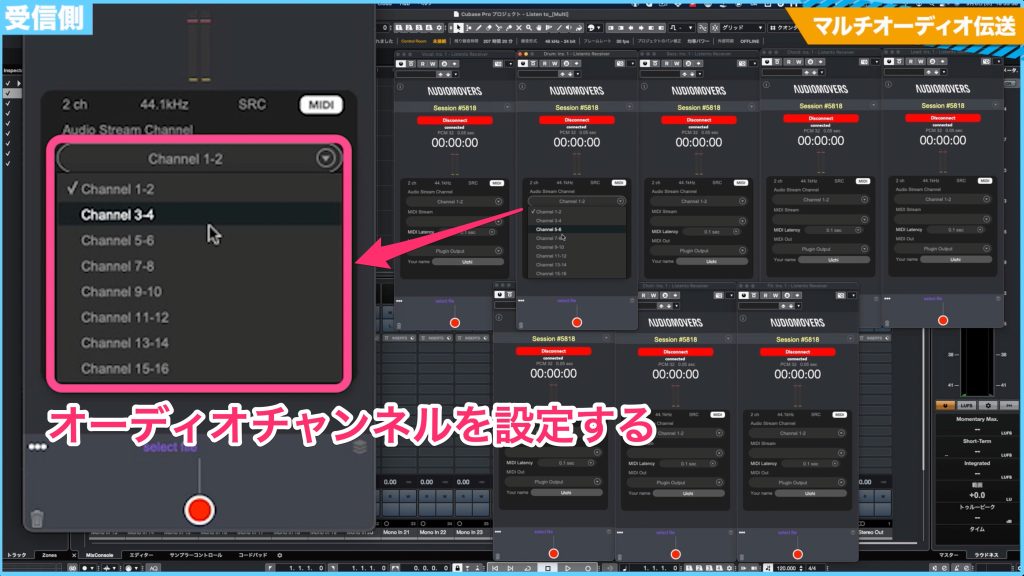
After pasting the URL, you can select a channel using Audio Stream Channel in LISTENTO Receiver.
Match each Receiver to the corresponding channel at the sending end.
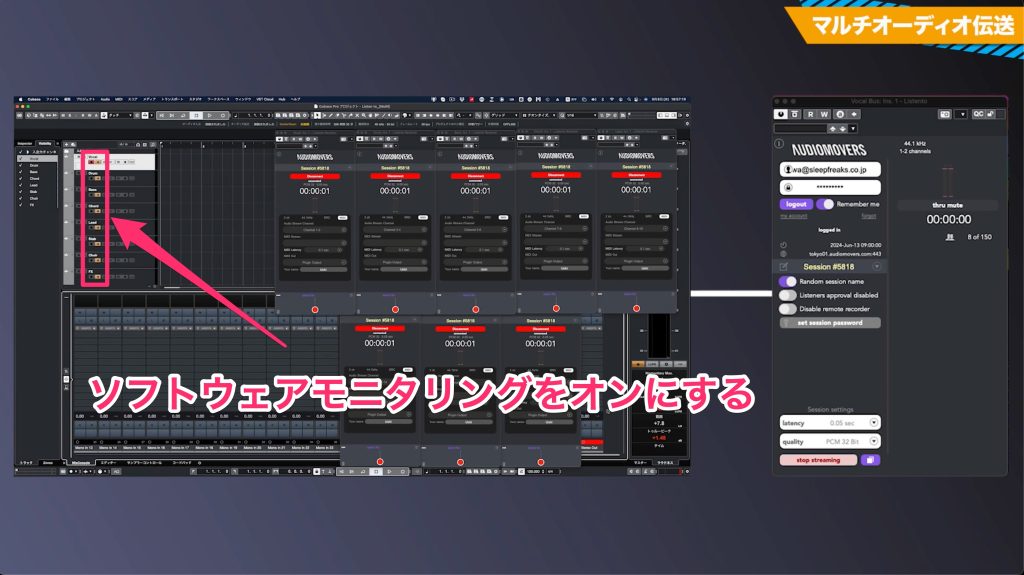
Enable software monitoring on the tracks, then
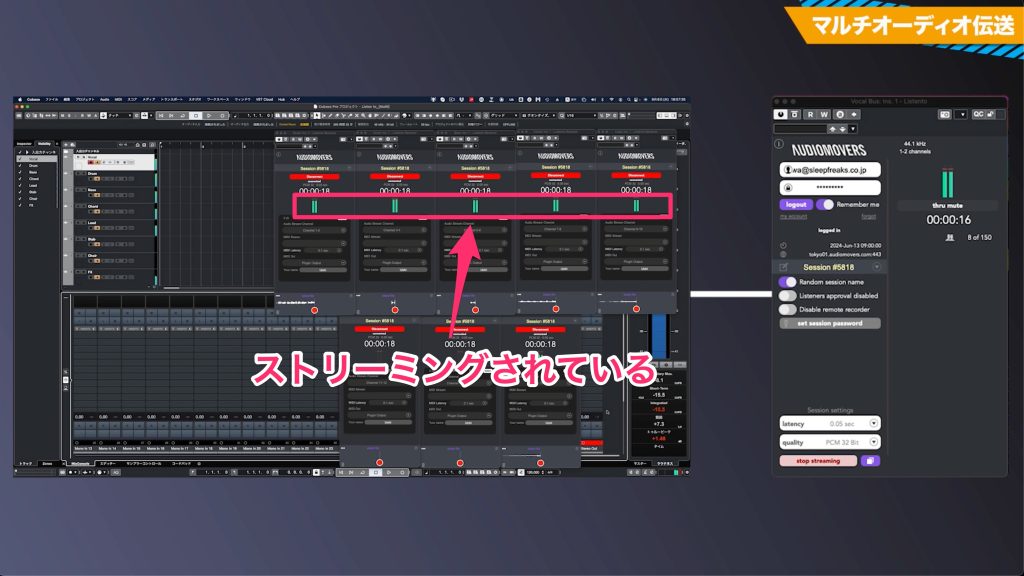
play the tracks at the sending end to start the stream.
Record the incoming audio into your DAW.
How could you use these workflows?
Exchanging music-production material remotely has become increasingly common.
A system for high-quality streaming and real-time recording opens up useful possibilities.
Results depend partly on internet performance and computer specifications, but applications include music production across distant locations and remote classes in educational settings.
LISTENTO can make many of these workflows possible.
Take a look at the product if it fits your needs.
Frequently Asked Questions
Q1. How can I deal with latency when recording remotely with LISTENTO?
Receiving and recording the backing track and performance together can help preserve their relative timing, but does not eliminate network delay. Sending and recording a click track as well makes alignment in the receiving DAW easier. Recorded MIDI may still need manual adjustment.
Q2. What should I do if recorded audio is out of time?
Check the audio waveform and adjust its timing manually to compensate for latency. For MIDI recordings, use the MIDI editor. Recording a click track from the sender at the same time can make alignment easier.
Q3. Does LISTENTO support multichannel streaming?
Yes. The version demonstrated supports up to 16 mono channels. Duplicate the LISTENTO plug-in onto the sending tracks, then select the corresponding stream channel in each Receiver at the receiving end.
Q4. What internet speed do I need for remote recording?
The original article does not specify a minimum connection speed. Performance depends on internet bandwidth and computer specifications, so use a stable connection appropriate to your selected quality and channel count.
NEW ARTICLES
Latest English Articles











