
Novation FLKey is a MIDI keyboard developed specifically for FL Studio that minimizes mouse operation and enables intuitive beat making. A variety of input methods, such as Sequencer mode, Channel Rack mode and the Note Repeat function, streamline drum track production, and the Scale function assists with melody input. The two models, FLKey 37 and FLKey 25, come with a six-month trial of FL Studio for beginners and many plug-in instruments, making them an ideal choice for creators who want to start beat making and track making.
How to Make Beats Using "FLKey"
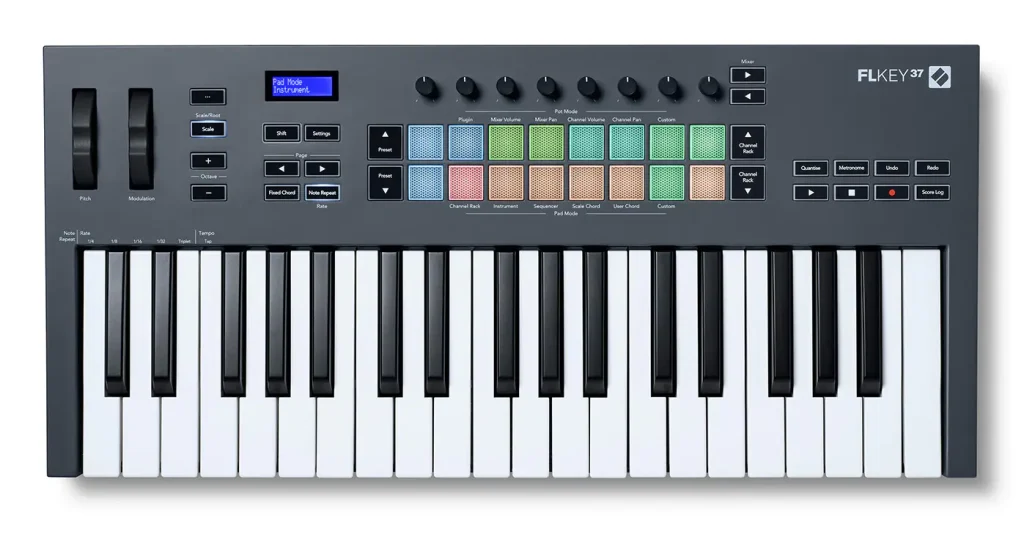
This time, we explain a workflow for actually making beats using [FLKEY], a popular MIDI keyboard that lets you make beats with intuitive operation, and the trial version of [FL Studio] that comes with the product.
FLKey is a product developed specifically for the DAW FL Studio, a MIDI keyboard that lets you call up, intuitively and easily, various functions that would normally require mouse or computer keyboard operation.
The product comes in two models with different sizes and features, [FLKey 37] and [FLKey 25], and both come with a six-month trial of the DAW "FL Studio," which is popular with creators making genres such as hip-hop and dance music.
It also has functions that assist with entering scales and chords, and there are many points that make it recommendable to those who want to start beat making or track making.
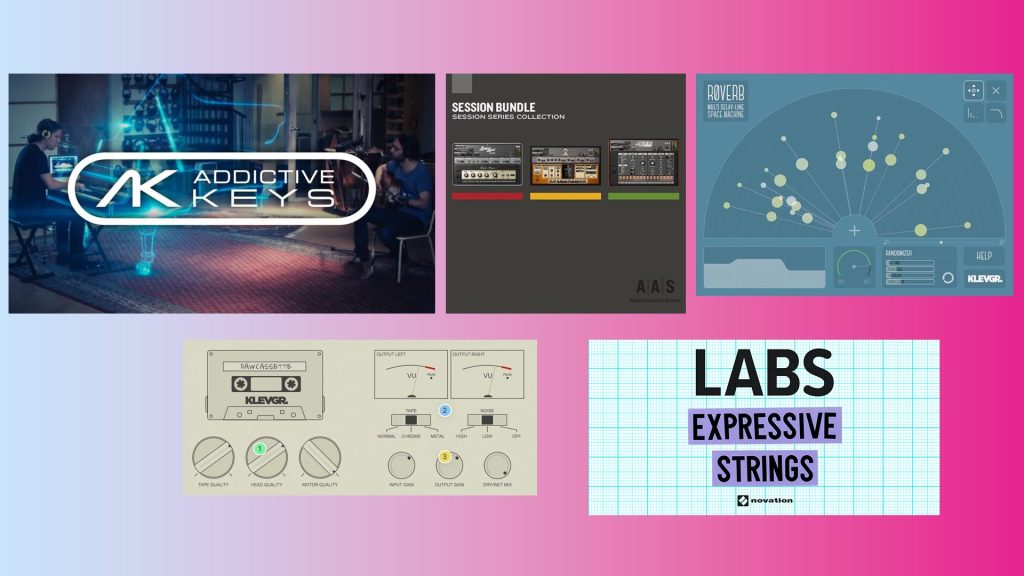
Furthermore, a very attractive point is that it comes with many plug-ins, such as piano and synthesizer instruments, that broaden the range of music production.
In this article, while introducing the various functions and features of the higher-end FLKey 37, we want to show real examples of how to use them in an actual music production workflow.
MIDI Keyboard Novation FLKey + FL Studio Video
- 1Producing a drum track with a variety of input methods
- 2Entering melodies with only the white keys using the Scale function
- 3Entering chord backing with the Scale Chord function
Producing a Drum Track with a Variety of Input Methods
We start production with the drum track.
The 16 pads lined up in the center of the FLKey have many roles besides being regular MIDI pads, letting you create drum tracks in various ways.
From here, we introduce the flow of creating a drum track while switching between these different input methods.
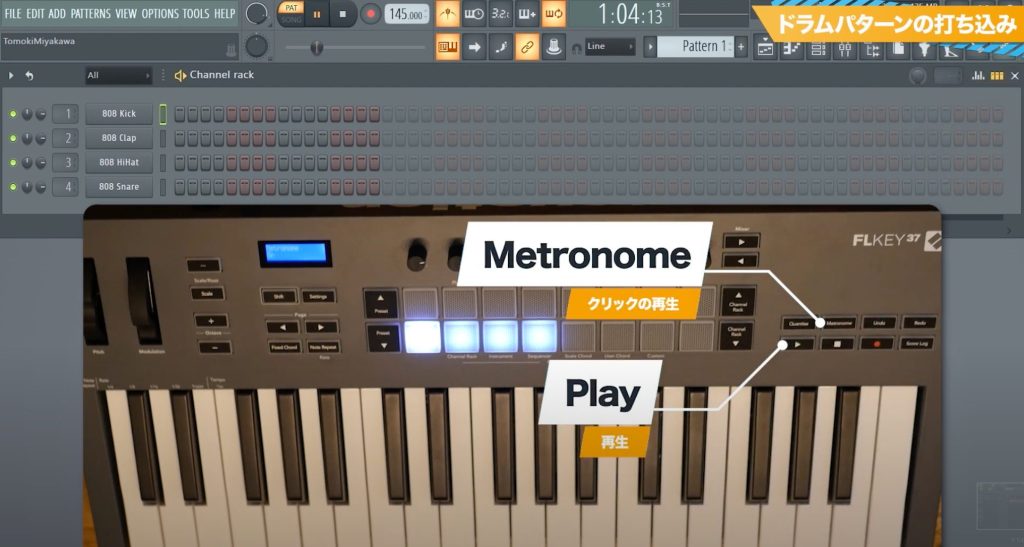
First, as preparation, enable the metronome to play a click.
Frequently accessed functions like this have dedicated buttons on the top panel, so you can work smoothly.
It may seem minor, but points like this actually make a big difference to production speed.
Entering Drums in Sequencer Mode
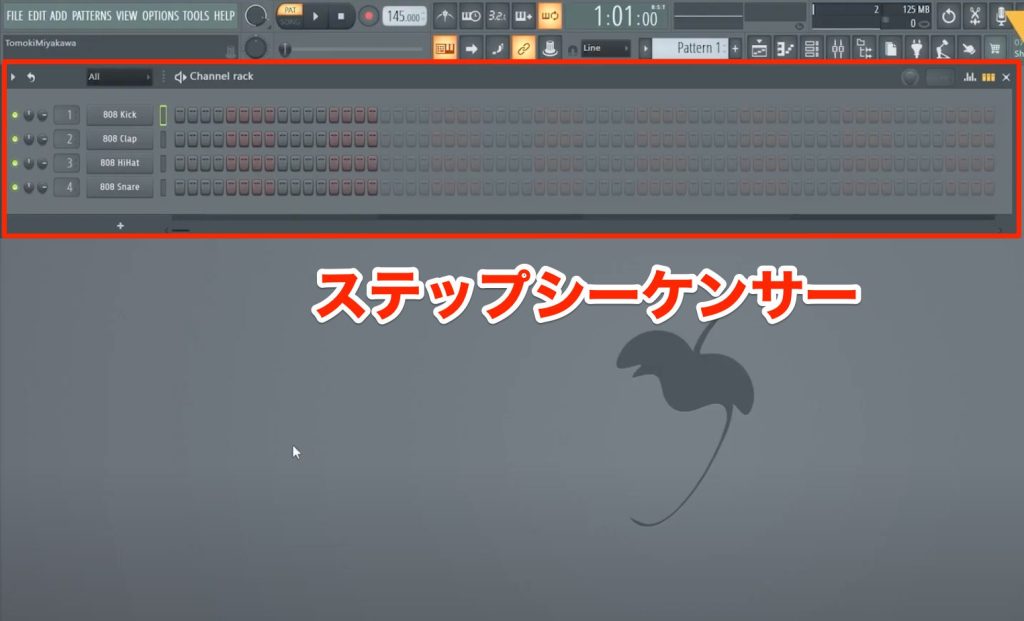
We start with the kick, which can be called the backbone of the beat.
Pressing the FLKey's [Shift] button together with the pad labeled [Sequencer] lets you control FL Studio's step sequencer with the 16 pads.
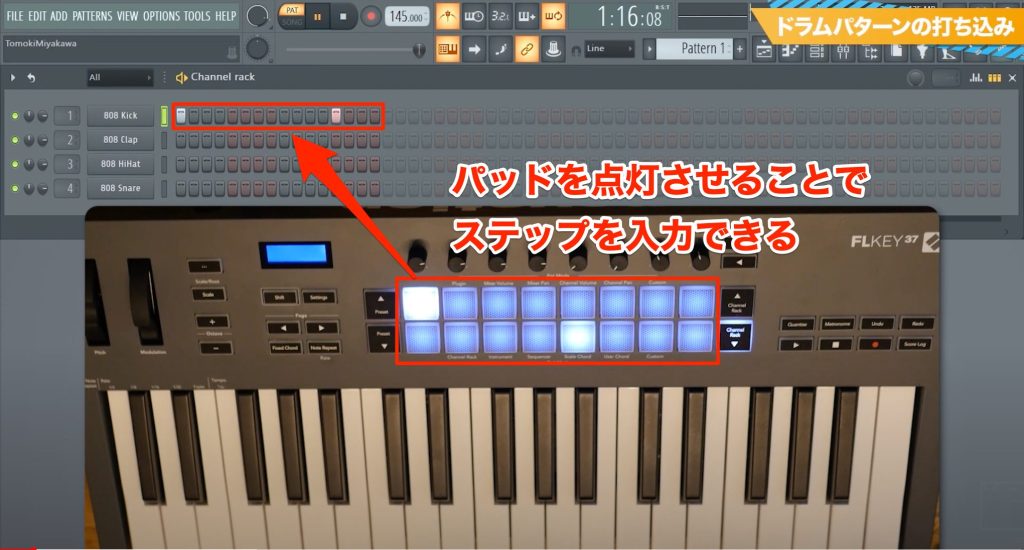
Light up the pads for the steps you want to enter, and you can quickly enter drums.
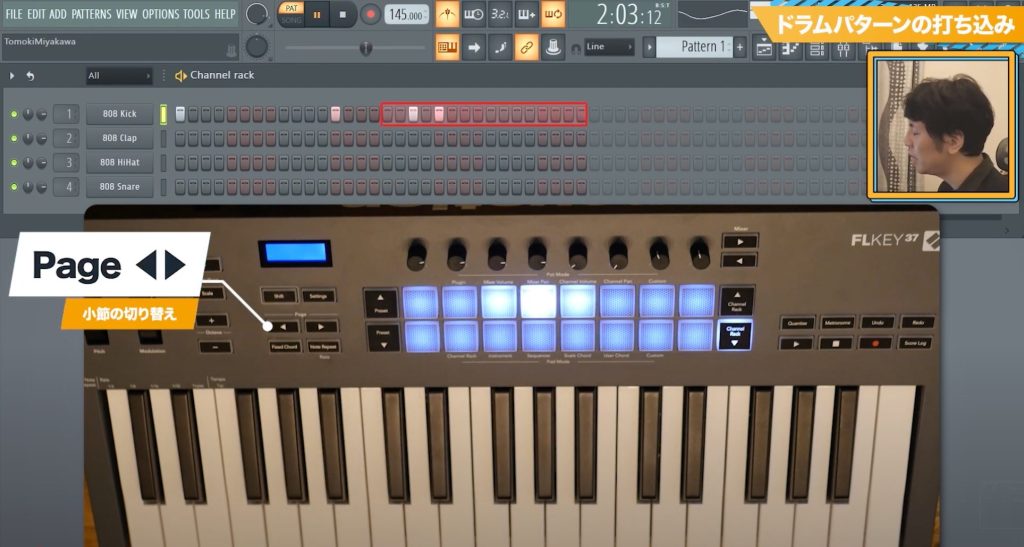
The 16 pads represent one bar of steps, and using the left and right [Page] buttons lets you enter steps from the second bar onward.
The step sequencer is linked and shows the editing range with a red frame, so you can easily see which bar you are currently controlling.
Enter the clap with the same steps.
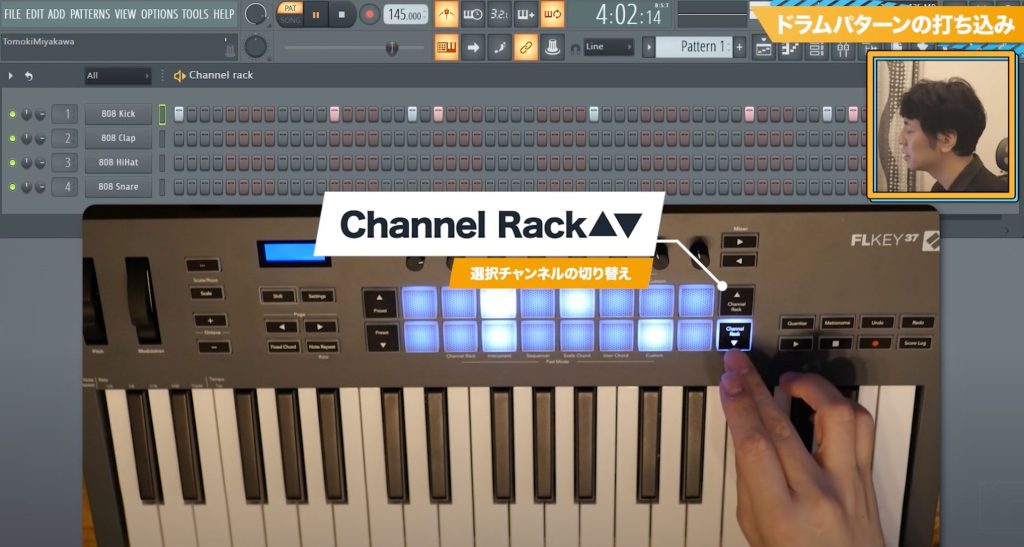
At this point, using the up and down [Channel Rack] buttons lets you switch the channel you are entering into.
Entering the Snare in Channel Rack Mode
The second input method is real-time recording using Channel Rack mode.
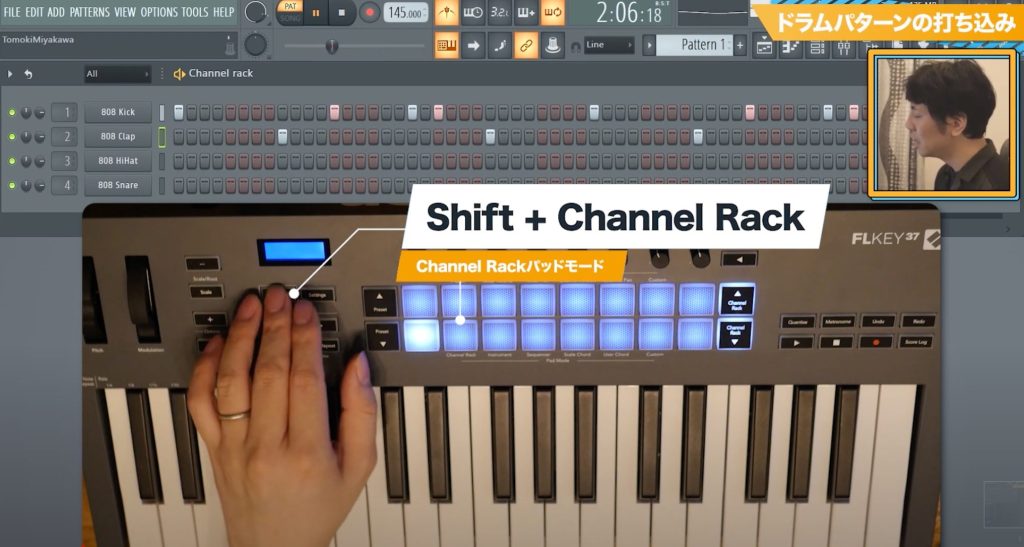
Pressing the [Shift] button together with the pad labeled [Channel Rack] lets you play a different Channel Rack sound from each of the 16 pads.
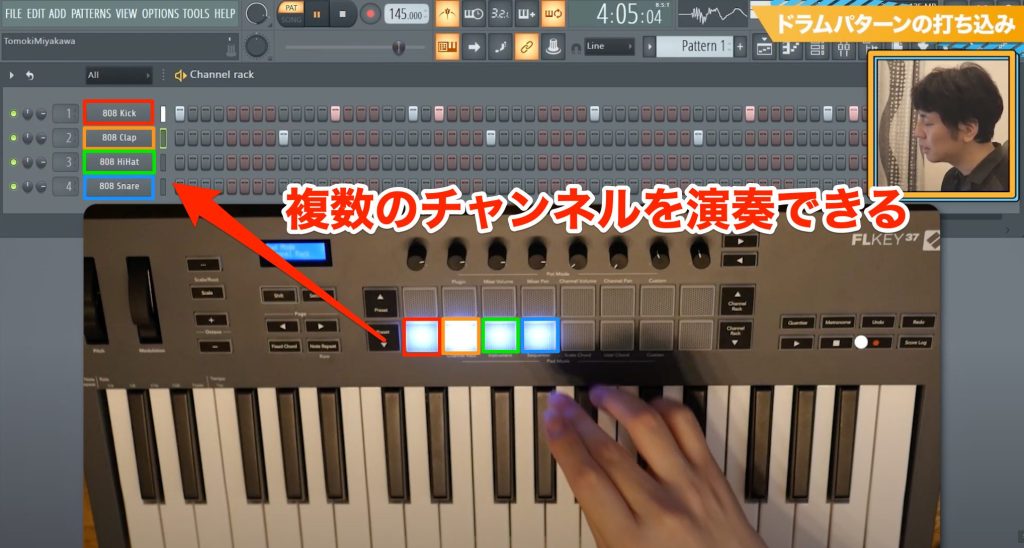
Four channels are currently open in FL Studio, so four pads are lit.
The pad for each channel plays at a fixed pitch, which lets you play multiple channels freely.
From here, we play the snare on a pad and record the performance in real time.
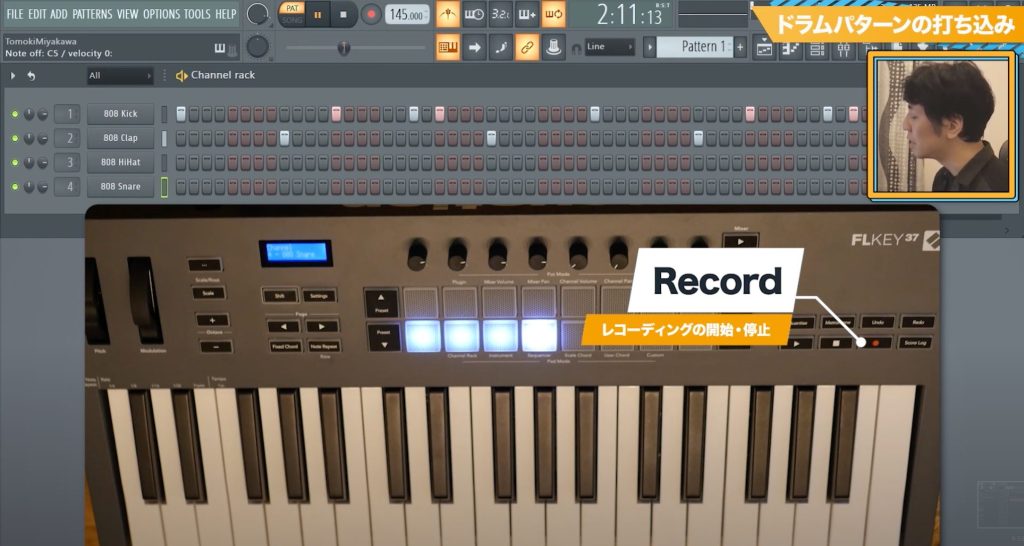
Of course, the FLKey also has a record button, so you can work quickly without using the mouse.
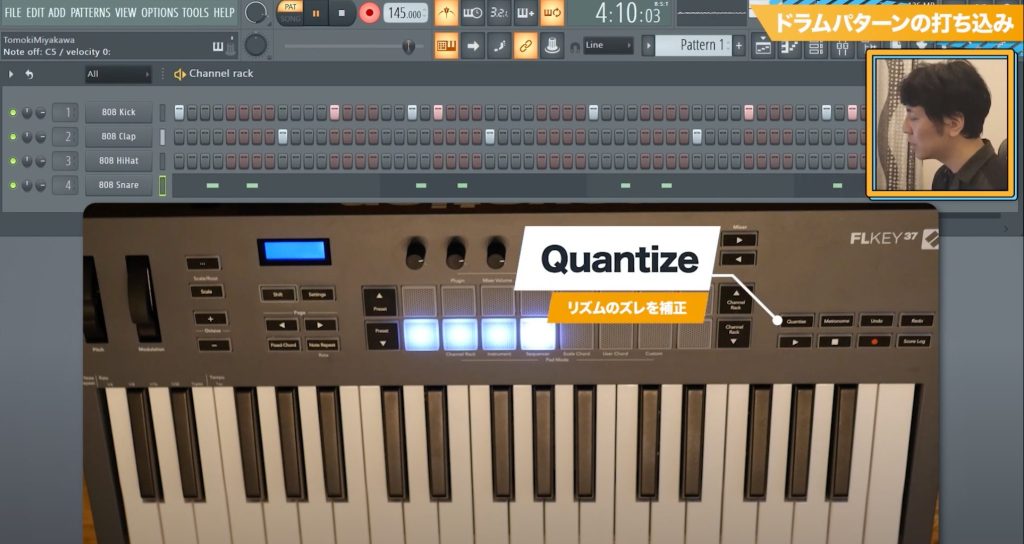
When the timing drifts in real-time input, apply quantize, which can also be done with a single dedicated button.
You can go from playing to correcting one after another without taking your hands off the FLKey, which can save time.
▶︎ The entered kick and snare
Entering a Steady Rhythm with Note Repeat
Next we enter the hi-hat, and when entering a pattern that repeats a steady rhythm, the [Note Repeat] function is handy.
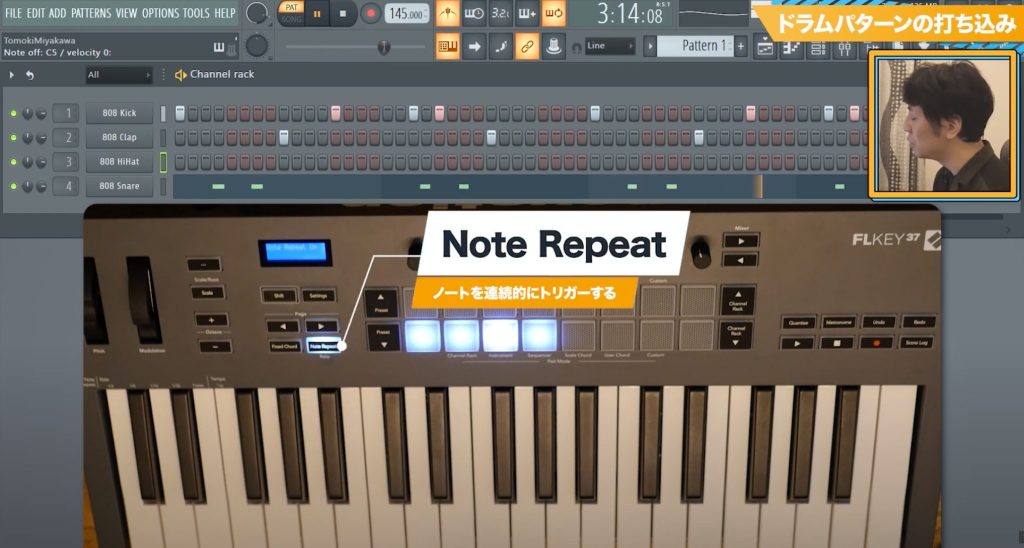
When the button is lit, pressing a pad plays the sound continuously at one-step (16th note) timing.
Adjusting Volume with the Channel Volume Function
Now that the drum pattern is complete, next we adjust the volume.
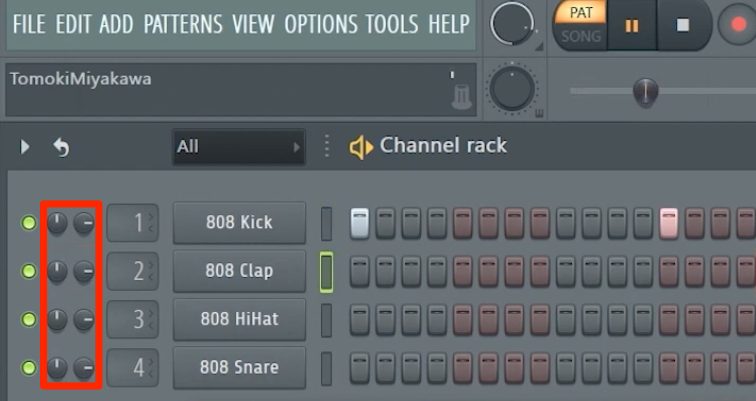
FL Studio's Channel Rack shows two types of knobs: [Channel Volume], which sets the volume of each channel, and [Channel Pan], which sets the left-right position.
Of course, these knobs can also be controlled from the FLKey.
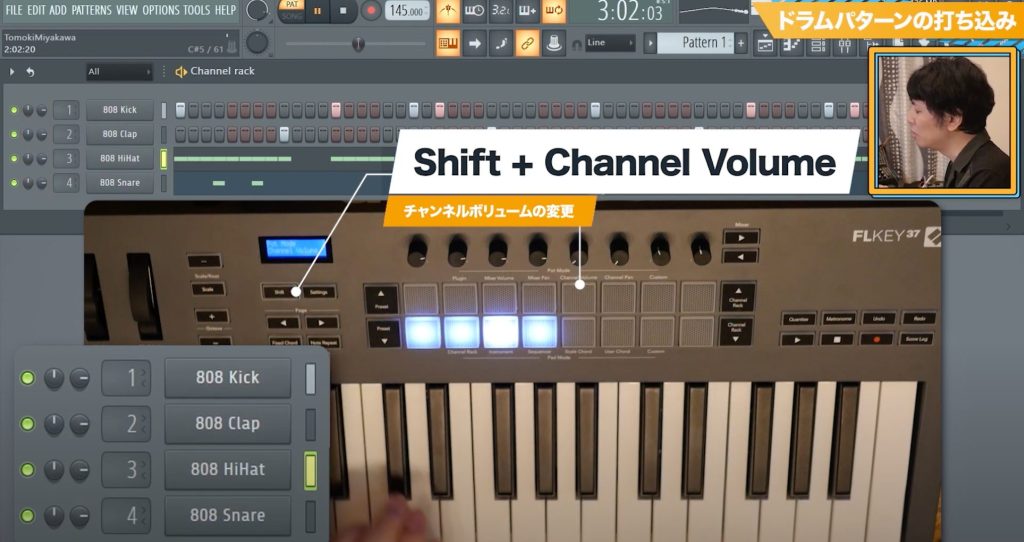
By pressing the [Shift] button together with the pad labeled [Channel Volume],
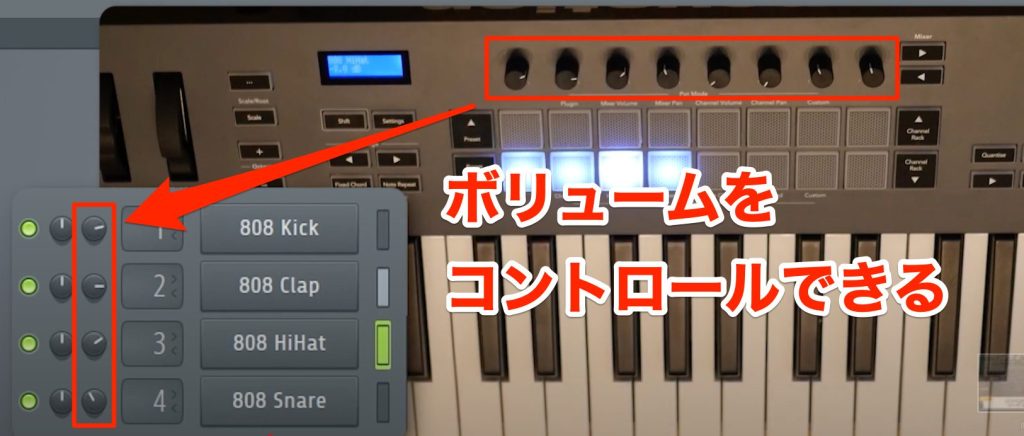
you can control the volume of each channel with the eight knobs above the pads.
Entering a Melody by Playing the Keys
After the drums, let's layer a melody that will serve as the song's motif.
For the sound, we use FLEX, a synthesizer included as standard with FL Studio.
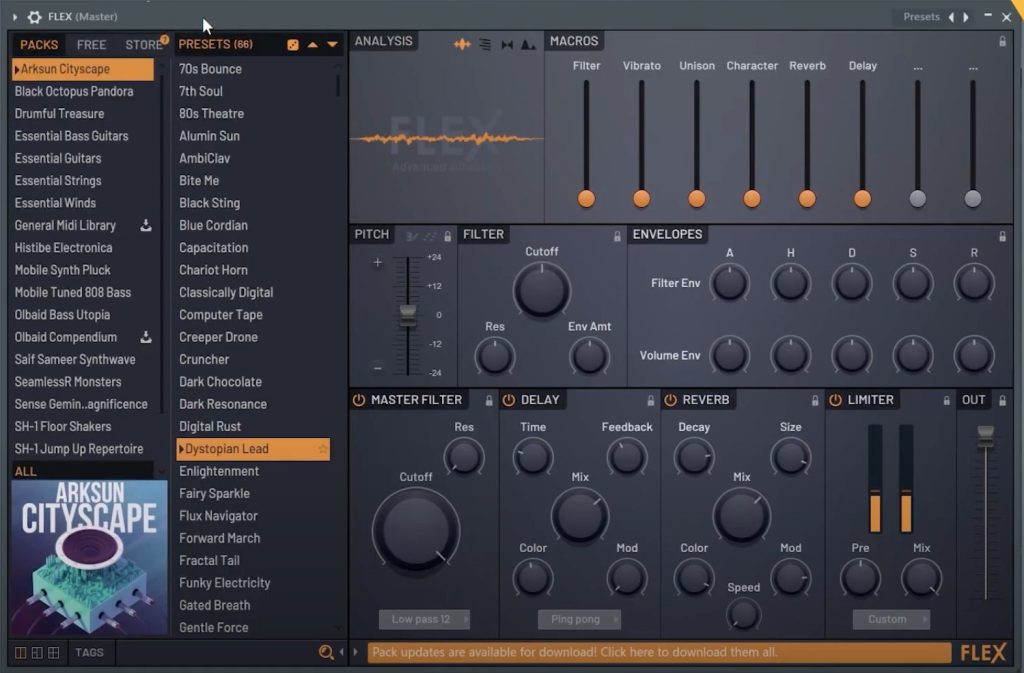
FLEX has plenty of ready-to-use sounds and presets, making it a synthesizer that even those who cannot design sounds can easily use.
Finding a Sound You Like with the Preset Buttons
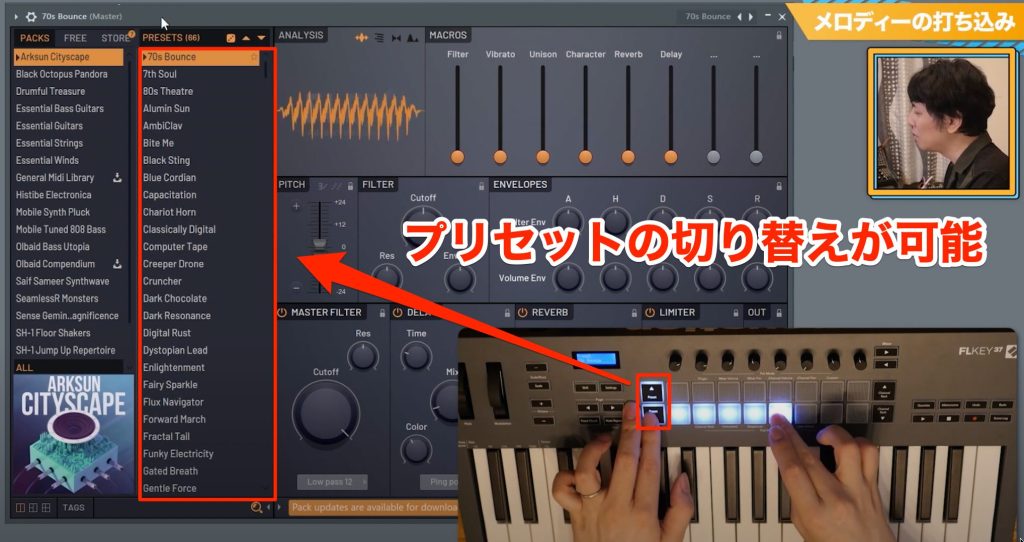
After choosing one preset, you can switch presets by pressing the up and down [Preset] buttons.
You can quickly find a sound you like without moving a hand to the mouse, greatly shortening your working time.
Entering Melodies with Only the White Keys Using the Scale Function
Now that the sound is decided, we create the melody phrase.
Here too, without using the mouse, we play various phrases on the keys to find a melody that seems to suit the song.
This style of producing while playing may feel like a high hurdle for those who are not good at keyboard instruments.
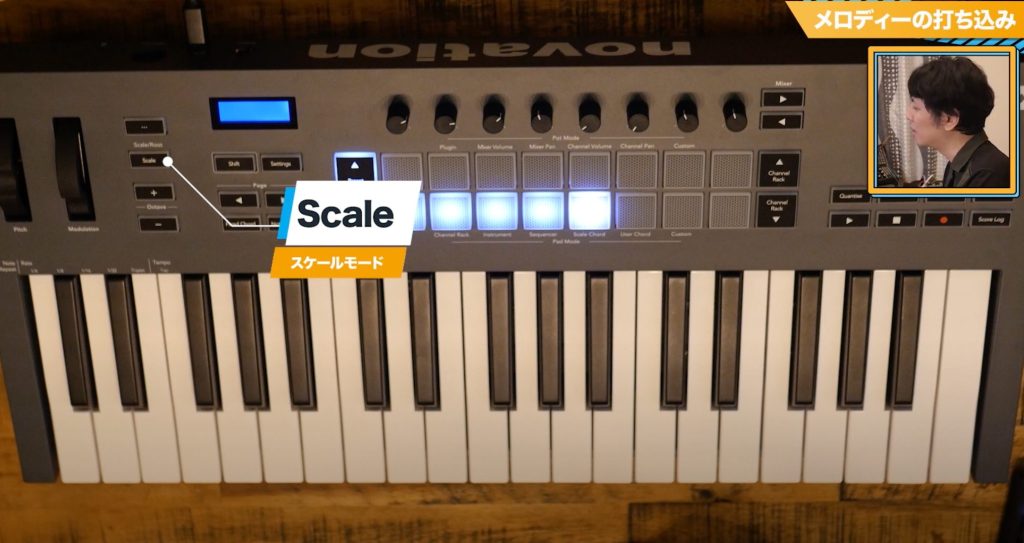
However, the FLKey has a function called [Scale] that assists with playing the keys.
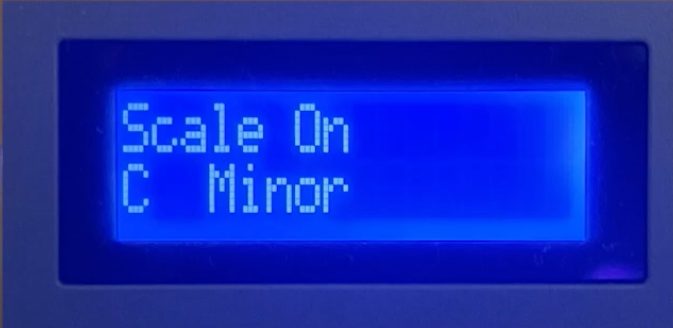
When you light up the Scale button, the currently set scale is shown on the display, and all keys play only the notes in the scale, so you can easily play without hitting wrong notes.
This lets you play various scales using only the white keys without the black keys, and because you no longer hit wrong notes, you can create melodies with free ideas without fear of mistakes.
Recalling Performances with the Score Log Function
After playing several melodies, you came up with phrases you liked here and there, but when you want to record those phrases again, you cannot remember what you played. This probably happens often.
In such cases, the [Score Log] function lets you recall performances you forgot to record.
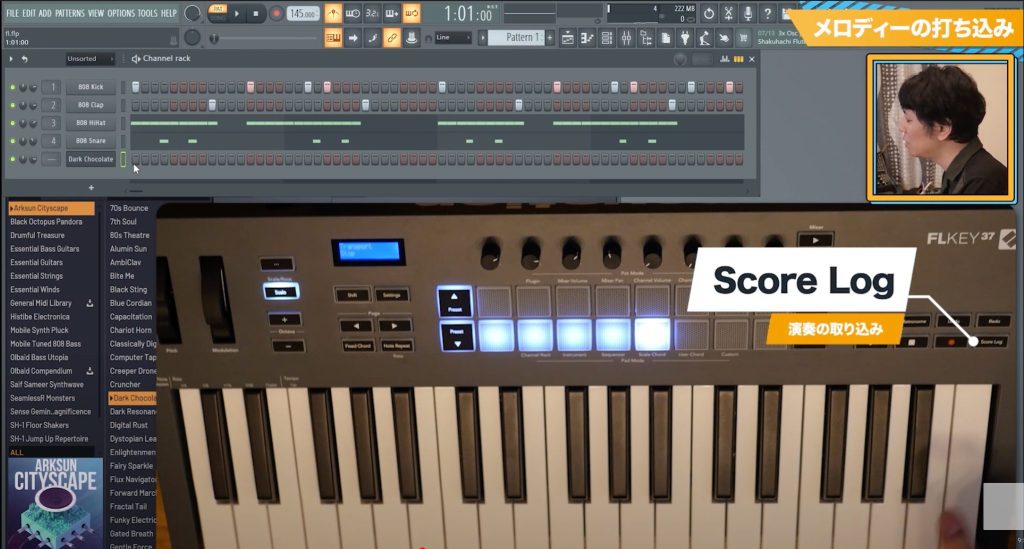
All you do is press the [Score Log] button on the unit.
With this function, you can give shape to ideas born by chance without throwing them away, so it looks like you can build up a stock of melodies.
Entering Chord Backing with the Scale Chord Function
Now that the melody is decided, let's add a track that plays chords.

As before, we use FLEX as the instrument and load a strings sound.
It is a versatile instrument with plenty of acoustic instrument sounds, such as piano and guitar, as well as synthesizer sounds.
Entering Chords with Scale Chord
We also record chords by playing them in real time.
The Scale function is currently active, but even so, playing chords is not easy for those who have never touched a keyboard instrument.
Even such people can easily play chords on the pads by using the [Scale Chord] function.
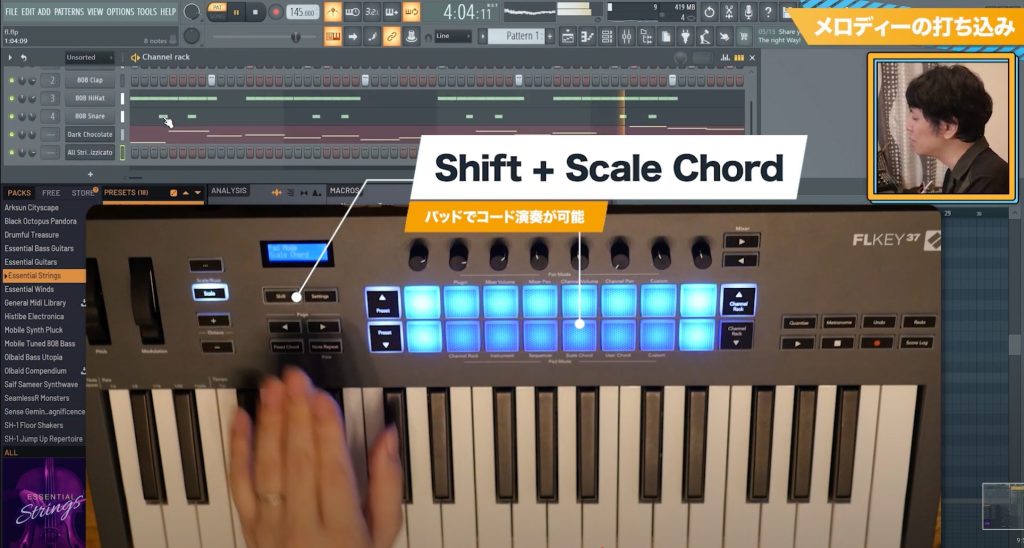
Pressing the pad labeled [Scale Chord] while holding the [Shift] button lets you play various chords from each of the 16 pads.
Chords are assigned automatically in conjunction with the Scale, so you can play intuitively without thinking deeply about chord types or roots.
Creating a Bass Track with a Moving Sound
Finally, let's layer the bass.
Here, we create a track whose sound changes and has a sense of movement, which is often used in electronic music.
First, as when entering the melody, use the Scale function and record while playing the keys.
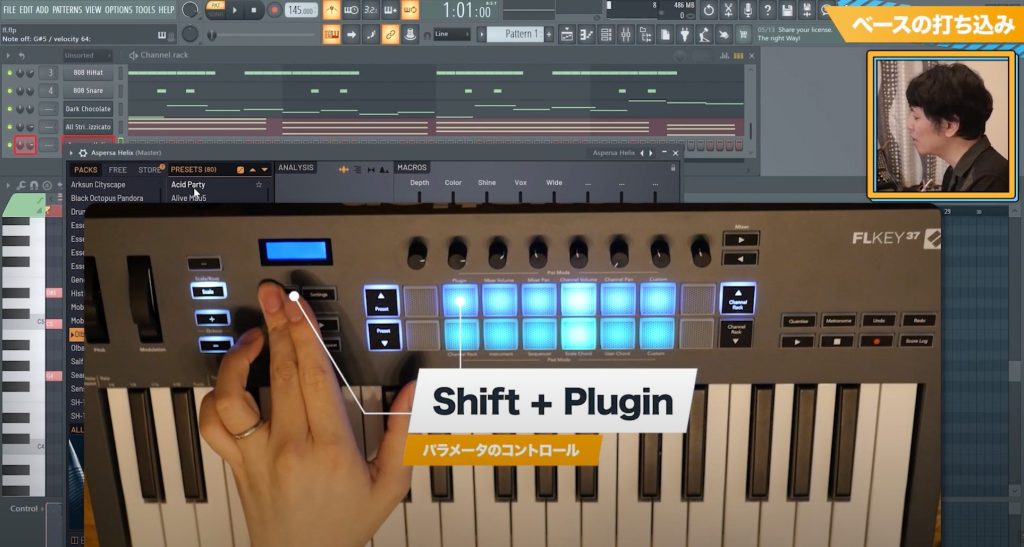
Then press the [Shift] button and the pad labeled [Plugin] to switch to [Plugin mode].
This function lets you change the parameters of the plug-in being edited with the eight knobs on the top row of the FLKey.
With plug-ins included as standard with FL Studio, the main parameters are assigned automatically with no setup.
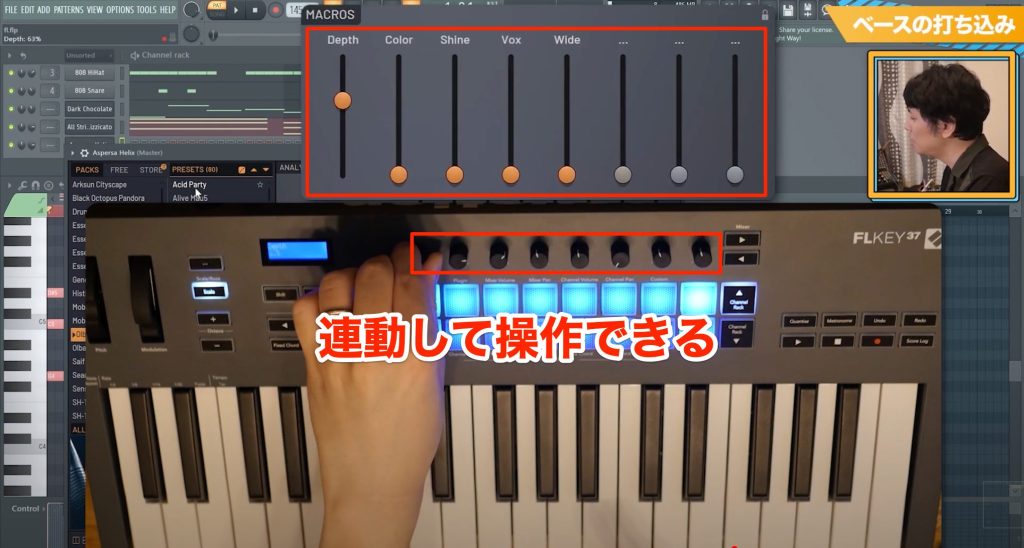
For FLEX, you can control the eight MACROS knobs.
After recording the phrase, touch the knob for the parameter you want to change and decide what kind of movement to add while listening to the sound.
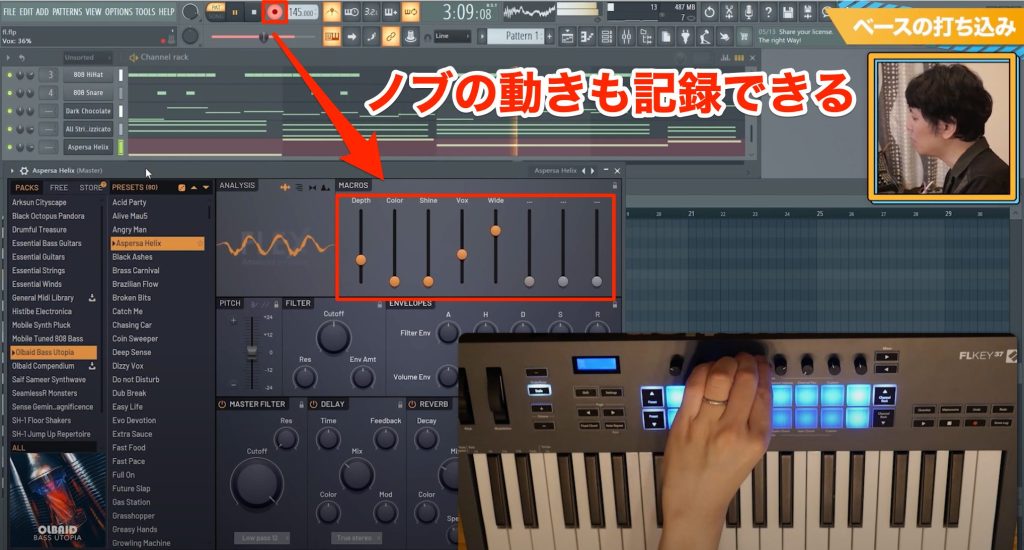
If you move the knobs while recording, the changes in sound are easily recorded too.
Placing the Finished Pattern in the Playlist
Using the various functions introduced so far, we added several more tracks and the pattern is complete.
To finish it as a song from here, you need to use the Playlist.
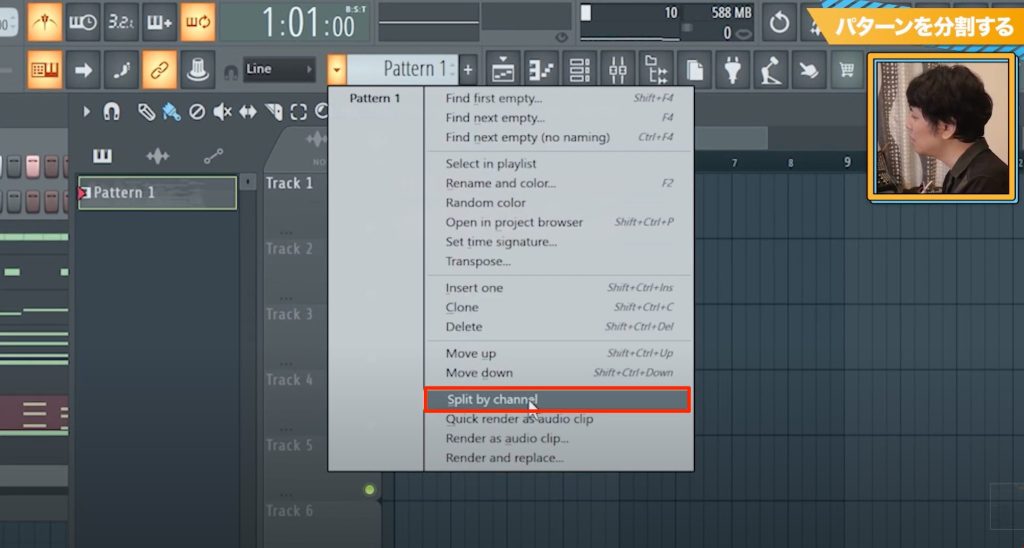
Selecting [Split by channel] from the pattern menu splits what you have entered so far, such as drums and melody, into separate patterns in the Playlist.
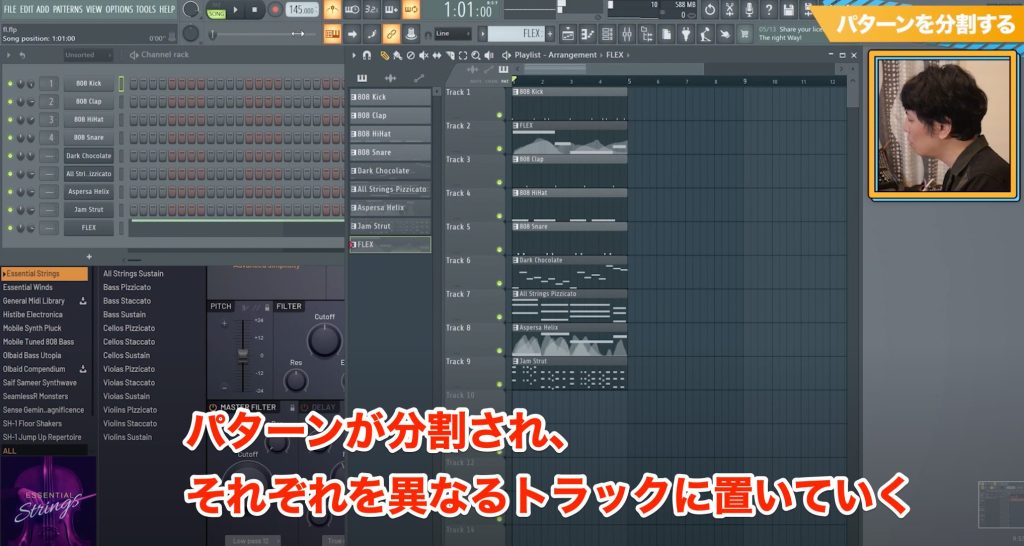
Then place each pattern's clip on a different track, and one section is complete.
After this, you can build the song by changing the order in which patterns overlap and so on.
DAWs are very convenient tools, but many people probably find them a high hurdle because there is so much to learn before you can make music.
Controllers developed specifically for a particular DAW, like the FLKey, are designed to make operating the DAW simpler and more intuitive, so if you are just starting out, it may be a good idea to get one at the same time.
Also, the production style of playing keys and pads rather than using only the mouse saves a great deal of time, so the FLKey is a product we can recommend to those already using FL Studio as well.
If you are interested, please see the official web page or a music store for details.
Beat making with intuitive operation! MIDI keyboard Novation FLKey & FL Studio
FLKey is a MIDI keyboard developed specifically for FL Studio, characterized by intuitive operation.
Here, we want to show real examples within an actual music production workflow.
Video: https://t.co/wfpBkKvLqDArticle: https://t.co/BjLLHNsrbT pic.twitter.com/M0LwOdE6kt
— SLEEP FREAKS (@SLEEPFREAKS_DTM) February 11, 2023
Frequently Asked Questions
Q1. Can the FLKey be used with DAWs other than FL Studio?
The FLKey was developed specifically for FL Studio, so using FL Studio is a prerequisite for making the most of its functions. It can be used for basic playing in other DAWs as a standard MIDI keyboard, but many of the functions of its dedicated buttons and pads cannot be used.
Q2. Should I choose the FLKey 37 or the FLKey 25?
The FLKey 37 has more keys and greater expressiveness, while the FLKey 25 is compact and saves space. We recommend the 37 if you have room and want diverse expression, and the 25 if compactness is your priority. Both come with the FL Studio trial and plug-ins.
Q3. Can beat-making beginners master the FLKey?
Yes. The FLKey has plenty of assist functions for beginners, such as the Scale function, chord input assistance and Note Repeat, and it is designed so that even those who are not good at playing keys can create melodies and drums intuitively.
Q4. Are there limitations to the included FL Studio trial?
A six-month trial is included, so all functions are available during that period. To keep using it after the period ends, you need to purchase the full version.
Q5. What kind of plug-in instruments come with the FLKey?
It comes with a comprehensive set of plug-ins, such as piano and synthesizer instruments, that broaden the range of music production. This lets you produce in various genres without buying additional instruments.
NEW ARTICLES
Latest English Articles











