
Dialogue is an app that links your Mac and iPhone over Bluetooth so you can handle iPhone calls on your computer. Even if your iPhone is in another room, you can receive and make calls on your Mac, which greatly improves efficiency while you work. With its call recording feature, you can save important conversations as files, which is useful for business communication and keeping notes. Setup takes only a few simple steps in Bluetooth and Audio MIDI Setup, so it is a practical tool you can start using right away.
Manage Phone Calls on Your Computer
Dialogue uses your Mac's built-in Bluetooth
to let you make and receive iPhone calls on your Mac.
*Your Mac must have built-in Bluetooth.

Purchase URL: https://itunes.apple.com/us/app/dialogue/id668273079?mt=12&affId=2006707
- You left your iPhone in the next room
- You want to take notes on and manage work or important conversations
- You want better call audio quality
These are some of the benefits.
Being able to take calls on your Mac while you are working is also very efficient.
Bluetooth Setup
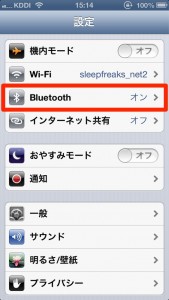
In your iPhone's Settings, select "Bluetooth."

Turn "Bluetooth" "On" and select the computer you will use for calls.
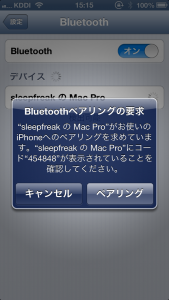
Select "Pair."

Check the screen and select "Yes."
Your Mac and iPhone are now paired.
Dialogue Setup
Launch "Dialogue" from the Applications folder.

An icon appears in the menu bar. Click "Connect."
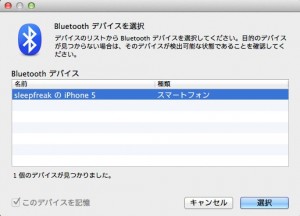
Select your iPhone.

Setting the Microphone for Calls
You can choose which device (microphone) to use for calls.
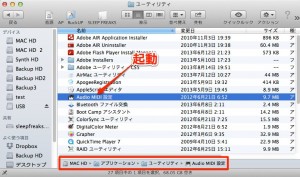
Open Applications → Utilities → Audio MIDI Setup.
If the following screen does not appear,

select Window → Show Audio Window from the menu bar.

Right-click the microphone you want to use and select "Use This Device for Sound Input."
You are now ready.
Using Dialogue
Once setup is done, the rest is easy.

When a call comes in on your iPhone, your Mac is notified like this, and you can answer the call.

If you click this area during a call, the entire conversation is recorded and can be saved as a file.
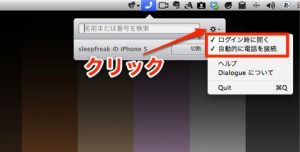
It is convenient to check these options.
- Open at Login: Dialogue launches automatically when you start your Mac
- Automatically connect to phone: Automatically finds your registered iPhone and puts it on standby for calls
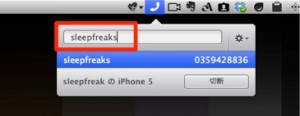
You can make a call by searching and clicking a search result.
Frequently asked questions
Q1. Does my Mac need any special features to use Dialogue?
Yes. To use Dialogue, your Mac must have built-in Bluetooth. Most current Mac models include it, but please check.
Q2. Does call quality drop when I take iPhone calls on my Mac?
Calls go over Bluetooth, but you can improve call audio quality by choosing an appropriate microphone in Audio MIDI Setup.
Q3. Can I record my calls?
Yes. Clicking the record button during a call records the entire conversation, which you can save as a file. Checking "Automatically connect to phone" makes the app even more convenient to use.
Q4. Can Dialogue be used for voice recording in DTM production?
Its main function is call management, but because you can specify the input device in Audio MIDI Setup, it can also be used as a recording aid if set up properly.
NEW ARTICLES
Latest English Articles











