
With the CUBASE and VoiSona collaboration edition, a DAW and a vocal production tool became available in a single package. Just by entering a melody and lyrics, AI technology can generate a natural vocal track, letting everyone from beginners to experienced users complete full-fledged songs. There are three ways to launch it, the instrument version, effect version and ARA version, and by unifying the project setting at 48 kHz you can achieve optimal quality, while its rich expression features promise a professional finish.
The Popular Singing Synthesis Software VoiSona and CUBASE in One Package, in Limited Quantities

Often generally called Vocaloids, "singing voice synthesis software"
Recently, it is no longer unusual for songs made with singing synthesis software to enter the hit charts.
As it has become widely known, more and more people say, "I want to become a Vocaloid producer in the future."
In this situation, a collaboration product of the popular DAW "Cubase" and the singing synthesis software "VoiSona" was released for a limited time.
This time, we explain the overview and usage of the "CUBASE VoiSona Collaboration Edition," with which you can start making music right away with this one package.
How to Use CUBASE + VoiSona Video
About the CUBASE VoiSona Collaboration Edition

It covers the "PRO 12" and "ARTIST 12" editions of the popular music production software Cubase.
These editions come bundled with a subscription card that lets you use "#kzn," a voice library for the singing synthesis software "VoiSona," free for one month.

#kzn is characterized by letting you use the singing voice of the popular VTuber "Kizuna AI" in your own songs.
Note that this collaboration edition is sold in limited quantities, and a campaign is being held in which purchasers can win, by lottery, a subscription card that lets them use "#kzn" free for 12 months, so be sure to check it out!
#kzn details page
https://jp.yamaha.com/news_events/2023/music_production/cubase_voisona.html
About VoiSona

VoiSona is software that creates vocal audio when you enter a melody and lyrics, and its own AI technology automatically adjusts the singing nuances.
Besides #kzn, introduced here, various voice banks (singing voices) are available, and they can be used through a subscription.

The voice banks also include "Chis-A," which can be used free of charge, so even after the free period of "#kzn" in this campaign ends, you can switch the voice bank to "Chis-A" and keep using it.
Demo Song
We created a demo song with #kzn and CUBASE Pro, using only the features included in the products.
By combining CUBASE, which has the features needed for music production, with VoiSona for the vocal track, you can complete a song.
Launching VoiSona in CUBASE
First, we explain how to launch VoiSona in Cubase.
VoiSona comes in three versions, the [instrument version], the [effect version] and the [ARA version], and each launches differently.
How to Launch the Instrument Version

For the instrument version, launch [VoiSona Song Editor] on an instrument track.
You can then use it like a regular VST plug-in.
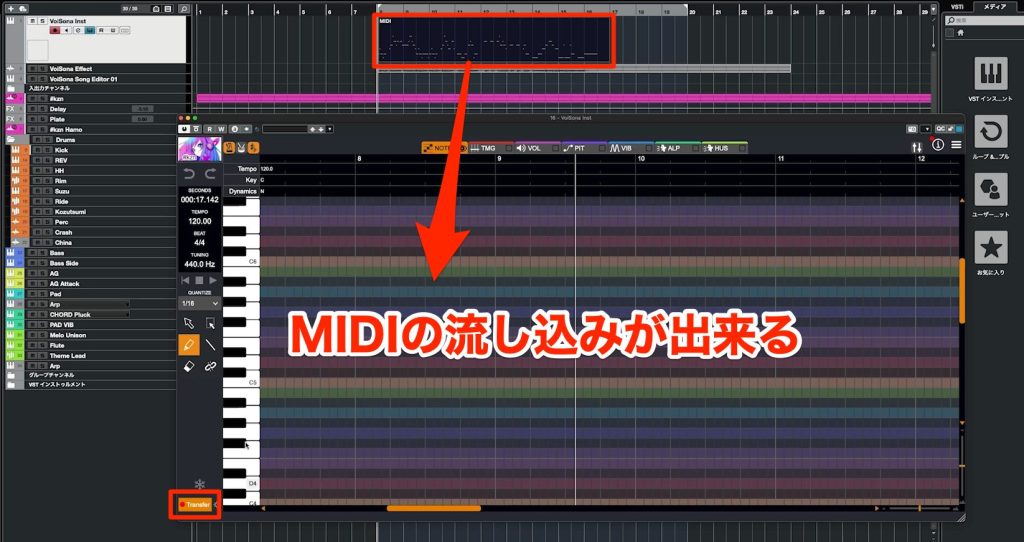
A feature of the instrument version is that you can prepare MIDI events on the track and play back with [Transfer] lit in VoiSona Song Editor to send the performance into VoiSona.
How to Launch the Effect Version

For the effect version, launch it by choosing [VoiSona Song Editor (Effect)] from [Inserts] in the Inspector on the left side of the Cubase window.
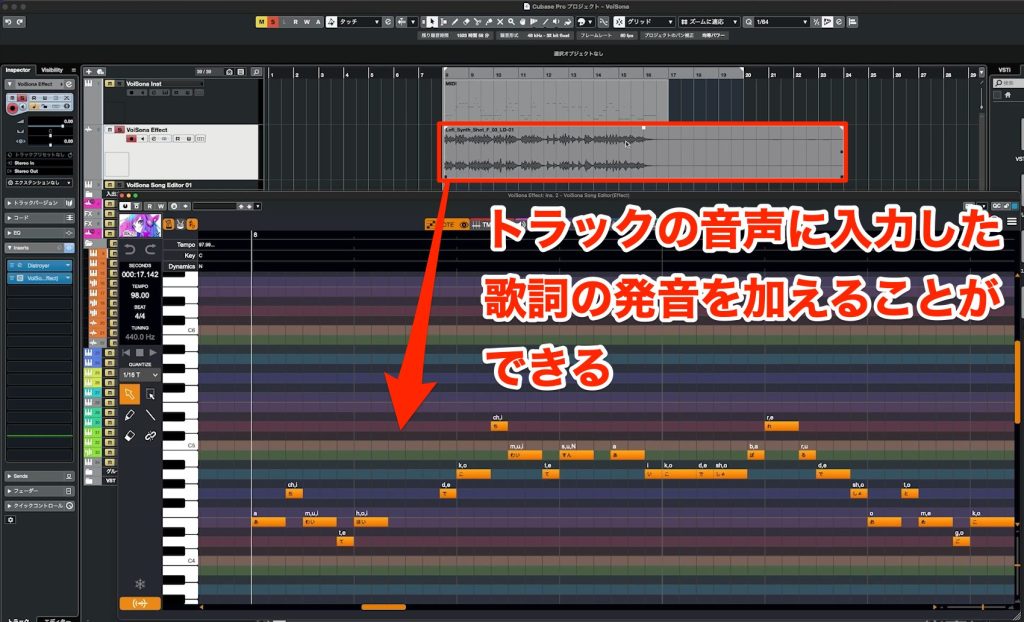
Its feature is a vocoder function that lets the audio played on the track sing with lyrics.
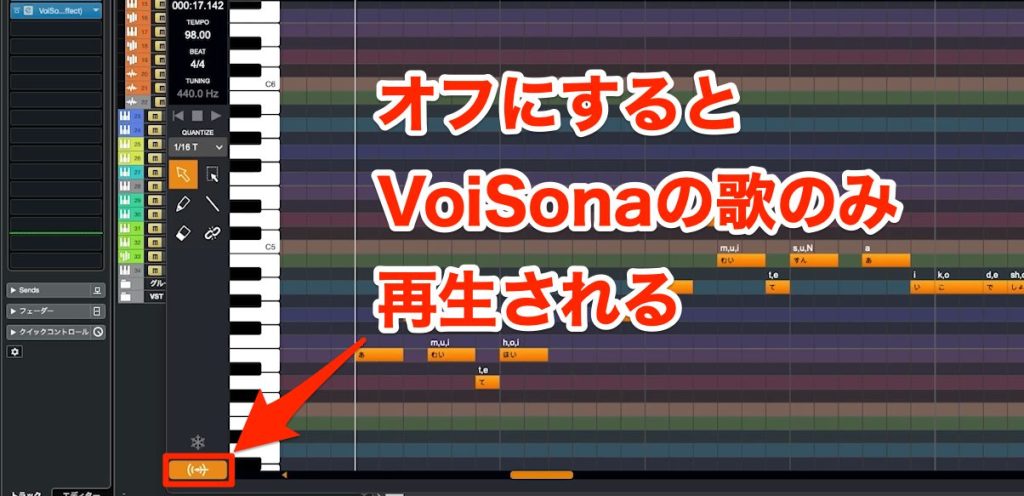
This function stops when you turn off the audio input button at the bottom left of the window, and only VoiSona's performance is played.
How to Launch the ARA Version
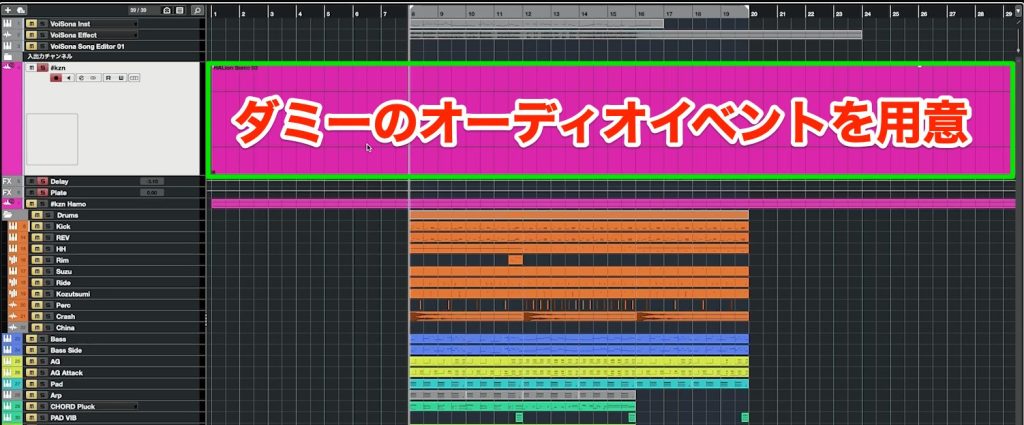
Place a dummy audio file on an audio track.

Choose [VoiSona Song Editor] from Extensions in the track Inspector.
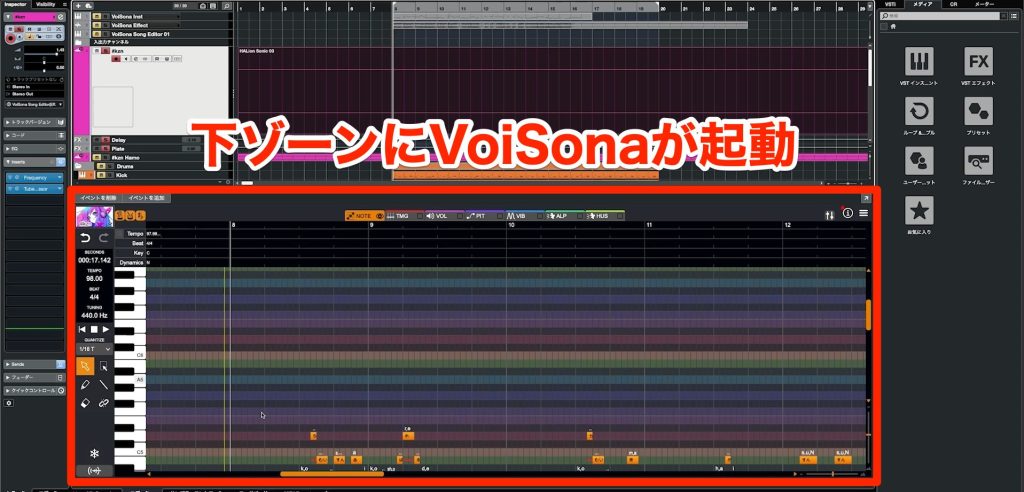
Double-click the dummy audio event, and the editor appears in the lower zone of Cubase.
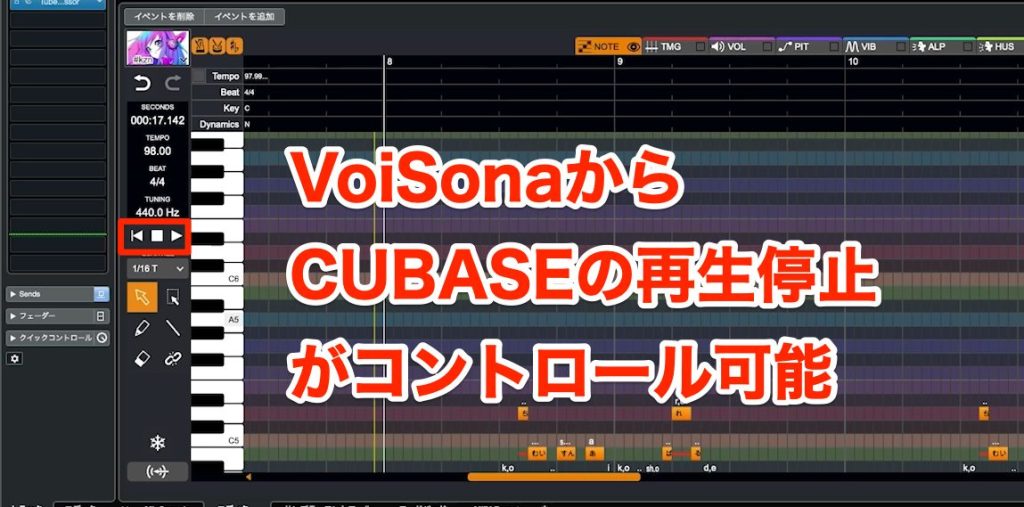
With ARA, you can control Cubase's play, stop and playback position from the editor side.
This is a feature the instrument and effect versions above do not have, and it lets you work more efficiently.
It is recommended that the dummy audio event be the same length as the song.
You can adjust the length of the audio in the following way.
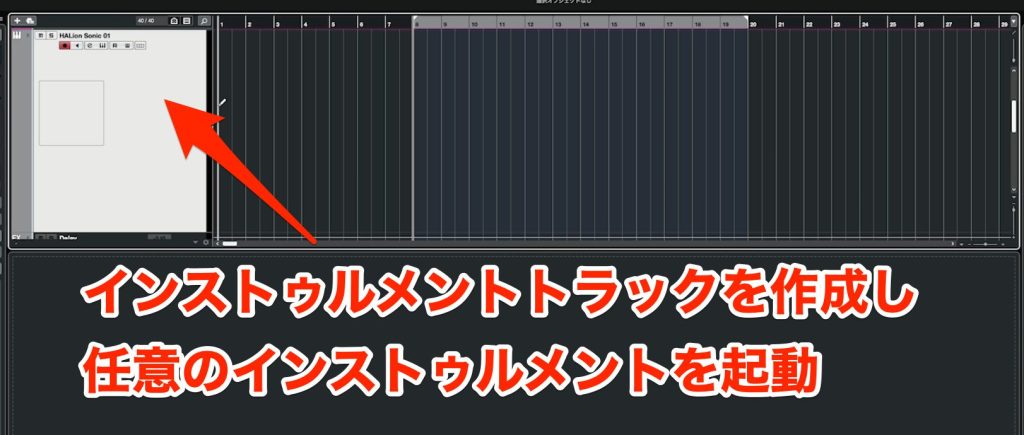
First, create an instrument track and launch any instrument.
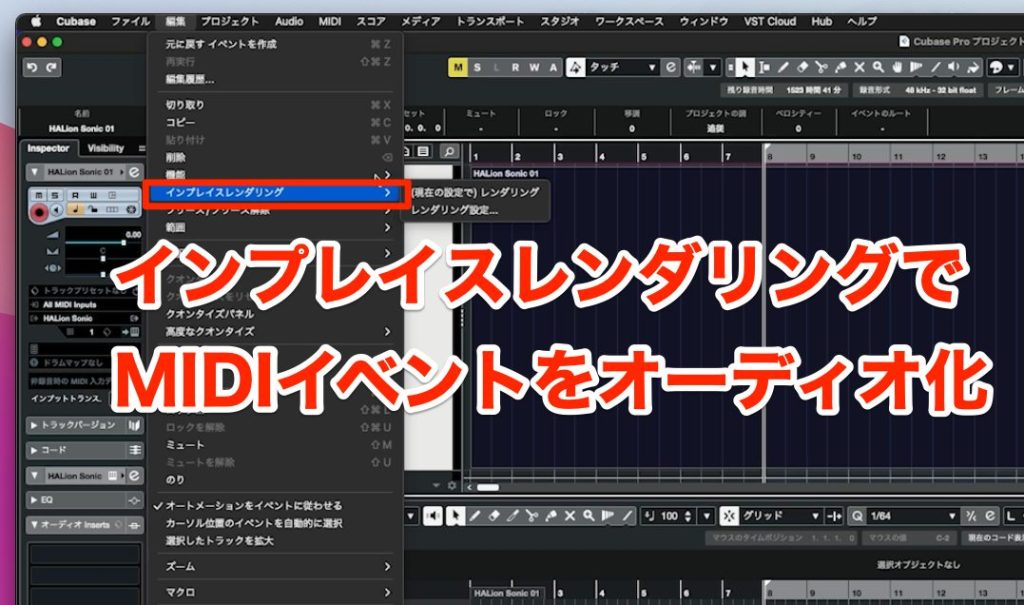
After creating a MIDI event as long as the song, apply Render in Place from the Edit menu.
A silent audio event with an optimized length is created, so use this.
How to Use VoiSona
First, let's check the Cubase project settings.
VoiSona's internal processing runs at 48 kHz.
Therefore, we basically recommend matching the Cubase project's sample rate to 48 kHz as well.
Go to [Project] → [Project Setup] in the Cubase menu.
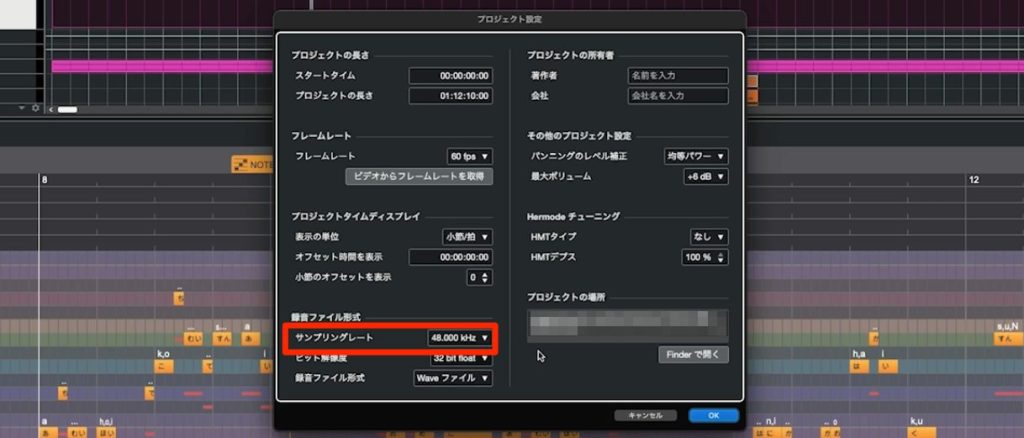
You can set it in the area outlined in red in the image.
Next, choose the voice.
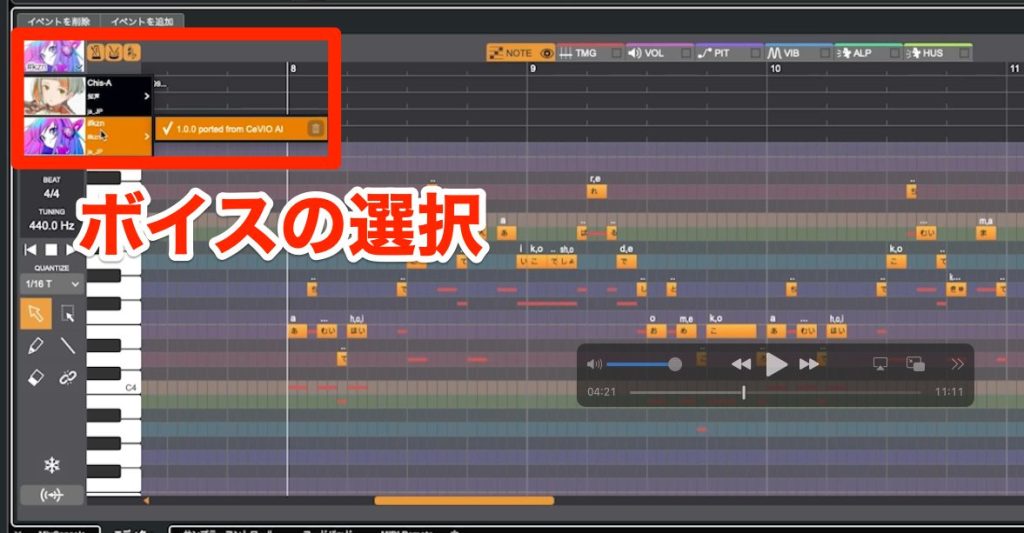
Clicking the icon at the top left of the window shows the available voices.
Choose the singer you want to sing from here.
If there is a voice you are using for the first time, you need to download it in advance.
Click the down arrow shown at the far right of the selected voice to download it.
Next, we enter notes.
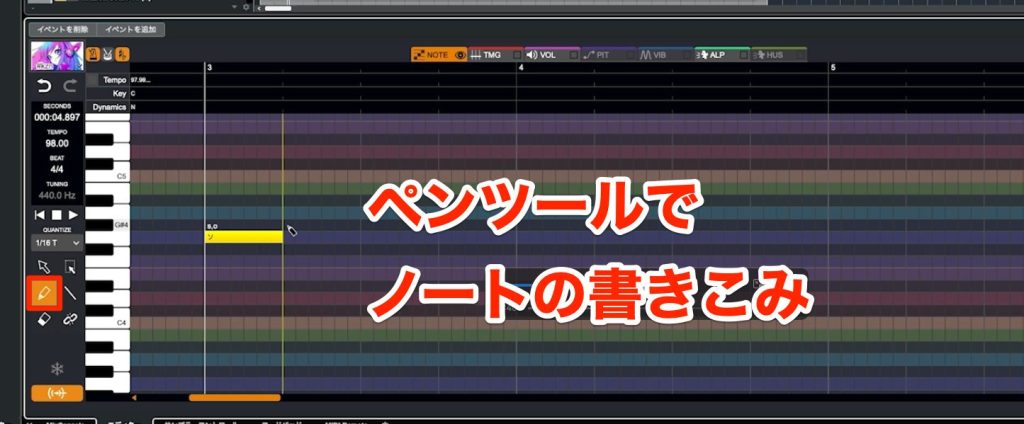
Use the Pen tool and drag to enter the pitch and length you want.
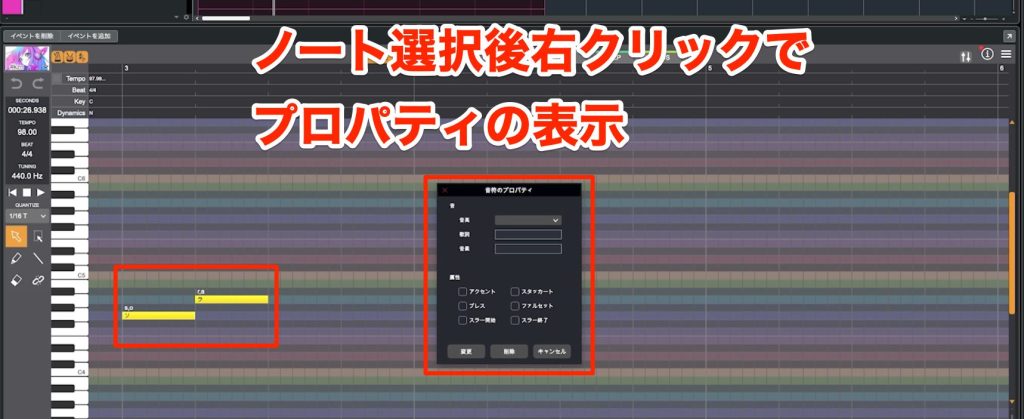
Choosing Properties from the right-click menu on an entered note lets you add various expressions such as falsetto and staccato.
The strength of the effect varies with the voice used. With #kzn, it changes like this.
The three buttons to the right of the voice let you set:
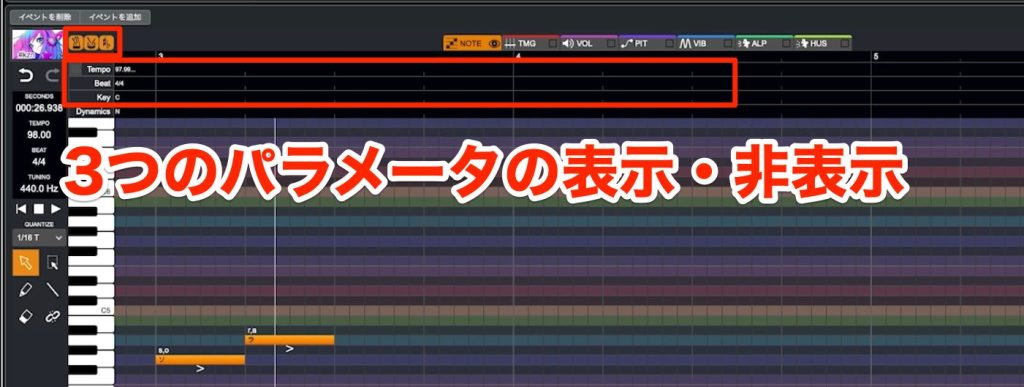
- Show/hide tempo on the timeline
- Show/hide time signature
- Show/hide key signature
these options.
When VoiSona is launched in Cubase, the tempo syncs to Cubase.
However, the time signature must be set manually.
The default is 4/4, so be sure to set it if you use any other time signature.
You can use it without setting the key signature, but it is convenient because notes can be color-coded by the scale tones.
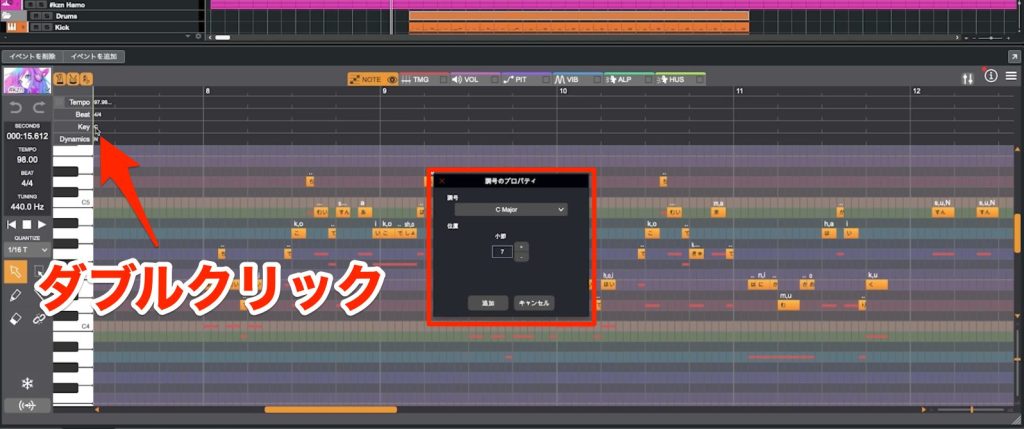
Edit each item from Properties by double-clicking.
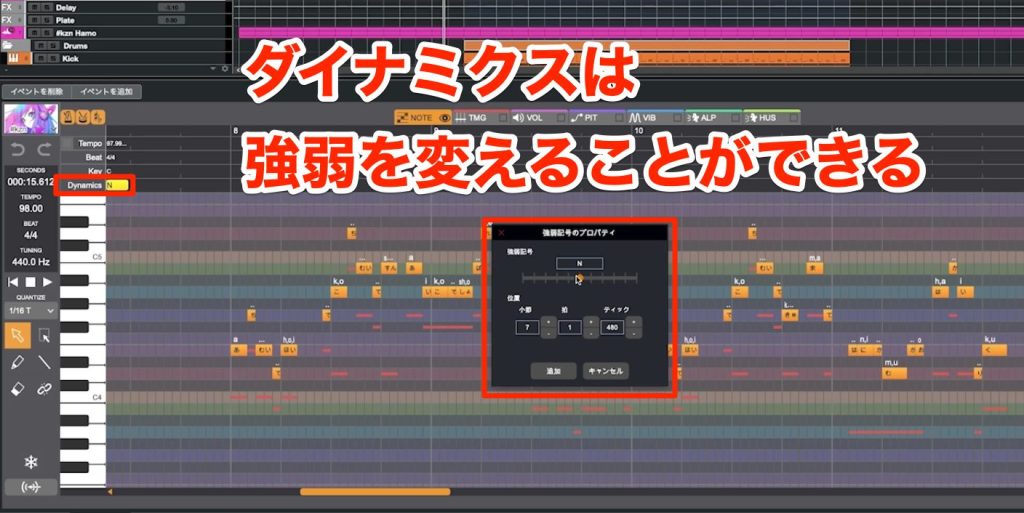
The fourth, dynamics, is a parameter for setting the strength of the singing.
You can control nuances such as having specific notes or sections sung strongly or softly.
The effect of dynamics differs depending on the voice used. The #kzn we are using sounds like this.
How to Enter Lyrics
Next, we move on to entering lyrics.
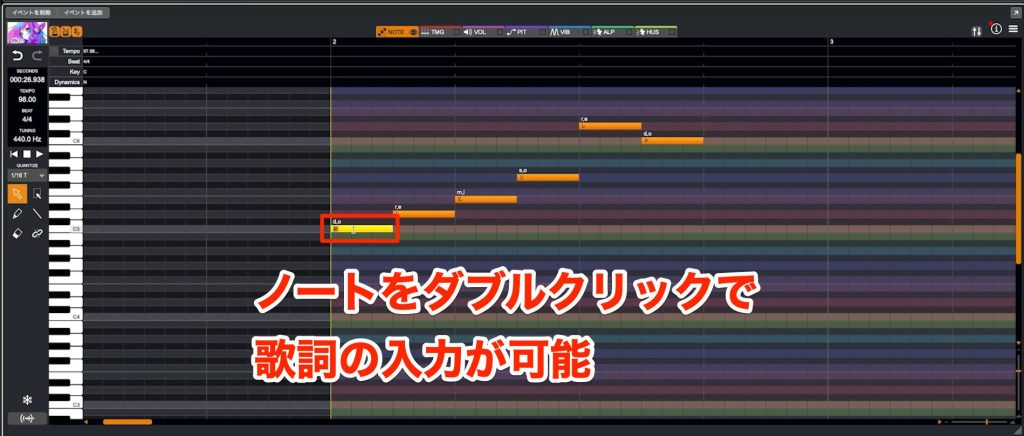
Just double-click the note you want to give lyrics to and type them.
Pressing the Tab key while typing moves to the next note, so you can enter lyrics quickly without using the mouse.
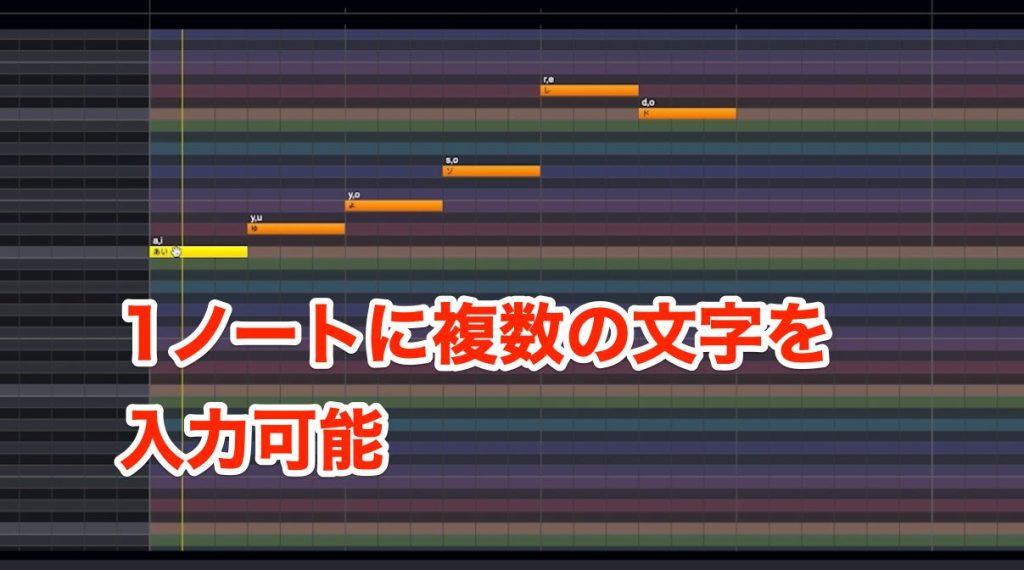
You can also express two or more sounds in a single syllable, and you can pour lyrics into multiple notes at once.
After selecting the notes you want to add lyrics to, open the bulk lyrics input from the right-click menu and enter the lyrics there.
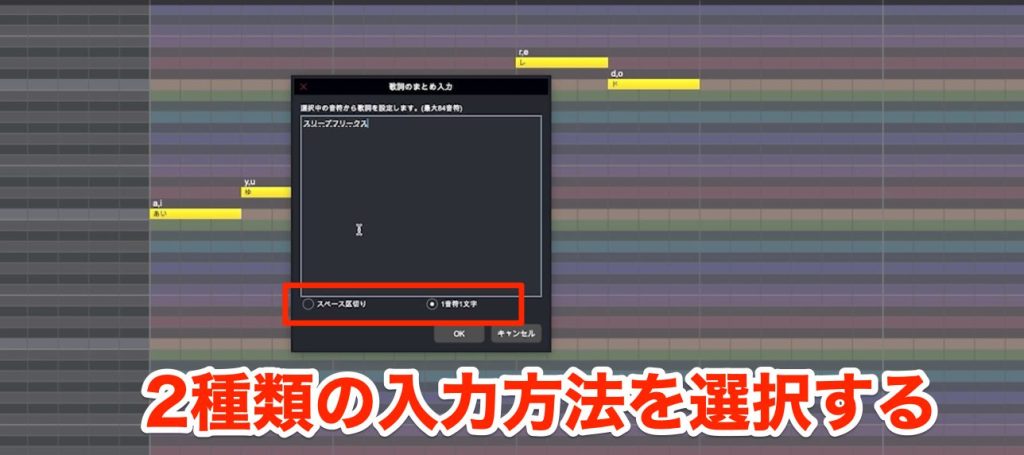
If you choose [Space-separated], putting spaces between characters lets the characters separated by spaces be entered on separate notes.
If you choose [One character per note], every character is placed on a different note.
Combining these well lets you assign lyrics efficiently.
Global Parameters That Change the Singing Voice of the Whole Track
With the global parameters, you can adjust the singing nuances of the whole track and create more expressive takes.
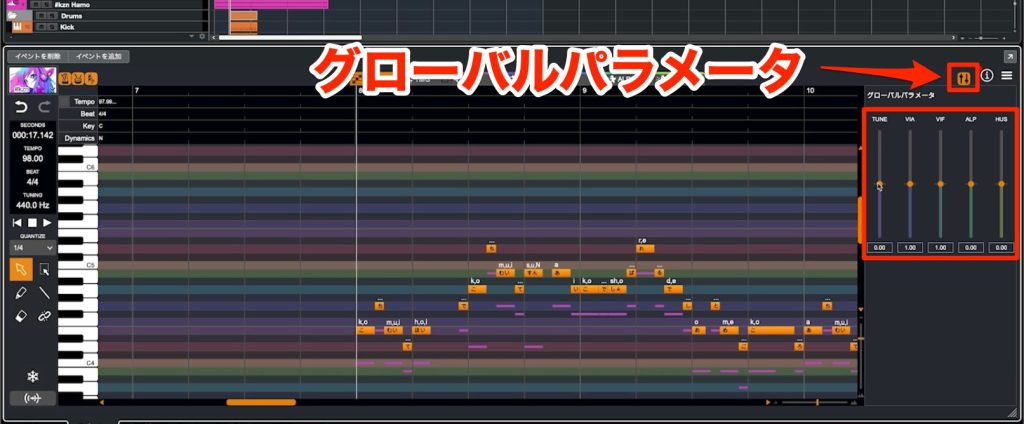
Open the global parameters from the fader icon at the top right of the window.

Tune sets how faithfully it follows the entered pitch.
Lowering the value makes the pitch unstable, and raising it makes it sing with more accurate pitch.
Sometimes pitch instability becomes part of a vocal's charm.
Please adjust it to your taste.

VIA sets the vibrato depth, and VIF sets the vibrato speed.
However, with #kzn we could not hear any effect from these settings.

ALP adjusts the voice color; raising it gives a more mature voice, and lowering it gives a more childlike voice.

Raising HUS increases the breath component.
As the name suggests, the sound becomes huskier.
* You heard sounds with an extremely wide range of change, but with adjustment the actual result is much more natural.
Detailed Voice Tuning for Each Note
Let's look at detailed voice tuning to match the performance.
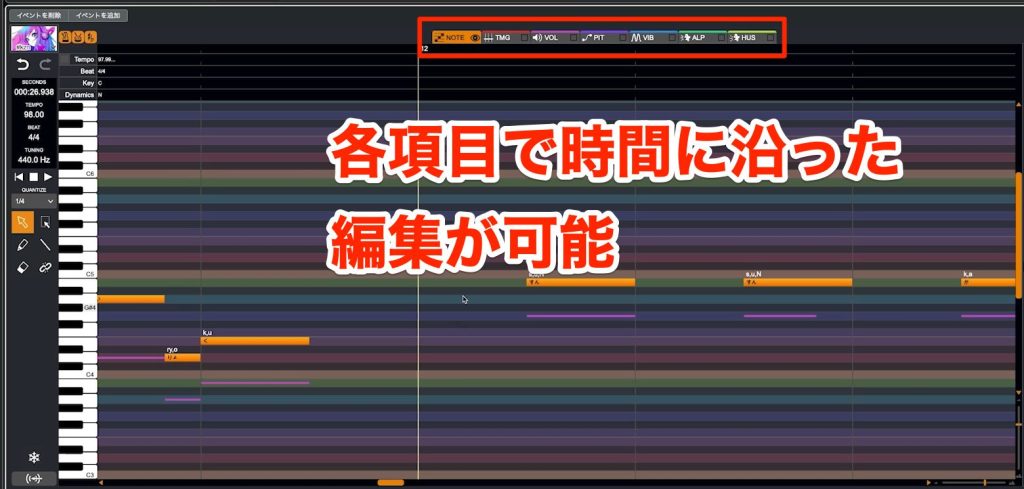
Make adjustments using the items (tools) arranged at the top.
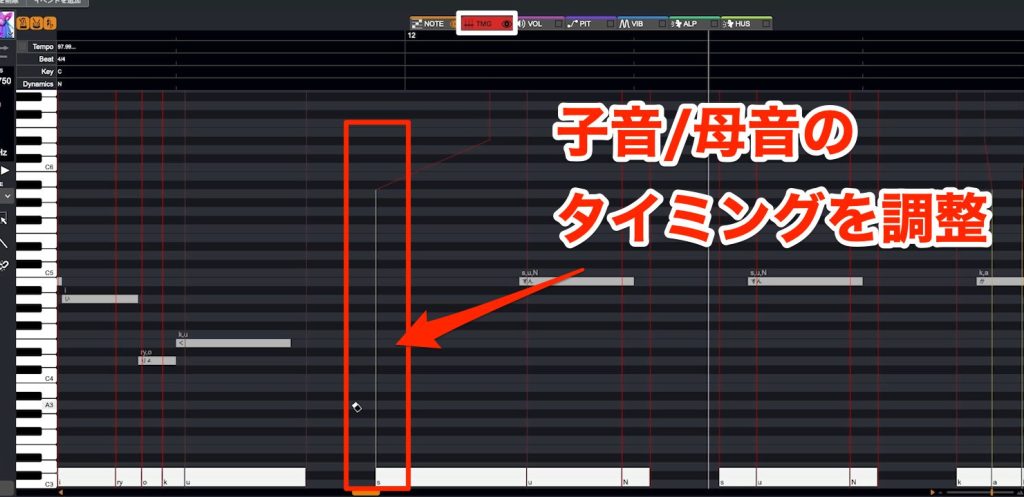
[TMG] lets you adjust the timing and length of consonant and vowel pronunciation.
Use it where lyrics are hard to hear or when you want to adjust articulation so the sound comes across naturally.
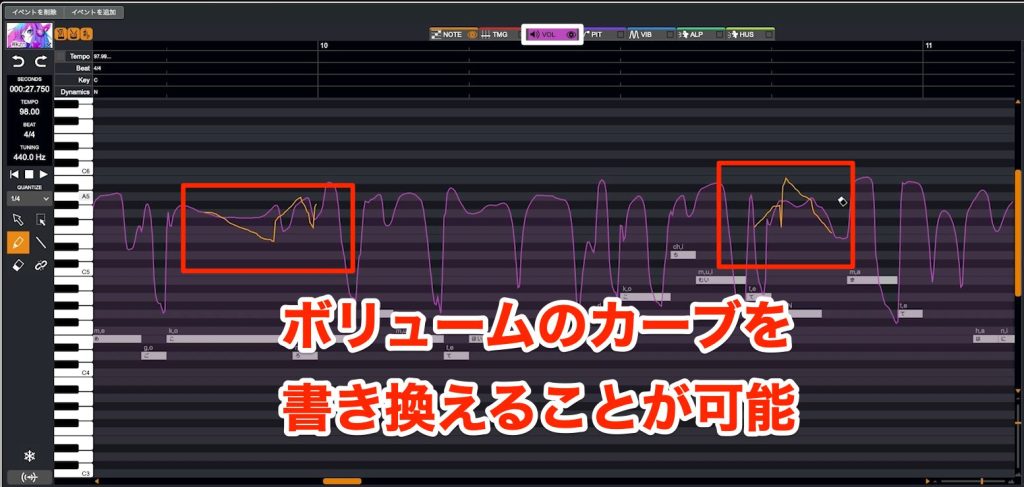
[VOL] adjusts changes in volume.
It has already been tuned by AI, but use this when you want to customize it further.
In this demo song, we use it to raise the volume where the lyrics were buried in the backing track and hard to hear.
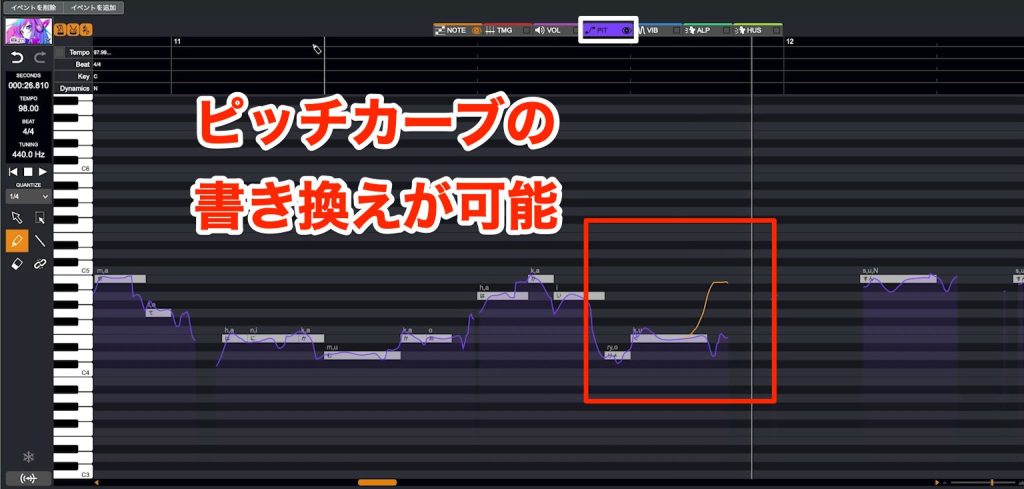
[PIT] adjusts the pitch.
This too is set by making changes to what the AI tuned.
You can greatly change the impression of the singing, for example by raising the ends of phrases.
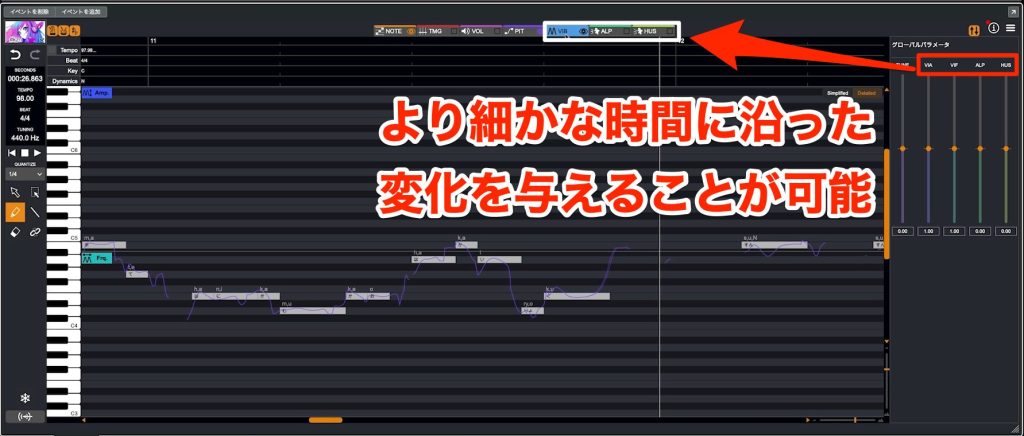
The items included in the global parameters introduced above can also be adjusted here.
If you want to make the vocal more to your liking, adjusting each note gives good results.
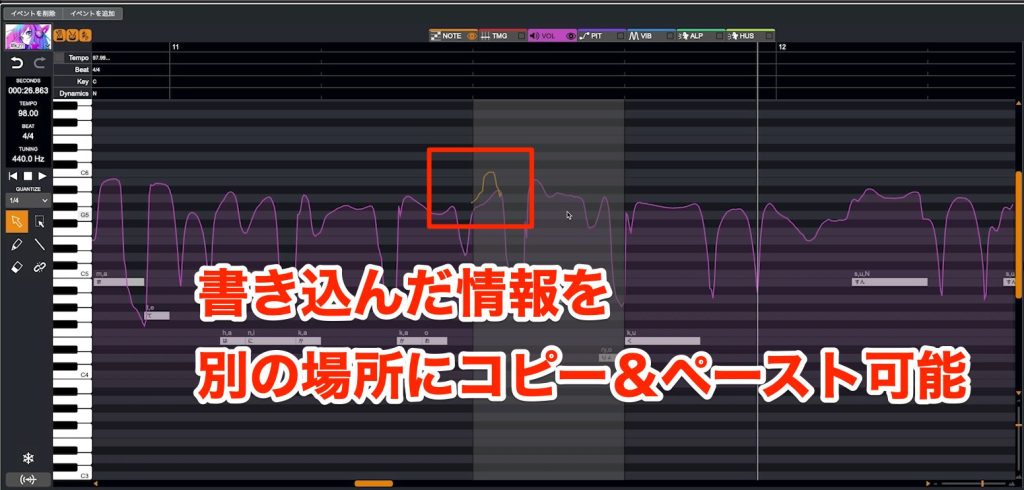
You can also copy adjusted parameters to other parts.
Select a range with the selection tool, copy with Control+C or Command+C, move the playback cursor to where you want to paste, and paste with Control+V or Command+V.
Tips for Adjusting the Vocal to Your Liking
VoiSona was developed with the concept of handing sheet music to a singer and having them sing it.
If, at the note entry stage, you adjust timing and note lengths with fine notes and rests (such as 32nd notes), it may not correctly recognize the intended melody line, and the singing may not turn out as intended.
So keeping note entry simple and refining the nuances with each parameter is the workflow that best brings out the product's potential.
How did you find it?
You want to compose using singing synthesis software.
For those with this wish, this product is the ideal package.
Please check out the CUBASE VoiSona Collaboration Edition, which lets you start producing from the day you get it!
[Limited quantity] A collaboration product of the popular DAW "Cubase" and the singing synthesis software "VoiSona" has been released for a limited time.
This time, we explain the overview and usage of the "CUBASE VoiSona Collaboration Edition," with which you can start making music right away with this one package.
Details: https://t.co/qjICSTTtMiVideo: https://t.co/KYwvbwWFBO#dtm #kzn pic.twitter.com/uoAlgH7I55
— SLEEP FREAKS (@SLEEPFREAKS_DTM) May 25, 2023
Frequently Asked Questions
Q1. What voice library is included in the CUBASE VoiSona Collaboration Edition?
It comes with a subscription card that lets you use the "#kzn" voice library, which uses the singing voice of the popular VTuber "Kizuna AI," free for one month. After that period ends, you can continue producing with the free "Chis-A" voice bank.
Q2. Which versions of CUBASE does VoiSona support?
CUBASE PRO 12 and ARTIST 12 are covered. These editions are the ones sold as the collaboration edition, enabling integrated use with VoiSona.
Q3. Can I add expression to vocals in VoiSona?
Yes. You can add expressions such as falsetto, staccato and slur from the note property settings. The strength of the effect varies with the voice used, enabling professional vocal arrangements.
Q4. What is the best sample rate when using VoiSona?
VoiSona's internal processing runs at 48 kHz, so it is recommended to set the CUBASE project's sample rate to 48 kHz as well.
Q5. What are the differences between the instrument, effect and ARA versions?
The instrument version works by sending in MIDI events, the effect version adds lyrics to existing audio with a vocoder function, and the ARA version lets you control CUBASE playback from the editor for more efficient work.
NEW ARTICLES
Latest English Articles











