
With Cubase 12, USB dongle authentication was discontinued and replaced by an online activation system. This article explains in detail the whole flow, from purchasing at the official store to downloading with the Steinberg Download Assistant, creating a My Steinberg account, registering the activation code, and activating the license on first launch. It can be used on up to three computers, and licenses are easy to manage with the Steinberg Activation Manager. It also covers getting support when there are problems, so it contains the information needed by everyone from first-time buyers to existing users.
The USB Dongle Is Gone and the Activation Steps Have Changed
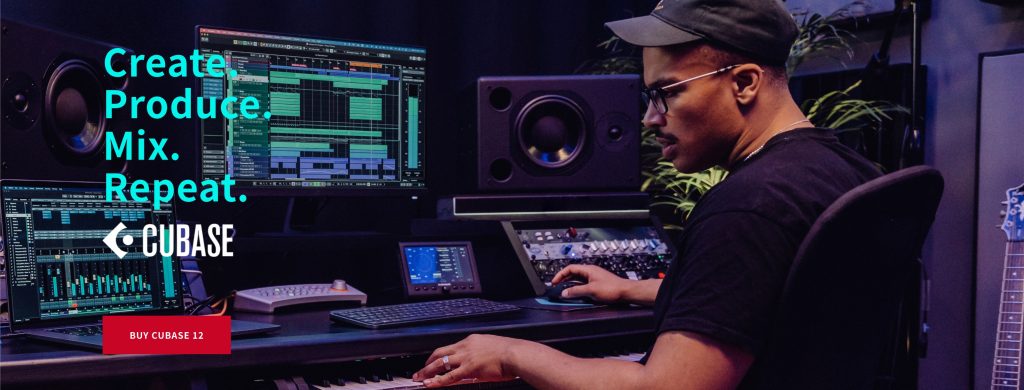
For those who have bought or are about to buy the Cubase 12 series, we explain the flow from purchasing the product to using it.
Also, if you own Cubase 11 and have not yet activated the product, it will be updated automatically to the latest Ver12 when you activate it.
Now let's get into the explanation.
Video Explanation
Purchasing Cubase
First, we proceed with purchasing the Cubase series.
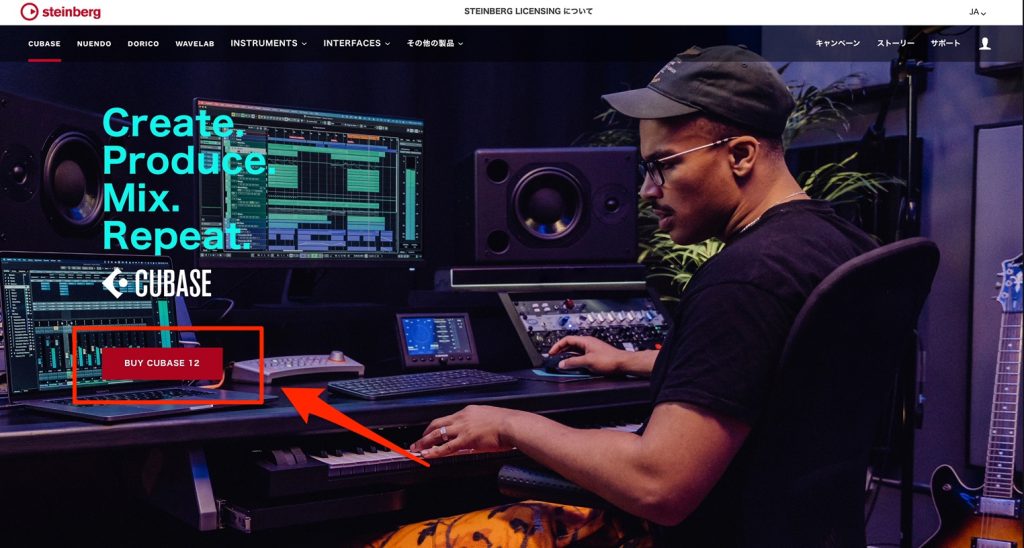
Go to the Cubase website and click "BUY CUBASE 12."
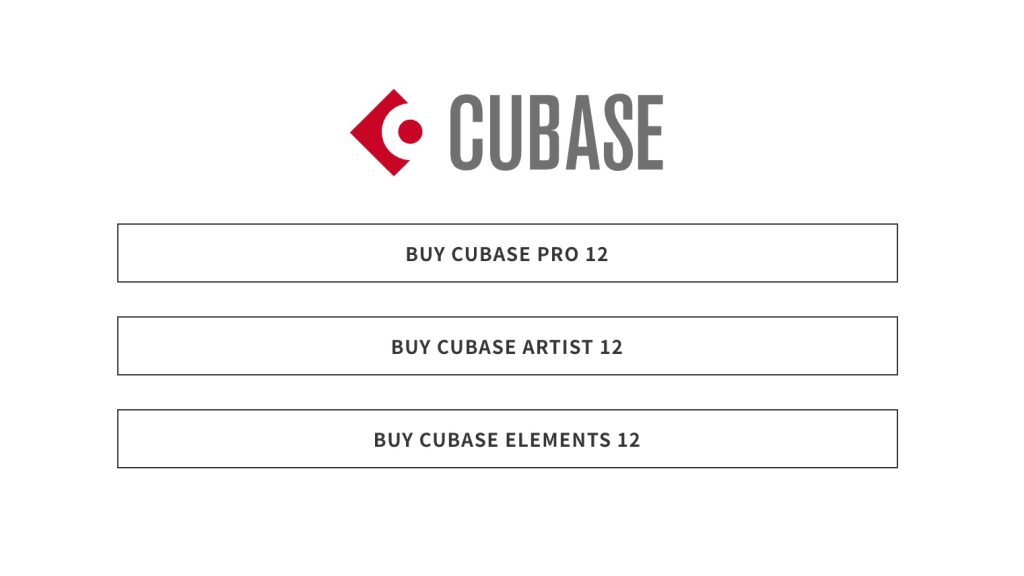
Click the Cubase edition you want to buy and proceed to the store page.
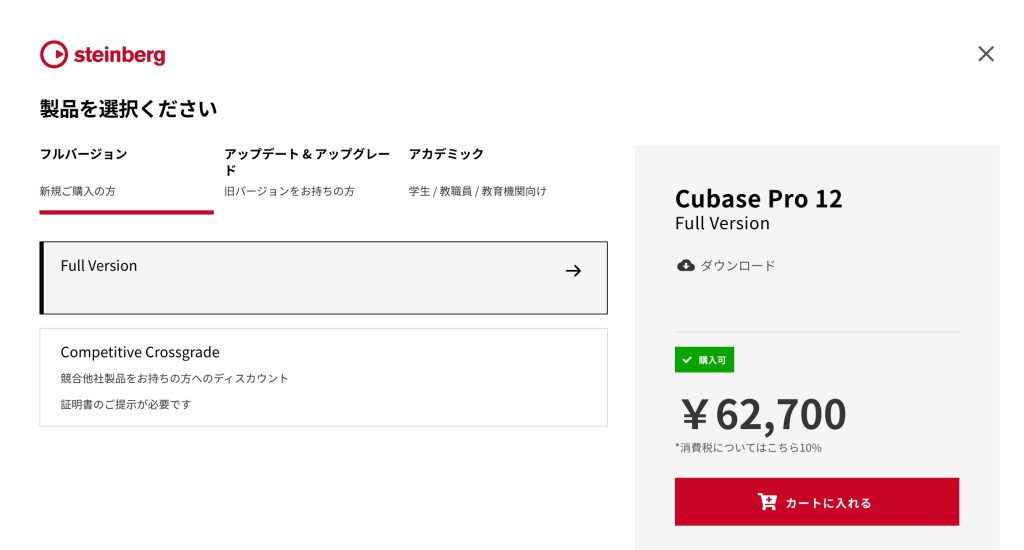
There are full versions for regular purchase, update/upgrade versions for those who already own some edition, academic versions for students and teachers, and crossgrade versions that give a discount when switching from another DAW.
Here, we proceed using the full version as an example.
Add the product to the cart.
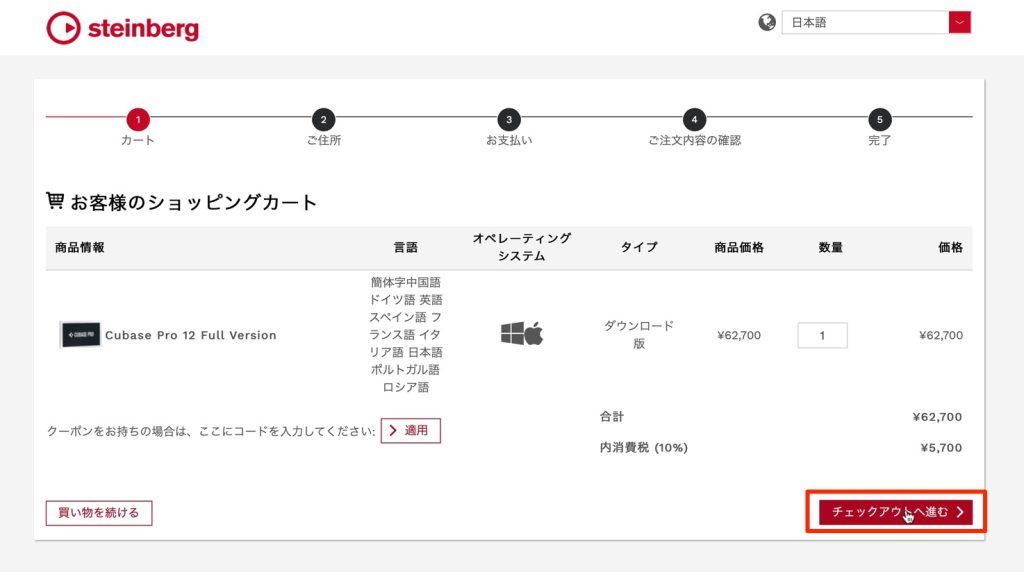
Check the product name and quantity, and select "Proceed to checkout."
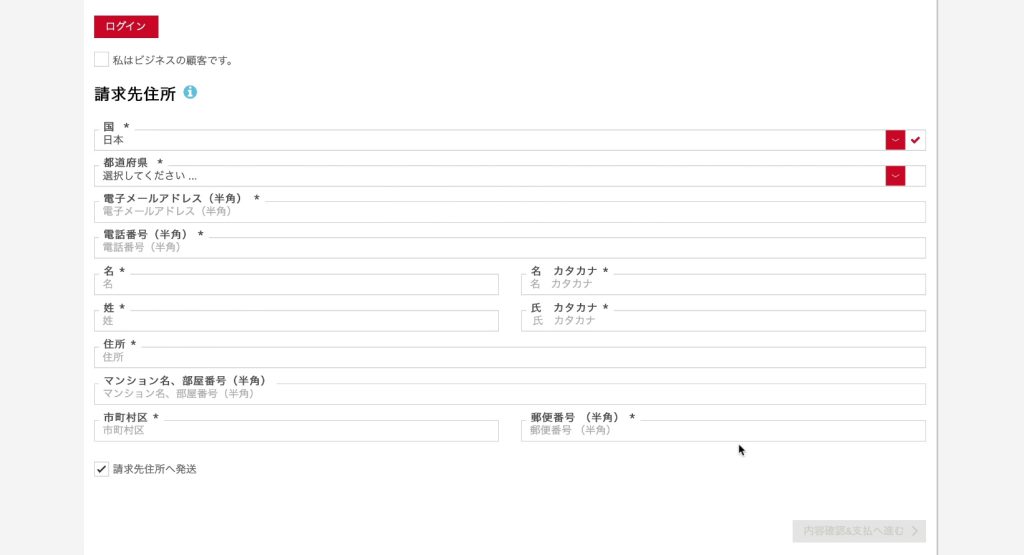
Enter the information needed for the purchase.
If you have bought Steinberg products from this online store before, you can skip entering this information by logging in to the account you created then.
Here, we proceed without logging in and enter all the information.
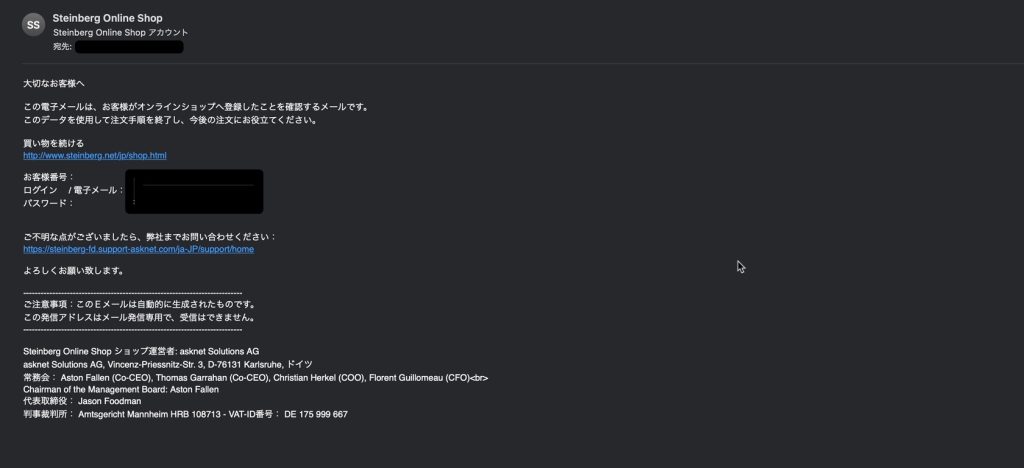
After the account is created, login information is sent to the email address you entered.
Make a note of it or save it for your next purchase.
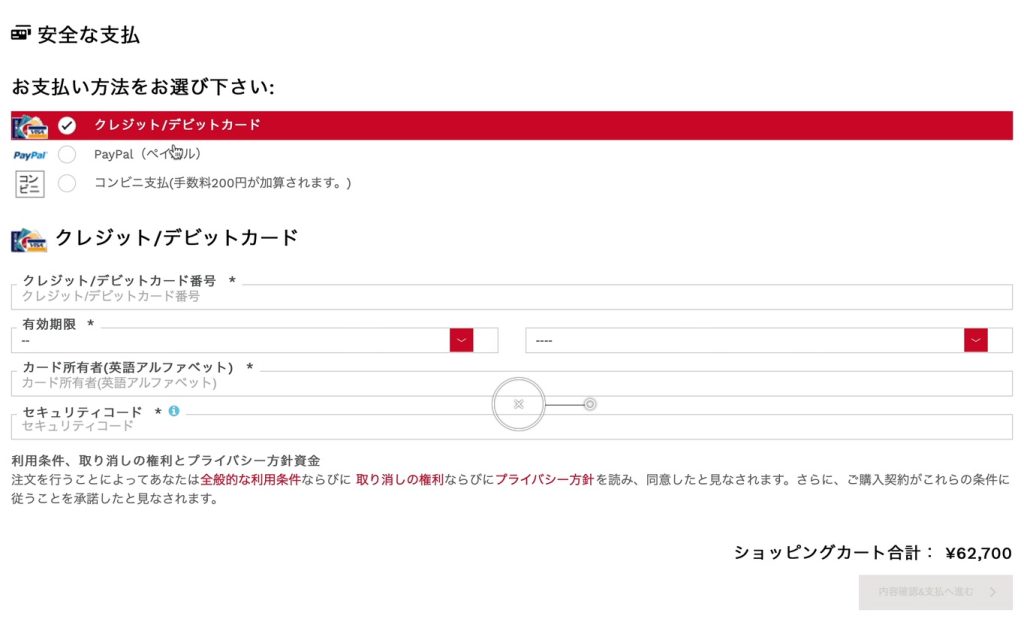
Payment by credit card, PayPal and convenience store payment is supported.
Choose your preferred payment method and proceed with the purchase.
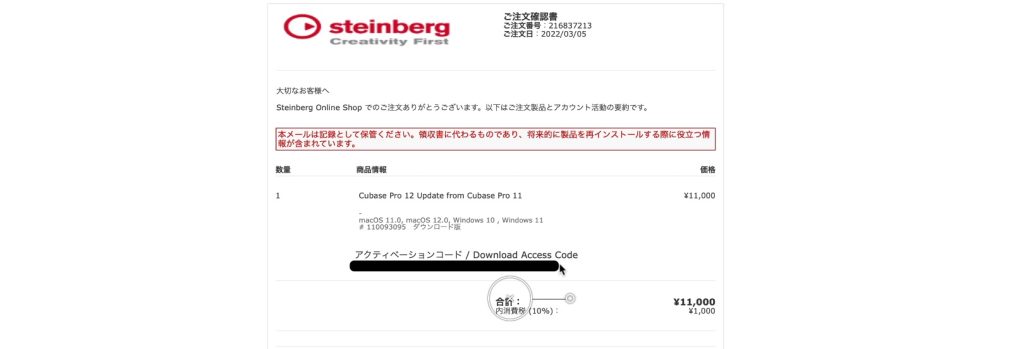
After purchase, you receive an email containing your activation code.
You will use this code later.
That is the flow for purchasing the product.
Downloading Cubase
Next, we move on to downloading the product.
Get the "Steinberg Download Assistant" from the website.
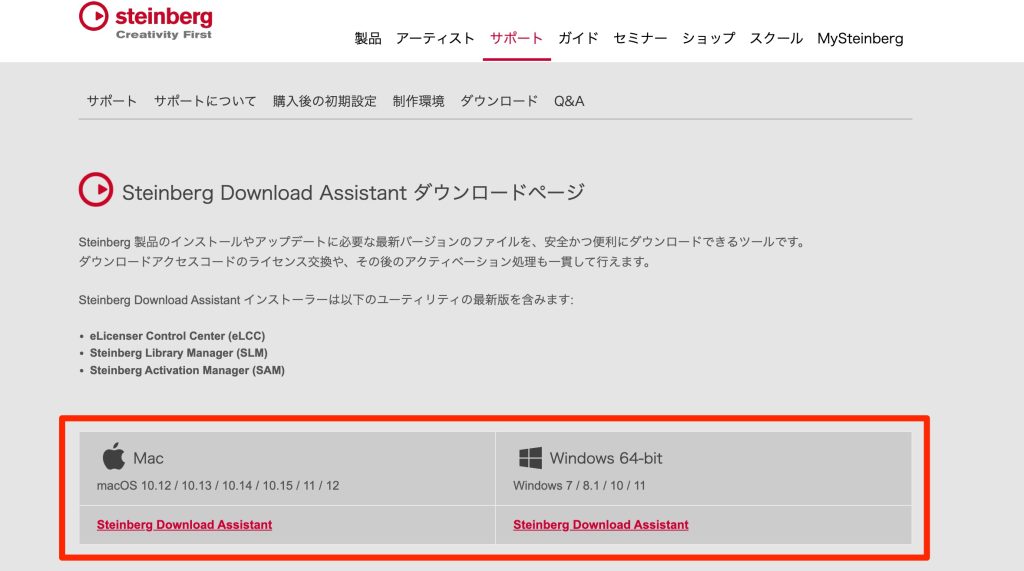
Download the file for your computer's OS.
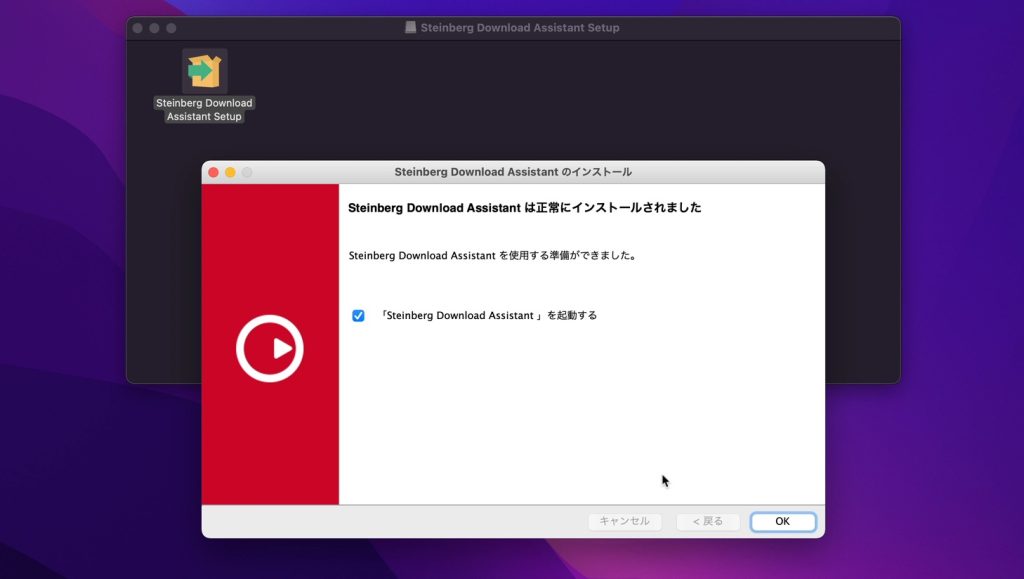
Double-click the file and proceed with the installation.
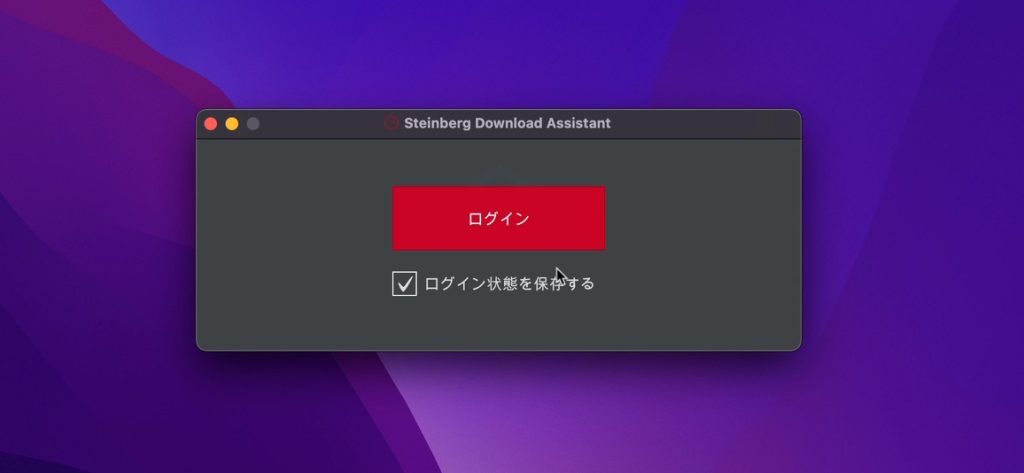
A window like this opens, so click Log in.
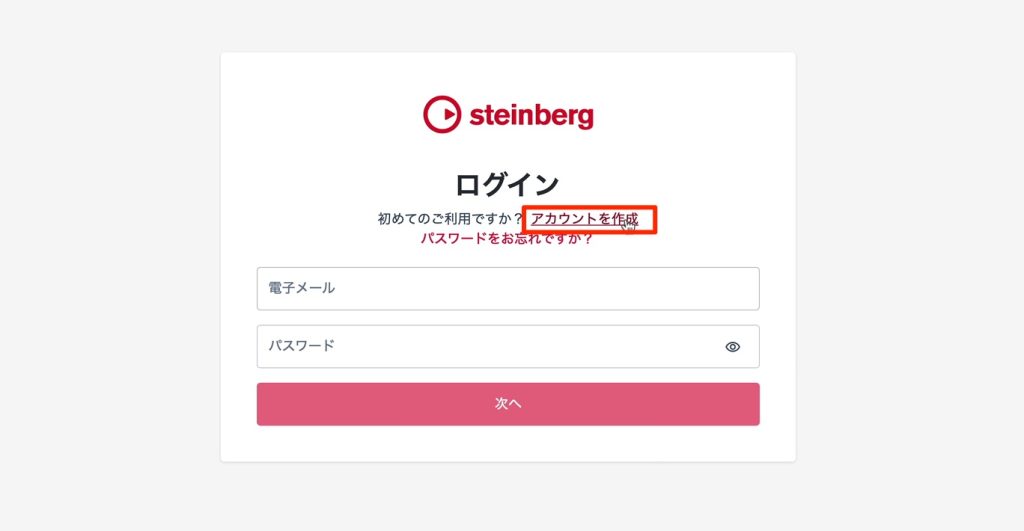
Next, log in to your My Steinberg account.
Note that this account is separate from the store account you used to buy Cubase above.
If you already use Steinberg products, you have an account, so log in.
If you do not have an account yet, select "Create account."
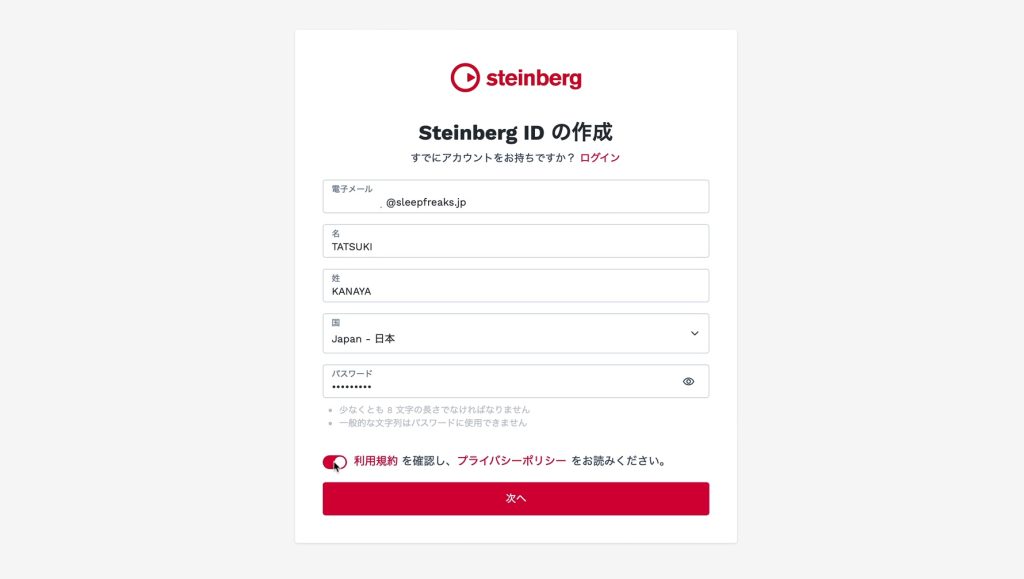
Enter the required information, review the terms of use and click "Next."
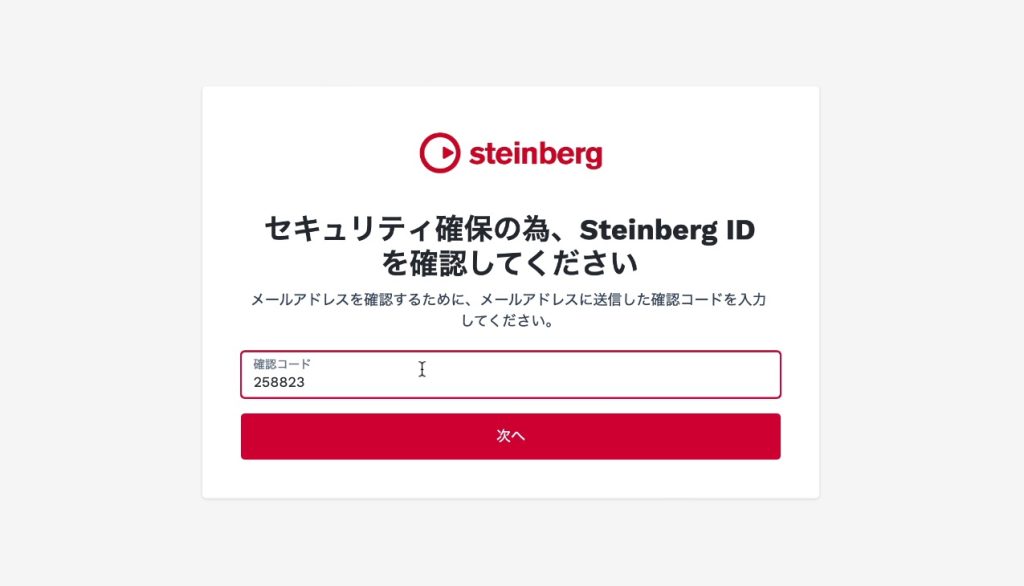
A code is sent to your email address. Enter it and proceed.
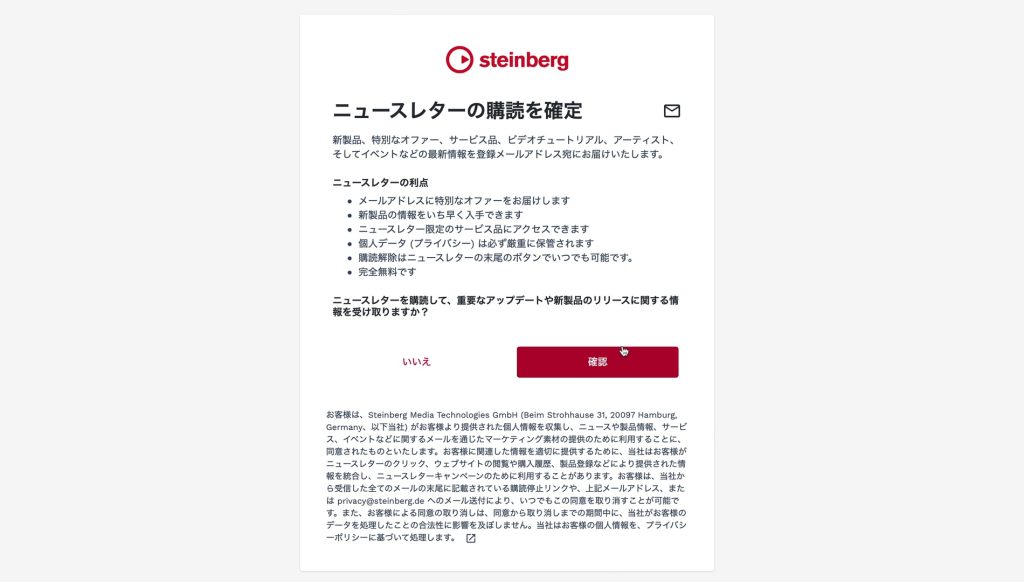
Choose whether to subscribe to the free newsletter.
This completes account creation.
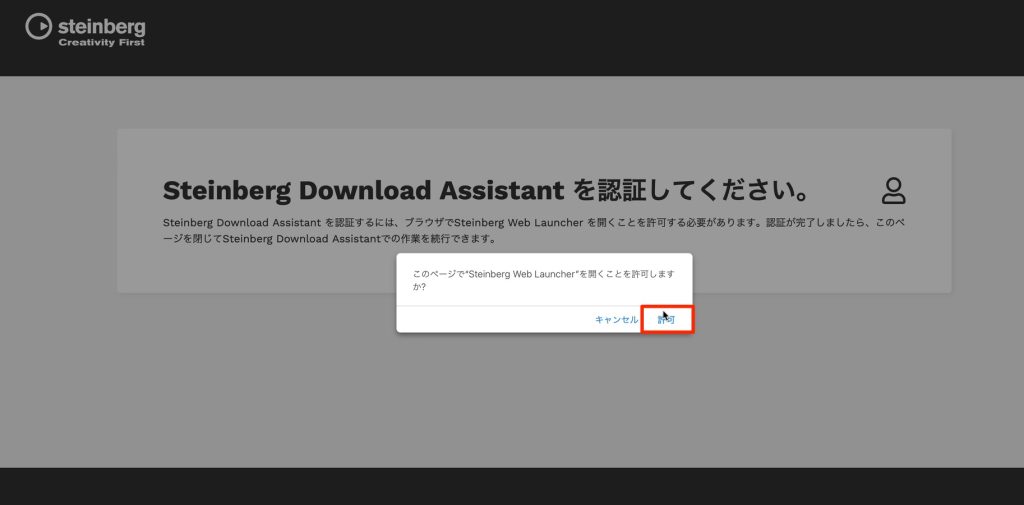
The Steinberg Download Assistant authorization appears in your web browser, so select "Allow."

A screen like this appears, and you are now logged in to the Steinberg Download Assistant.
Click "Download access code" at the top left.

Paste the activation code sent by email when you bought the product and press "OK."
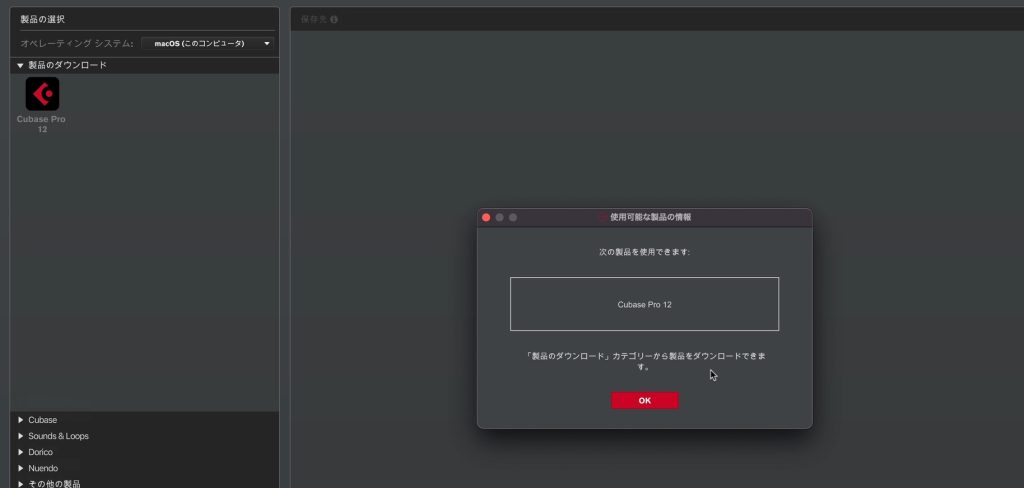
As shown, the Cubase you bought has been registered to your account.
Then you just download the product.
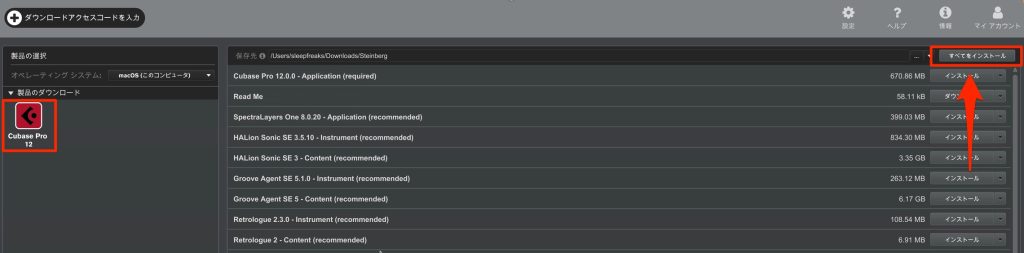
Besides Cubase itself, you can add instrument sounds, loops, effects and more.
We recommend downloading and installing everything.
Clicking "Install all" downloads and installs all the content at once.
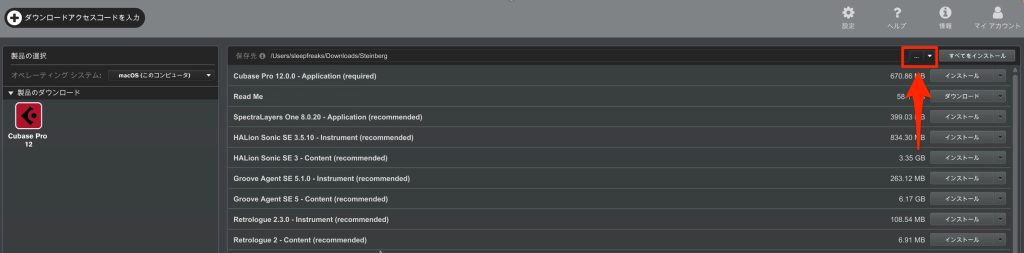
The file sizes of the content are quite large, but you can click this area to change the download location to external storage.
Set it as needed.
You can specify the download location as above, but the installed files are stored on the main storage.

If you want to change this, open the "Steinberg Library Manager" after installing the product.
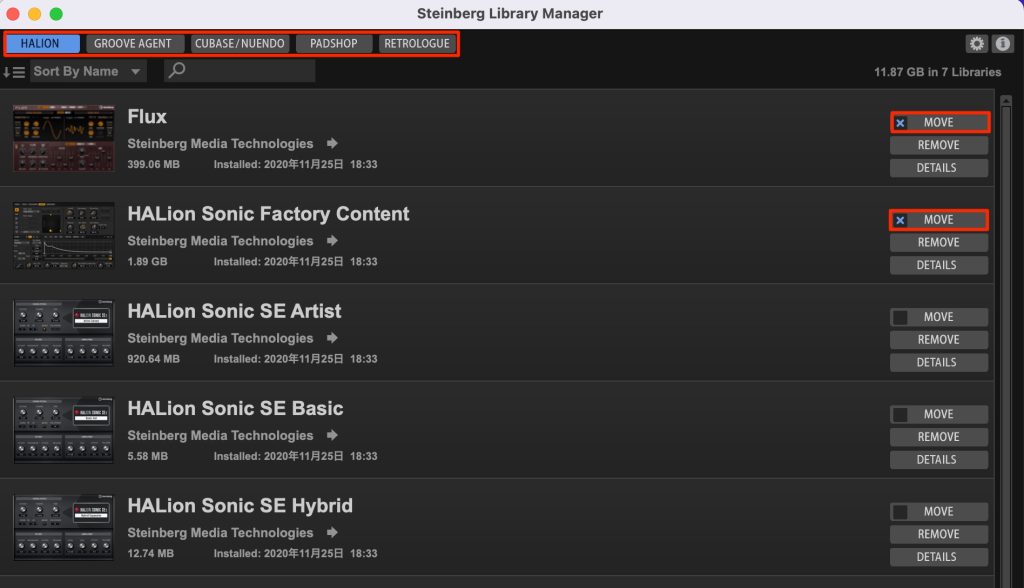
Select the content whose location you want to change, click "MOVE," and choose the storage or folder to move it to.
This moves content from the main storage to external storage, avoiding filling up your main storage.
Activating and Launching Cubase
Once the downloads above are done, you are ready to use Cubase.

Double-click the installed Cubase to launch it.
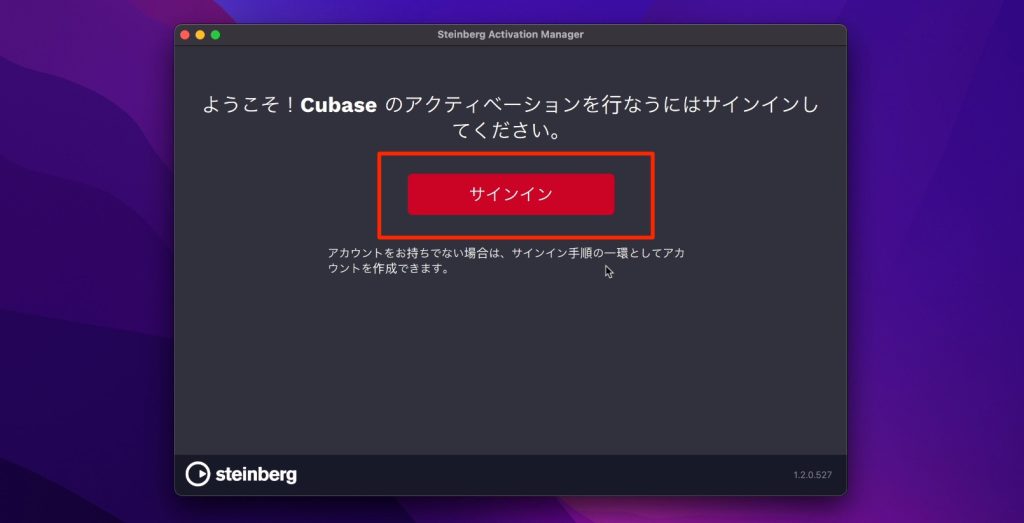
License activation is required on the first launch.
Click "Sign in" in the window that appears.
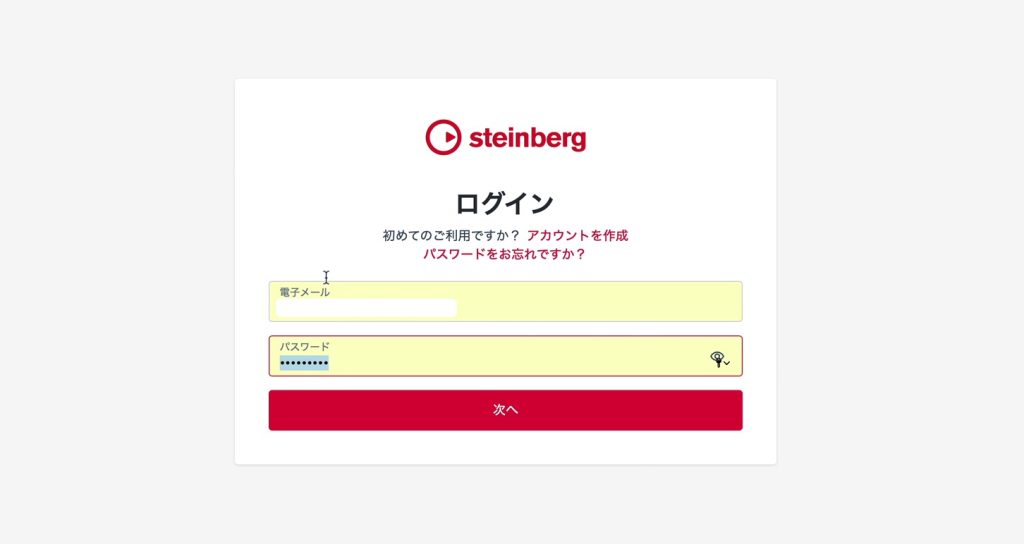
Enter the email address and password of your My Steinberg account and log in.
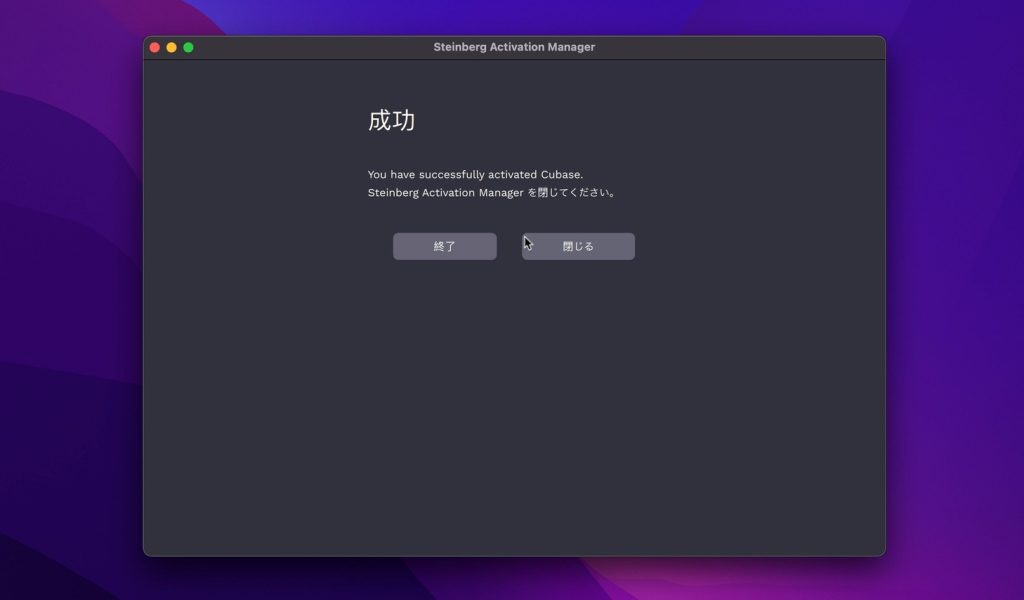
The "Steinberg Activation Manager" launches and shows "Success."
You can close the Steinberg Activation Manager at this point.
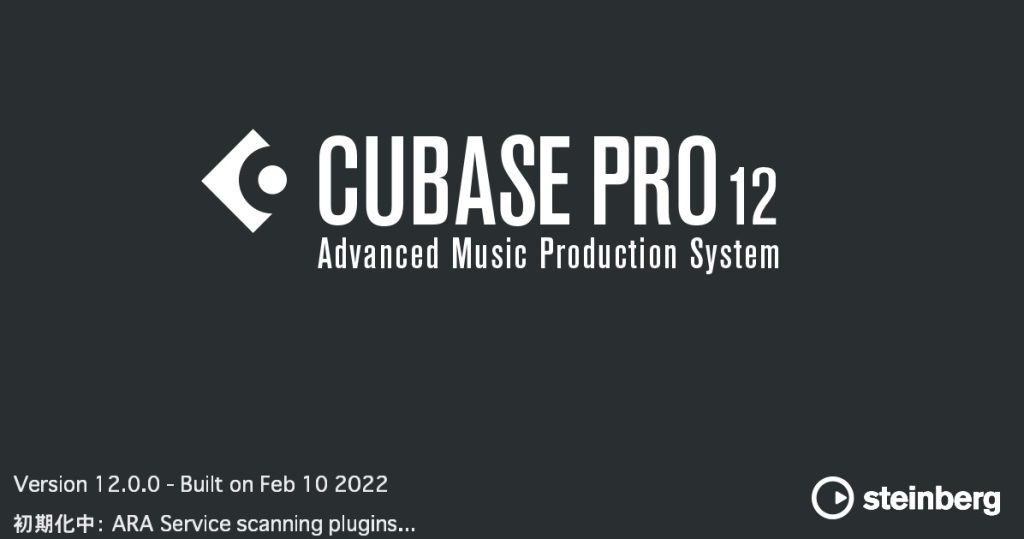
That's it.
Cubase launches like this and is ready to use.
Additional Notes on Cubase Licenses
Let us add a few notes about the license.
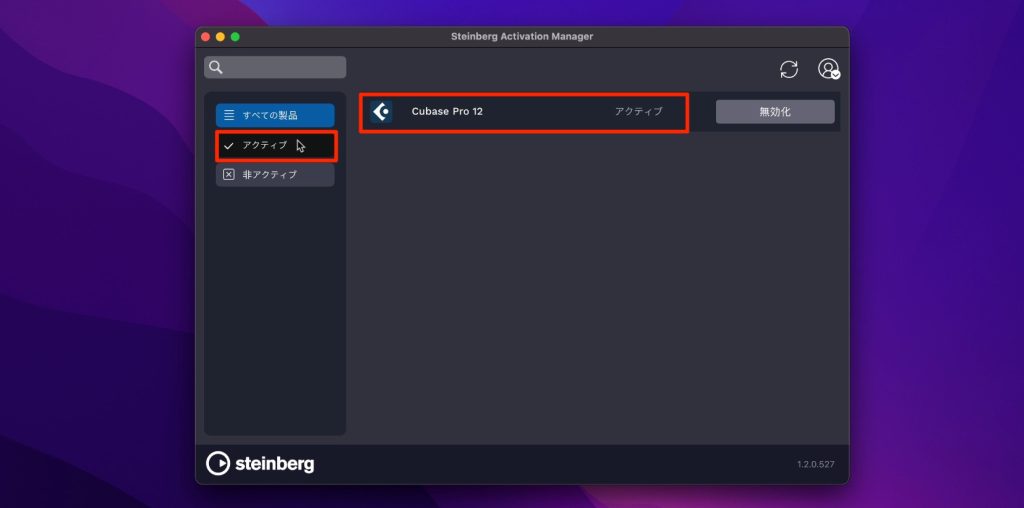
Checking Active in the Steinberg Activation Manager shows Cubase 12.
This means the Cubase 12 license is active on this computer and it can be used.
Cubase 12 can be used on up to three computers.
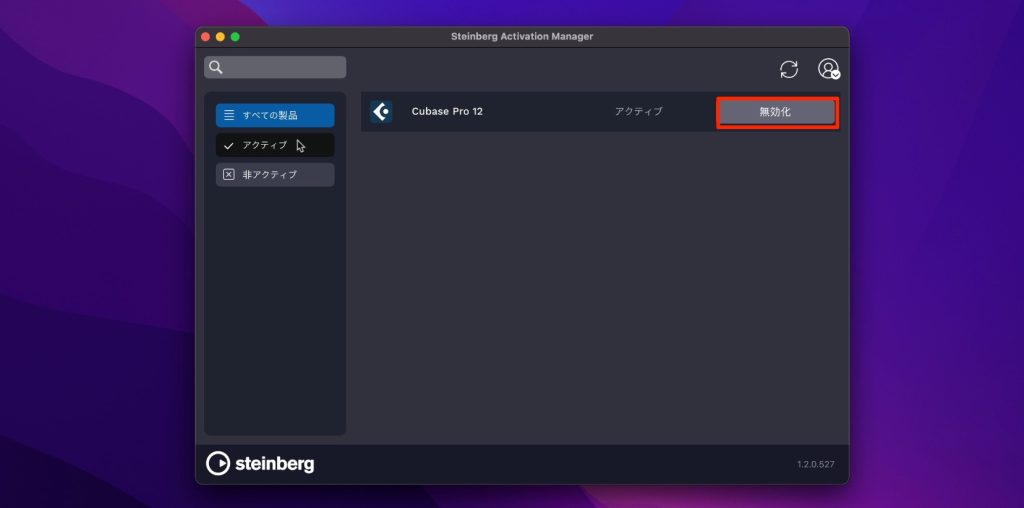
If you want to use it on a fourth computer, or no longer use Cubase on a particular computer, click "Deactivate" to remove the license from that computer, and you can then use Cubase on a new computer.
Naturally, Cubase can no longer be used on a computer whose license has been deactivated.
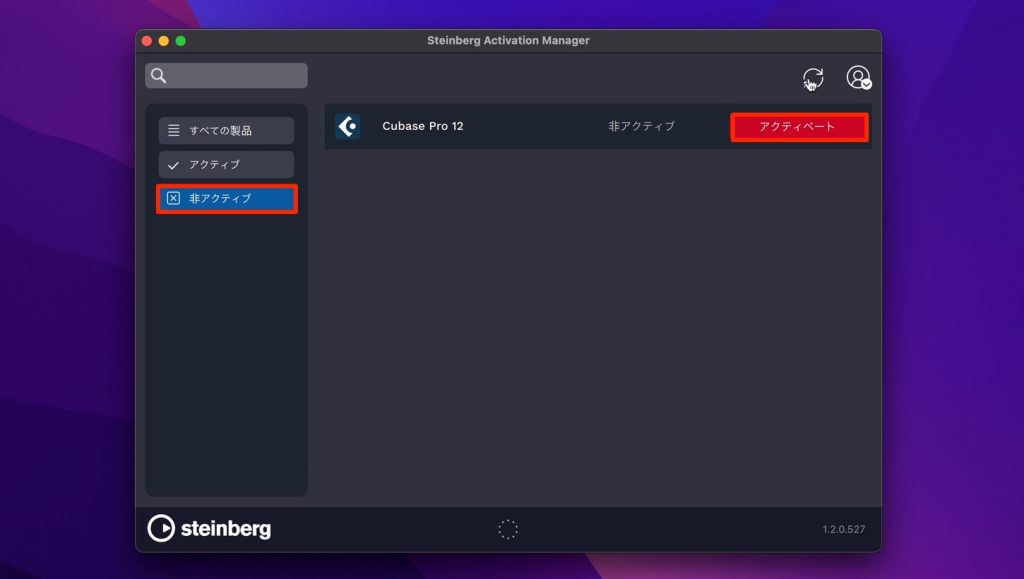
If you want to use Cubase on that computer again, the Cubase license is shown under Inactive.
Press the activate button again to reactivate the license.
Also, if you "reset the computer without removing the license" or "the computer broke and won't start, so you reached the license limit," you need to contact Steinberg support and go through the procedure to release the license.
The product does not become permanently unusable, so rest assured.
Finally, there have been reports of license activation taking a long time to complete.
In that case, leave the Activation Manager open and wait a while.
Some people tried to reinstall and reactivate from scratch and deleted their My Steinberg account itself.
Deleting the account erases all your Cubase serials and registration information, so never delete your account under any circumstances.
How did you find it?
Please enjoy Cubase 12 to the fullest, which allows even more comfortable music production now that the USB dongle is gone.
For those who have bought or are about to buy the Cubase 12 series, we explain the flow of purchasing, installing, activating and managing licenses.
Details: https://t.co/JEuLSn5tMl pic.twitter.com/y84MC1XcSc
— SLEEP FREAKS (@SLEEPFREAKS_DTM) March 31, 2022
Frequently Asked Questions
Q1. Is a USB dongle required to activate Cubase 12?
No. With Cubase 12, the USB dongle was discontinued and replaced by online activation. Just logging in with your My Steinberg account enables cloud-based license management.
Q2. I own Cubase 11. What are the steps to update?
When you activate your Cubase 11 license, it is automatically updated to the latest version, Cubase 12. Going through the download and installation steps again makes the new features available.
Q3. Can Cubase 12 be used on multiple computers?
Yes, you can activate the license on up to three computers at the same time. To use it on a fourth, you need to deactivate the license on an existing computer from the Steinberg Activation Manager.
Q4. What happens if my computer breaks and I reach the license limit?
Contact Steinberg support and request the license release procedure. The product does not become permanently unusable, and you can activate the license again.
Q5. What should I do if license activation does not complete?
Keep the Activation Manager open and wait a while. Activation usually completes over time. Be careful not to redo the installation or activation.
NEW ARTICLES
Latest English Articles











