
When producing music in Ableton Live, changing the time signature partway through a song is an important technique for broadening your expression. Even songs that are normally in 4/4 may need time signature changes depending on the genre or arrangement. To keep such changes from slowing down your work, this article explains how to set time signatures accurately in your Live Set. By learning the concrete steps, from setting the playback position to inserting time signature changes and moving or deleting them, you will be able to work comfortably even on songs with complex time signatures.
Change the Time Signature Within a Song and Work Comfortably
One element of musical genre and expression is the time signature.
Not just typical dance music,
but most songs are in 4/4.
However, the time signature sometimes changes partway through a song.
You could just power through the programming without worrying about it (lol), but
things like beats drifting out of place
will drastically reduce your efficiency.
To prevent this,
we recommend setting the time signature in your Live Set.
Setting a Time Signature Change
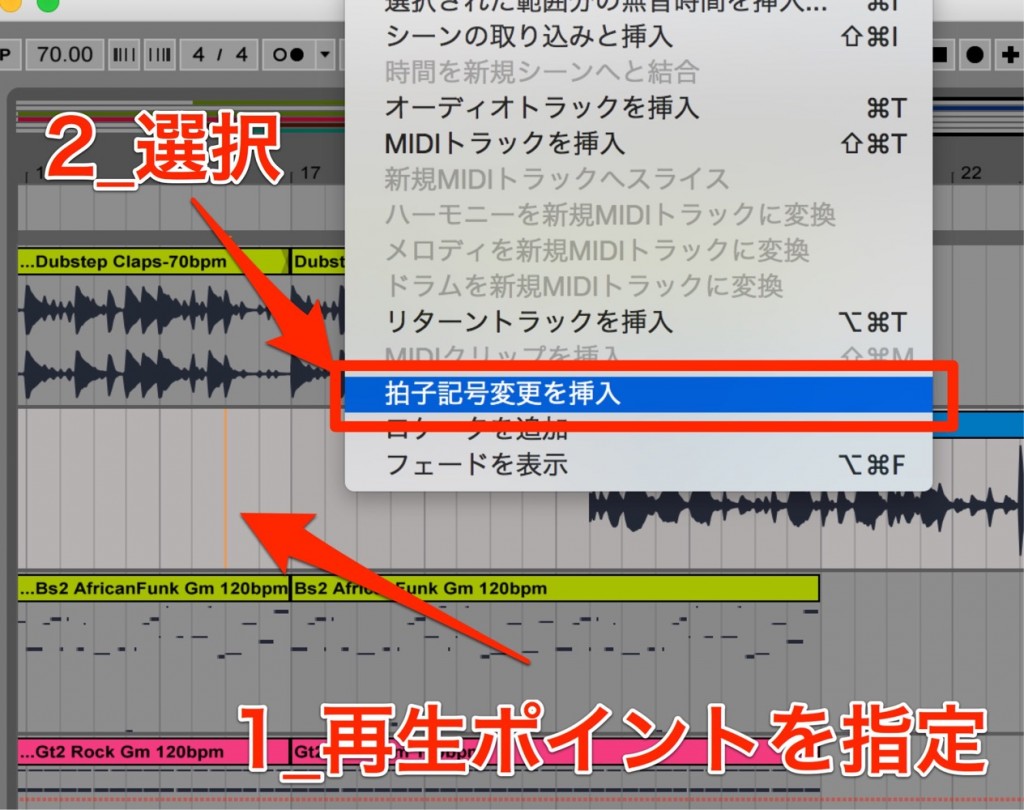
- 1_Move the playback position to where you want to insert the time signature
- 2_From the menu bar, select "Create" → "Insert Time Signature Change"

Specify the time signature.
Enter it using numbers and "/".

You can place multiple time signatures in the same way.
Moving and Deleting Time Signature Changes

By dragging the "flag" outlined in red, you can move it anywhere.
You can also click the flag to select it and delete it with the Delete key.
Frequently asked questions
Q1. What are the benefits of changing the time signature within a song in Ableton Live?
Setting the time signature clearly prevents mistakes such as beats drifting out of place and greatly improves your production efficiency. You can program accurately even in complex song structures, which broadens your freedom of expression.
Q2. What are the steps for inserting a time signature change?
Move the playback position to where you want to change the time signature, then select "Create" → "Insert Time Signature Change" from the menu. Then just specify the time signature using numbers and a slash.
Q3. Can I modify a time signature change after setting it?
Yes. You can drag its flag to move it, or select it and press the Delete key to delete it. You can freely place and edit multiple time signatures.
NEW ARTICLES
Latest English Articles











