
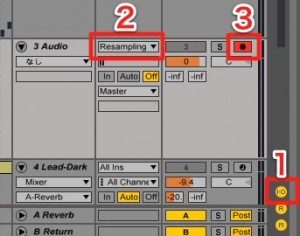
Ableton Live has a feature called "resampling" for converting MIDI tracks to audio. It lets you make fine adjustments to nuance, apply effects, and do tricky sound processing on programmed material. Just set an audio track's input to "Resampling" and record, and you can move seamlessly from the flexibility of MIDI to the rich expressiveness of audio, greatly expanding your freedom in production.
Benefits of Converting MIDI Tracks to Audio in Live
MIDI tracks are extremely convenient.
However, when you want to make fine adjustments to nuance or use tricky techniques,
there are many situations where you need to convert them to audio.
This time, we will explain how to convert programmed material to audio.
In Live, this operation is called "resampling".
How to Resample
You can do this in either Session View or Arrangement View.
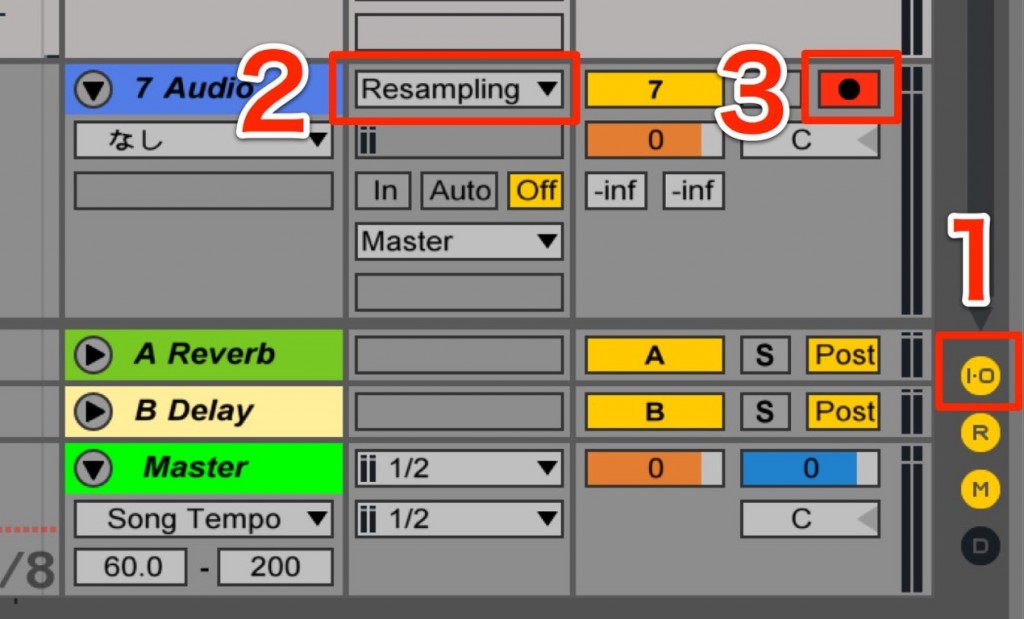
Create an audio track for the conversion and set it up as follows.
- 1_Click "I-O" to turn it on
- 2_Change the "Input" that appears to "Resampling"
- 3_Turn on the record button
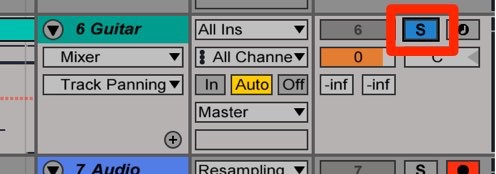
Solo the MIDI track you want to convert to audio.
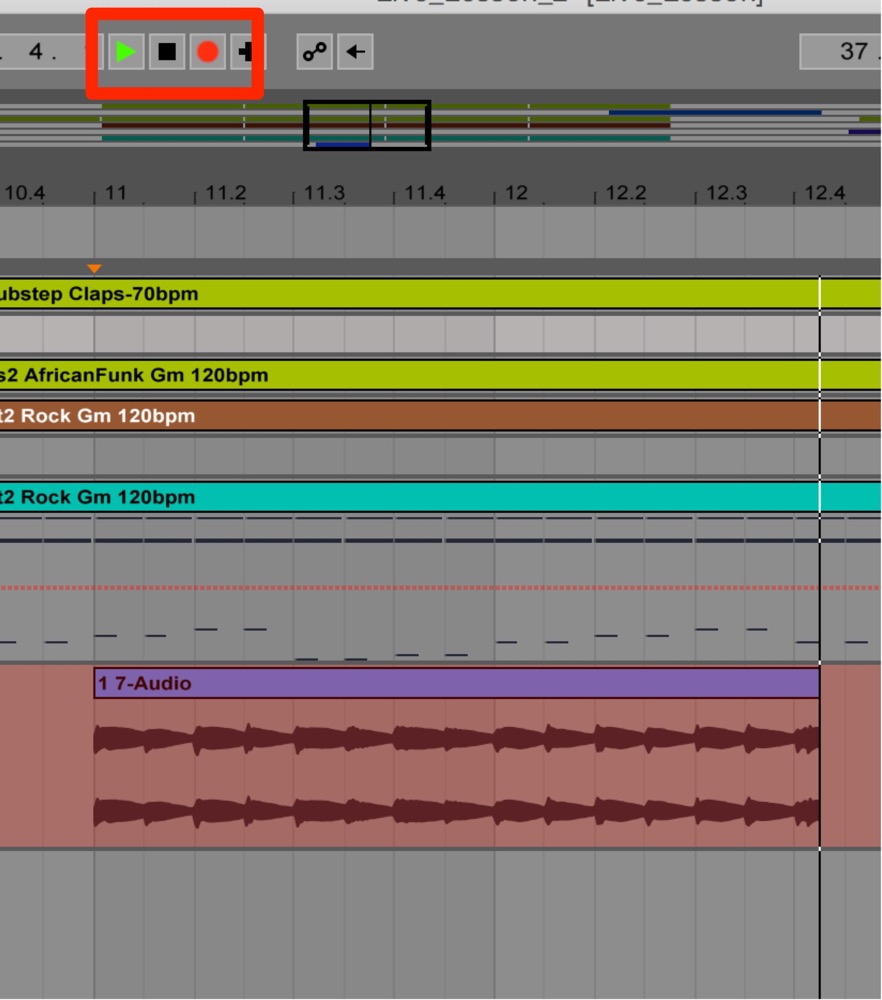
Start recording from the bar you want to convert to audio.
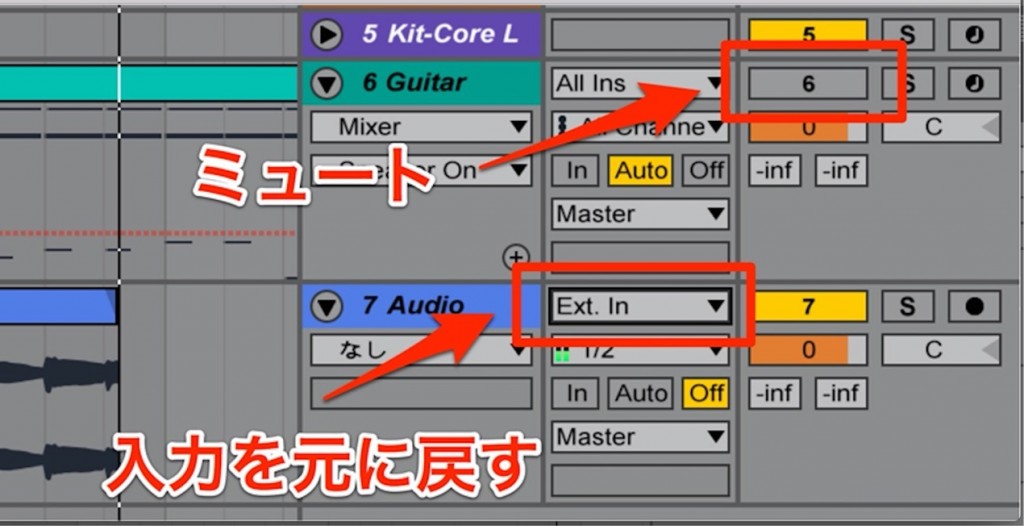
After recording,
to avoid the track playing twice, mute the MIDI track.
It is also a good idea to set the audio track's input back from "Resampling" to "Ext. In".
Frequently asked questions
Q1. What are the benefits of converting MIDI to audio in Ableton Live?
Converting to audio makes fine nuance adjustments, effects processing, and waveform editing possible. Because the sound is fixed as an audio file, it also reduces CPU load and gives you more flexibility in processing sound across tracks, enabling more advanced production techniques.
Q2. How do I prevent doubled sound when resampling?
After converting to audio, mute the original MIDI track. Setting the audio track's input back from "Resampling" to "Ext. In" also reliably prevents unwanted signals from being duplicated.
Q3. Can I resample in Session View or Arrangement View?
Resampling works in both Session View and Arrangement View. You can do it from either view, depending on your project's progress and your working style.
NEW ARTICLES
Latest English Articles











