
Ableton Live's Freeze feature is an important tool for efficiently reducing the CPU load that grows as you add tracks and effects. By freezing tracks that are finished or that you do not plan to edit, you can greatly reduce CPU usage and keep your work running smoothly. It is easy to set up from the right-click menu and works in both Arrangement and Session View. When you need to edit, "Unfreeze" returns the track to normal, so you get an optimal workflow without losing flexibility.
Reduce CPU Load for Smoother Work
As you work, the number of tracks and effects keeps growing.
This is where your computer's CPU becomes a problem.
Operations can become sluggish, and in the worst case, things stop working.
The Freeze feature solves this problem.
By fixing the processing in place, it can greatly reduce CPU usage.
This feature can be used in both Arrangement View and Session View.
Features of Freeze
- Keeps CPU usage to a minimum
- Many track operations are restricted until you unfreeze.
These include recording, programming, and adding effects
It is effective for tracks that are finished or that you will not edit for a while.
Go to the product details page

How to Freeze a Track
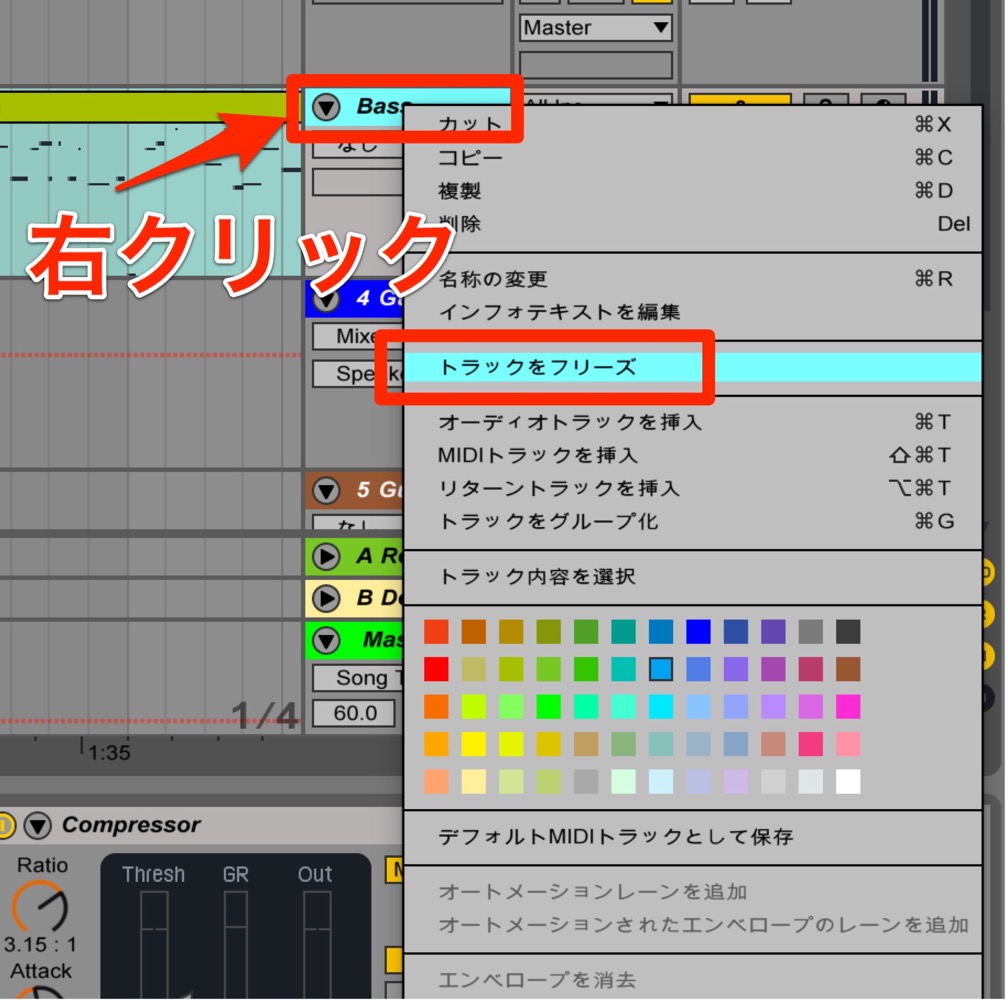
Right-click the track you want to freeze.
From the menu, select "Freeze Track".
This frees up the CPU the track was using.
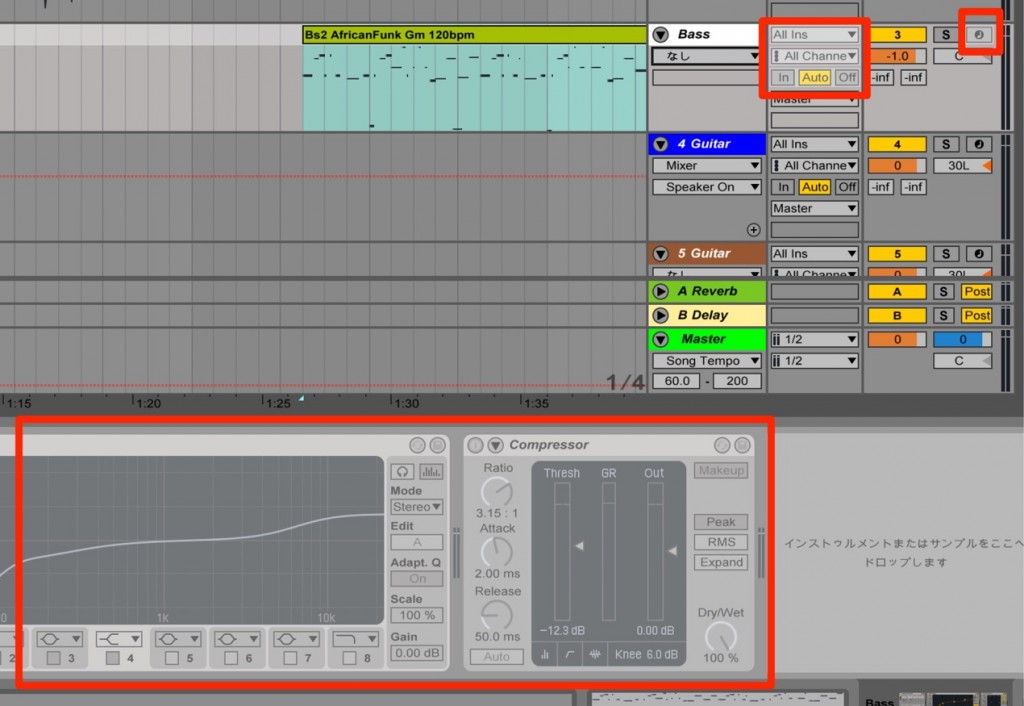
Parts that can no longer be changed because of freezing are grayed out.
You cannot change them at all.
Unfreezing
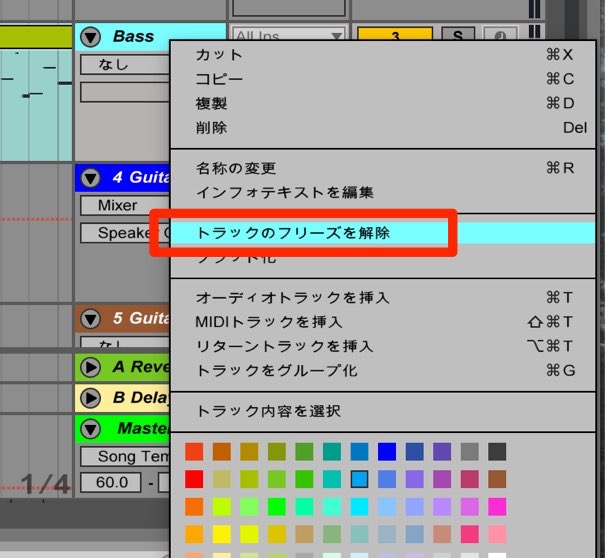
When you want to edit the track again,
right-click the track you want to unfreeze
and select "Unfreeze Track" from the menu.
The track returns to its normal state.
*The CPU load also returns to what it was.
Frequently asked questions
Q1. Does freezing convert the track to an audio file?
No. Freezing only fixes the processing in place, and the original project data is kept. You can always unfreeze it to make it editable again, so you can use it with confidence.
Q2. Can I add effects while a track is frozen?
While frozen, many operations such as recording, programming, and adding effects are restricted. Be sure to unfreeze the track before making changes.
Q3. Can I freeze multiple tracks at once?
Yes. Select multiple tracks, right-click, and choose "Freeze Track" to freeze them all at once. In practice, it is best to freeze tracks you no longer plan to edit as you move into the later stages of production.
NEW ARTICLES
Latest English Articles











