
NOTE PERFORMER 4 is an innovative plug-in that uses AI technology working with notation software to automatically generate realistic orchestral performances from score data. It supports the major notation programs Sibelius, Finale and Dorico, and offers a level of quality that conventional sampled libraries cannot achieve. AI analysis automatically applies appropriate articulations, note transitions and dynamics, greatly improving playback quality during composing and arranging. Furthermore, by adding Playback Engines, it can work with professional external libraries such as Spitfire Audio and VIENNA SYMPHONIC LIBRARY, promising more efficient DTM production and a dramatic improvement in sound quality.
Realistic Orchestral Performances Automatically from Scores in Notation Software
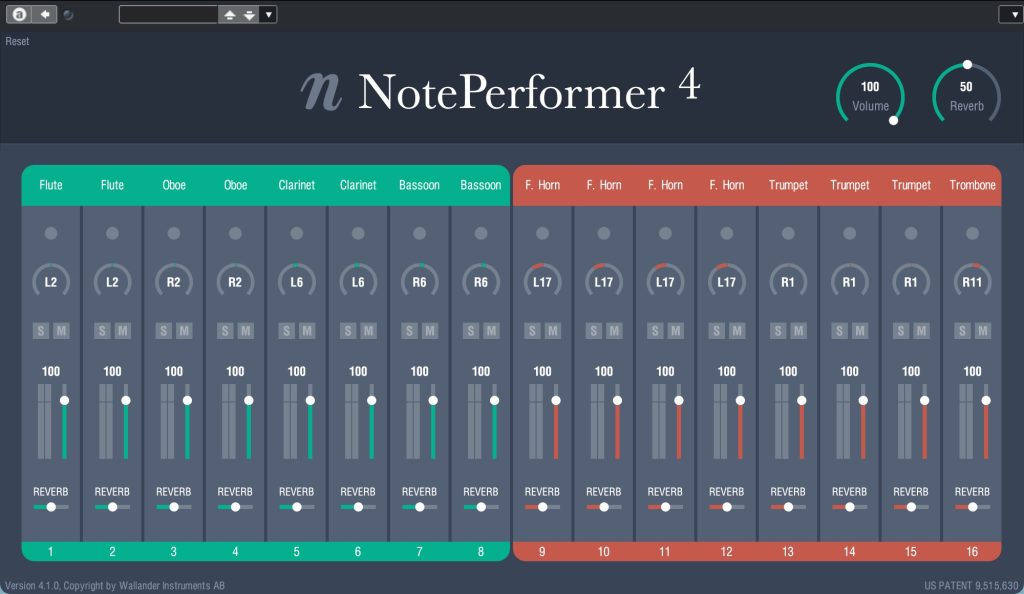
Wallander Instruments "NOTE PERFORMER 4" is a groundbreaking product that analyzes the performance written in a score with its own AI technology and automatically generates appropriate articulations, note transitions and dynamics. It supports the notation programs "Sibelius," "Finale" and "Dorico."
Just by pressing the play button in your notation software, you get realistic playback, and for composing and arranging in a score, it boasts quality that is in a different league from typical sampled libraries.

In addition, the built-in sounds can now be replaced with libraries from companies such as Spitfire Audio and VIENNA SYMPHONIC LIBRARY.
An add-on that lets you replace them with excellent third-party libraries, the "PLAYBACK ENGINES" (paid), can now be added.
Here, we introduce the sound of NOTE PERFORMER 4 and the playback settings needed in the three notation programs.
- 1Playback settings in Finale
- 2Playback settings in Sibelius
- 3Playback settings in Dorico
- 4Playback settings with third-party libraries using Playback Engines
- 5Ver3 review by Takumi (external site)
NotePerformer 4 Explanation Video
Demo Playback
The reference score played back is from the theme of the NHK Taiga drama "Yae no Sakura" by Ryuichi Sakamoto.
The original is performed by the NHK Symphony Orchestra.
Here is the same piece played back using NotePerformer.
Playback Settings in Finale
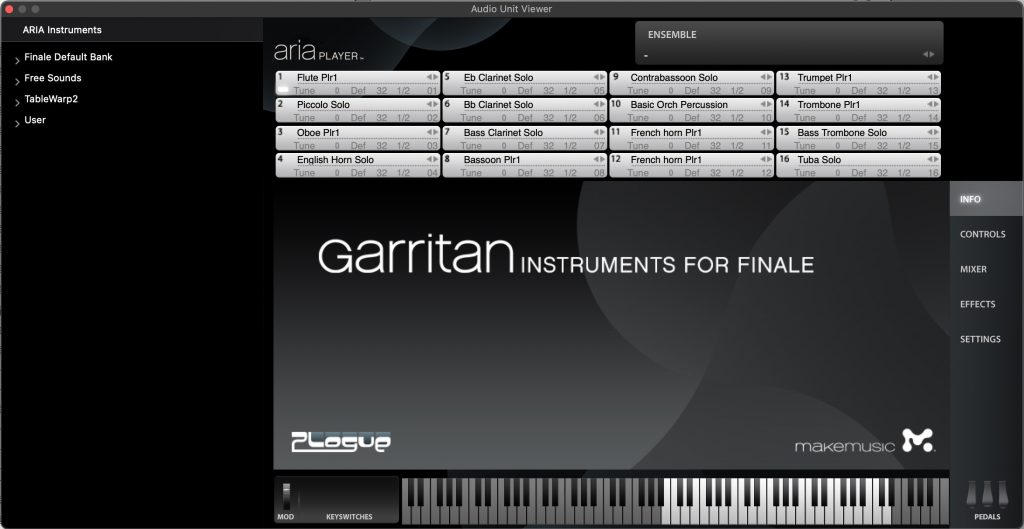
Normally, Finale's default playback sounds are the included "Garritan Instruments (for Finale)," played back by the dedicated Aria Player.
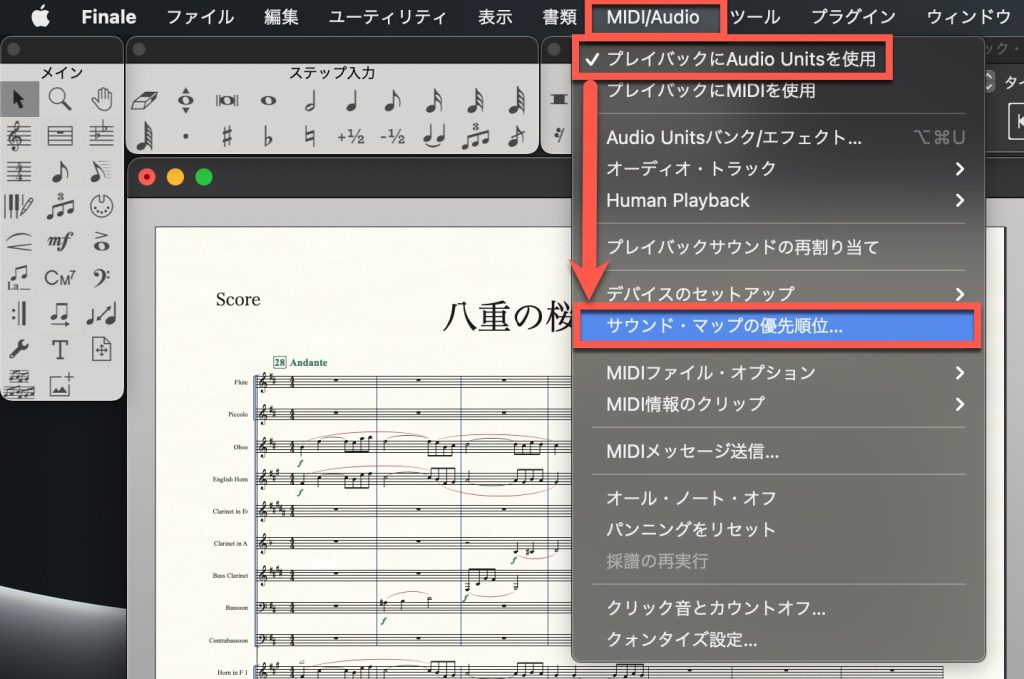

To play back with "NotePerformer," first check that "Play Finale Through Audio Units" in the "MIDI/Audio" menu is checked.
Next, open the "Sound Map Priority" dialog box in the menu and drag "NotePerformer" in the list to the top.
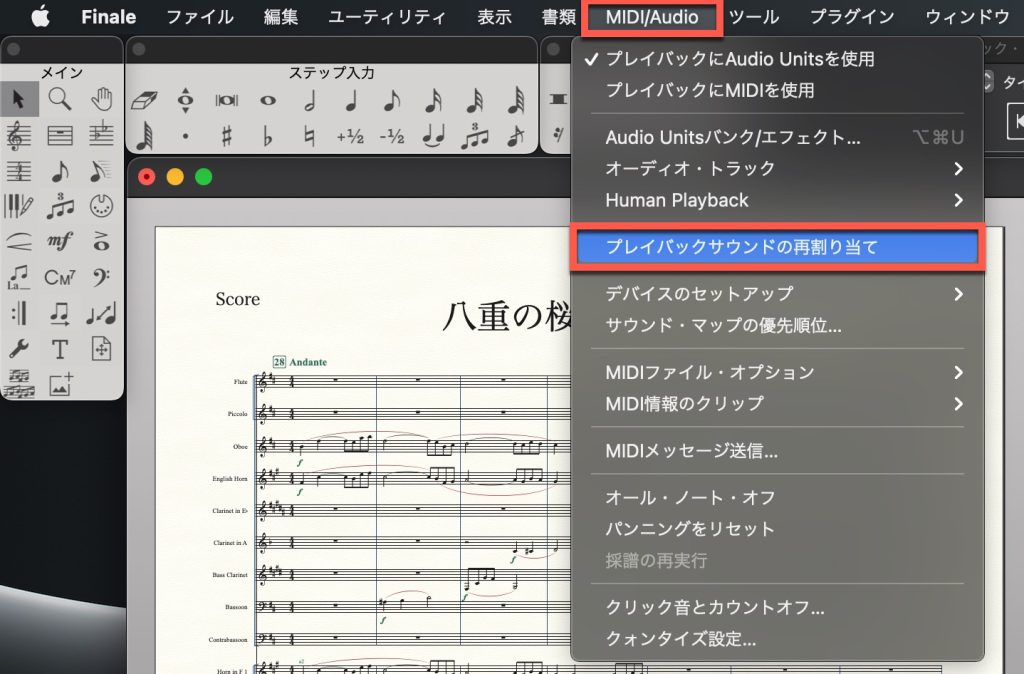

Likewise, choose "Reassign Playback Sounds" in the "MIDI/Audio" menu to continue rewriting the settings.
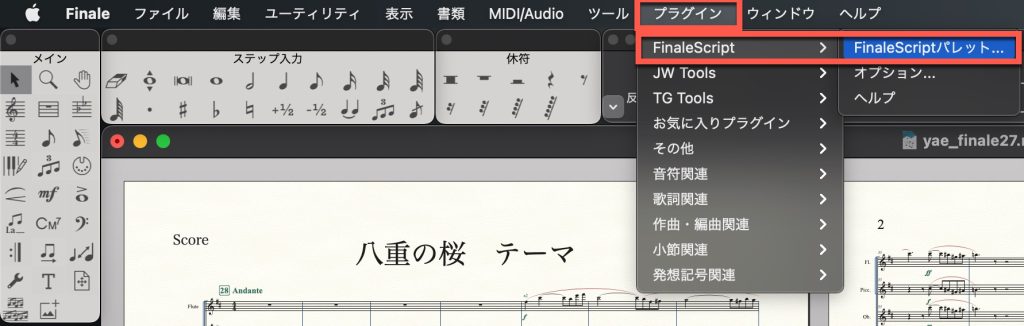
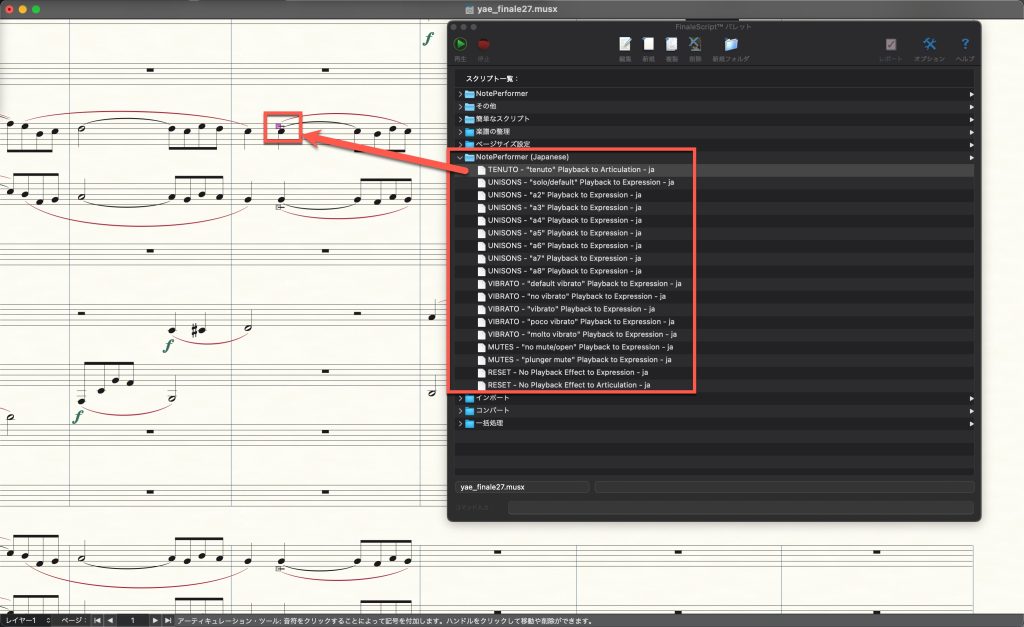
In Finale, the "tenuto" articulation is not reflected, so apply the plug-in provided as a dedicated FinaleScript.
Select "tenuto" with the Articulation Tool and run the script to apply it.
If necessary, also select any musical expressions other than tenuto that it should be applied to.
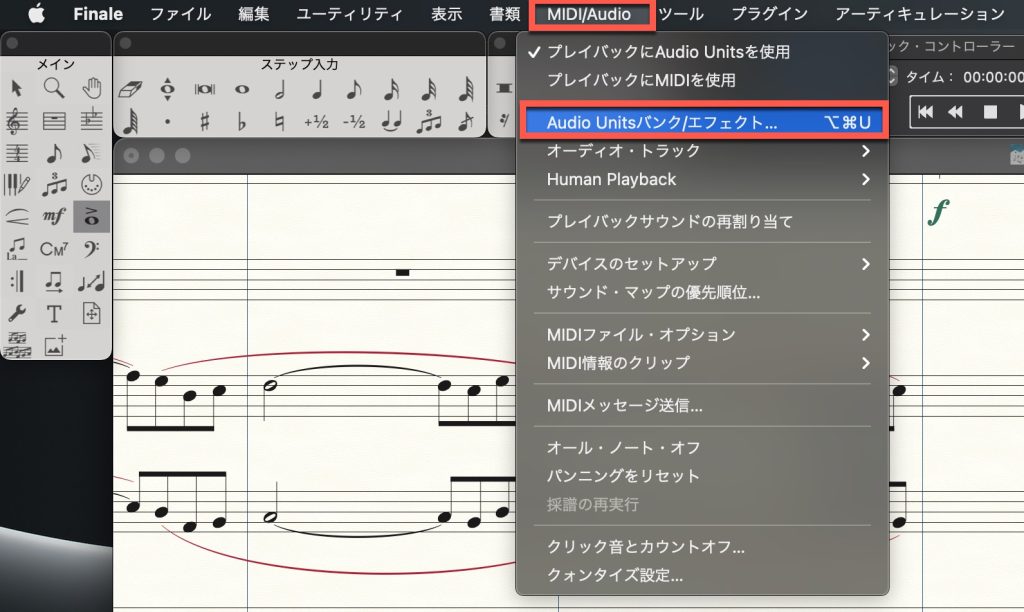
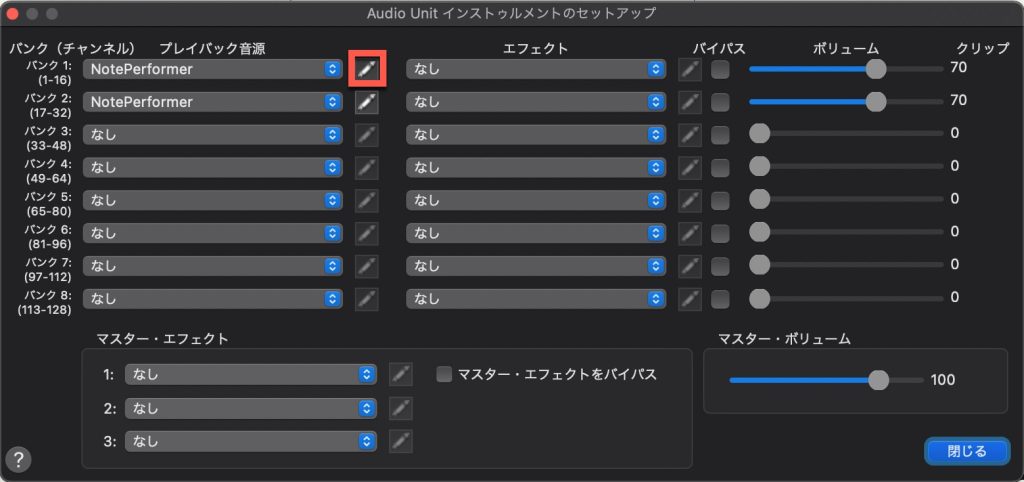
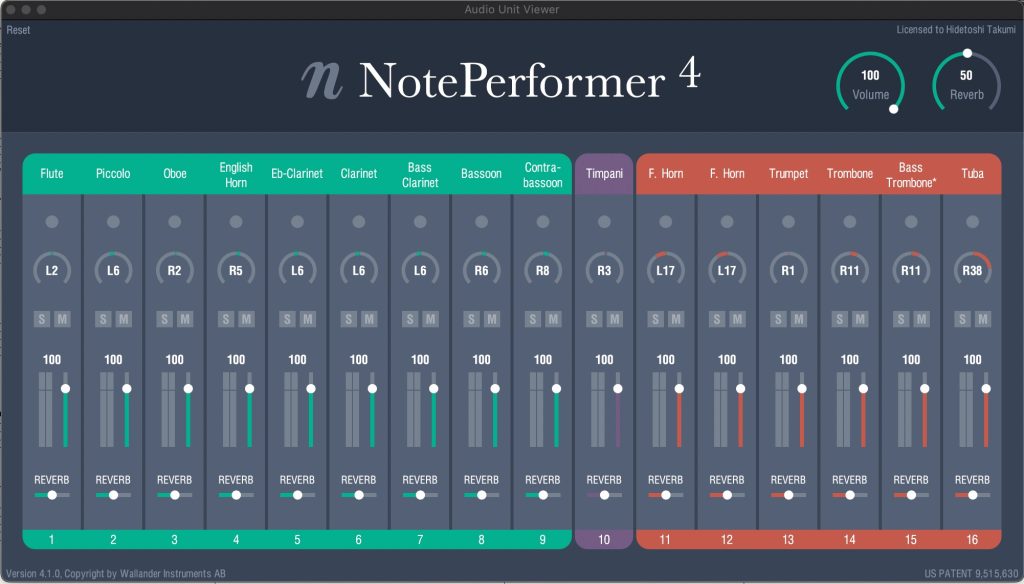
For NotePerformer's own mixer, open "Audio Units Banks and Effects" in the "MIDI/Audio" menu, then click the pencil icon next to the bank in the setup dialog to show the details.
Here, you can change the overall volume, the sound of each instrument, pan, volume, reverb and more.
Playback Settings in Sibelius
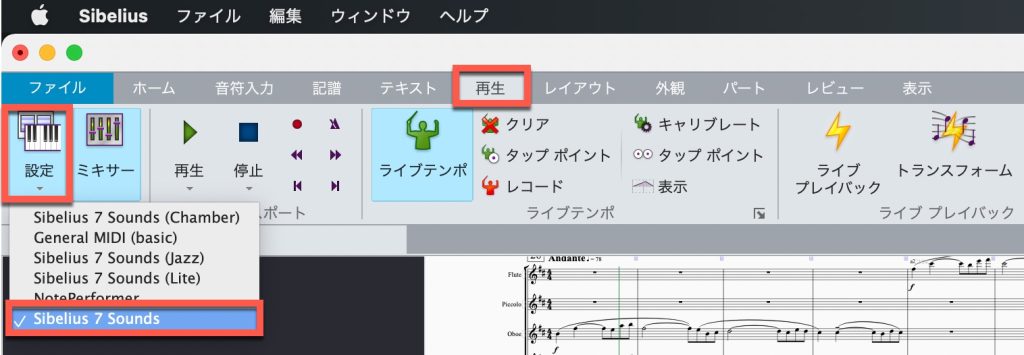
Normally, Sibelius's default playback sounds are the included "Sibelius 7 Sounds."
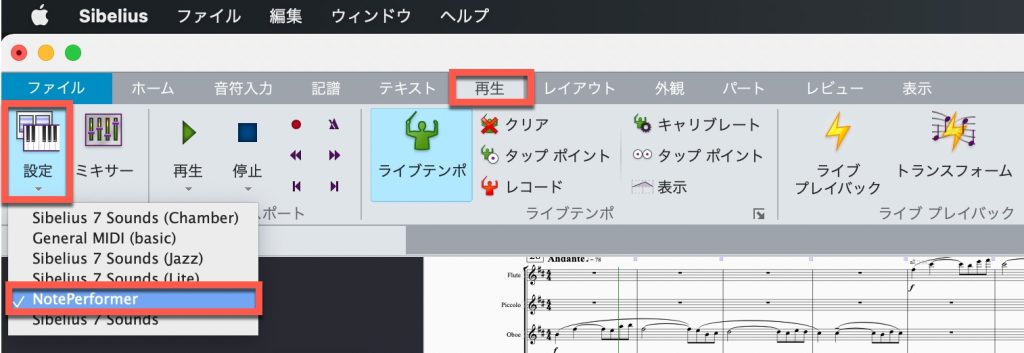
To play back with "NotePerformer," first select "NotePerformer" from the Configuration list under Setup in the "Play" tab.
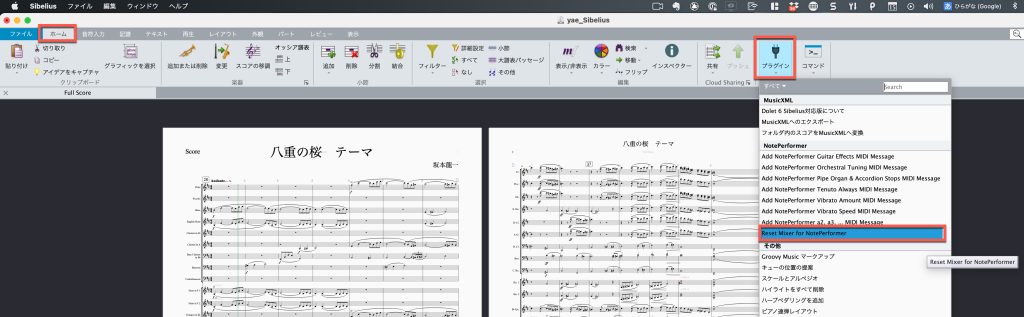
NotePerformer-related plug-ins are installed under "Plug-ins" in the "Home" tab, so select "Reset Mixer for NotePerformer" from the list.
If necessary, also apply other plug-ins, such as those for changing tuning or playing back musical symbols.
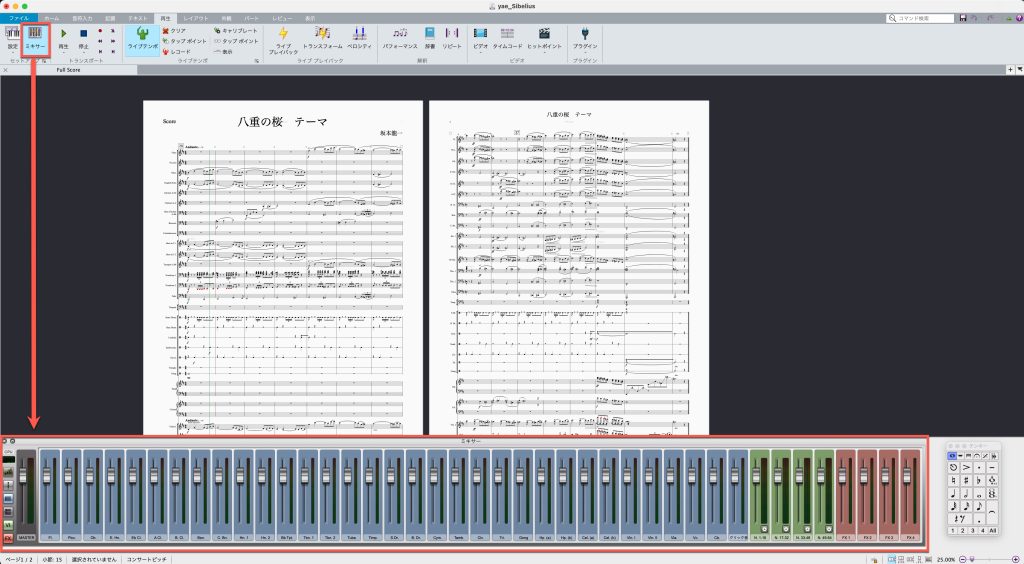
Note that Sibelius has no dedicated NotePerformer mixer; it is integrated into Sibelius's mixer.
You can adjust track details here.

Just to be safe, check that "Live Playback" in the "Play" tab is not selected (not lit in light blue).
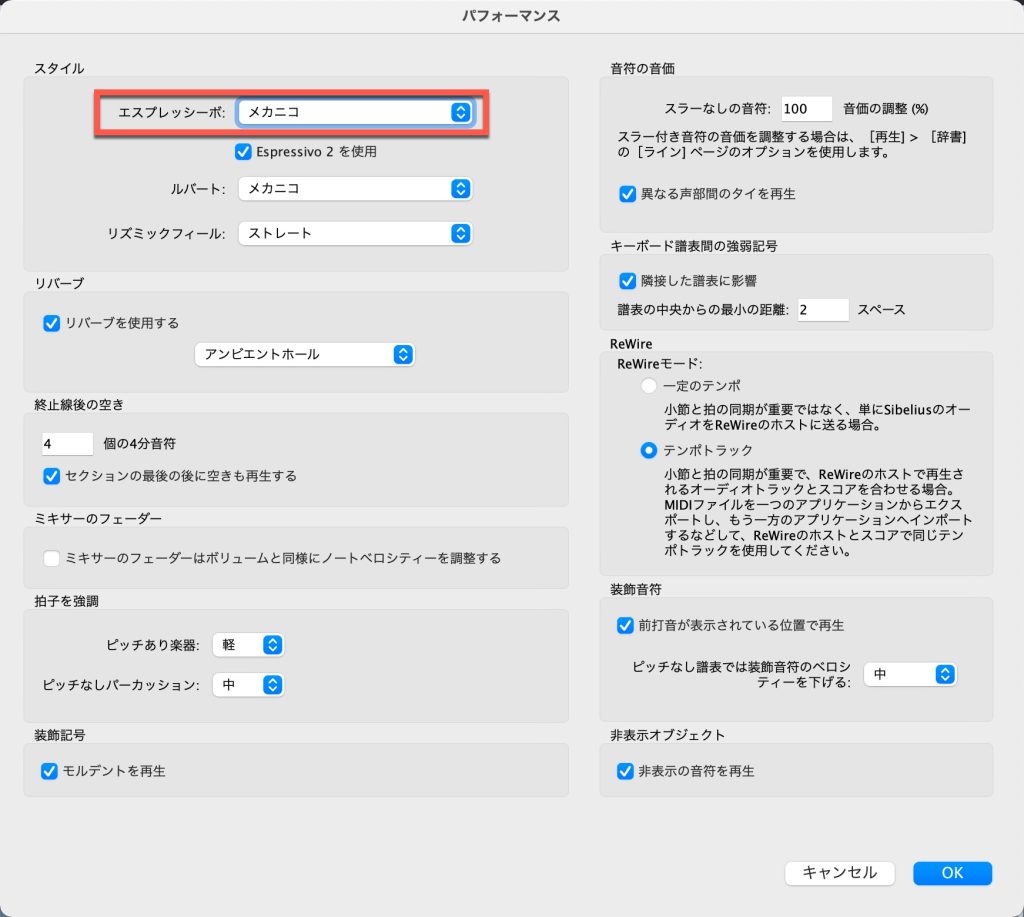
It is also recommended to open Interpretation "Performance" and choose "Meccanico" from the Espressivo style.
Playback Settings in Dorico
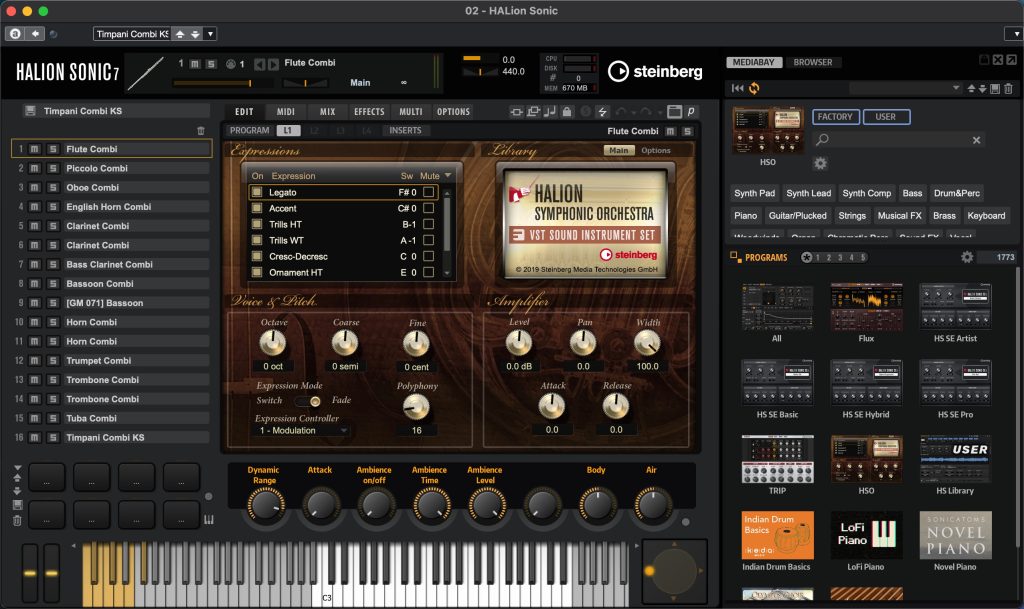
Normally, Dorico's default playback sounds are the included "HALion Symphonic Orchestra (HSO)."
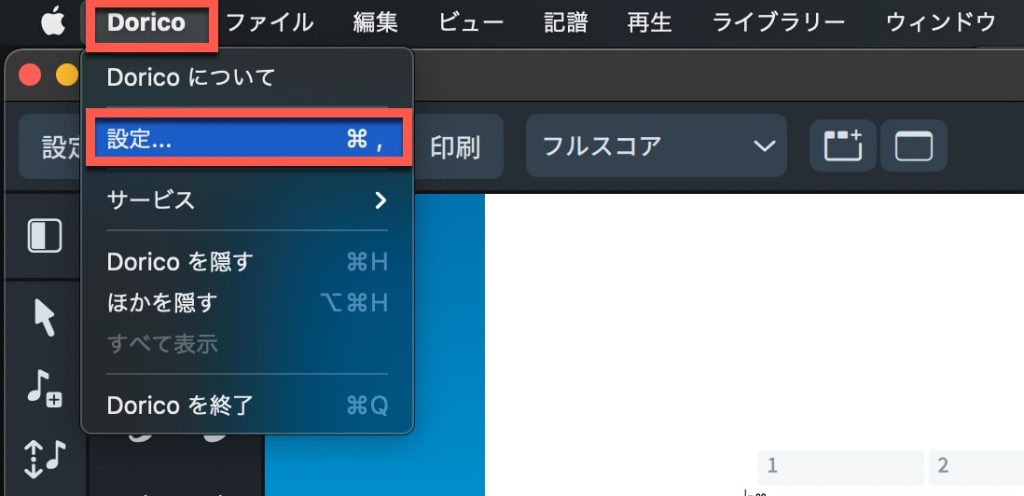
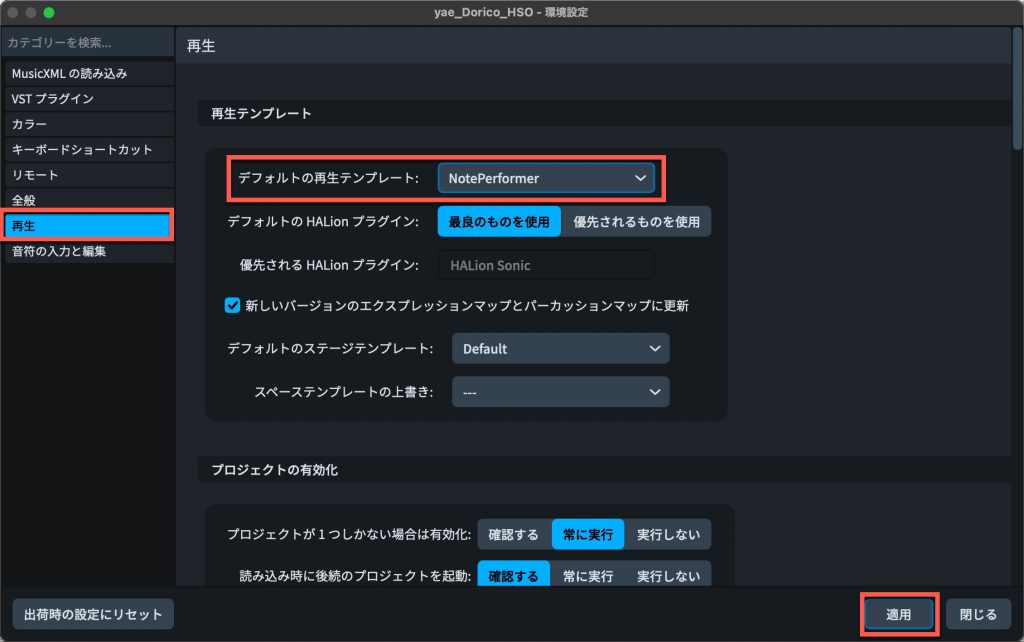
To play back with "NotePerformer," first open Preferences from "Dorico" → "Preferences...," then in the "Play" category, select "NotePerformer" from the playback template list and apply it.
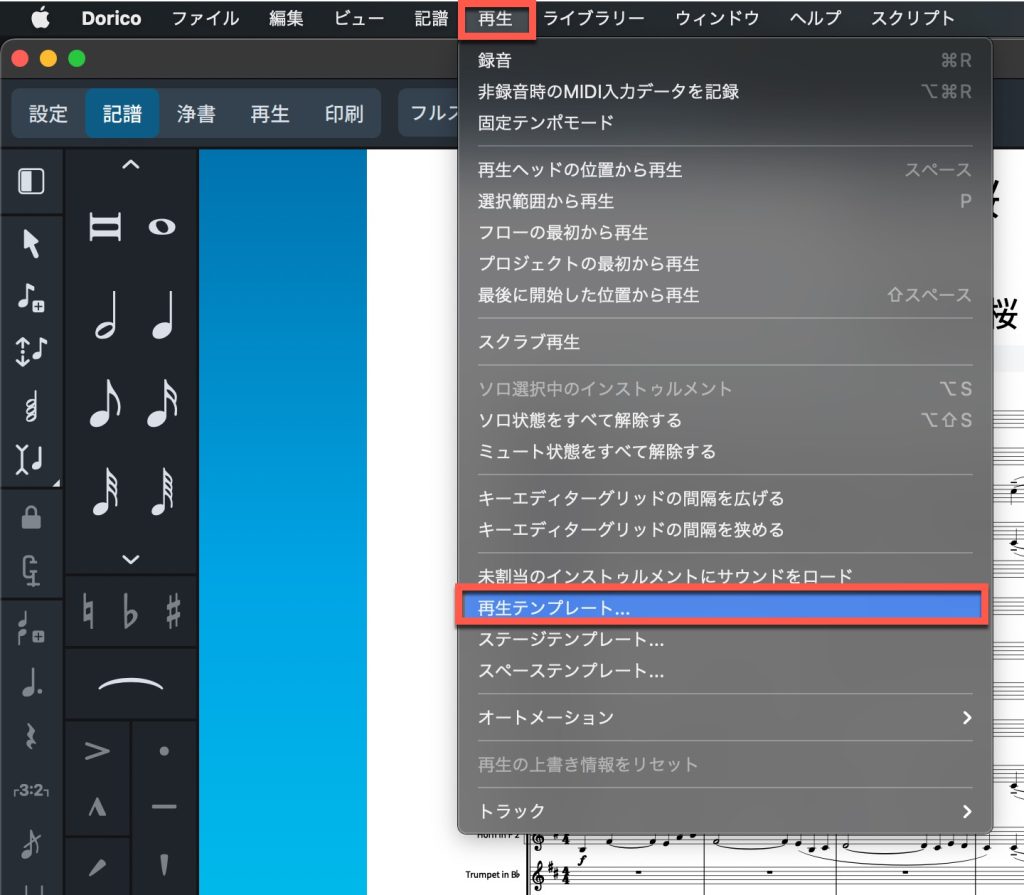
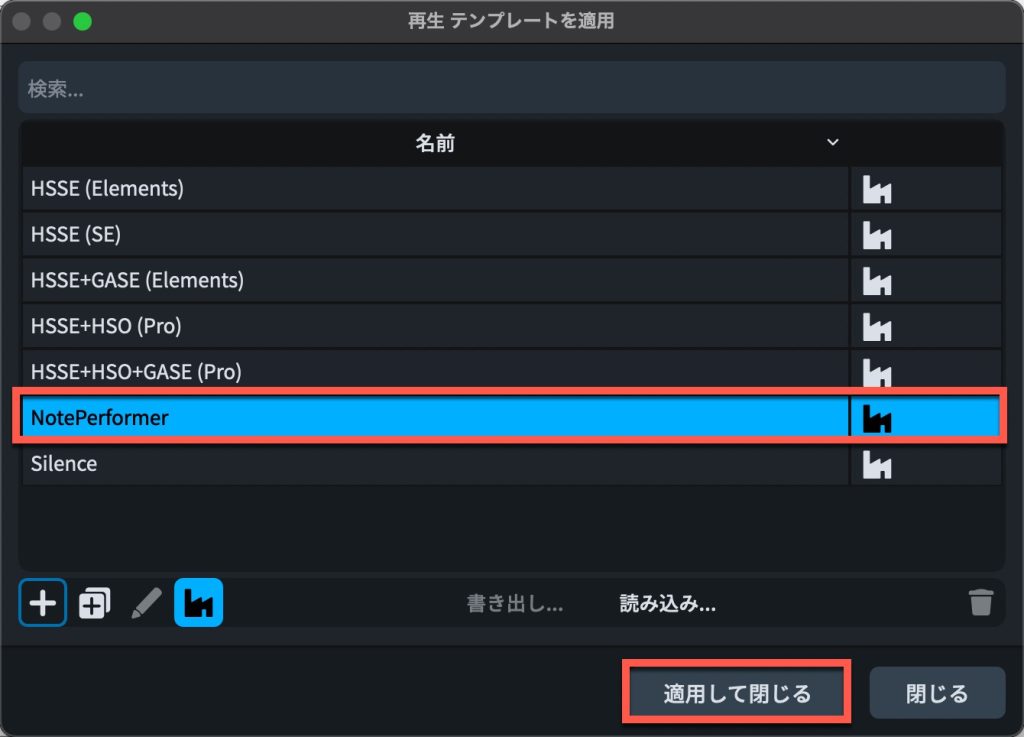
For existing files, choose "Play" menu → "Playback Template...," select "NotePerformer" in the dialog, and click Apply and Close.
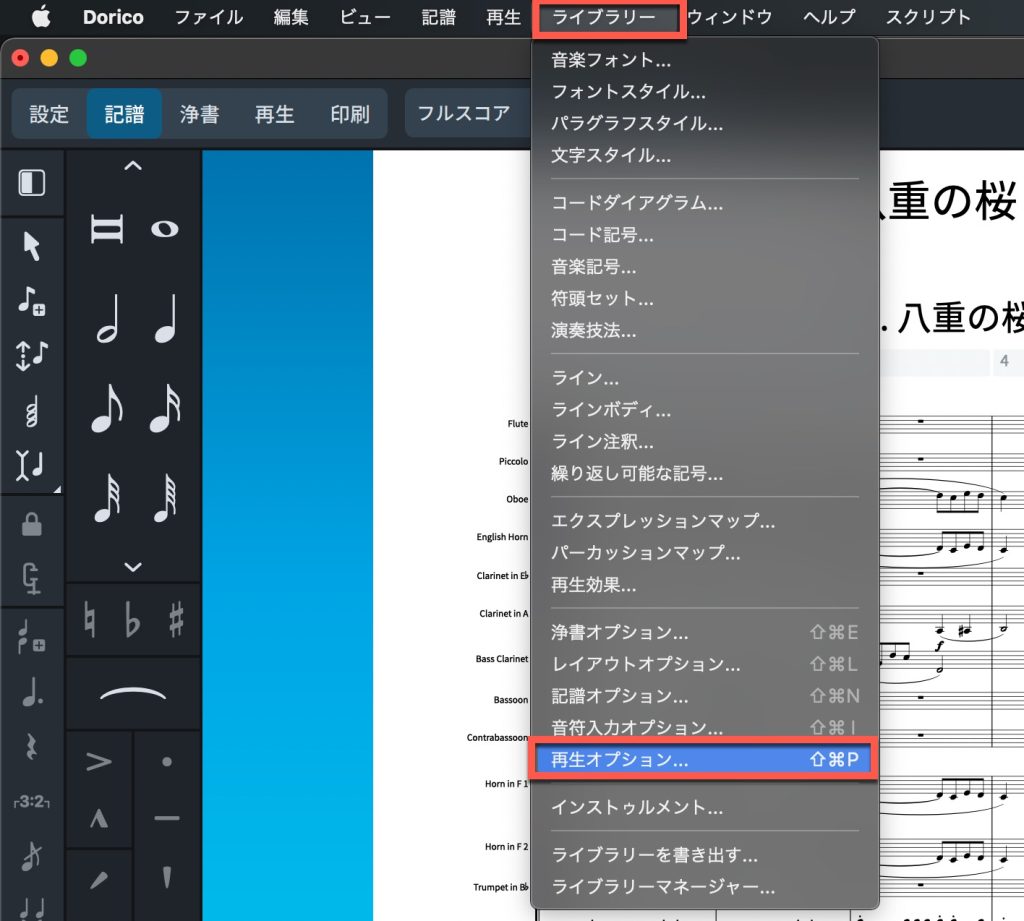
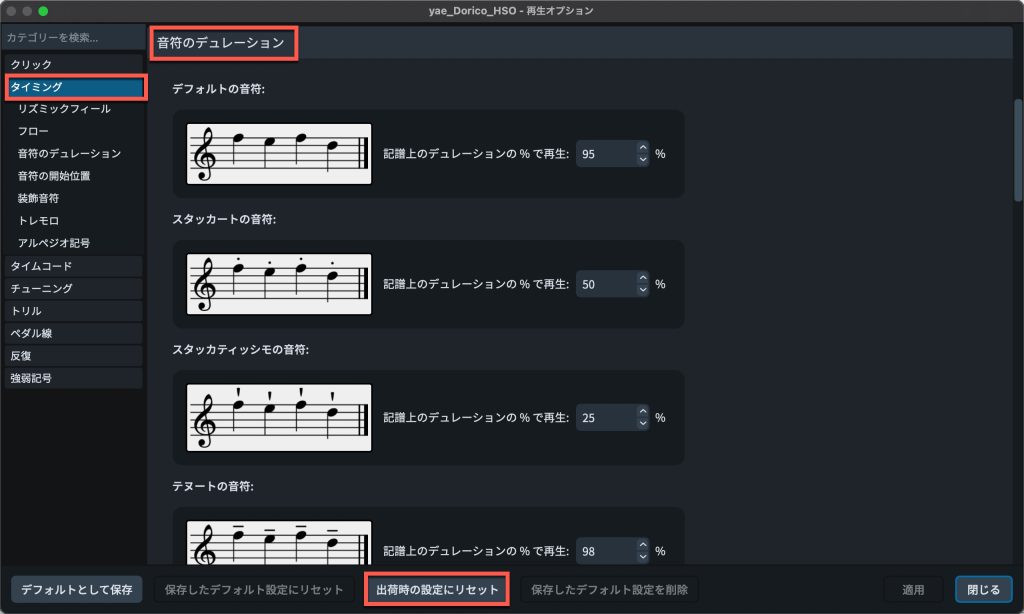
Open "Library" menu → "Playback Options...," and if "Note durations" has been changed in the "Timing" category, use "Reset to Factory."
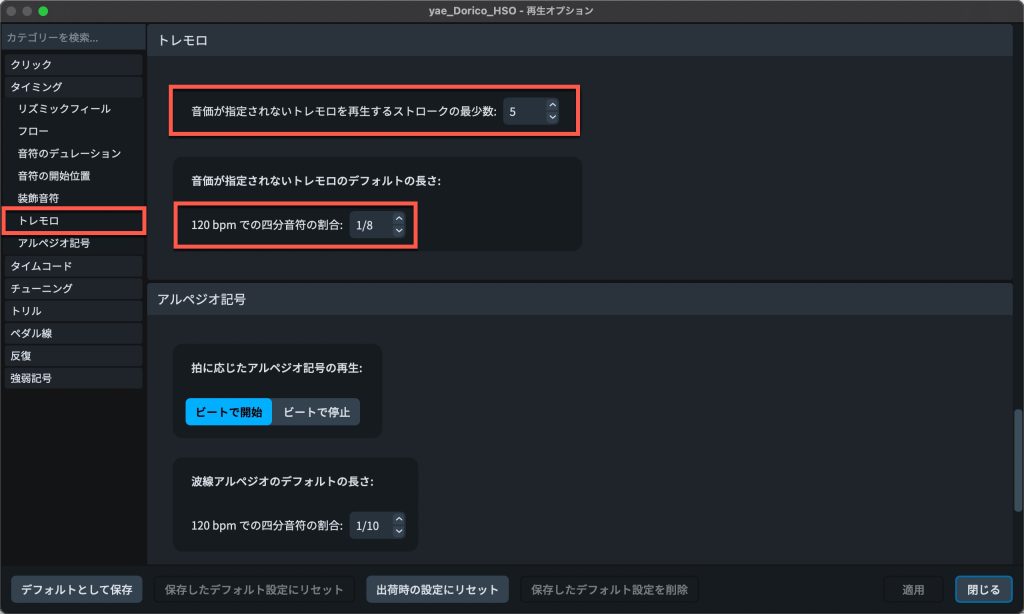
In addition, in the "Tremolos" category settings, setting the minimum number of strokes to play for unmeasured tremolos to "Maximum" and the fraction of a quarter note at 120 bpm to "1/8" is recommended.
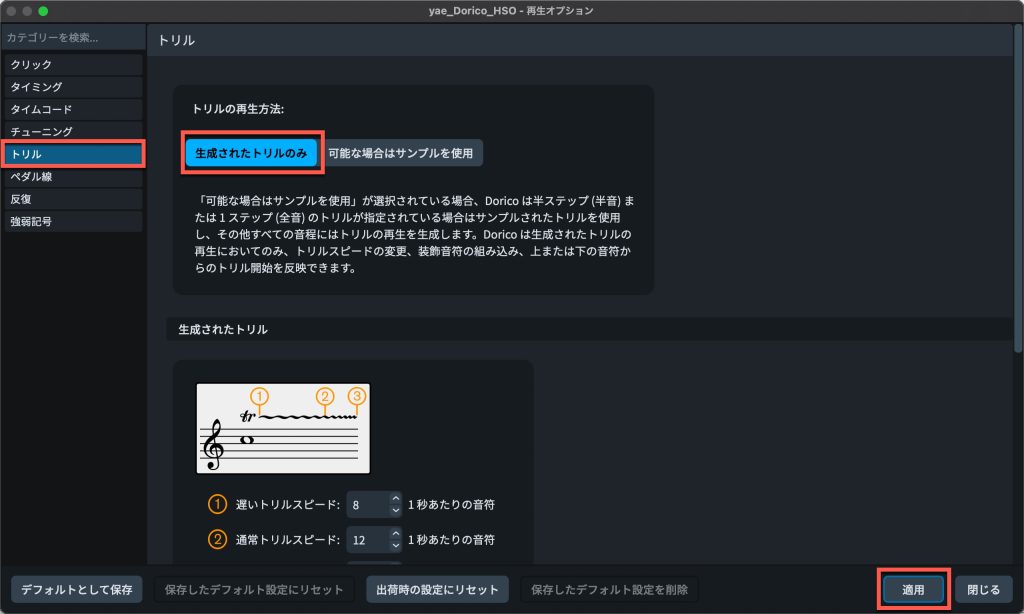
Likewise, in the "Trills" category, change "Trill playback" to "Generated trills only" and click Apply.
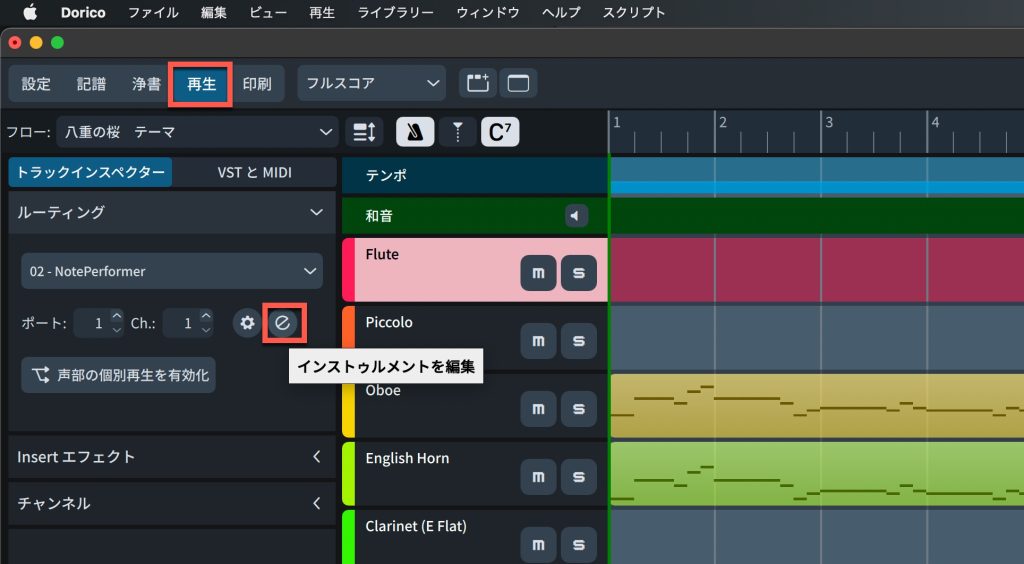
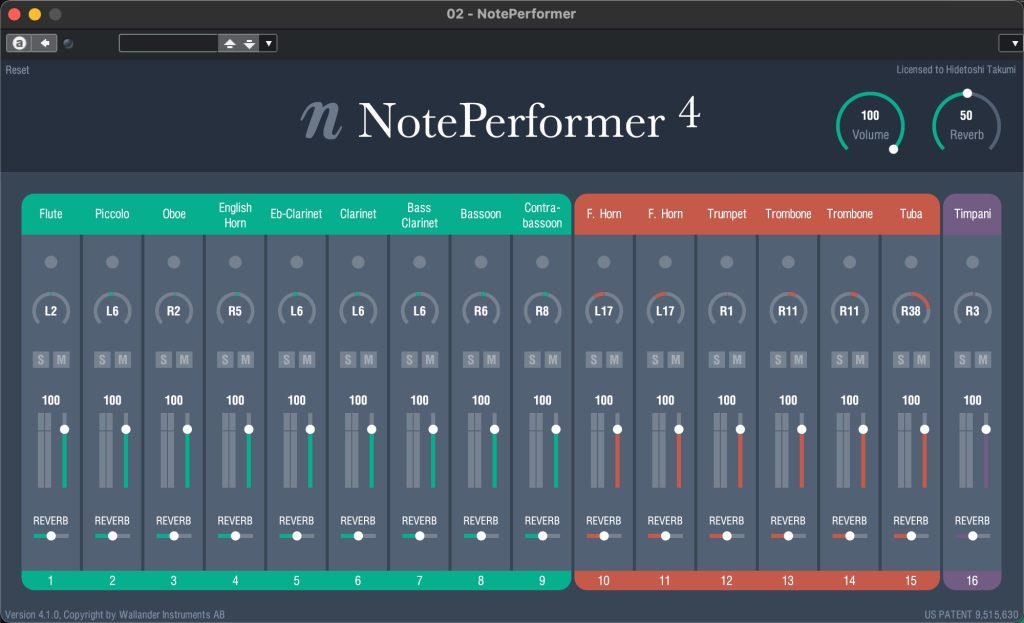
For NotePerformer's own mixer, click the "Edit Instrument" button in "Play" mode to show the details.
Here, you can change the overall volume, the sound of each instrument, pan, volume, reverb and more.
Playback Settings with Third-Party Libraries Using Playback Engines
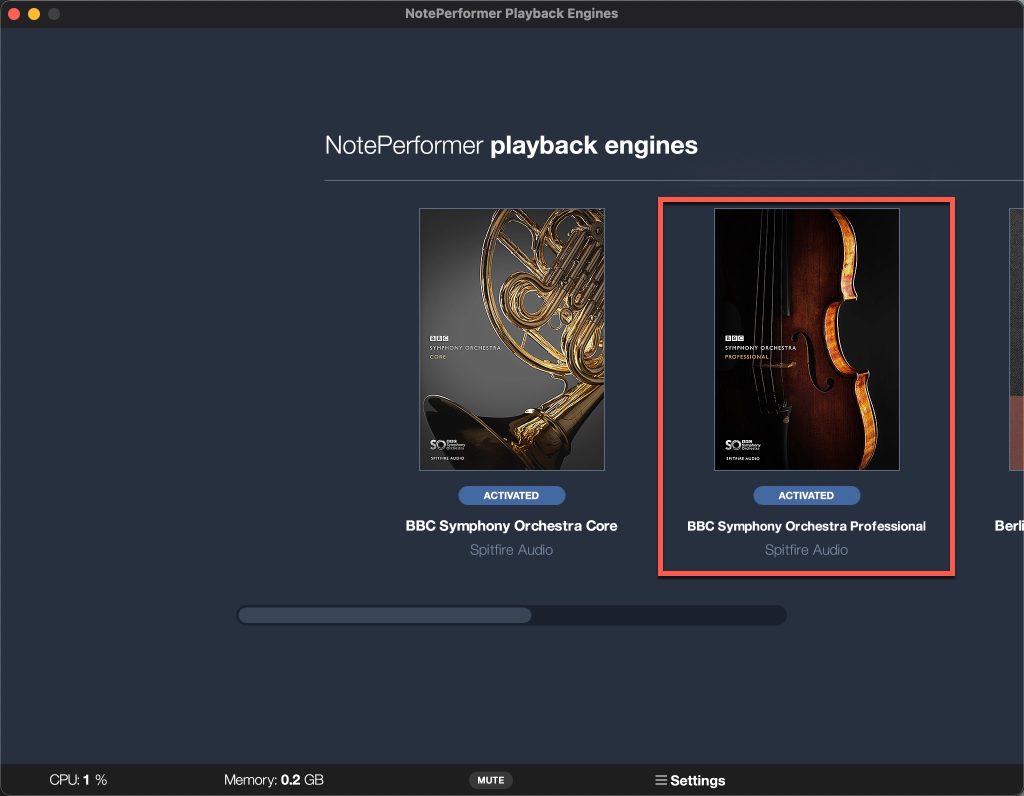
Launch the "Playback Engines" application on its own.
From the list of external libraries that can be used for playback, this time we select Spitfire Audio's "BBC Symphony Orchestra Professional."
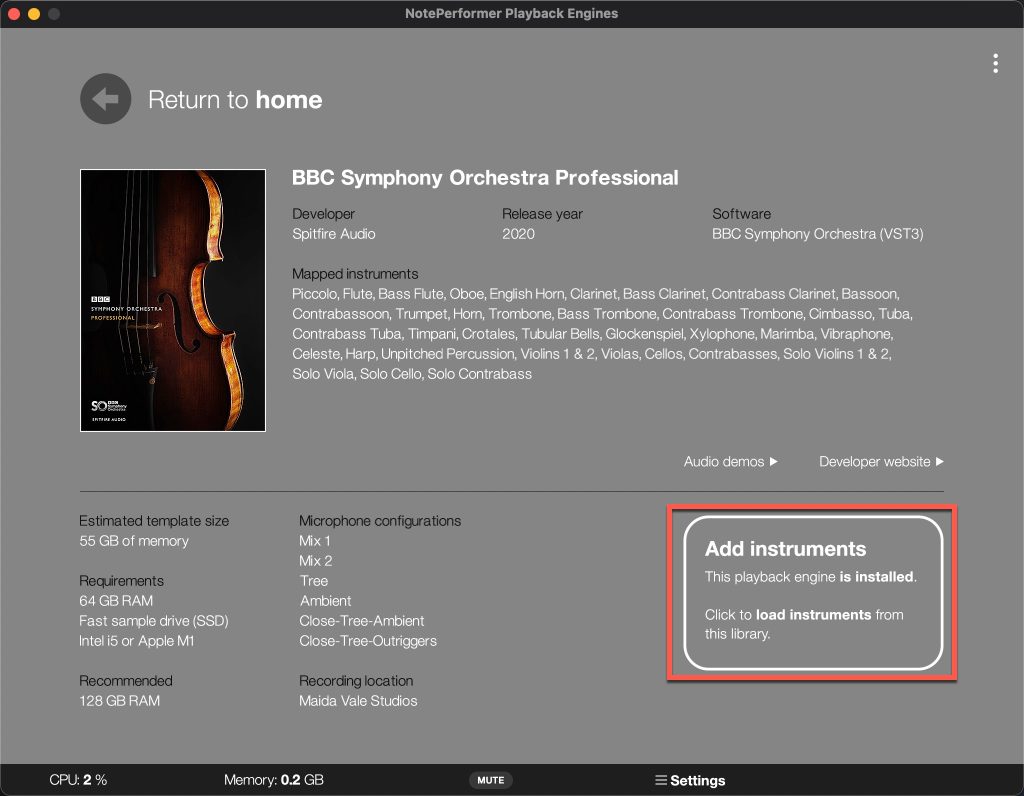
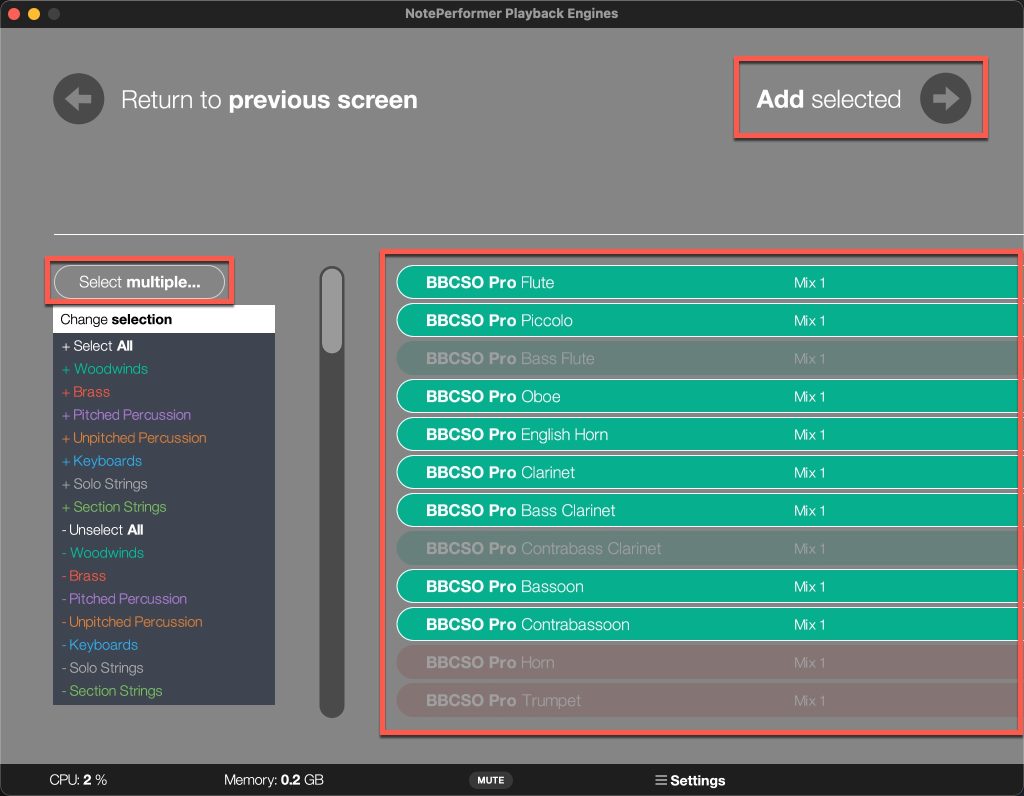
You need to load the sounds used in the score, so click "Add instruments."
Select the list of sounds you need; you can also select or deselect by section from Select multiple...
Once set, click "Add selected" at the top right.
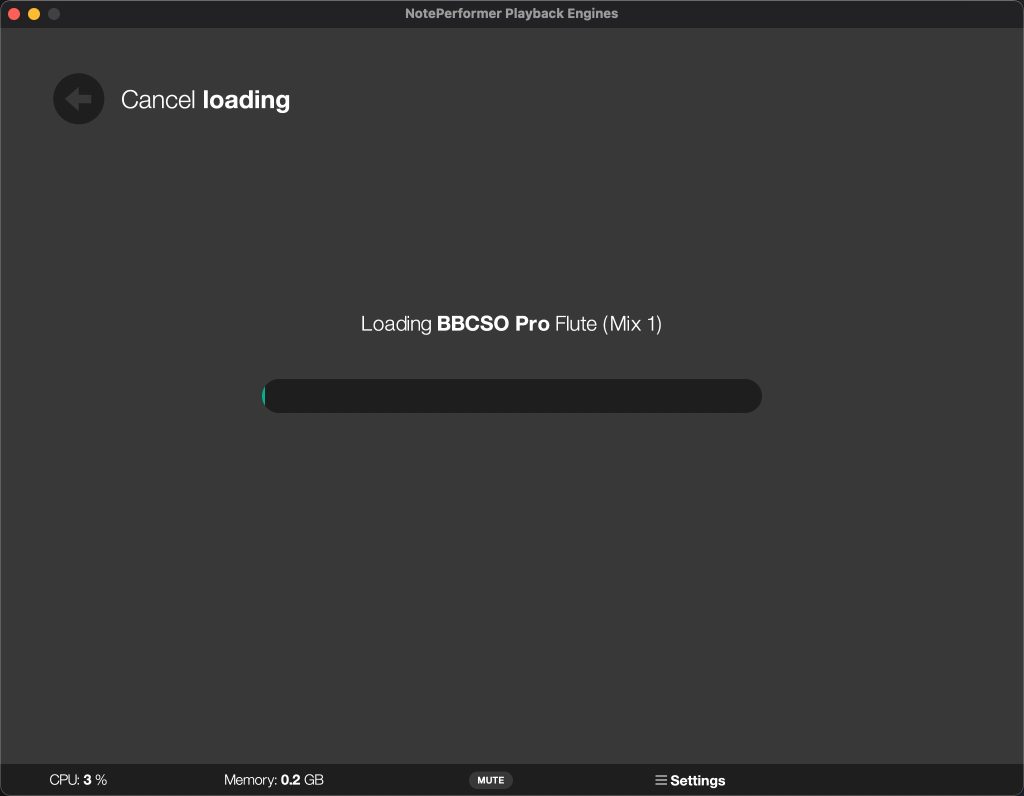
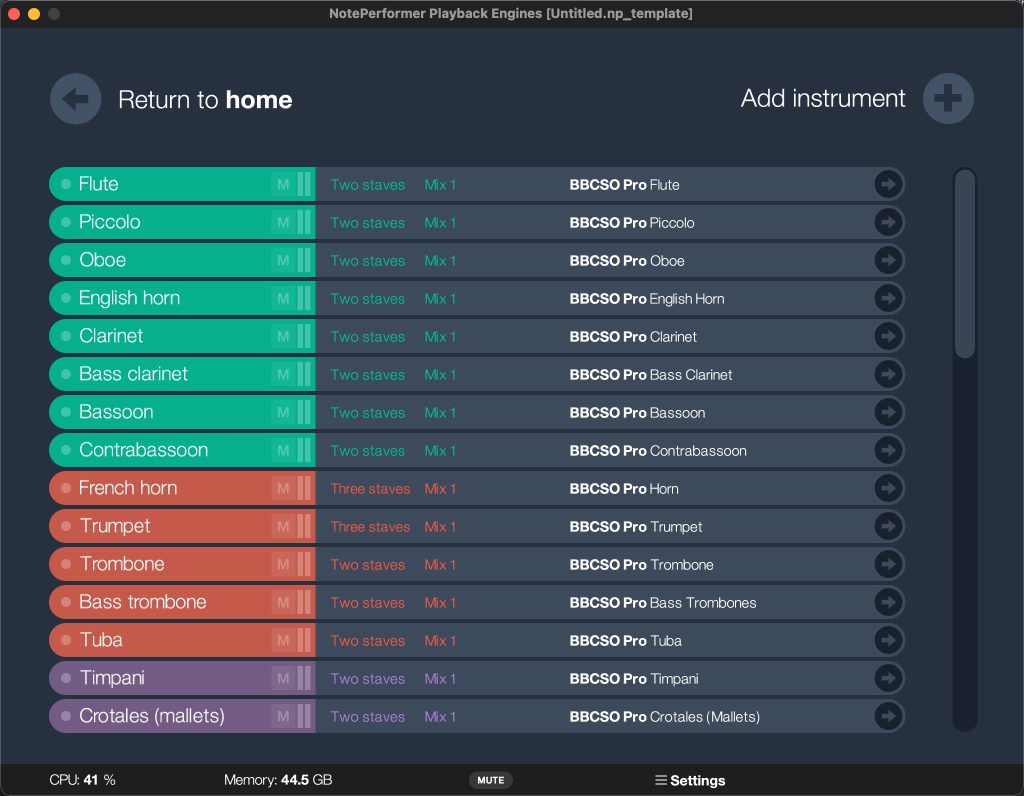
Loading of the sounds starts, and after a while it completes.
From here, you can change detailed settings as needed, such as assigning each part to staff voices or the mic position.
Incidentally, you can also load a library from a different manufacturer from "Add instruments" at the top right and change each part to a different combination of libraries.
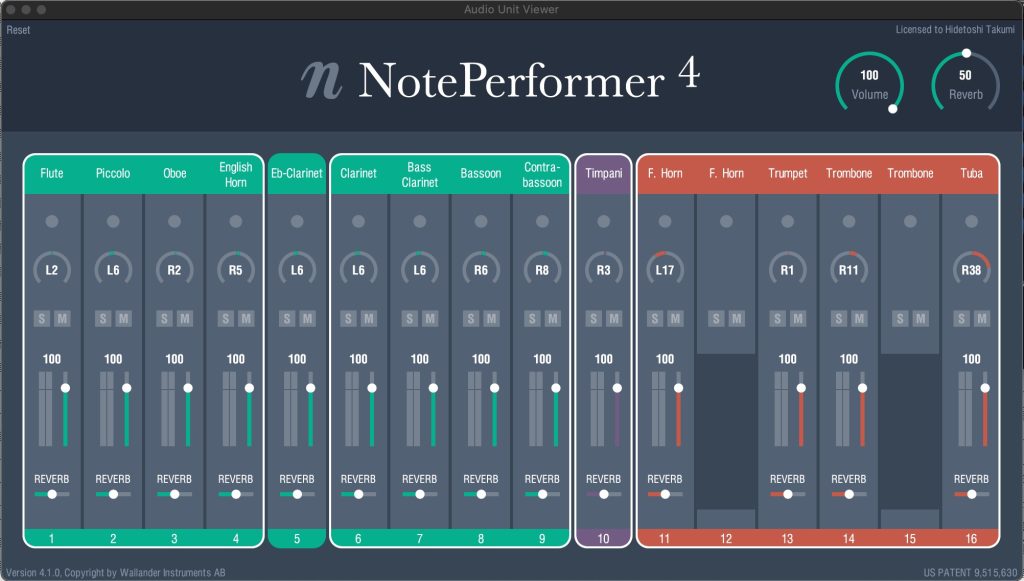
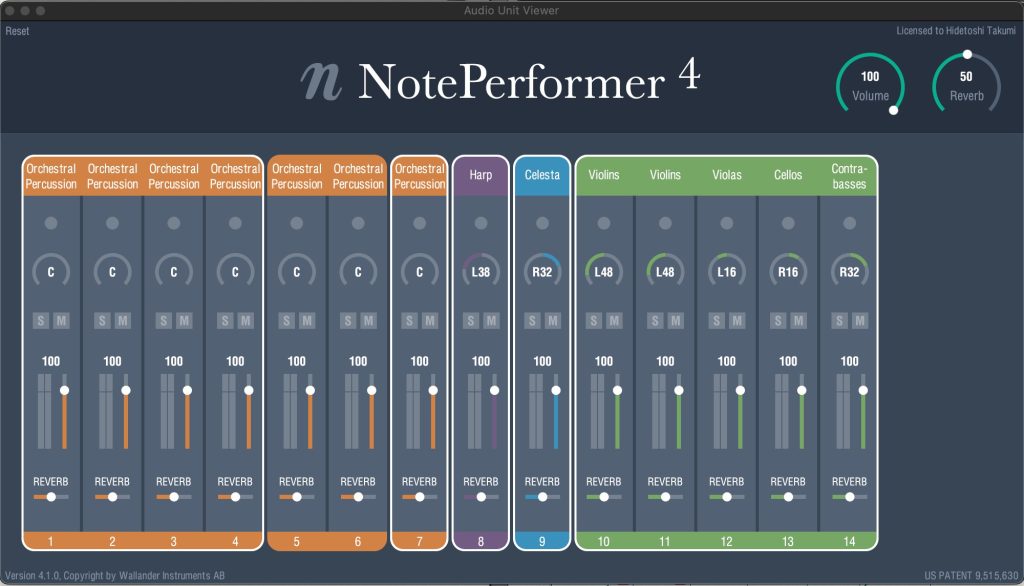
In NotePerformer's mixer, the parts surrounded by a white frame indicate that they are played back with the libraries loaded in Playback Engines.
NotePerformer alone has overwhelming realism, and by also using Playback Engines to freely combine major popular orchestral libraries and build your own original playback environment, it becomes a very convenient and powerful tool for creating demos as quickly as possible.
Please give it a try!
Frequently Asked Questions
Q1. Which notation software does NOTE PERFORMER 4 support?
It supports three major notation programs: Sibelius, Finale and Dorico. Each requires different playback settings, so dedicated setup steps are provided for each program.
Q2. What does the AI in NOTE PERFORMER 4 do?
It analyzes the performance written in the score with AI technology and automatically generates appropriate articulations, note transitions and dynamics. As a result, just playing the score produces an expressive sound like a real orchestral performance.
Q3. What is Playback Engines?
Playback Engines is a paid add-on that lets you replace NOTE PERFORMER 4's built-in sounds with professional third-party libraries such as Spitfire Audio and VIENNA SYMPHONIC LIBRARY. This enables playback with higher-quality libraries.
Q4. Are there special settings for use with Finale?
In Finale, the tenuto articulation is not reflected by NOTE PERFORMER 4, so you need to apply the dedicated FinaleScript plug-in. The other settings are changing the sound map priority and reassigning playback sounds.
Q5. Can I use multiple third-party libraries at the same time?
Yes, by using Playback Engines. Select external libraries in the application and load the sounds you need from "Add instruments." You can also assign different libraries to each part.
An amazing AI that automatically adds expression from sheet music! NOTE PERFORMER 4, a revolution in orchestral sound libraries
By using Playback Engines to freely combine popular orchestral libraries and build a playback environment, it becomes a powerful tool for creating demos.
Article: https://t.co/isRVEDNvprVideo: https://t.co/7QqsLuClOT pic.twitter.com/oYllctkDlm
— SLEEP FREAKS (@SLEEPFREAKS_DTM) July 23, 2023
NEW ARTICLES
Latest English Articles











