
In FL Studio, velocity is an important function that sets the strength of each note and brings expression to your music. This article explains in detail how to adjust velocity in the Piano roll. By applying basic rules such as accenting the quarter-note downbeats and softening the 8th-note and 16th-note offbeats, your phrases gain a natural groove and a human feel. It also introduces practical techniques such as editing multiple notes at once, changing only specific notes, and accessing other channels, so it is packed with knowledge that beginners and intermediate users can put to use right away.
Control note strength to make your music more expressive
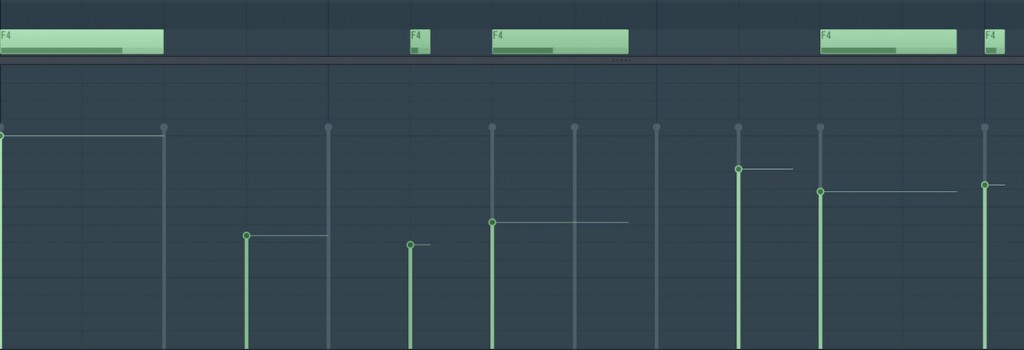
After creating the bass phrase,
we will improve its quality by giving the notes nuances of strength.
The nuance of strength when programming notes is called "velocity".
The dynamics of sound are an important element of music, and setting velocity appropriately
gives your phrases expression and groove. Make active use of it.
Video explanation
How to set velocity
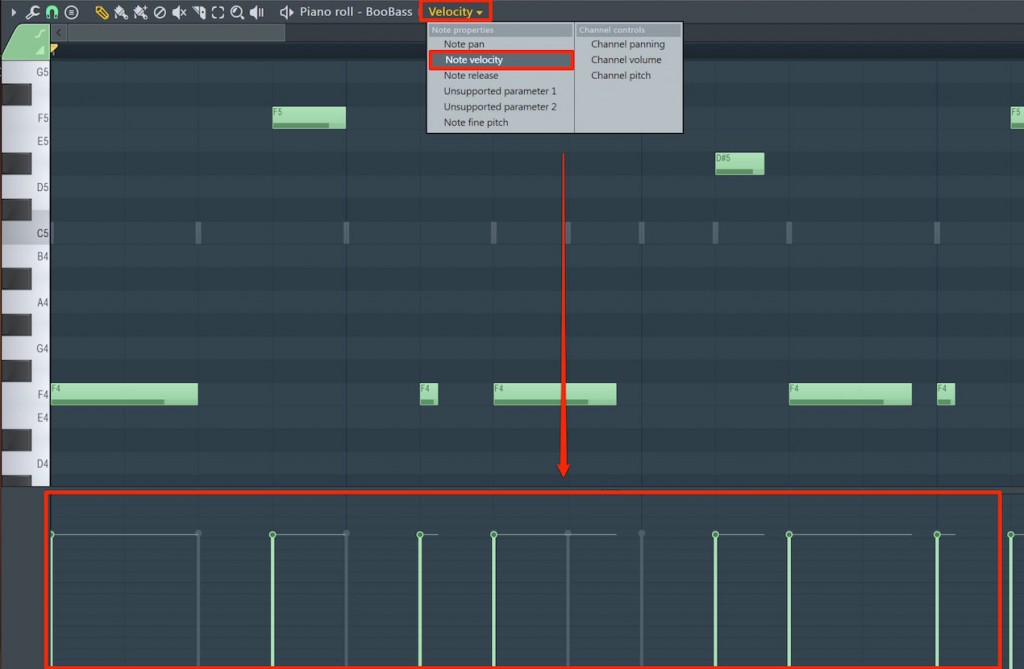
Click the area outlined in red in the Piano roll and select "Note velocity."
The lower section changes to velocity.
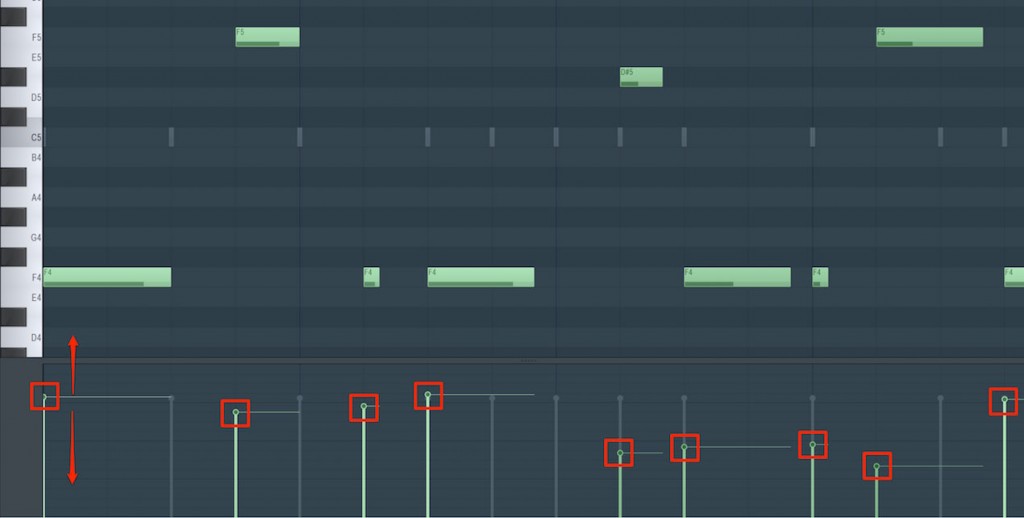
Drag the points up and down to set the strength.
The higher the point, the stronger the performance.
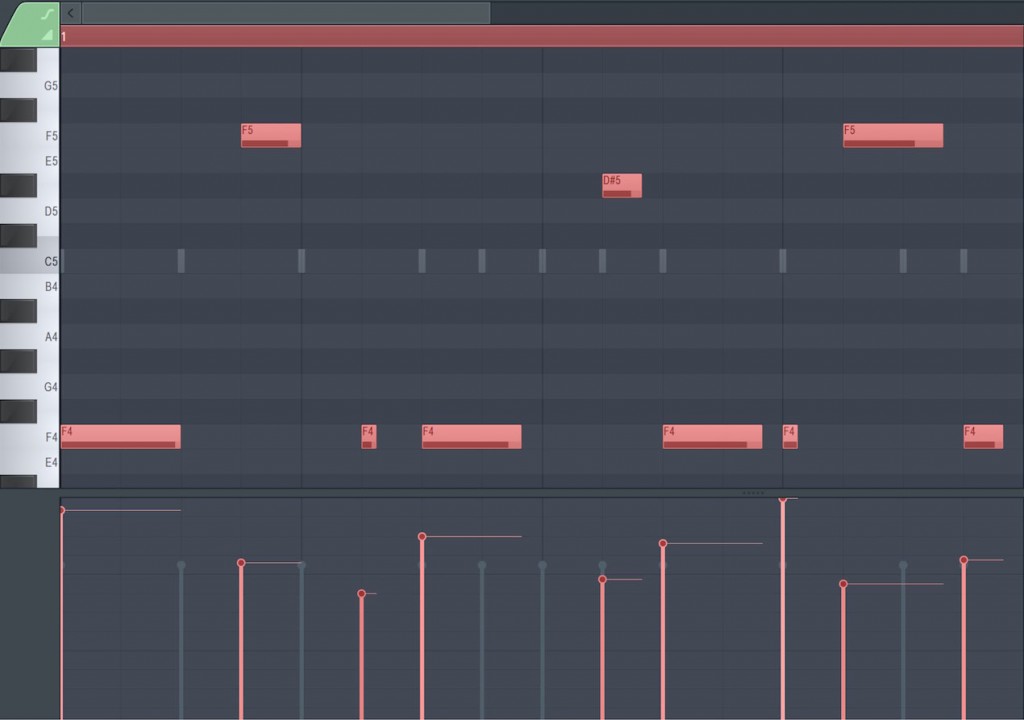
Of course, the basic approach is to set things to your liking while listening,
but if you are not sure what to aim for,
- Make quarter-note downbeats stronger
- Make 8th-note offbeats slightly weaker
- Make 16th-note offbeats a little weaker still than the 8th notes
Trying settings like these tends to produce a natural result.
- Before setting velocity
- After setting velocity
You can hear that the phrase now has a groove.
How do you set velocity to a constant value?
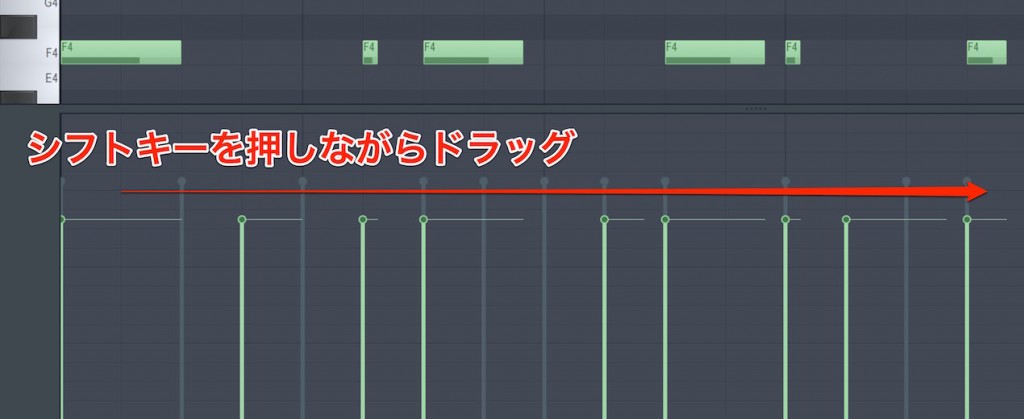
Hold down the Shift key while dragging to set all velocity values to the same value.
How do you change the velocity of specific notes?
When notes are placed at the same position, such as in a chord,
the velocity values of all of those notes will be changed.

Hold down the Control key and click a note to select it,
then change the velocity, and the edit will apply only to that note.
How do you change the velocity of other channels?
You can access other channels from the Piano roll and edit them.
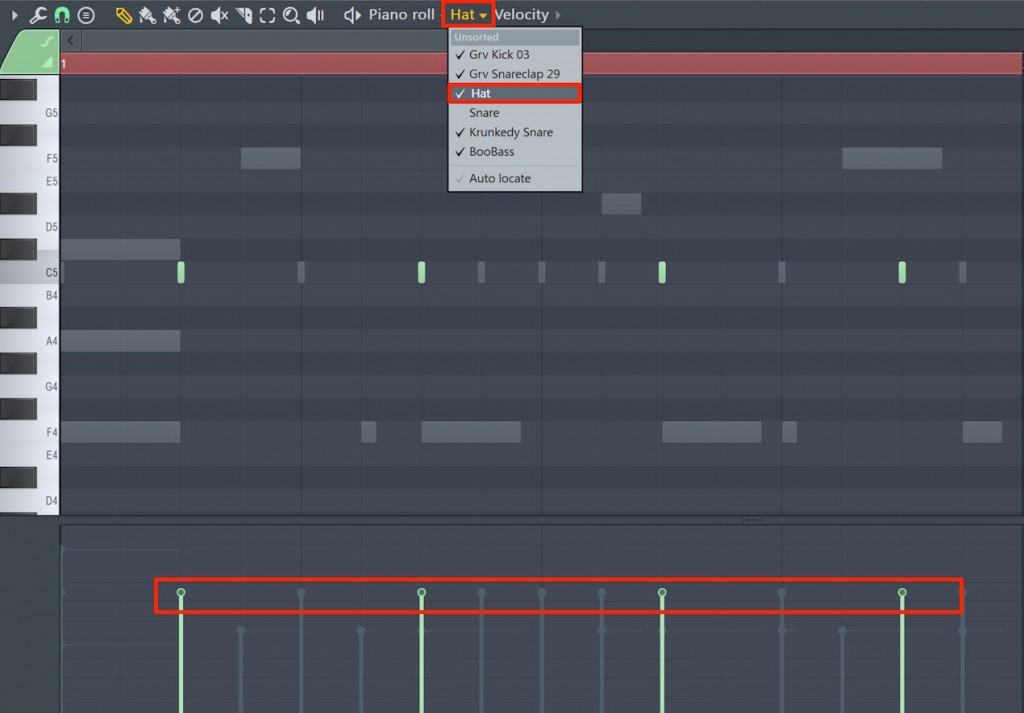
Click the area at the top of the Piano roll that shows the sound name (Hat in the image above),
and a list of the sounds loaded in the Channel rack appears.
Selecting one switches the contents of the Piano roll as well.
After that, simply edit as usual.

Frequently asked questions
Q1. What are the basic rules for setting velocity in FL Studio?
Making quarter-note downbeats stronger, 8th-note offbeats slightly weaker, and 16th-note offbeats weaker still tends to create a natural groove. In the end, however, it is important to adjust to your own taste while listening.
Q2. When several notes are at the same position, can I change the velocity of only a specific note?
Yes. Hold down the Control key and click the target note to select it, then change the velocity, and that note can be edited individually.
Q3. How can I make the velocity of multiple notes the same value?
Hold down the Shift key while dragging to set the velocity of multiple notes to the same value.
Q4. Can I edit the velocity of a different channel?
Yes. Click the sound name at the top of the Piano roll to show the channel list, then select another channel to switch to it and edit.
NEW ARTICLES
Latest English Articles











