
Splitting a MIDI track by pitch in Studio One can make your work far more efficient, especially when producing drums. This function automatically distributes the drum elements you programmed in one go, such as kick, snare, hi-hat, and cymbals, onto separate tracks, making detailed editing and mixing easier later on. Just choose "Explode Pitches to Tracks" from the right-click menu to manage your tracks efficiently without complicated manual work. Combined with converting to audio, it lets you build an even more flexible workflow.
Especially Handy for Drum Tracks!
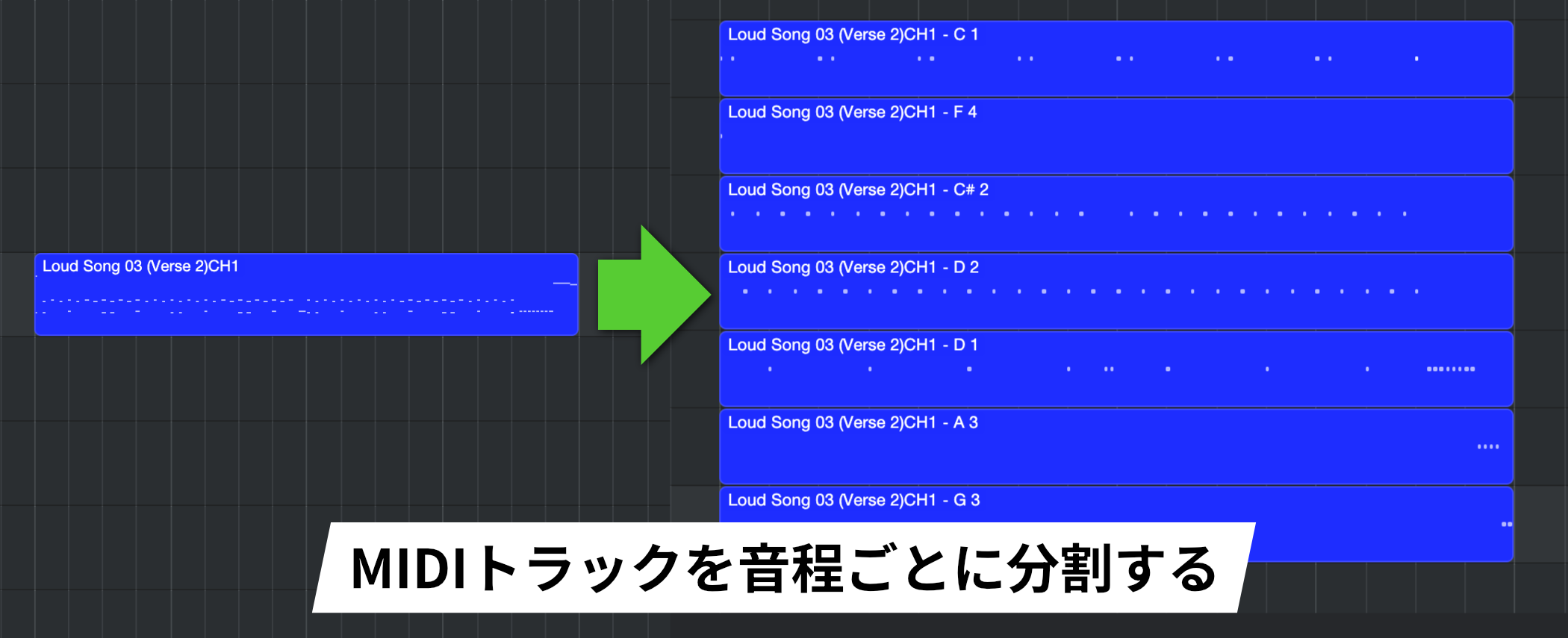
Splitting one MIDI track by pitch has benefits such as more flexible programming and easier export to audio.
This technique is especially effective for MIDI drum tracks.
After programming drums on impulse, you can separate each drum piece, such as the kick, snare, hi-hat, and cymbals, onto its own track, which is very convenient.
How to Split a MIDI Track by Pitch
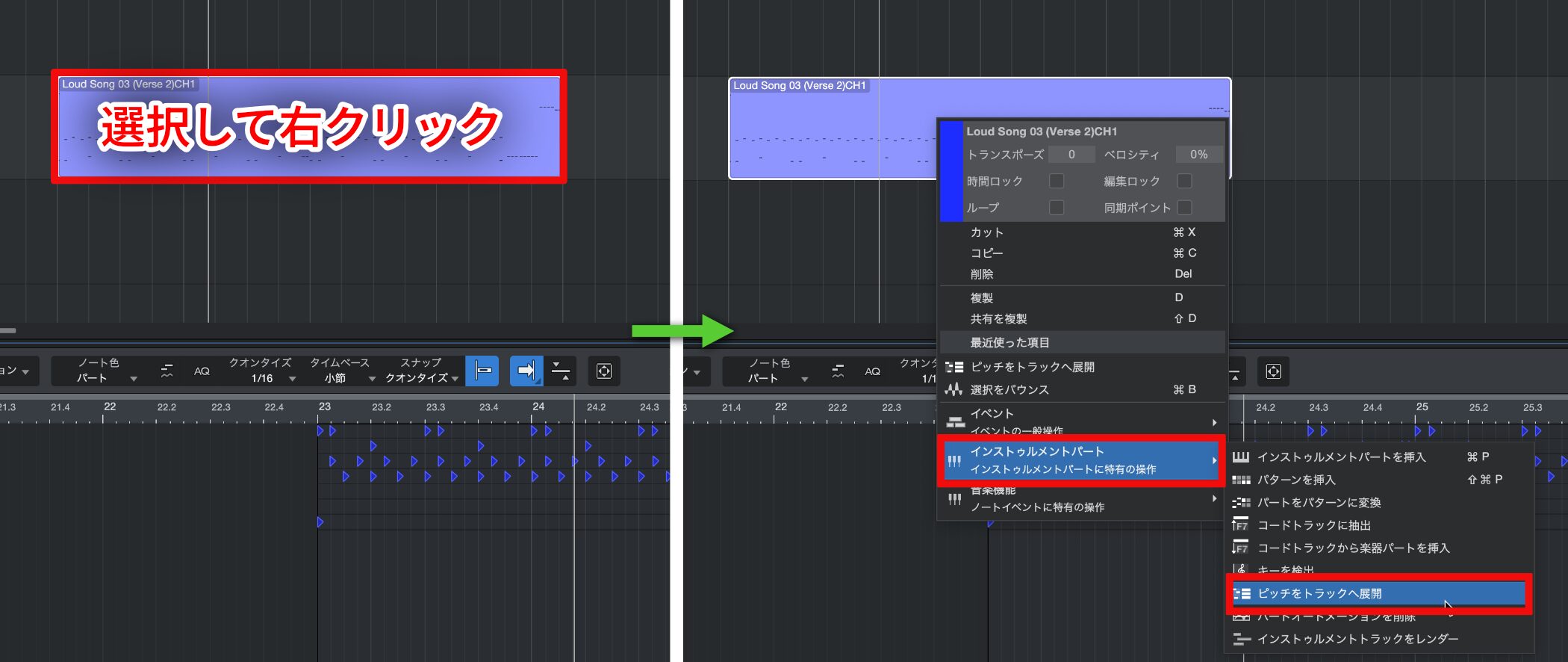
Select the MIDI event you want to split and right-click it.
From the menu, choose "Instrument Part" (instrument part-specific actions) → "Explode Pitches to Tracks."
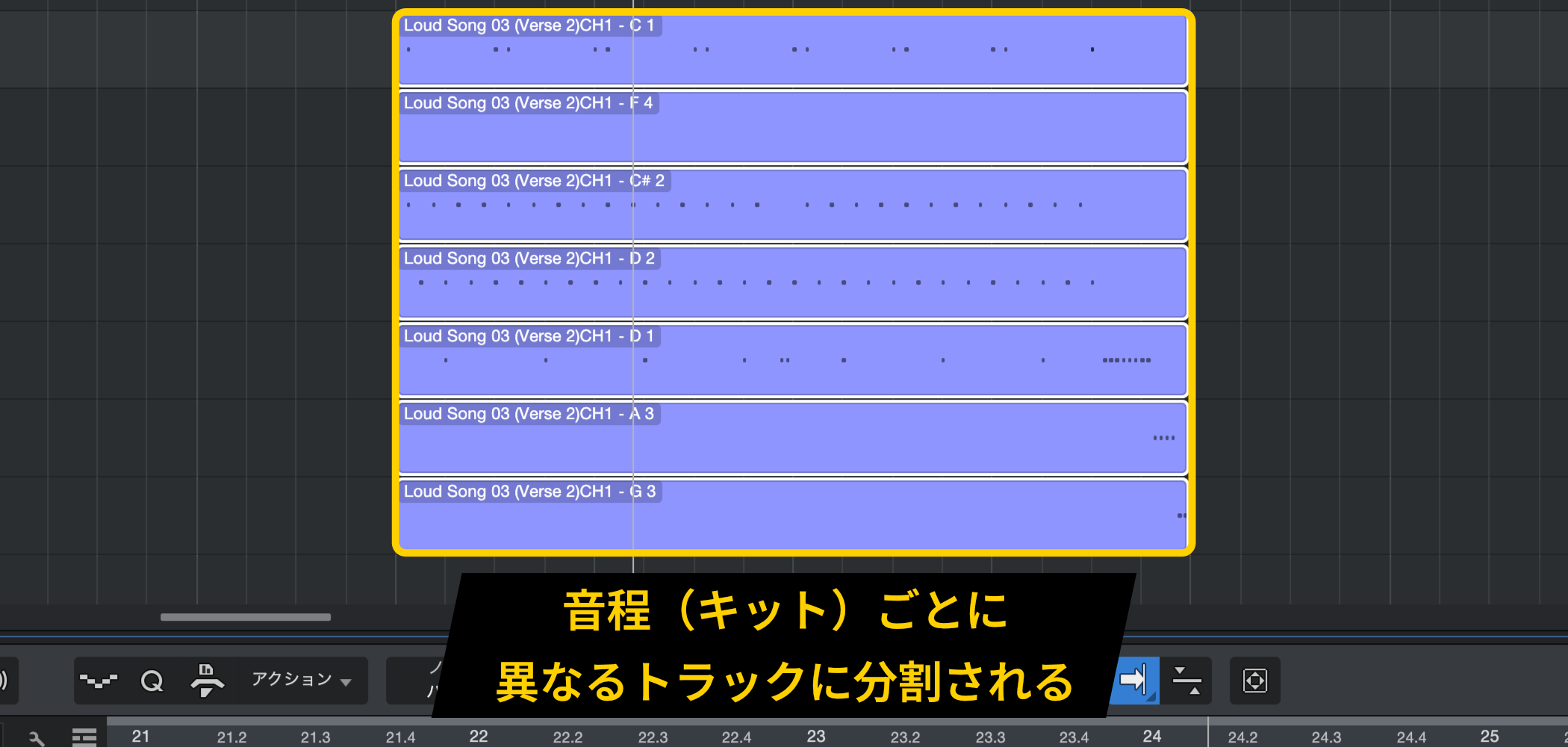
The selected MIDI event is automatically split onto different tracks by pitch (drum piece).
This function becomes even more useful when combined with "Converting MIDI Tracks to Audio," explained in the previous article.

Frequently asked questions
Q1. What are the benefits of splitting a MIDI drum track in Studio One?
Separating each drum element, such as the kick, snare, and hi-hat, onto its own track lets you adjust volume, process effects, and convert to audio individually. This greatly increases your freedom when mixing and enables professional sound.
Q2. How do I use "Explode Pitches to Tracks"?
Just select the MIDI event you want to split, right-click it, and choose "Instrument Part" → "Explode Pitches to Tracks" from the menu. Separate tracks are generated automatically for each pitch.
Q3. Can this function be used for things other than drums?
Yes. However, it is considered most effective on drum tracks. It works with any MIDI data containing multiple pitches and is useful whenever you need flexible editing.
NEW ARTICLES
Latest English Articles











