

Using Studio One's scale feature makes setting the key and scale more efficient when producing songs, so you can enter only the right notes in the MIDI editor. Choose major or minor in the key settings and turn on "Snap to Scale," and blue marks appear on the keyboard so you can see the relevant notes at a glance. The Nashville Number System, introduced in Studio One 7.2, shows chords as scale degrees, so you can intuitively understand the structure of a chord progression even when the key changes, greatly improving the efficiency of everyone from beginning songwriters to professionals.
Easily See a Song's Scale Notes in Studio One
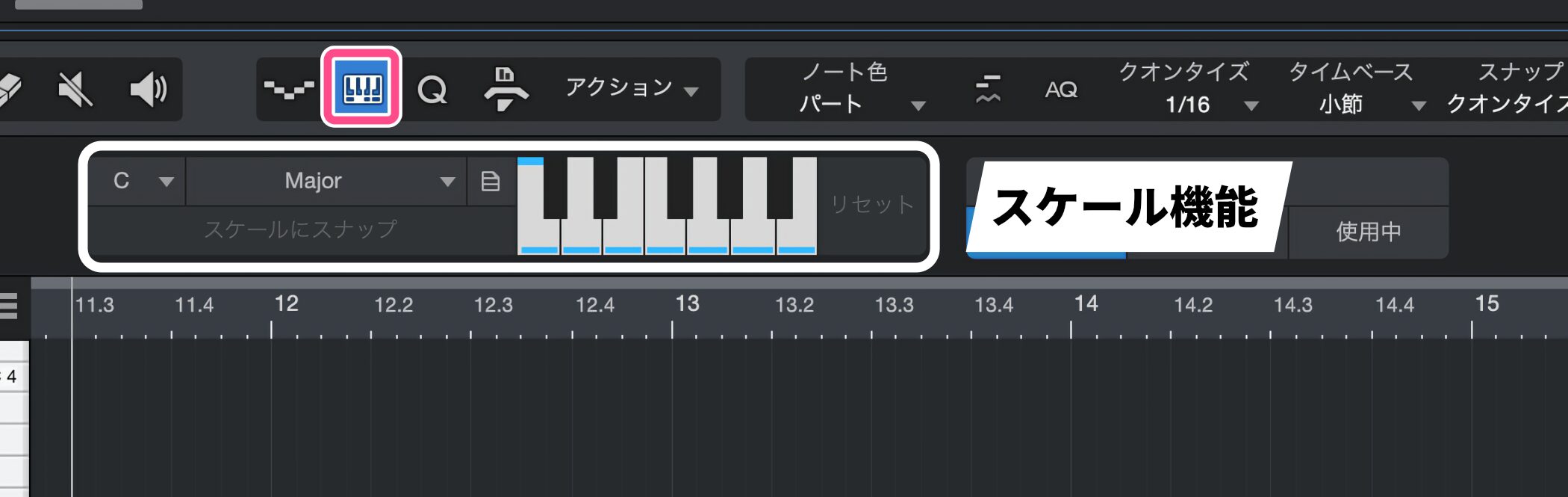
Every song has a "key," and a "scale" that determines which notes within that key are combined.
Studio One has handy features that help you navigate these effectively.
How to Use Key Navigation
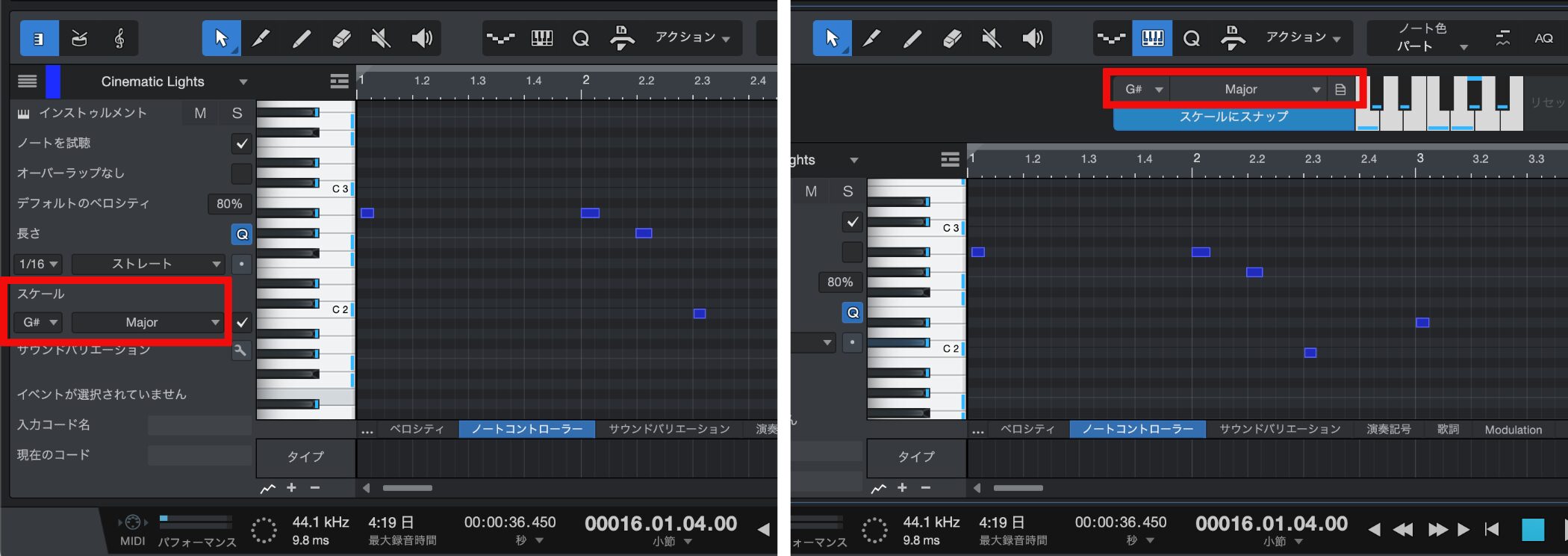
Set the key and scale from the scale setting on the left of the edit window or from the scale panel.
Just choosing major or minor makes your work smoother.


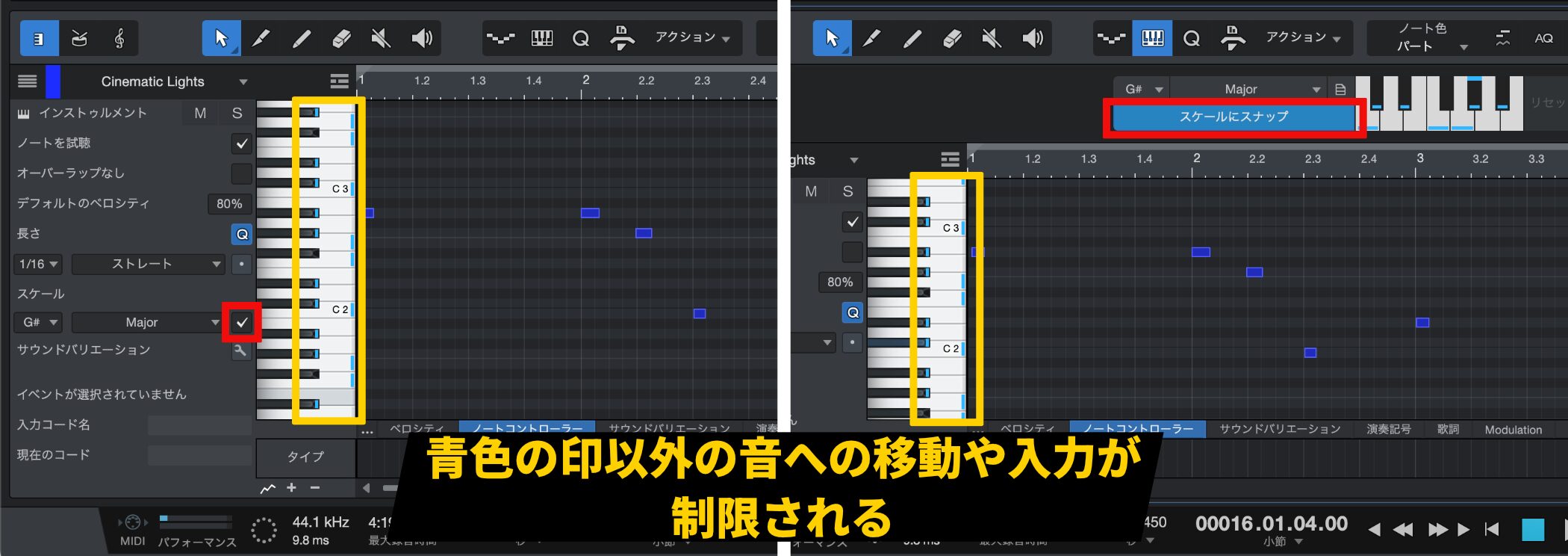
Check the scale box or turn on "Snap to Scale," and blue marks appear on the keyboard in the MIDI editor.
These marks show the notes that belong to the key and scale, and entering or moving notes to other pitches is restricted.
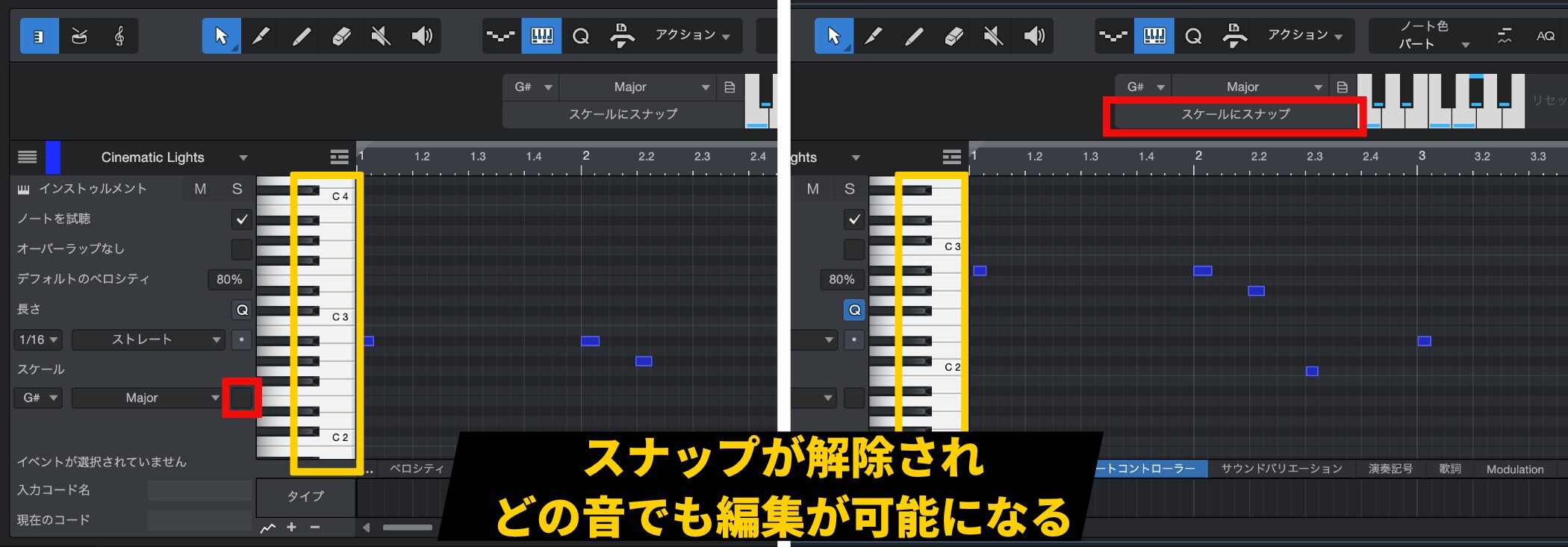
To use notes outside the key and scale, uncheck the box or turn off "Snap to Scale."
Analyzing Chords with the Nashville Number System
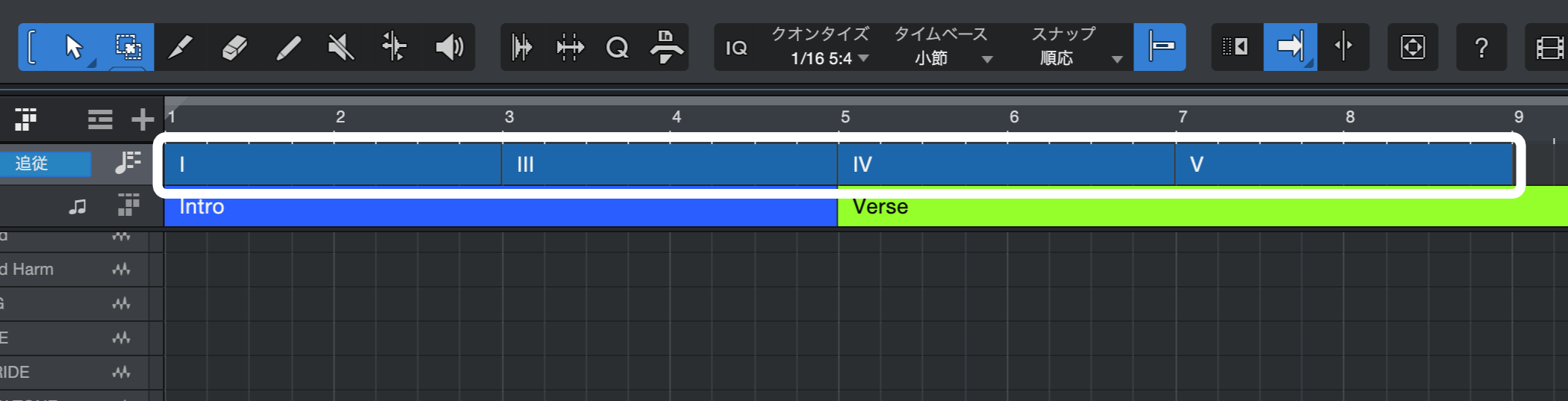
Studio One 7.2 added the "Nashville Number System" as a feature related to keys and scales.
It is a feature that shows chords as their scale degree relative to the song's key.
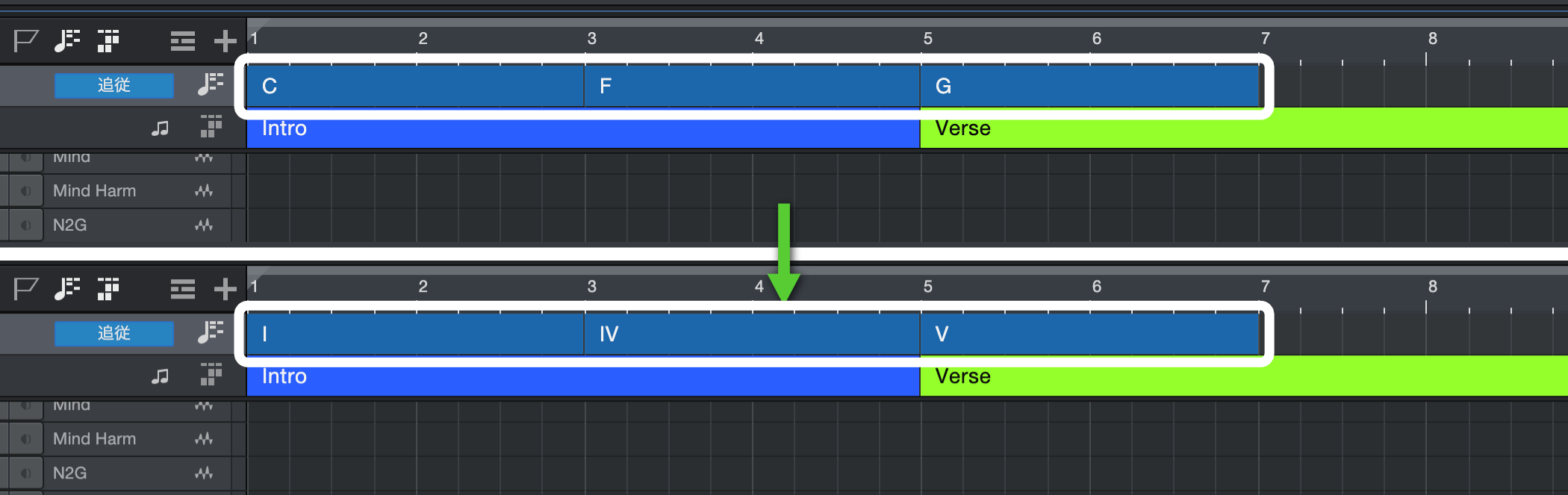
For example, in the key of C major, C is shown as "I," F as "IV," and G as "V."
This makes it easier to intuitively understand the structural role of a chord progression even when the key changes.
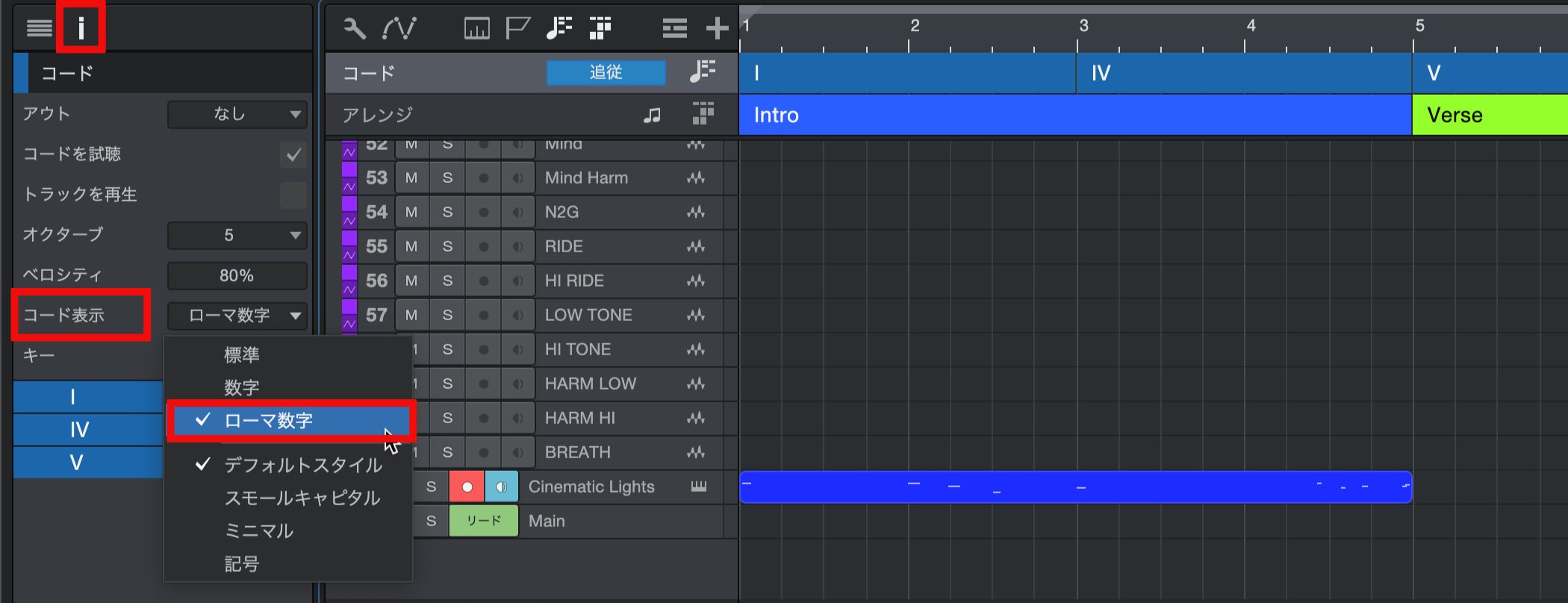
Turning it on is easy: just switch "Chord Display" in the Inspector to "Roman Numerals."
This setting applies everywhere chords are shown, not only on the chord track but also in the editor, events, the floating chord display, the score editor, and more.

Frequently asked questions
Q1. What is Studio One's scale feature?
The scale feature limits the usable notes based on the song's key and shows the relevant notes visually in the MIDI editor. Turning on "Snap to Scale" restricts input to notes in the key and scale you set.
Q2. What is the basic way to use key navigation?
Just set the key and scale (major or minor) from the scale panel on the left of the edit window and turn on "Snap to Scale." The corresponding notes on the keyboard are shown in blue.
Q3. What are the benefits of the Nashville Number System?
By showing chords as scale degrees (I, IV, V, and so on), the role of each chord in a progression becomes clear at a glance even when the key changes, making it easier to understand the structure when modulating or composing.
Q4. How do I remove the scale restriction?
Uncheck the scale box or turn off "Snap to Scale," and you can freely use notes outside the key and scale.
NEW ARTICLES
Latest English Articles











