

Converting MIDI tracks to audio in Studio One is an essential technique for more efficient production. It simplifies mixing, reduces CPU load, and allows flexible processing through waveform editing. In Studio One Pro 7, in addition to the basic "Bounce Selection" function, the instrument track conversion feature has been enhanced, giving you finer control over effects, automation, and automatic detection of reverb tails. This increases your editing freedom in the later stages of production and enables an efficient workflow while preserving professional sound quality.
The Benefits of Converting MIDI Tracks to Audio
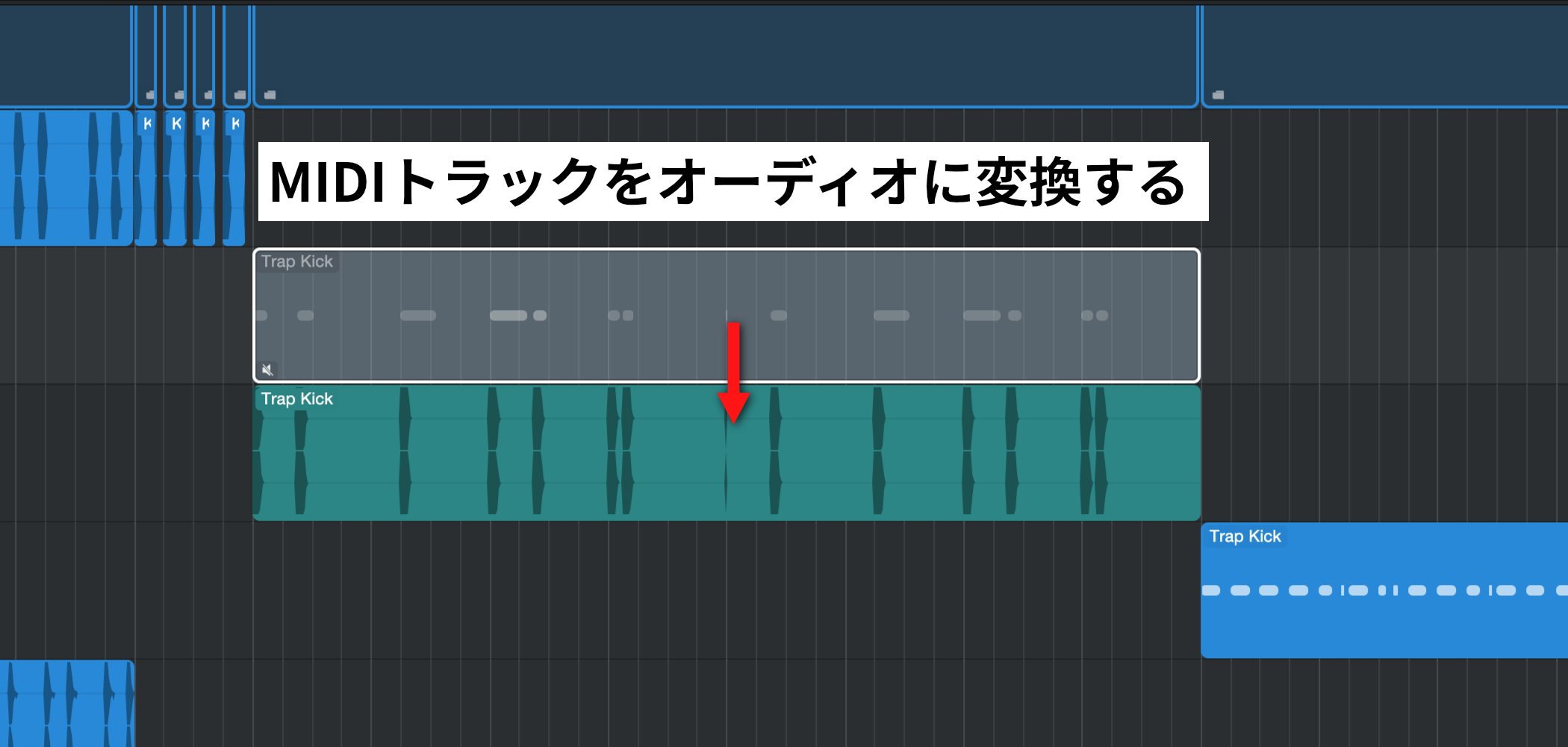
Converting instrument tracks made with MIDI to audio gives you various advantages in music production.
The main benefits are as follows.
- Converting to audio makes the final mix easier
- It reduces the load on your computer
- It enables the many kinds of editing unique to waveforms
How to Convert a MIDI Track to Audio
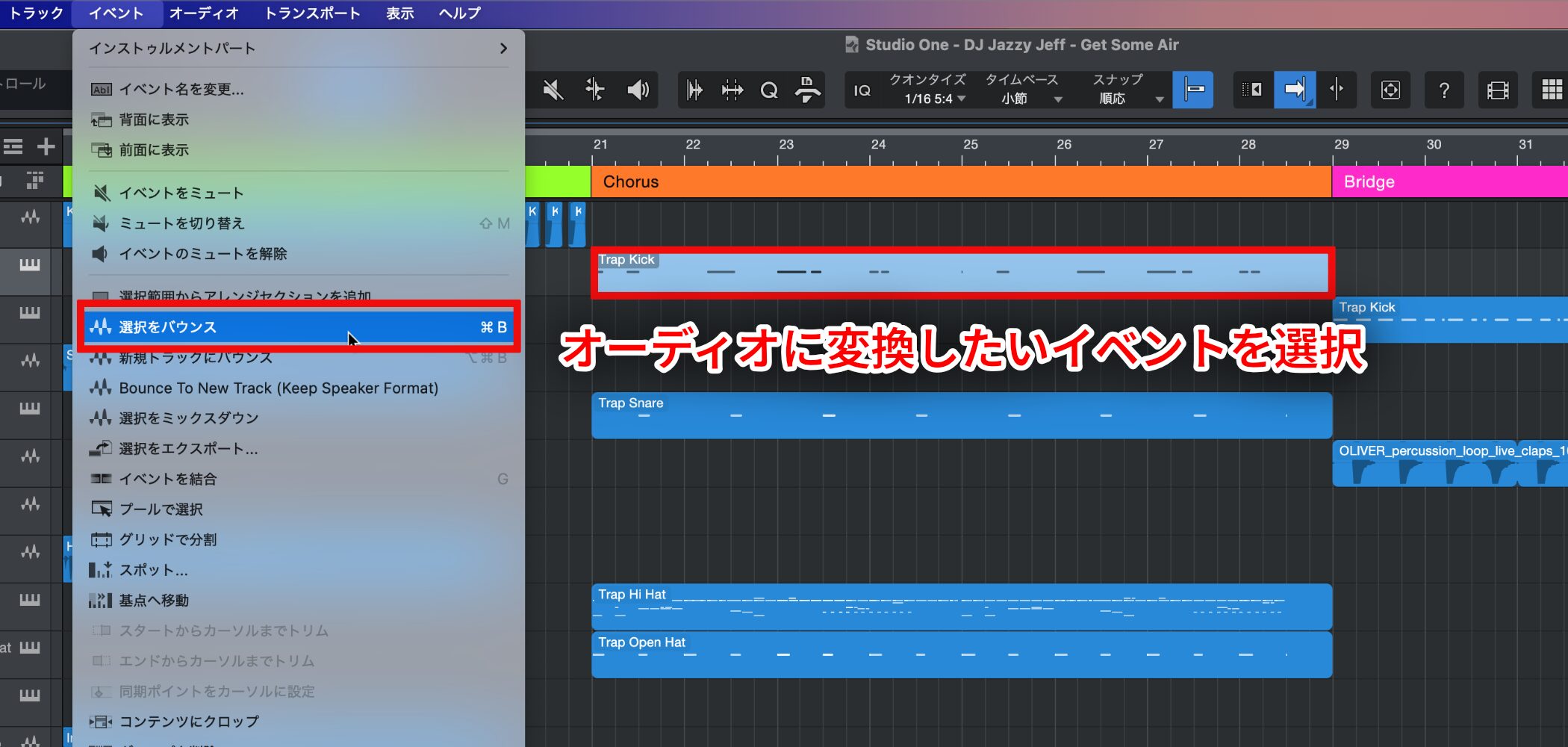
Select the event you want to convert to audio and choose "Event" → "Bounce Selection" from the menu bar.
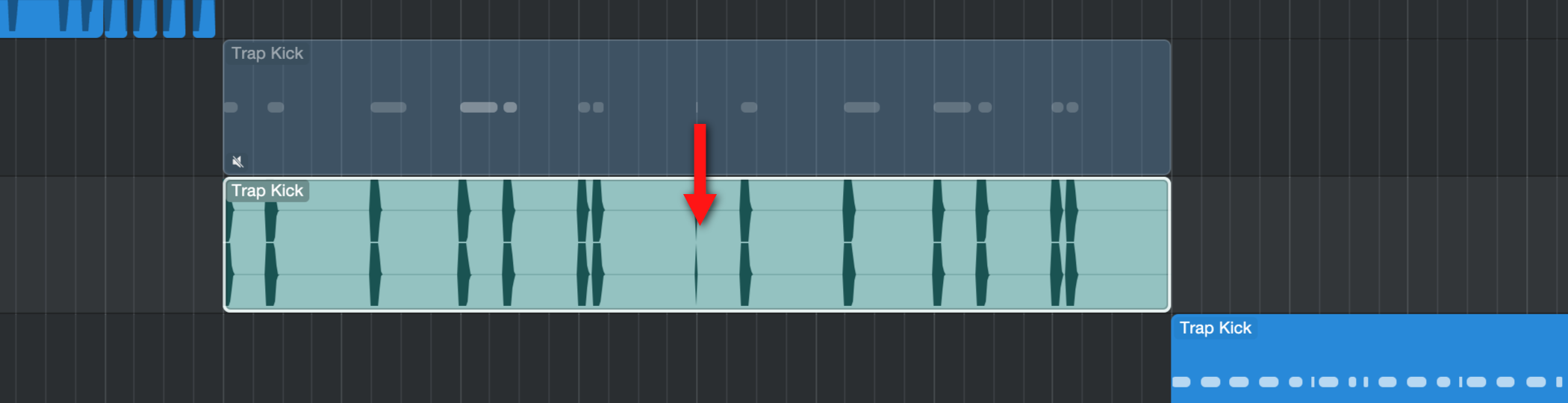
You can convert it to audio easily.
Enhanced Conversion Features in Studio One Pro 7
In Studio One Pro 7, in addition to the basic "Bounce Selection" function, the instrument track conversion feature, which offers more detailed control, has been enhanced.
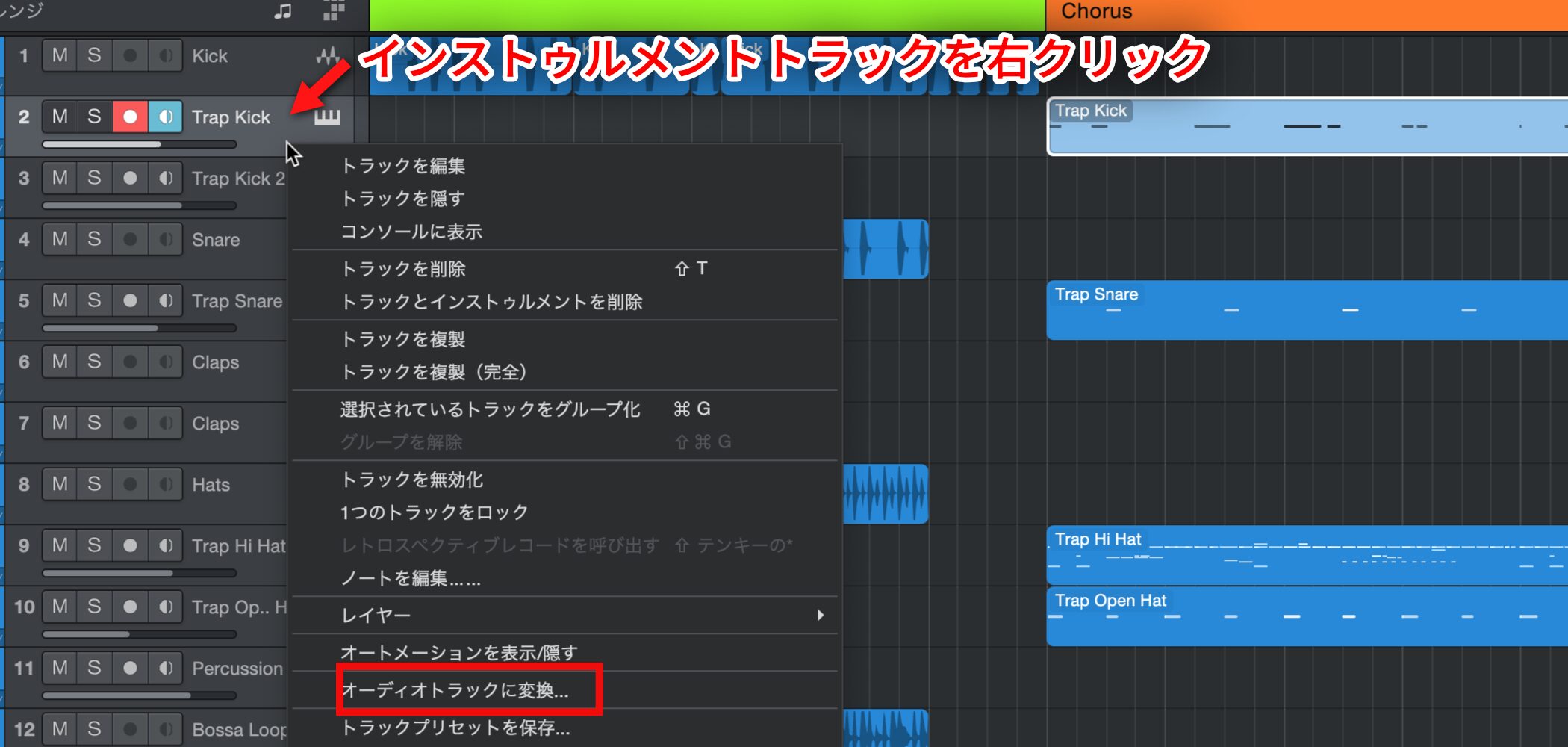
Right-click an instrument track and choose "Convert to Audio Track" from the menu, and the following options appear.
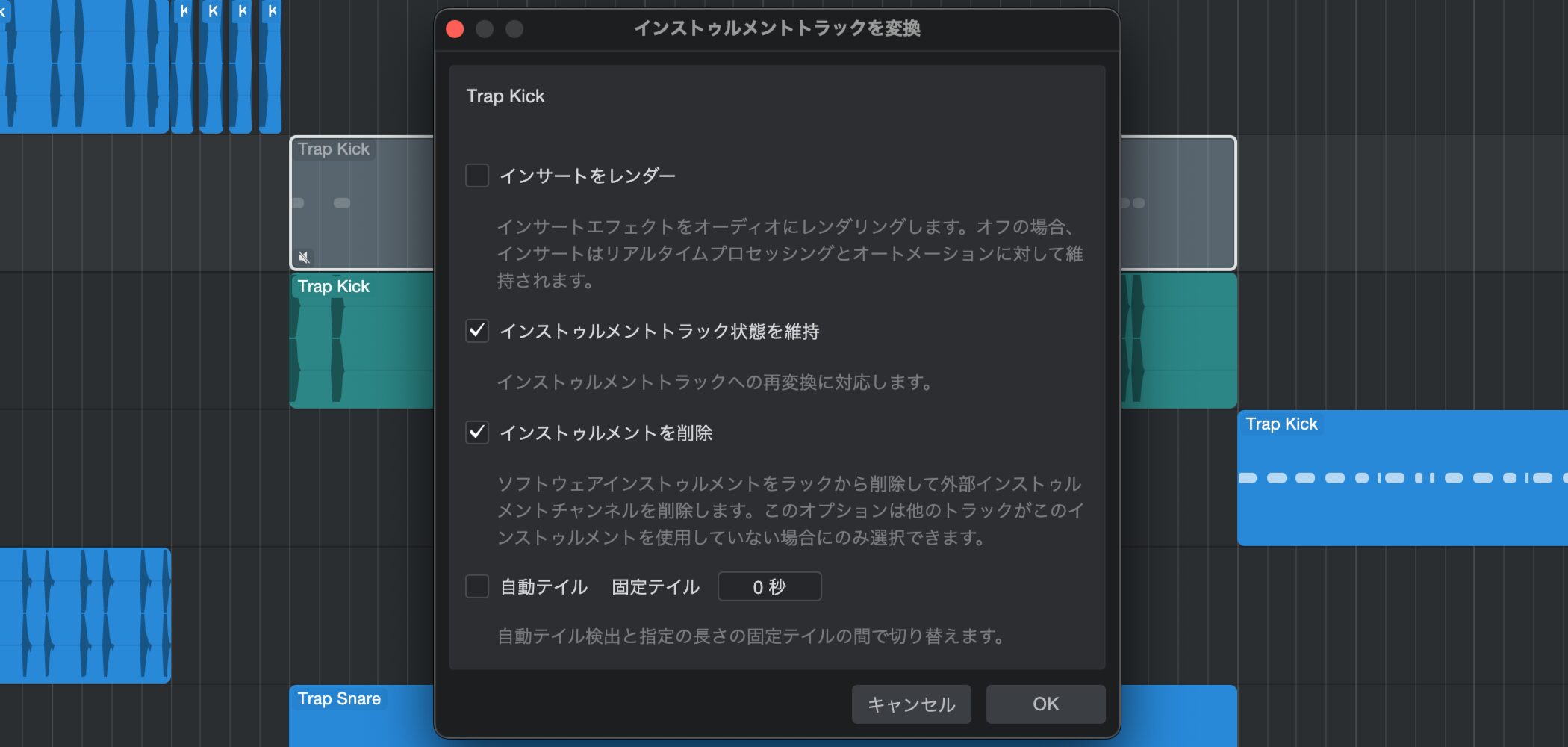
- Render Inserts: Converts including effects, volume/pan settings, and automation, preserving the consistency of your mix.
- Preserve Instrument Track State: Keeps the original instrument track so you can edit the MIDI later.
- Remove Instrument: Automatically removes the virtual instrument after conversion to free CPU and RAM resources.
- Auto Tail: Automatically detects reverb, delay, and other tail effects and converts while preserving their natural decay.

Frequently asked questions
Q1. What are the benefits of converting MIDI to audio?
Mixing becomes easier, the load on your computer decreases, and you can edit waveforms directly. Reducing the number of active instruments also lets you use system resources efficiently, so the final stages go more smoothly.
Q2. How do I convert MIDI to audio in Studio One?
Just select the event you want to convert and choose "Event" → "Bounce Selection" from the menu. In Pro 7, right-clicking a track and choosing "Convert to Audio Track" also gives you more detailed options.
Q3. What if I want to keep editing the MIDI after converting?
Enable the "Preserve Instrument Track State" option, and the original MIDI track is kept so you can edit it later.
Q4. Won't the reverb or delay tail get cut off?
With the "Auto Tail" feature, tail effects are detected automatically and converted while preserving their natural decay, preventing any loss of sound quality.
NEW ARTICLES
Latest English Articles











