
Studio One's marker feature is an important tool for quickly finding the spot you want in a song and greatly improving your efficiency. By registering song sections such as the verse and chorus, or places to fix, as markers, you can move the playback cursor instantly and easily locate what to edit. Using shortcut keys, you can also jump between markers quickly and grasp the overall structure of even a complex song at a glance. Mastering these features can dramatically speed up production for everyone from DTM beginners to advanced users.
Find the Spot You Want Quickly
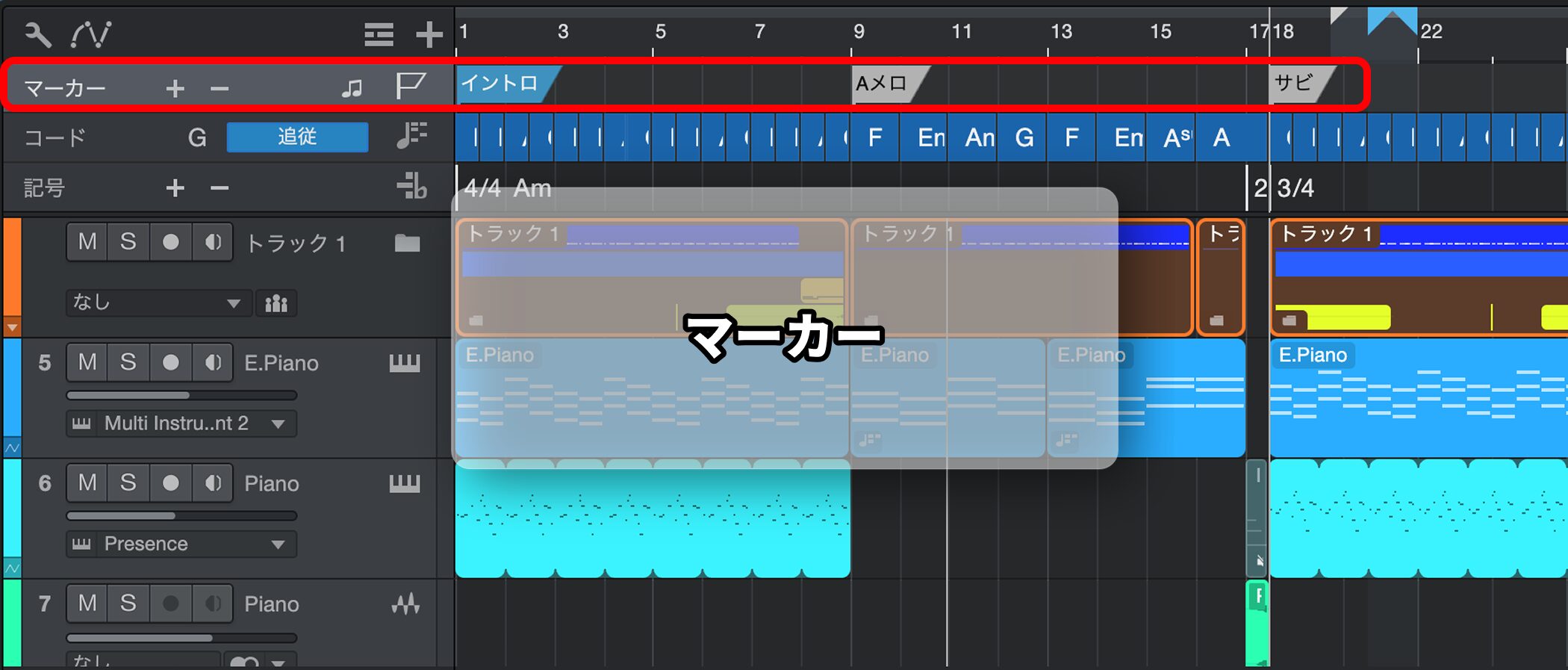
The marker feature places a mark at a position in the song.
Registering markers makes the following tasks easier:
- Playing instantly from a marker position
- Locating the spots you want to edit
The usual way to use them is to register sections such as the verse and chorus as markers, but they are also handy for leaving notes, such as places you want to fix.
How to Add Markers in Studio One
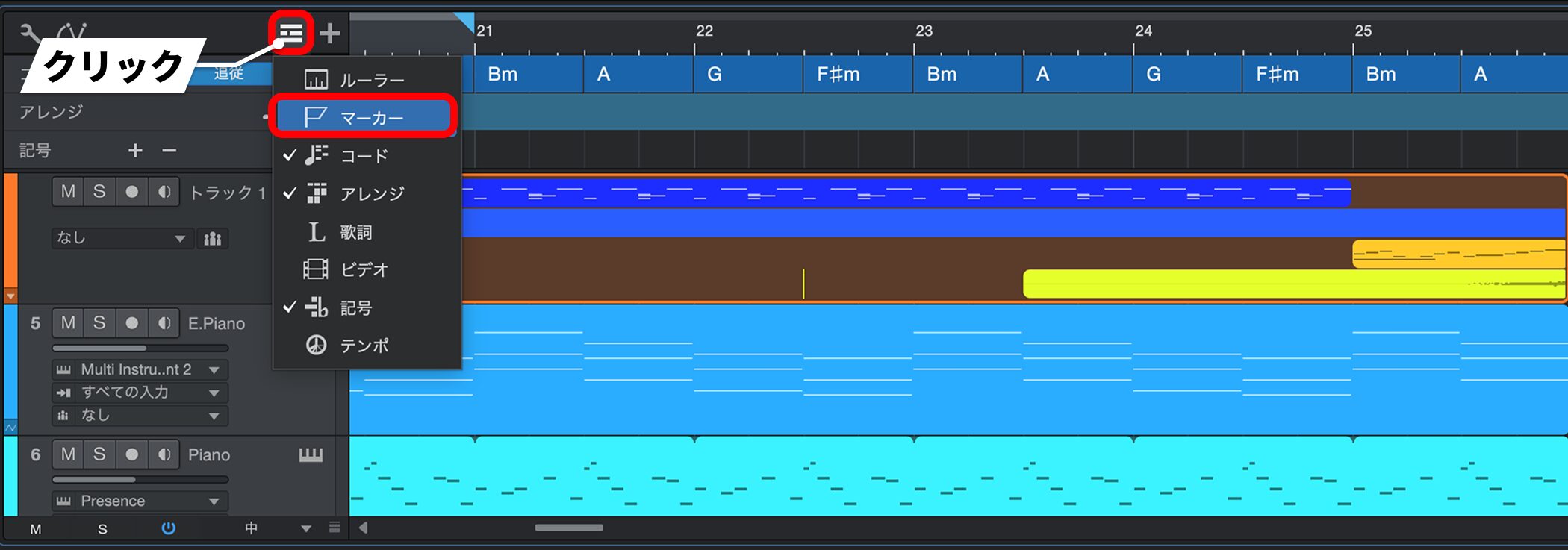
First, click "Marker" in the global track display.
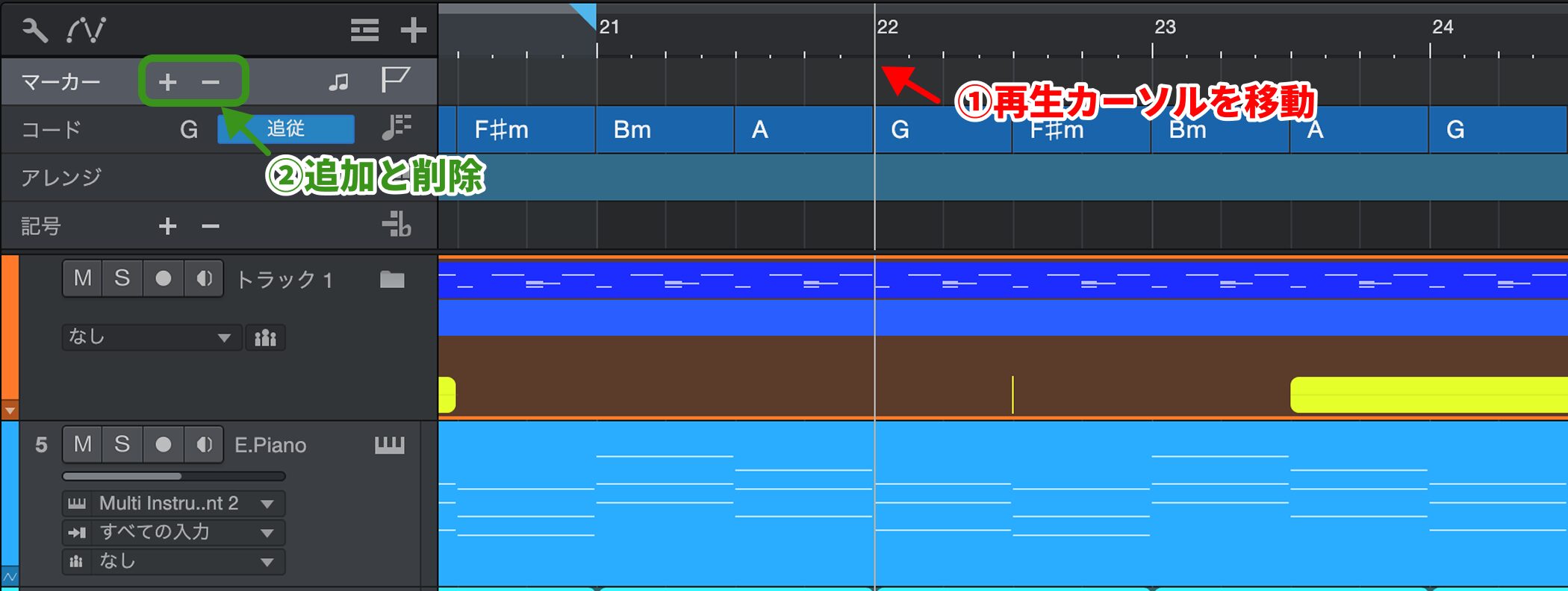
1 (red): Move the playback cursor to where you want the marker.
2 (green): Add a marker with the "+" button, and delete one with "-".
You can add markers whether playback is running or stopped.
Shortcut: Y key (add with a name: Shift+Y)
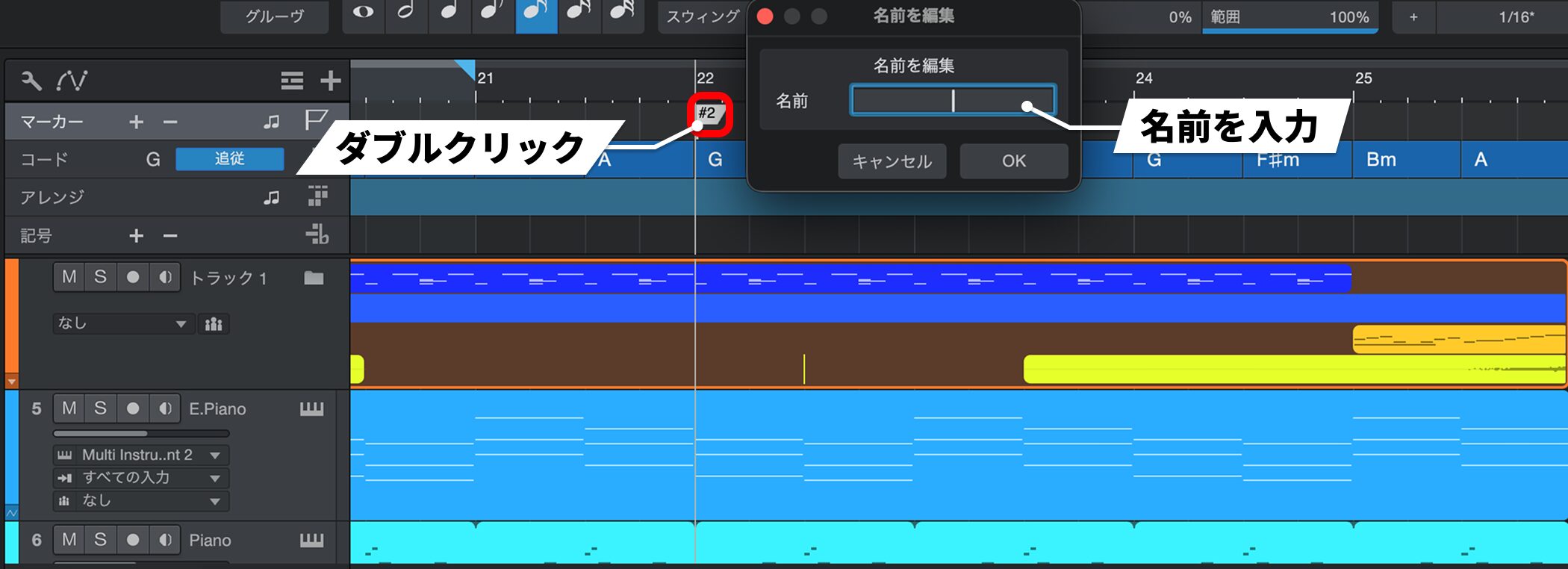
Double-click a marker you have created to name it.
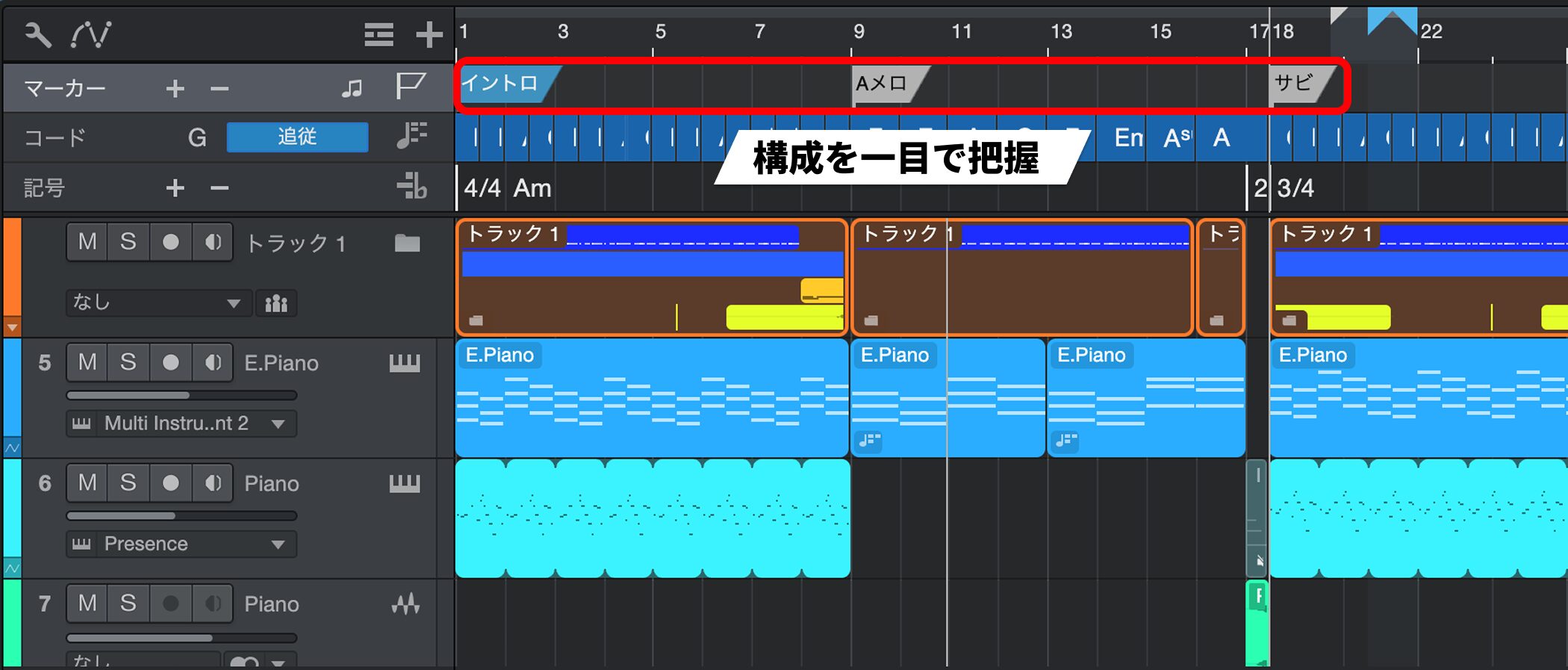
If you keep adding markers and naming them, you can grasp the structure of the whole song at a glance.
Moving to Markers
You can move quickly between markers.
Shift+N: Next marker
Shift+B: Previous marker
These are also very handy to remember.

Frequently asked questions
Q1. What is Studio One's marker feature?
The marker feature places marks at specific positions in a song so you can instantly play and edit from there. It is used to note sections and places to fix, improving your efficiency.
Q2. What is the shortcut key for adding a marker?
Press Y to add a marker, or Shift+Y to add one with a name. You can add them whether playback is running or stopped, which is very convenient.
Q3. How do I move quickly between markers?
Press Shift+N to go to the next marker and Shift+B to go to the previous one. Learning these shortcuts makes editing more efficient.
Q4. How do I name a marker?
Double-click a marker you have created to give it any name you like. This makes it easier to see the structure of the whole song.
NEW ARTICLES
Latest English Articles











