
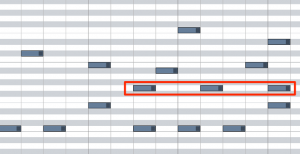
Studio One's invert selection function is an important feature that greatly improves efficiency when editing songs. When there's a lot to edit, selecting everything individually is inefficient, but you can first select the parts you don't want to edit and then easily invert them with "Invert Selection" in the "Edit" menu. Using the shortcut "Command/Control + I" makes it even faster. This technique applies not only to MIDI notes but also to event editing, making it an essential skill for streamlining complex editing.
Edit quickly by inverting the selection
Something you always do when editing songs: "selecting"
You need to select what you're going to edit.
However, sometimes "there are too many things to select".
Here, we explain how to work more efficiently using "invert".
How to invert a selection
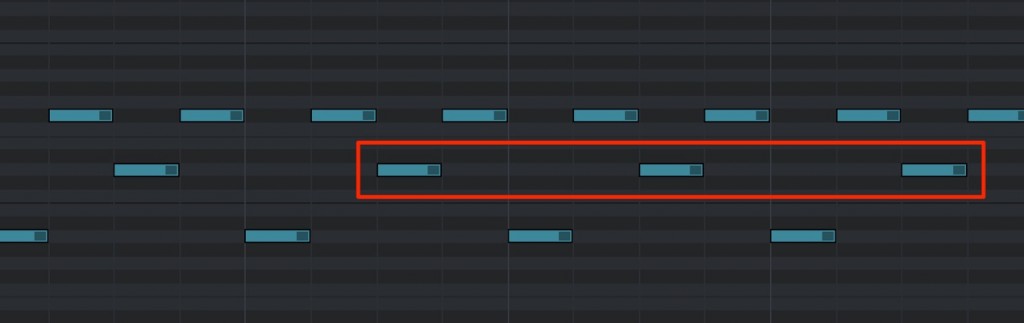
Suppose you want to select "everything except the area outlined in red."
Selecting them all one by one looks like a lot of work.
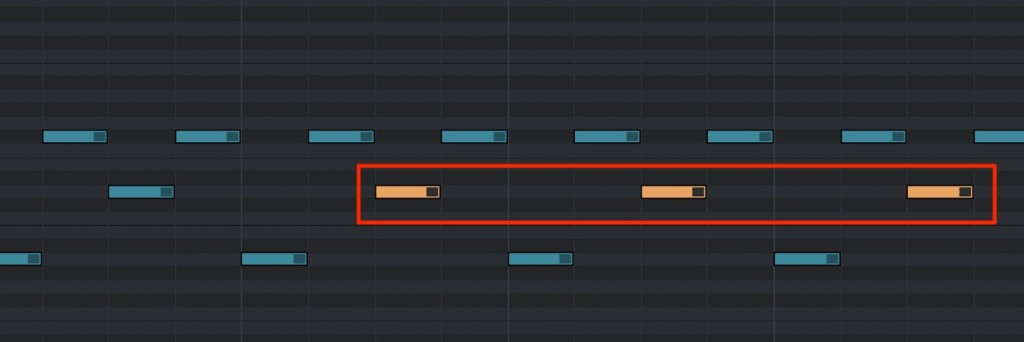
First, select "the parts you don't want to select."
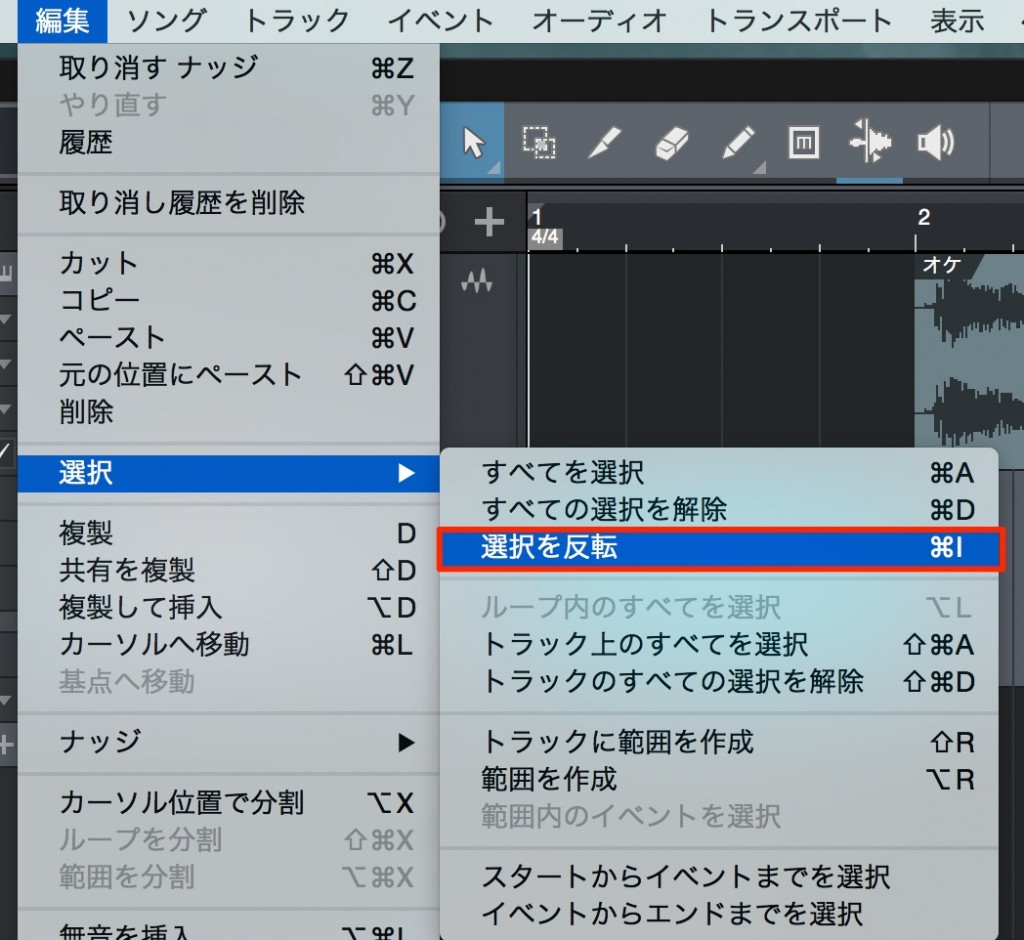
From the top menu, choose "Edit" → "Invert Selection."
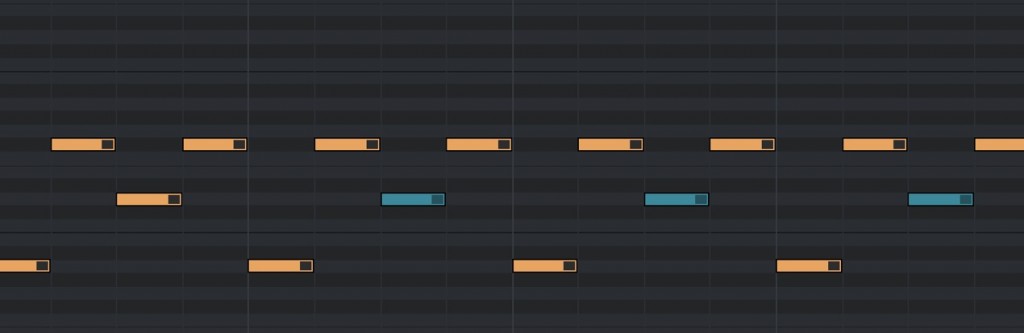
As shown here, the originally selected range and the other notes are swapped
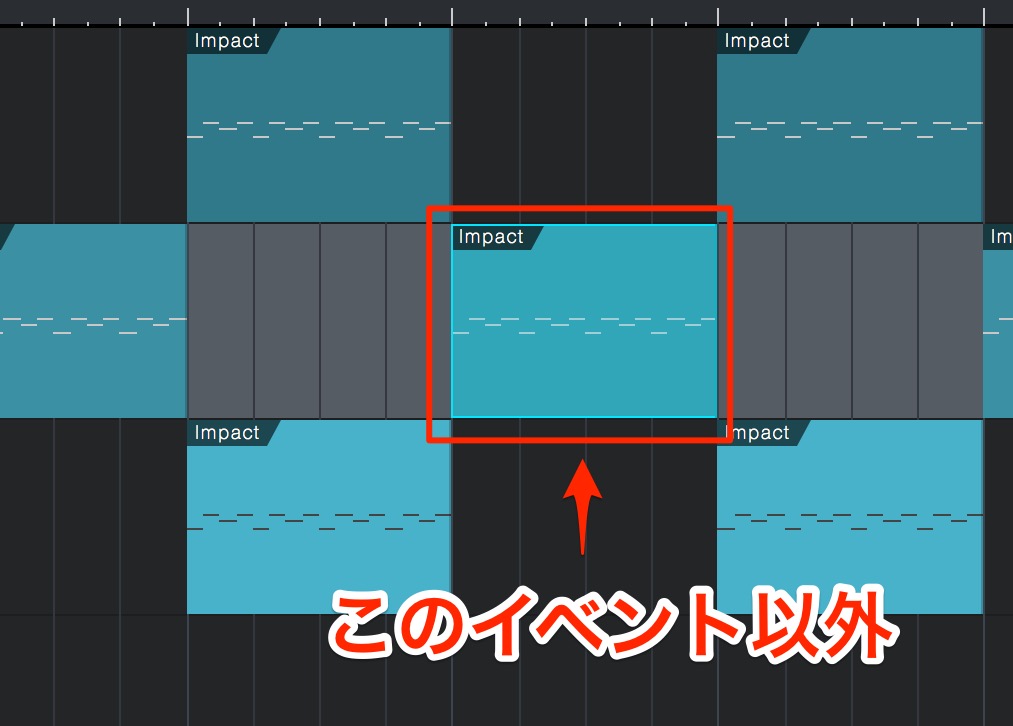
The same operation can be applied to "events" as well as MIDI notes.
The shortcut for this invert is "Command/Control + I".

Frequently asked questions
Q1. What is the shortcut key for inverting a selection in Studio One?
Command/Control + I inverts the selection. You can also do the same thing by choosing "Edit" → "Invert Selection" from the menu.
Q2. Can the invert selection function be used for things other than MIDI notes?
Yes, besides MIDI notes, you can invert selections of events. Inverting works the same way in event editing, so you can use it in many editing situations.
Q3. Why does using invert make editing more efficient?
When there's a lot to edit, selecting the smaller part you don't want to edit and inverting it is more efficient than selecting everything, because it greatly reduces mouse movement and clicks.
NEW ARTICLES
Latest English Articles











