
When editing audio in Studio One, you may want to display several plugin windows at once. By default, opening a new plugin closes the previous plugin's window, which makes tasks such as adjusting an equalizer while watching an analyzer difficult. You can solve this with the Keep Editor button: clicking it to switch the setting lets you display and operate several plugin windows at the same time. Using this feature makes your sound design more efficient and accurate.
Viewing Multiple Plugins at Once in Studio One
By default in Studio One,
when you have one plugin open
and open another, the previously open plugin window disappears.
Sometimes this is convenient.
However, when you want to adjust an equalizer while watching an analyzer,
it gets in the way.
The solution is the Keep Editor button.
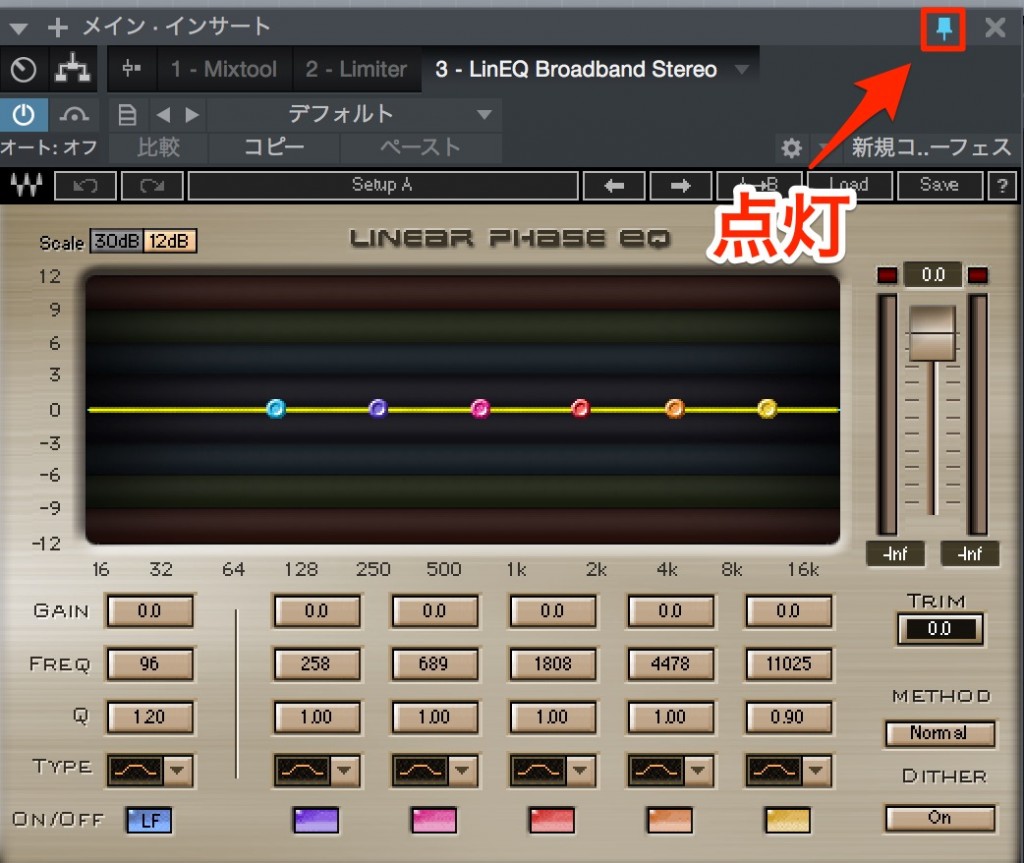
↑ Click it to turn it off, and the next plugin you open will be displayed alongside the current one.
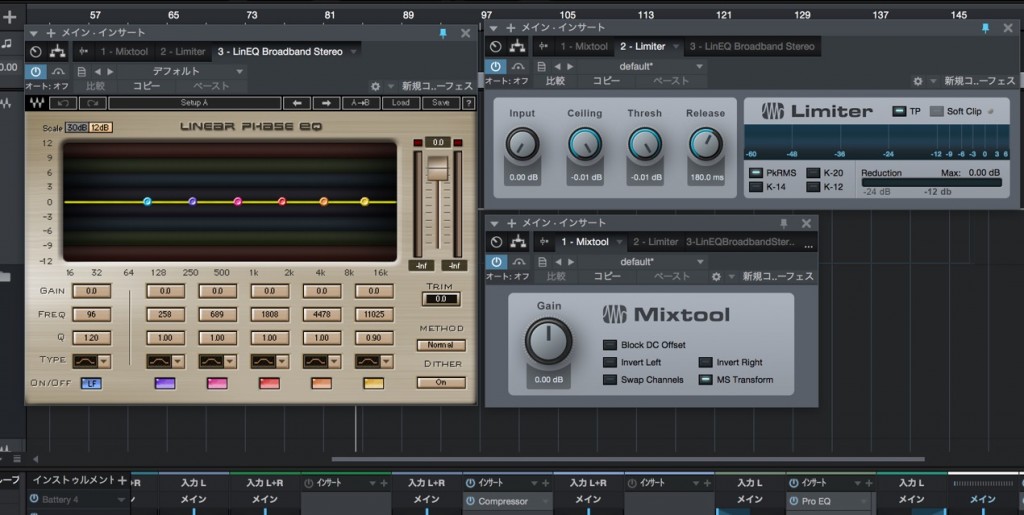
↑ Like this.
It comes in handy in many situations,
so be sure to try it!

Frequently asked questions
Q1. How do I display multiple plugins at once in Studio One?
Use the Keep Editor button in the plugin window. Clicking it to switch the setting, as shown in this article, lets the next plugin you open be displayed alongside the current one.
Q2. When is Keep Editor useful?
It is especially effective when you want to adjust an equalizer while checking the frequency response on an analyzer, or when you are fine-tuning several effects while monitoring their changes at the same time. It improves the precision of your sound design.
Q3. Does Studio One show multiple plugin windows by default?
No. By default, Studio One replaces the previous plugin window. You switch the setting manually when you need it, and using the two modes as appropriate helps you work efficiently.
NEW ARTICLES
Latest English Articles











