
Logic Pro 10.8.1 includes many features that greatly streamline the music production workflow, such as the AI-powered automatic mastering feature "Mastering Assistant," "Sample Alchemy," which synthesizes new sounds from samples, and "Beat Breaker," which lets you rearrange audio freely. With these new features, even beginners with little mastering experience can achieve professional sound quality, and creative sound design also becomes easier. With features such as automatic application of loudness standards for streaming, it is a practical update that keeps pace with modern music distribution trends.
Many Updates That Reflect Music Production Trends
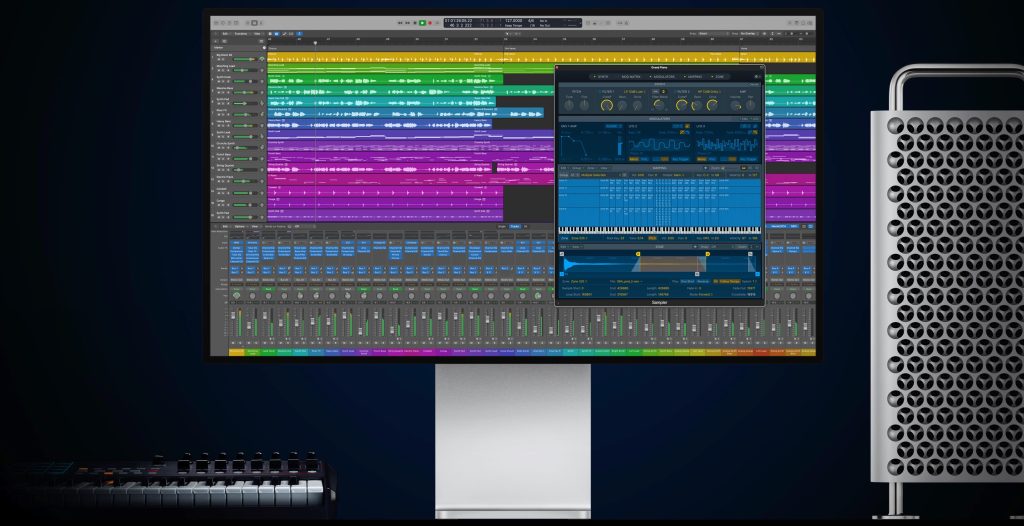
The "Logic Pro 10.8.1" update is so packed, with enhanced mastering and improved sound quality, that it is hard to believe it is a minor update.
This time, we introduce a carefully selected set of the features most worth noting.
Mastering Assistant
One of the highlights of the update, "Mastering Assistant," is a groundbreaking feature that automatically analyzes your project and applies optimal mastering.
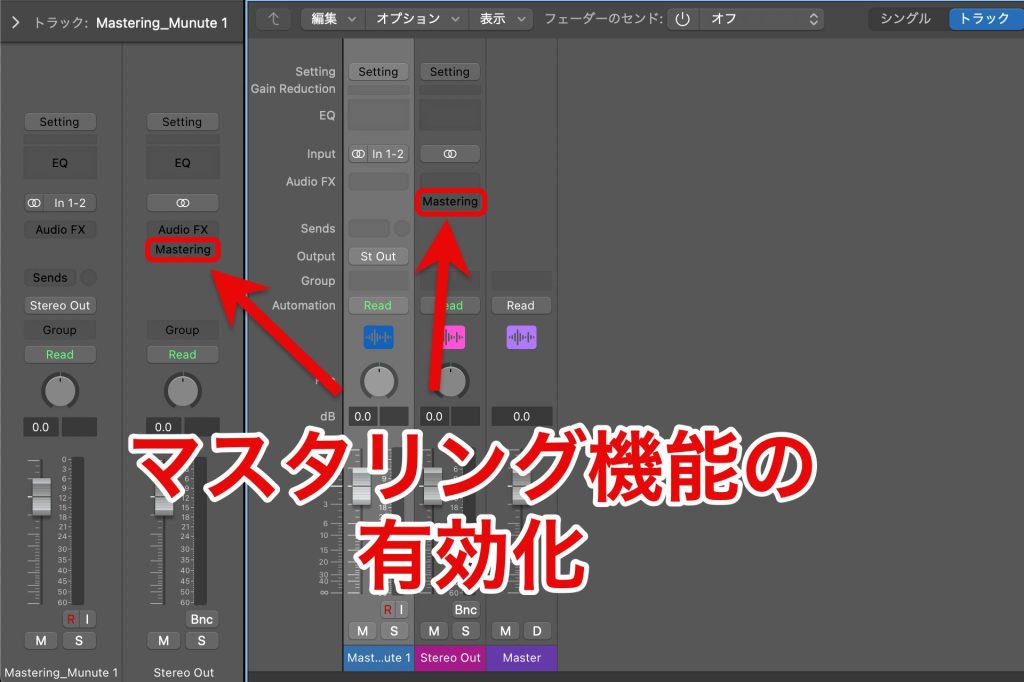
Operation is simple.
Click the "Mastering" section of Stereo Out to activate it and start analyzing the whole project.
That alone applies automatic mastering.
When you play back, you can hear the sound after the Mastering Assistant has been applied.
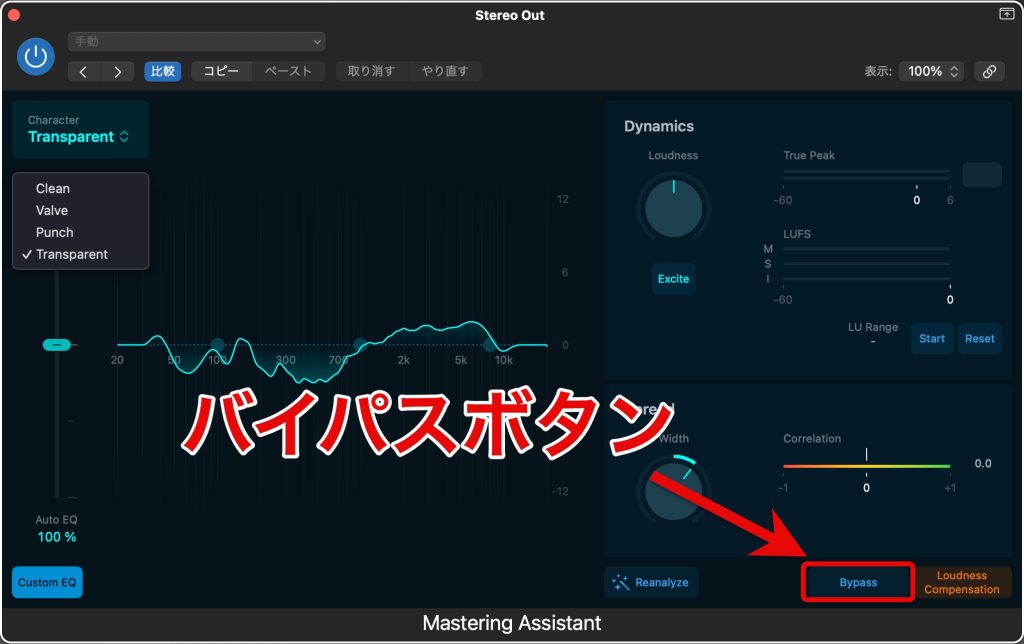
If you want to check the state before mastering, you can also light up the "Bypass" button to compare.
Let's use a demo track to compare the bypassed state with the result after applying Mastering Assistant.
It is a reliable feature that delivers quite high quality.
Choosing a Character
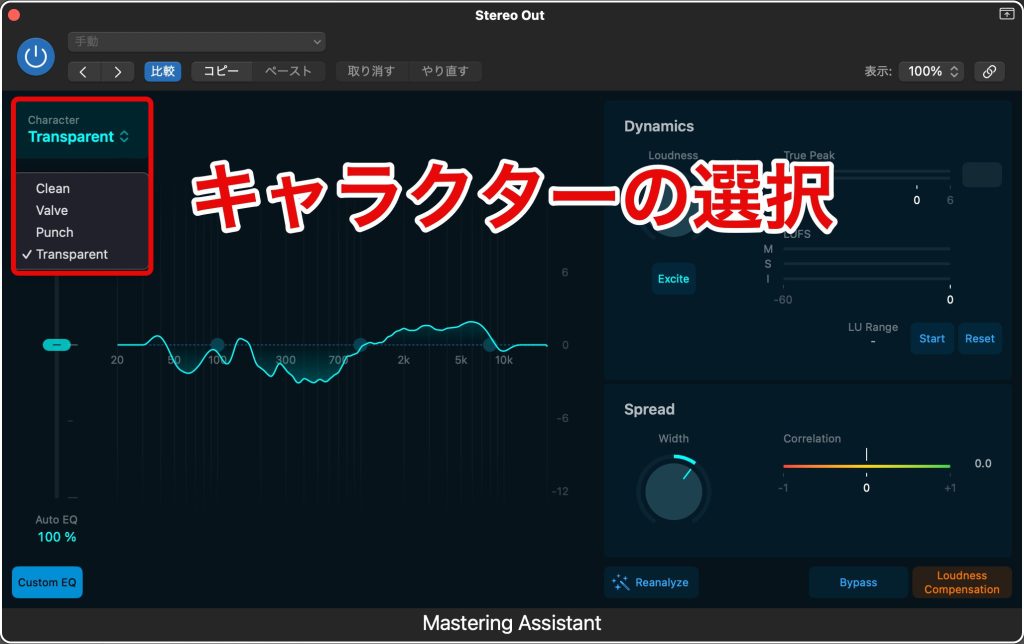
"Character," shown at the top left of the window, determines the tendency of the sound.
- "Valve": a mode that adds the warmth and character of vintage tube equipment
- "Punch": a mode that emphasizes transients, adding punch and clarity to the mix
- "Transparent": a mode that combines both transparency and punch
- "Clean": a mode that preserves the natural nuances of the mix
Your selection changes the overall feel of the result.
However, note that on Intel-based Macs, some presets are omitted compared with Macs with Apple silicon.
EQ Section
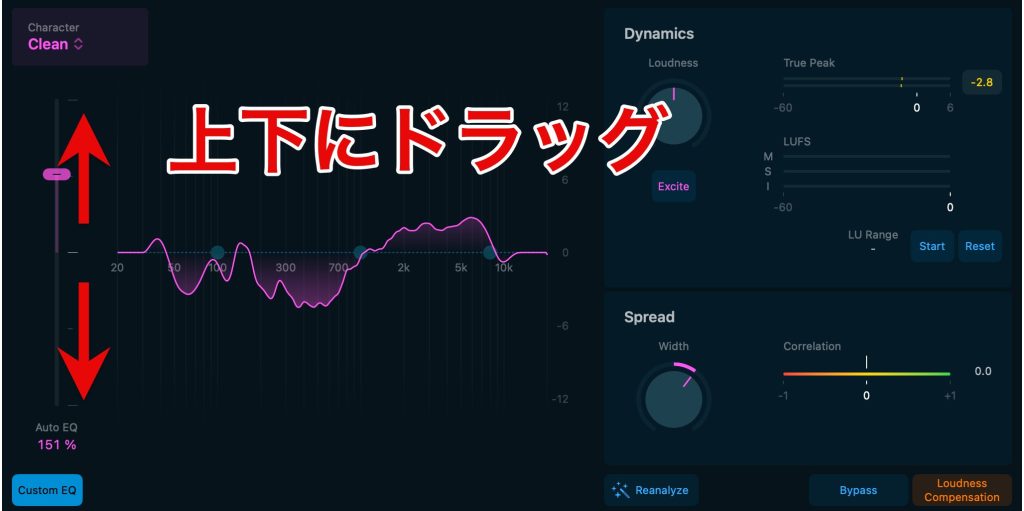
With "Auto EQ," you can adjust the sound just by moving a slider up and down.
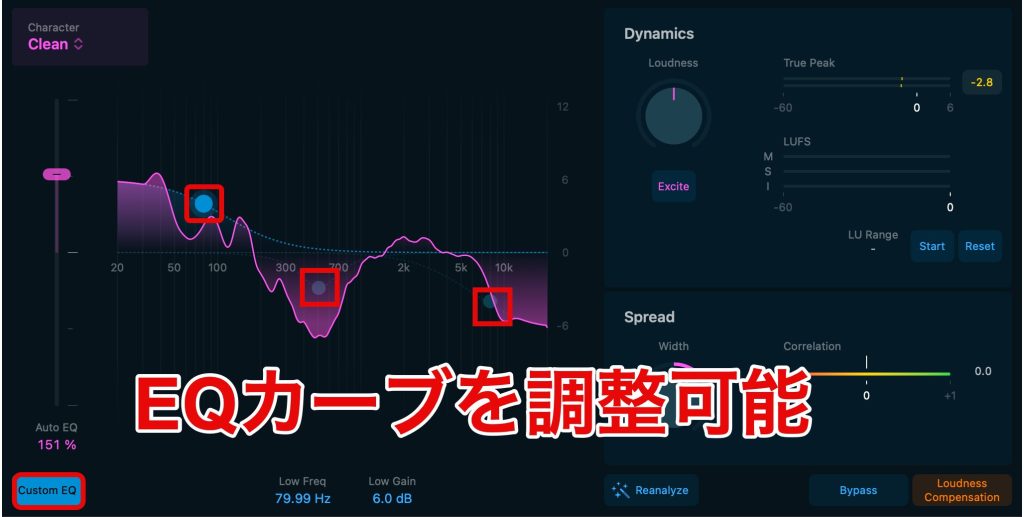
Using "Custom EQ," you can adjust frequencies with three bands on top of the automatically processed EQ curve.
Dynamics Section
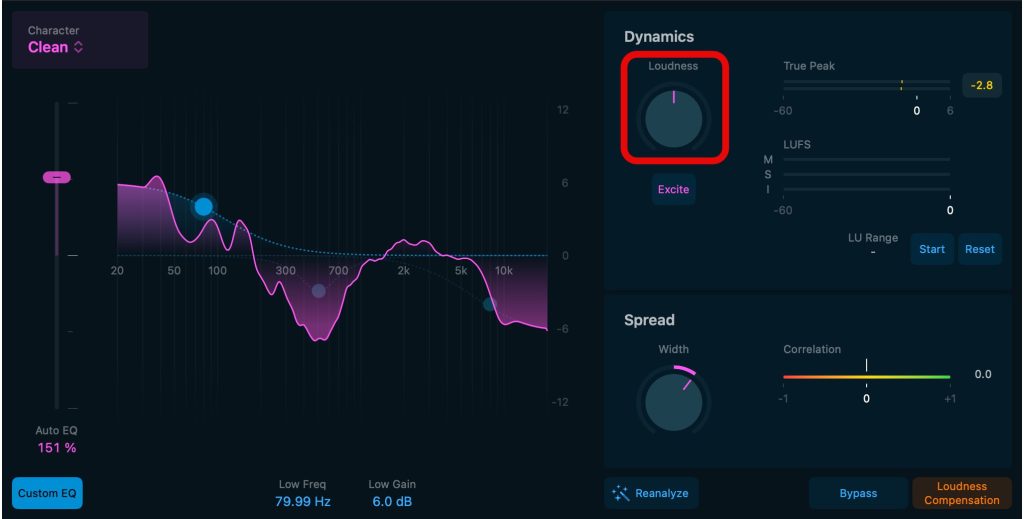
You can use the "Loudness" knob to adjust the perceived volume (loudness) of the whole song.
With the knob at its center, it is adjusted to around "-14 LUFS-I," a loudness standard common on today's streaming services.
This means even beginners who are not sure what loudness is appropriate can use it with confidence.
Also, even large changes to the knob value do not lead to extreme settings, so you can operate it by feel.
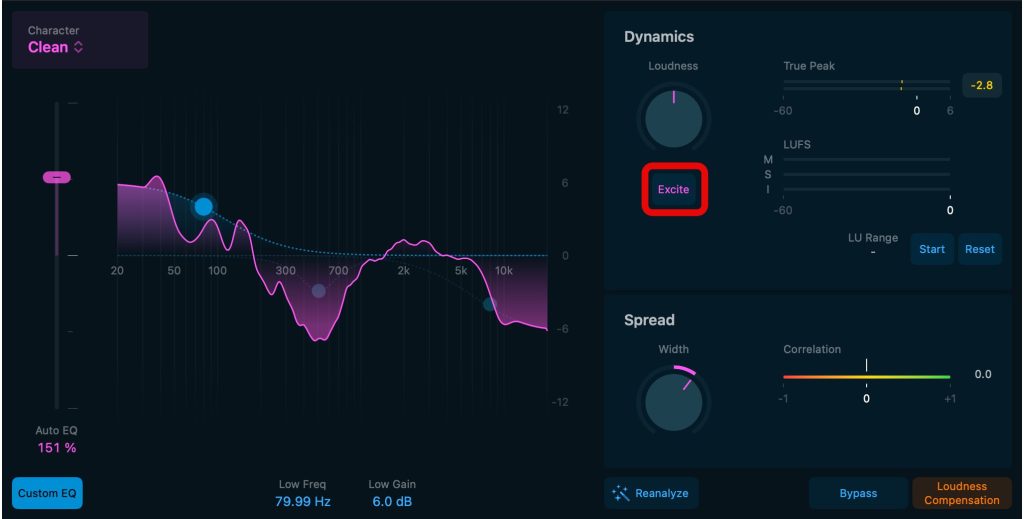
In addition, using the "Excite" function adds saturation to the high mids, creating a bright and sparkling sound.
Adjusting the Stereo Image
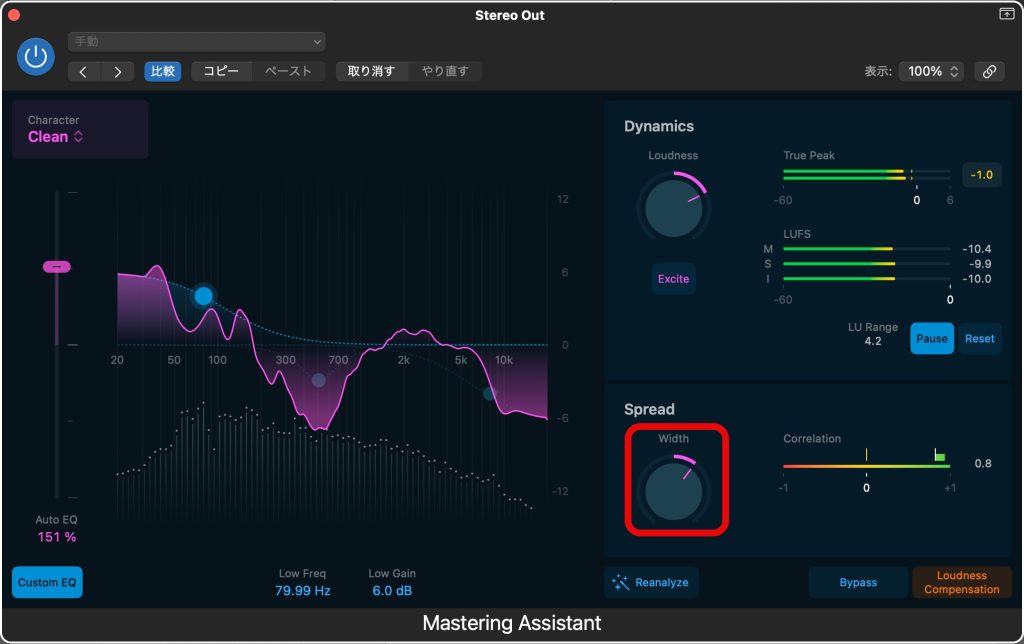
You can adjust the stereo image of the whole song with the "Width" knob.
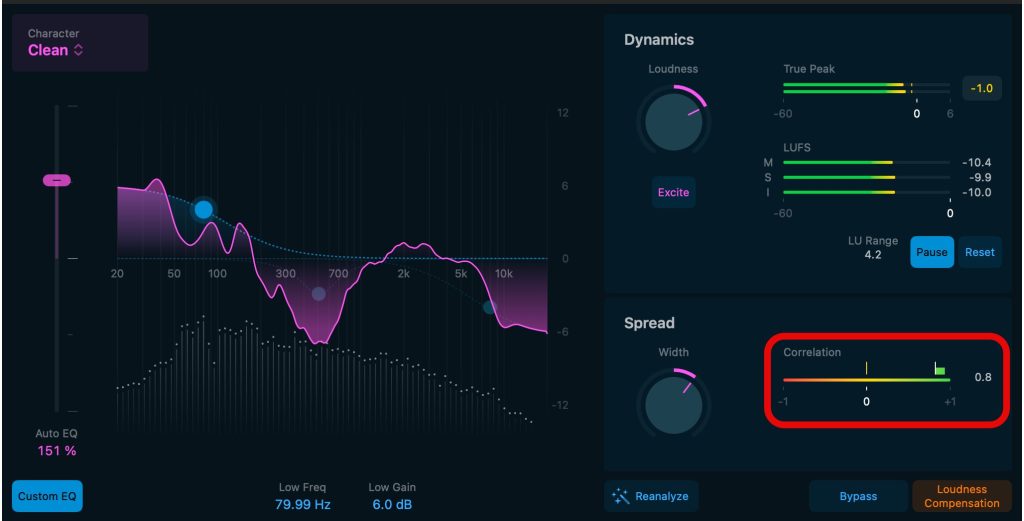
Check the phase on the Correlation Meter on the right. The further the meter moves to the plus side, the more mono the sound becomes.
Basically, if the value is at 0 or above, you can judge that no excessive phase misalignment is occurring.
It is a good idea to make adjustments while checking this.
Reanalyzing the Mastering
After changing the arrangement or mix, the mastering will also need to be changed.
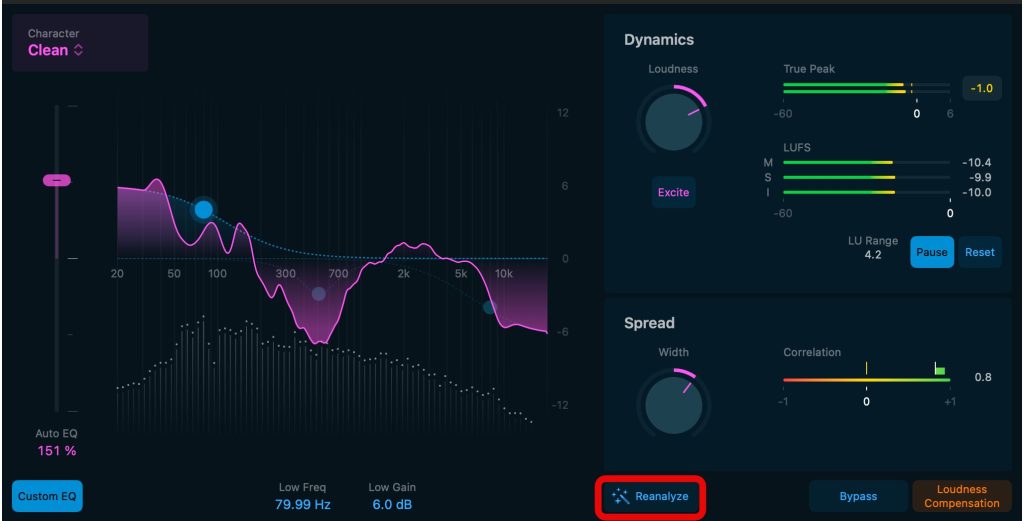
You can reanalyze the song with the "Reanalyze" function.
Sample Alchemy: Create New Sounds from Audio Samples
Sample Alchemy is a synthesizer that synthesizes new sounds using audio samples.
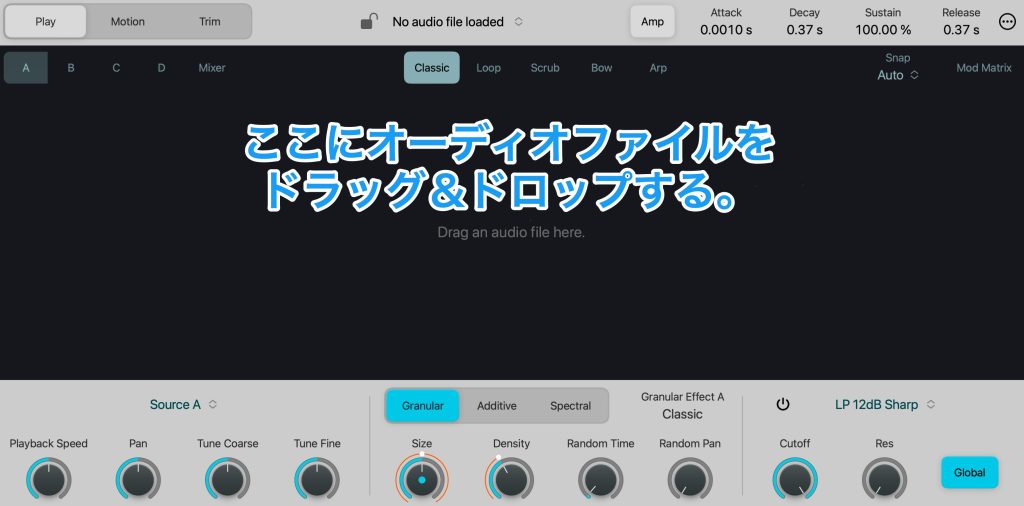
Drag and drop an audio sample into the center of the window, then choose from three different synthesis modes.
The modes are:
- Granular: a synthesis method that splits the sound into small particles (grains) and rearranges them to create a new sound
- Additive: a synthesis method that combines basic waveforms such as sine waves to create a new sound
- Spectral: a synthesis method that analyzes the spectrum (frequency content) of the sound and manipulates it to create a new sound
In this way, you can create sounds with different characteristics.
If you are not very familiar with synths, we recommend loading a sample and then changing settings to search for a sound you like.
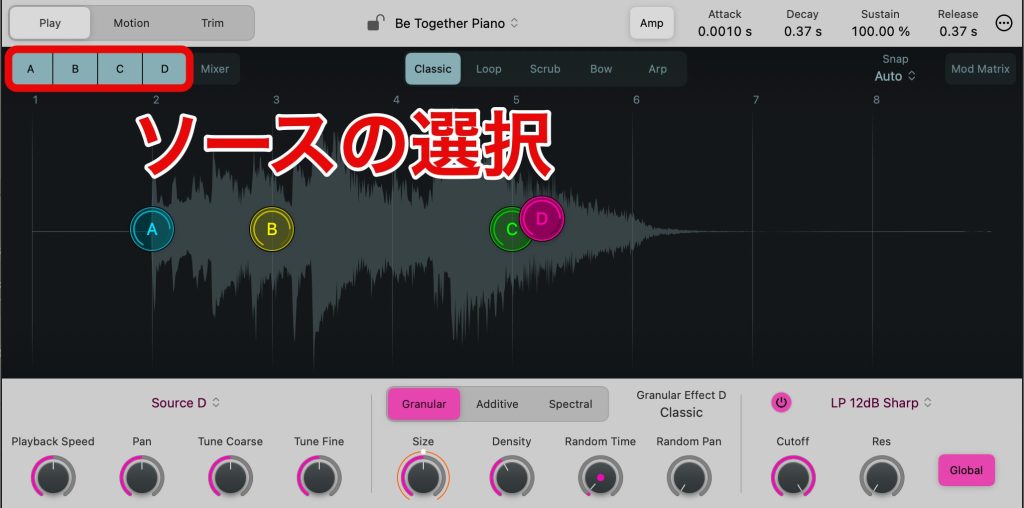
You can switch between sources "A," "B," "C" and "D" and apply the three types of engine to each to produce sound.
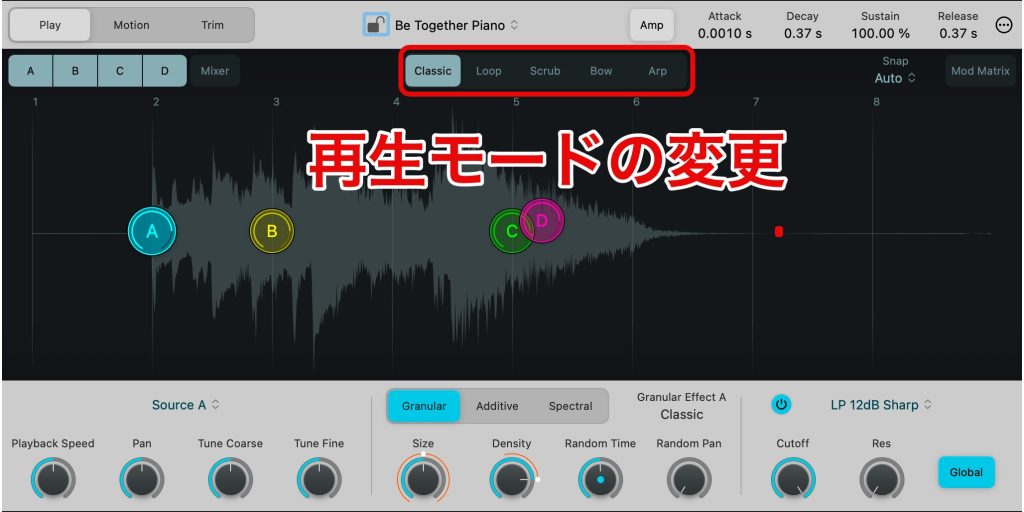
Sample Alchemy offers five different playback modes, and you need to choose the one that suits the sound you want.
The playback modes are:
- Classic: plays the sample from beginning to end
- Loop: loops a defined range within the sample
- Scrub: plays only a defined position (moment)
- Bow: plays with a bowing motion like a string instrument performance
- Arp: plays a repeating pattern of notes that cycles through various parts of the sample
Sounds created with Sample Alchemy can also be saved as presets.
It is also nice that they can be used in "Alchemy," the synthesizer included with Logic Pro.
Beat Breaker: Rearrange Audio Freely
Beat Breaker is an effect that adds arrangement to audio material, enabling new forms of expression.
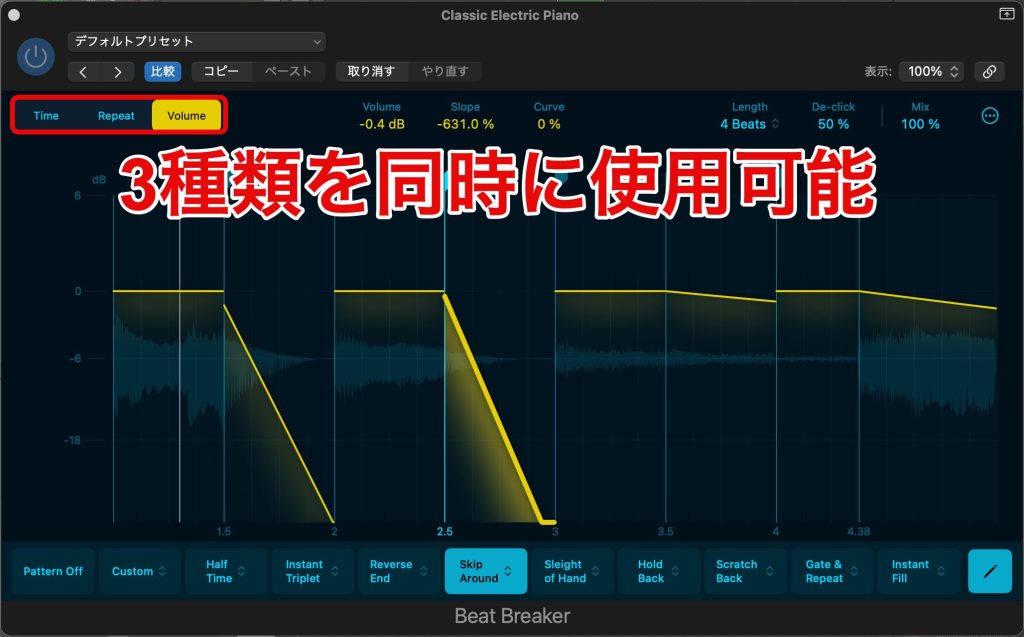
Use "Time," "Repeat" and "Volume," shown at the top left of the window, to specify what kind of processing to apply to the audio.
Each can be set independently.
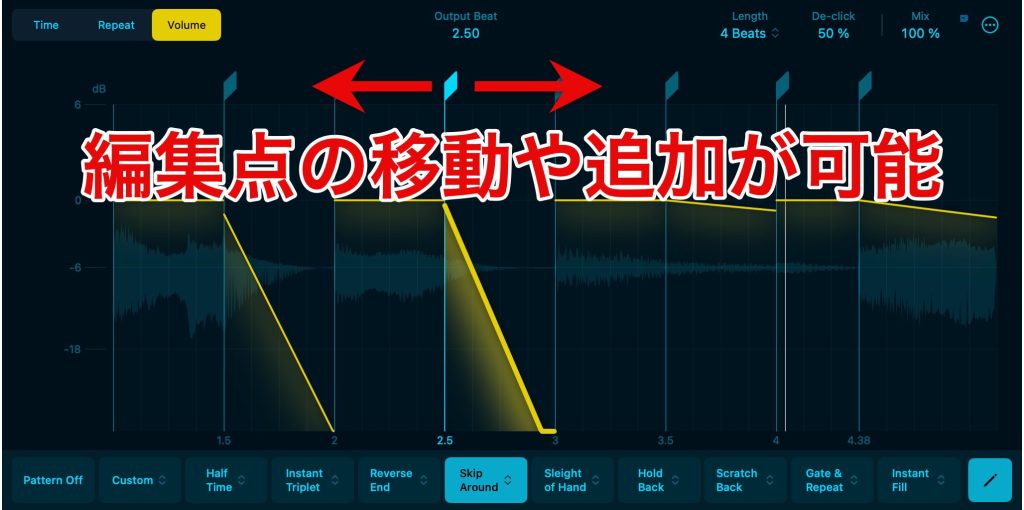
Operation is simple: in all modes, double-click the top of the window to add or remove edit points.
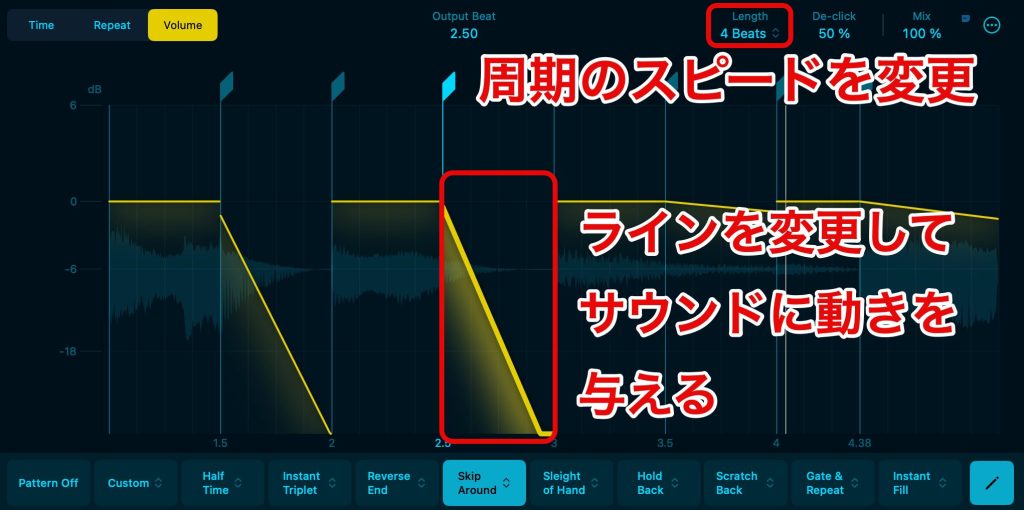
If you want to change the cycle, choose any cycle from "Length" at the top right to suit a variety of situations.
Then freely redraw the lines drawn between edit points to give the sound movement.
Time
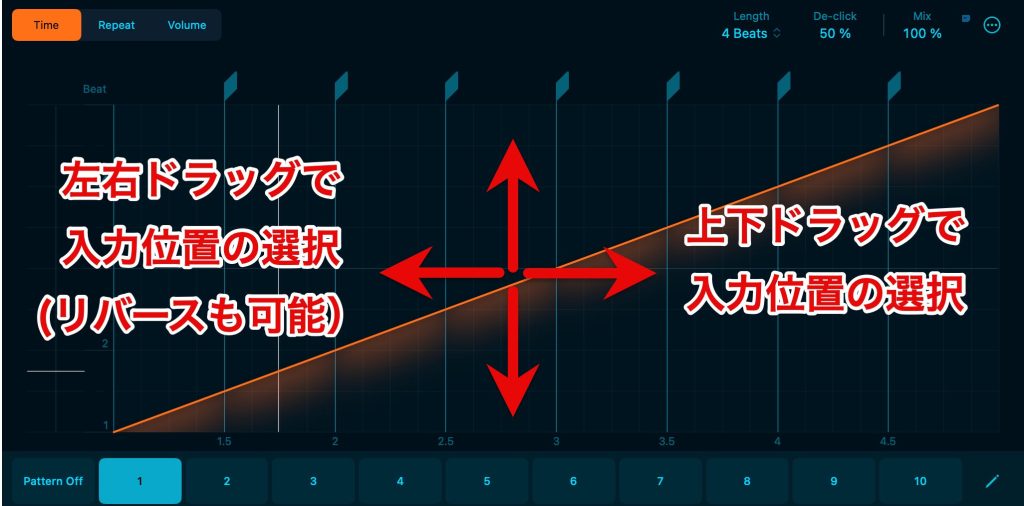
"Time" mode lets you change the playback position and playback speed of the sliced beat.
Keep the following points in mind and you will be fine.
- Drag the line between edit points (hereafter, the edit line) up or down to change the input position
- Drag the edit line left or right to adjust the playback speed
- Drag the edit line left or right while holding ⌘ to adjust the curve
Then adjust to taste while listening to the sound.
Repeat
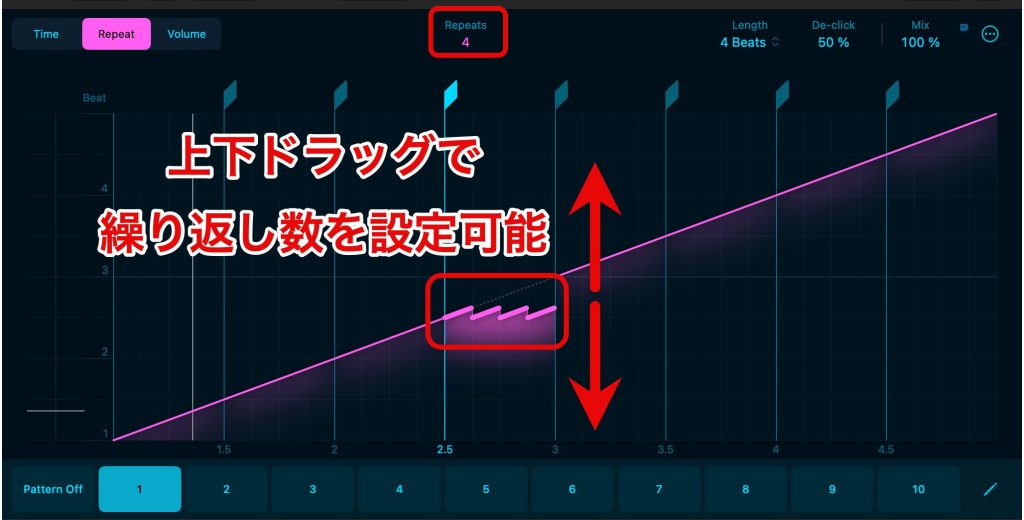
"Repeat" mode lets you add repetition and stutter effects to the sound.
You can set the number of repeats by moving slices up and down, and add up to eight loops.
Volume
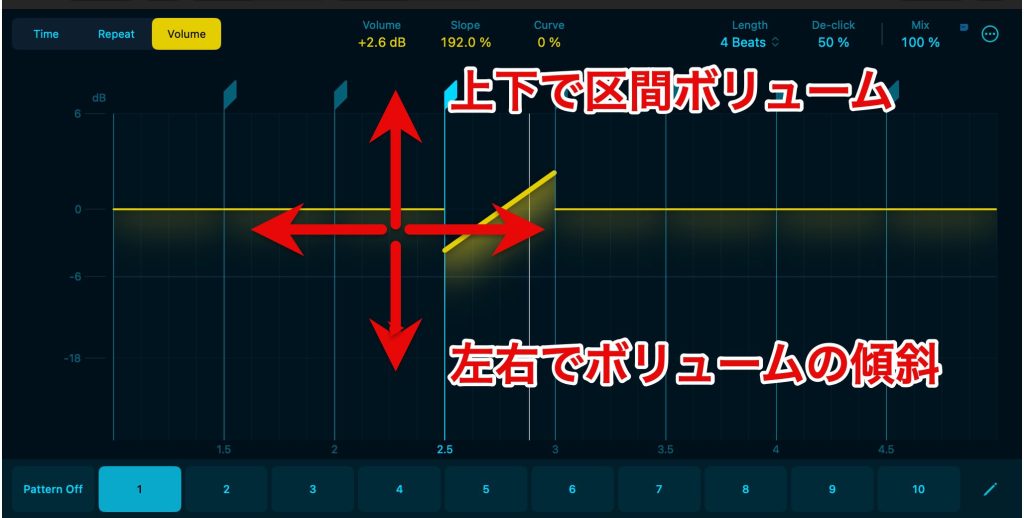
"Volume" mode adds volume changes over time.
By dragging the edit line up, down, left or right, and left or right while holding the ⌘ key, you can vary the volume and create expressions often heard in recent electronic music, such as tremolo, ducking and forcibly adding rhythmic nuance.
New Editing Features
Slip Tool
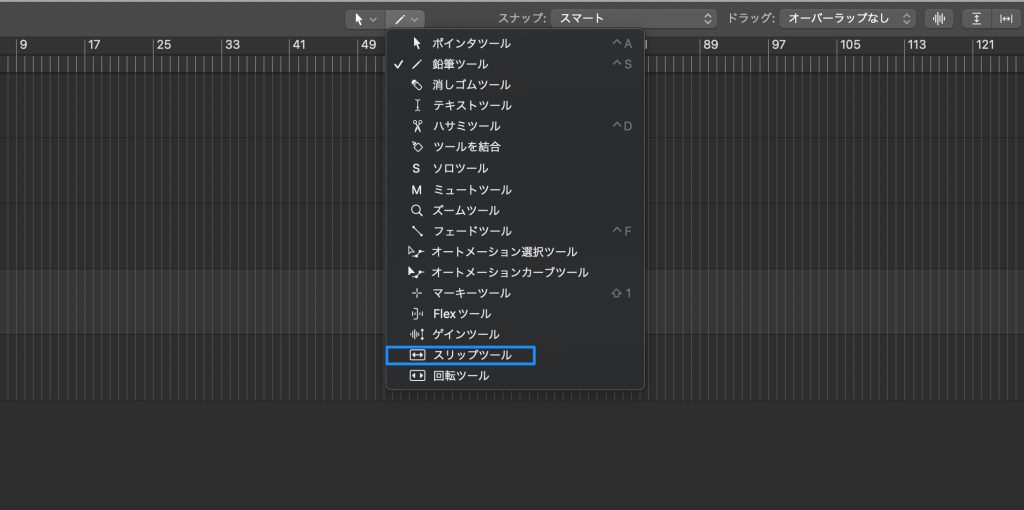
This feature lets you move the performance inside an audio region or MIDI region forward or backward within the region without changing the region's start or end point.
With the region staying in place, you can adjust which part of the audio or MIDI data in the region is played.
Rotate Tool
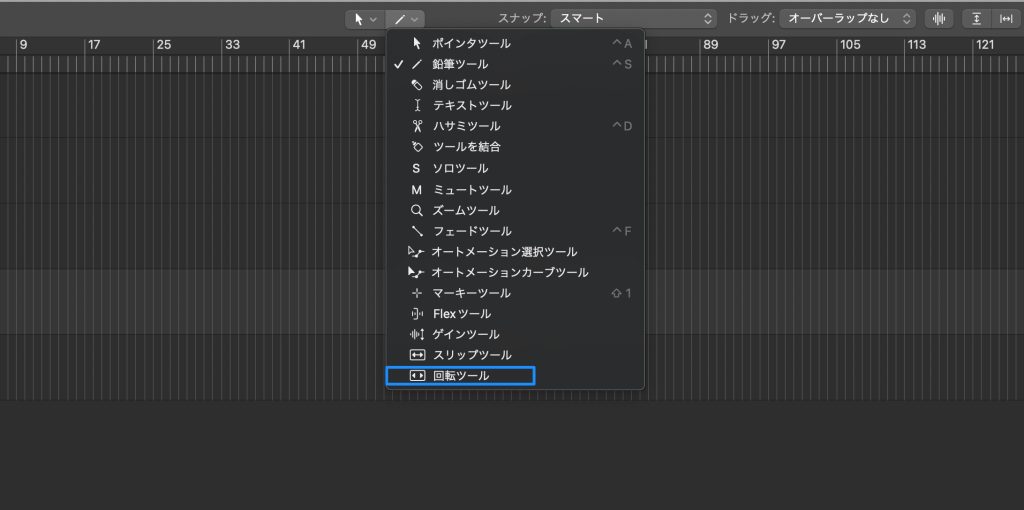
You can move the performance contained in a region in a loop.
For example, you can move the middle of a drum loop to the start of the region and shift the loop's playback point, making it a welcome feature for those who use loop phrases.
Support for 32-bit Float Recording
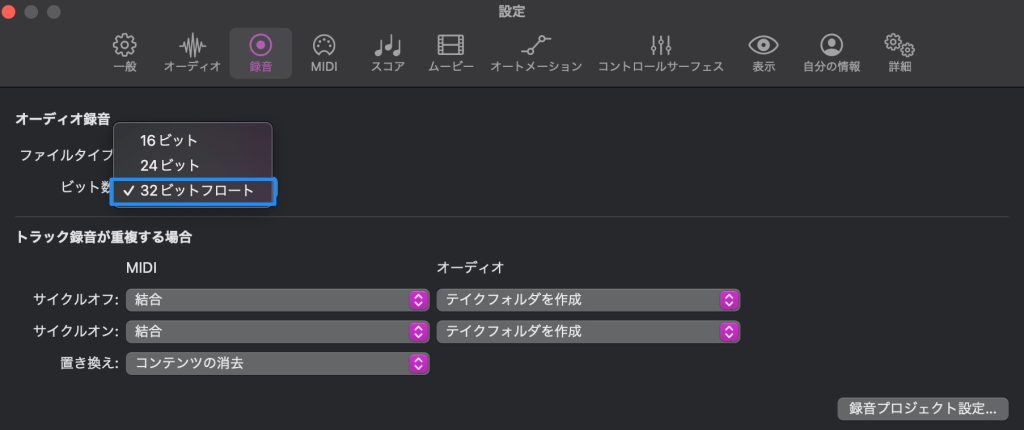
Provided you use an interface that supports 32-bit float recording, you can now record with a wider dynamic range.
Being able to produce without worrying about clipping is also very appealing.
32-bit Float Explanation Video
How did you find it?
All of the new features are easy to use yet practical, so many of them probably make you think, "I want to try this."
Please take this opportunity to try the new Logic Pro and enjoy comfortable music production!
Frequently Asked Questions
Q1. What level of quality can Mastering Assistant in Logic Pro 10.8.1 achieve?
Mastering Assistant automatically analyzes the project and achieves professional-level mastering. With four Character options, Valve, Punch, Transparent and Clean, it can handle different sound tendencies, and EQ and dynamics adjustments can be made intuitively.
Q2. What is the difference between Sample Alchemy and Alchemy, which is included with Logic Pro?
Sample Alchemy is a dedicated tool for synthesizing new sounds by dragging and dropping audio samples, with three synthesis modes: Granular, Additive and Spectral. Presets you create can also be used in the included Alchemy.
Q3. What is Beat Breaker mainly used for?
Beat Breaker is an effect that applies Time, Repeat and Volume processing to audio material, letting you freely edit a beat's playback position, speed, repetition and volume changes. It is ideal for giving new arrangements to rhythm material such as drum loops.
Q4. Can I use all the features on an Intel-based Mac?
Mastering Assistant can be used almost identically, but note that some presets are omitted compared with Macs with Apple silicon. There are no major limitations on the other new features.
Q5. What is the -14 LUFS in Mastering Assistant?
-14 LUFS-I is a loudness standard common on streaming services, and it is applied automatically when the Loudness knob is at its center position. This lets even beginners match their loudness to streaming platforms.
NEW ARTICLES
Latest English Articles











