
Logic Pro's transpose function lets you easily change the key of an entire song. It comes in handy when matching a vocalist's range or changing the mood of a song. Without the hassle of adjusting multiple tracks by hand, you can instantly change the pitch of selected regions or whole tracks just by specifying semitone steps in the Inspector. Do not apply it to drum tracks, however. Mastering this function greatly increases the flexibility of your production.
What Is Transpose?
It is a transposition function that changes, for example, a song in the key of C to E.
"The song I produced does not fit the vocalist's key." "I want to change the mood of the song."
It comes in handy in cases like these.
You could brute-force it by transposing every track by hand,
but with this transpose function, you can change multiple tracks in an instant.
- Logic X
- Logic 8/9
Logic X: How to Use Transpose
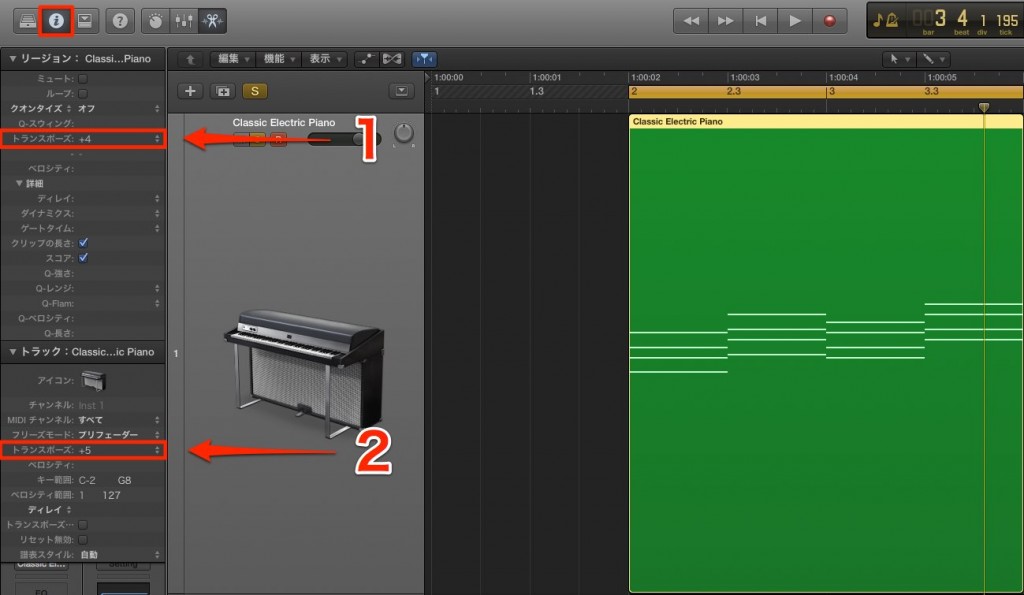
Select the region you want to transpose
and look at the Inspector on the left of the image. Change the area outlined in red.
"+1" raises the pitch a semitone from the original, and "-1" lowers it a semitone.
To change from C to E,
raise it 4 semitones by setting it to "+4."
1_Transpose is applied to the selected region.
By selecting multiple regions and doing the above, you can change the pitch of all of them at the same time.
2_Transpose is applied to the entire track.
*Drum tracks have no concept of pitch, so do not use transpose on them.
If you apply it, all the kit sounds change, which is a disaster.
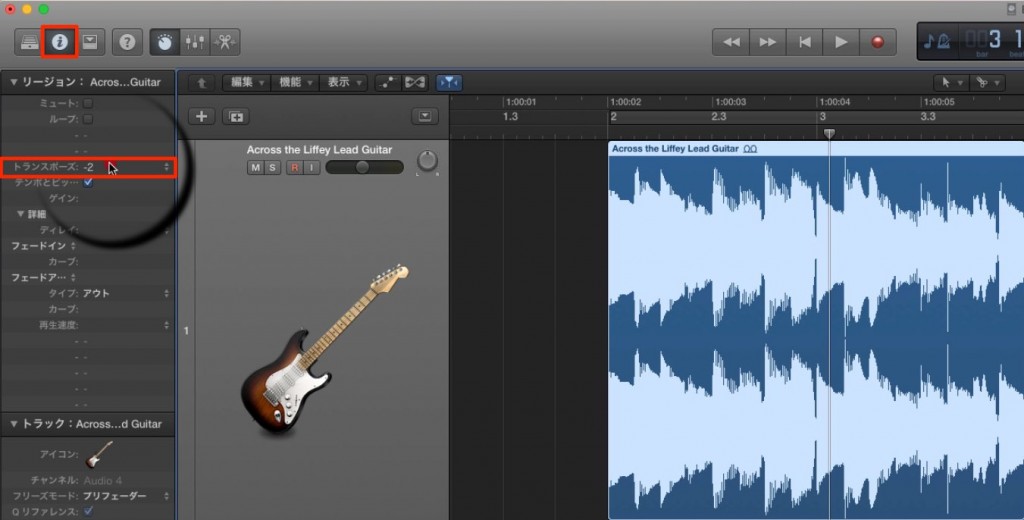
You may also use audio material such as Apple Loops,
and you can change its key with Transpose in the same way.
Logic 8/9: How to Use Transpose

↑ Select the region you want to transpose
and look at the Inspector on the left of the image.

↑ This is the Inspector.
Change the area outlined in red.
"+1" raises the pitch a semitone from the original, and "-1" lowers it a semitone.
To change from C to E,
raise it 4 semitones by setting it to "+4."
By selecting multiple regions and doing the above, you can change the pitch of all of them at the same time.
*Drum tracks have no concept of pitch, so do not use transpose on them.
If you apply it, all the kit sounds change, which is a disaster.
- Logic X
- Logic 8/9

Frequently asked questions
Q1. How do I set Logic Pro's transpose to change from the key of C to E?
Changing from C to E requires raising the pitch by 4 semitones, so set the area outlined in red in the Inspector to "+4." "+1" raises a semitone and "-1" lowers a semitone, so calculate the number of semitones you want to move and enter it.
Q2. What happens if I use transpose on a drum track?
Drum tracks have no concept of pitch, so applying transpose changes all the drum kit sounds and badly damages the sound. Avoid applying it to drum tracks.
Q3. Can I transpose multiple tracks at the same time?
Yes. Select multiple regions and then set the transpose value in the Inspector to change the pitch of all of them at once. This saves you the trouble of adjusting every track by hand.
NEW ARTICLES
Latest English Articles











