
Using Logic Pro's project template feature greatly reduces the effort of basic setup when producing songs. By registering repetitive tasks such as creating tracks, setting up the click, and loading synths in advance, you can start producing right away just by opening the template for a new song. Creating a template is easy: just "Save as Template" once your song is set up. If you change the startup action in Preferences to open a template, the dialog appears automatically every time, giving you an efficient workflow. Preparing several templates for different production styles makes you even more efficient.
Cut Down the Effort of Basic Setup
When you produce songs, you start to notice something.
the steps leading up to production are almost always the same.
Create tracks, set up the click, load synths, arrange the screensets...
And by then you've forgotten what you wanted to do in the first place (lol).
That's where the template feature comes in handy.
You register the setup work you do often
and recall it when you start a new song.
This greatly reduces the effort at the start of production.
How to Create a Project Template in Logic
First, set up the song.
It is handy to register the following at this stage.
Frequently asked questions
Q1. How do I create a template in Logic Pro?
First, set up the basic settings needed for producing songs (tracks, click, synths, etc.), then choose "Save as Template" from the "File" menu. Give the template a name and save it, and you're done.
Q2. Can a template be loaded automatically when I start a new song?
Yes. In Preferences, on the "General" tab, change "Startup Action" to "Create New Project from Template," and the template selection dialog appears every time you create a new song.
Q3. Can I create and use several templates?
Of course. You can create and save several templates for different production styles and genres. We recommend preparing templates for different purposes, such as a simple one and one with complex settings already made.
Once you have a state where you can start producing right away,
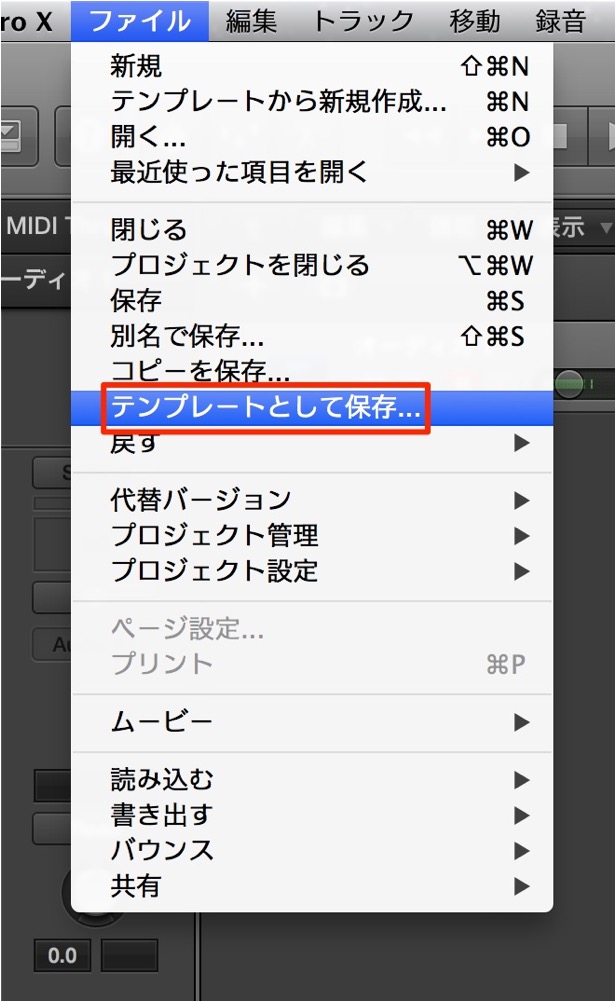
select "File" → "Save as Template" from the menu bar.
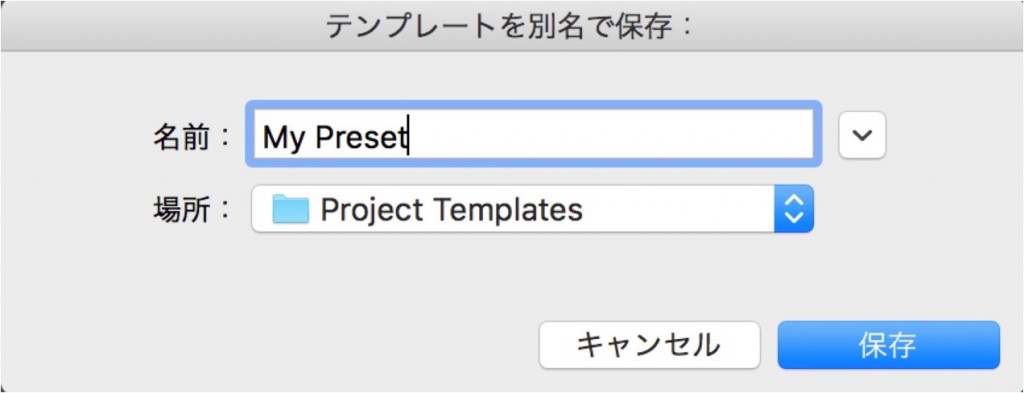
Give the template a name and click "Save."
Here, we named it "Start."
How to Use the Template
First, set things up to load the template.
Once you do this, you don't need to set it again for each song.
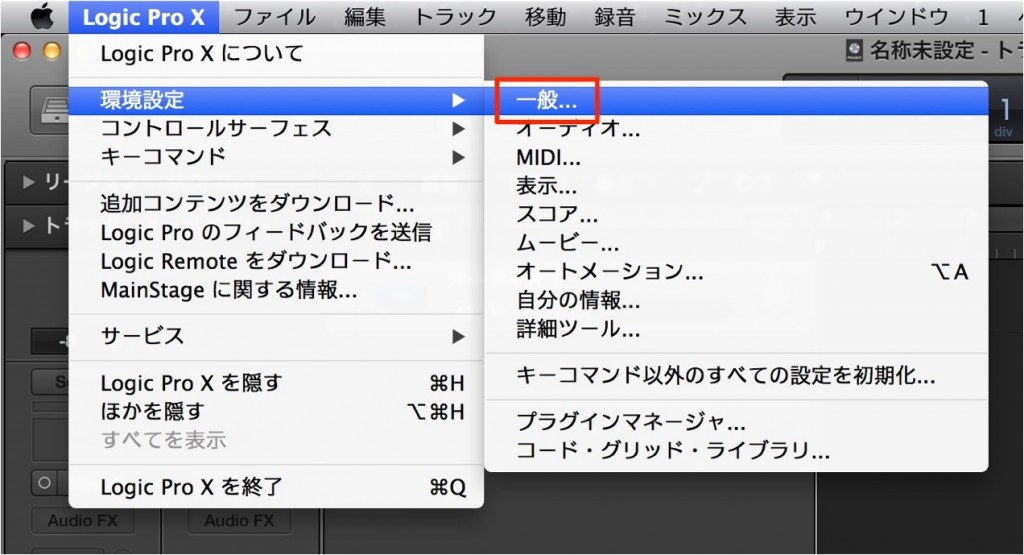
Select "Preferences" → "General" from the menu bar.
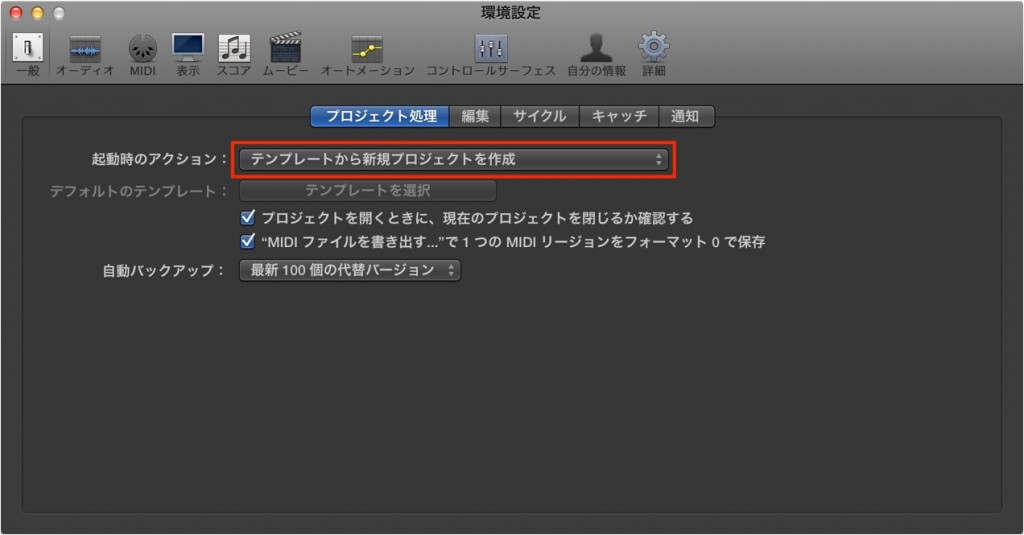
Change "Startup Action" to "Create New Project from Template."
That completes the setup.
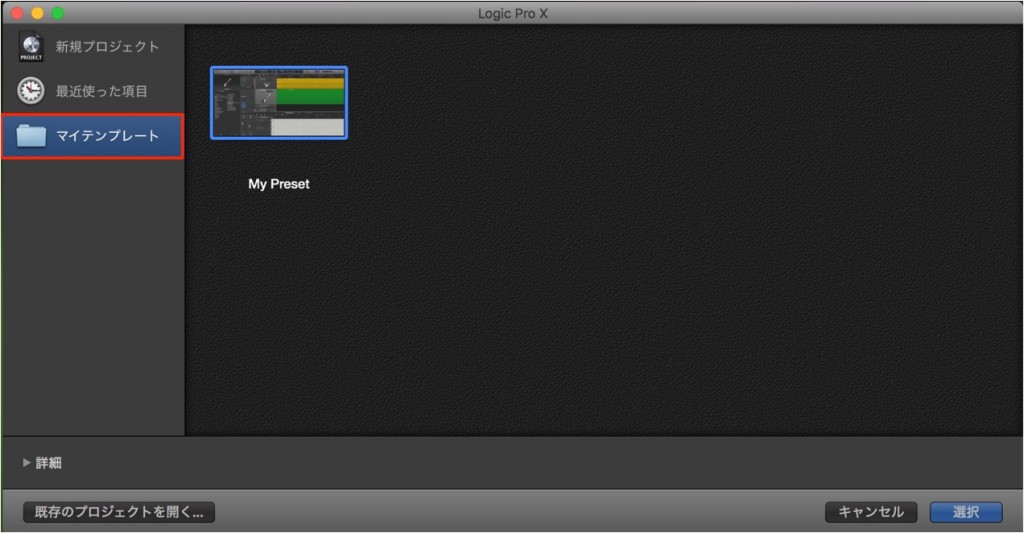
This dialog appears every time you create a new song.
Select the template you created above from "My Templates."
The file you created above is there.
Using it, you can start producing right away.
You can also create as many templates as you like.
We recommend preparing a few to suit your working style.

NEW ARTICLES
Latest English Articles











