Logic Pro X 10.4.2 lets you freely specify where the sound library is installed, so you can move the huge collection of instruments and effects to an external HDD and save space on your main HDD. The send/return functionality in the Mixer window has also been enhanced, letting you control each track's send amount in a visually clear way when using effects such as reverb and delay via buses. With these updates, users can build a more efficient, less stressful DTM environment.
You Can Now Relocate the Large Bundled Sound Library

Apple has released Logic Pro X "10.4.2."
Here we explain two particularly handy additions: changing the sound library (sound location) and the newly added mixer mode.
Changing the Sound Library Location
When you buy Logic Pro, you can download an extensive collection of instruments, loops and effects that's hard to believe comes bundled.
Being able to start serious music production right away with them is one of Logic's attractions.
However, installing all of them
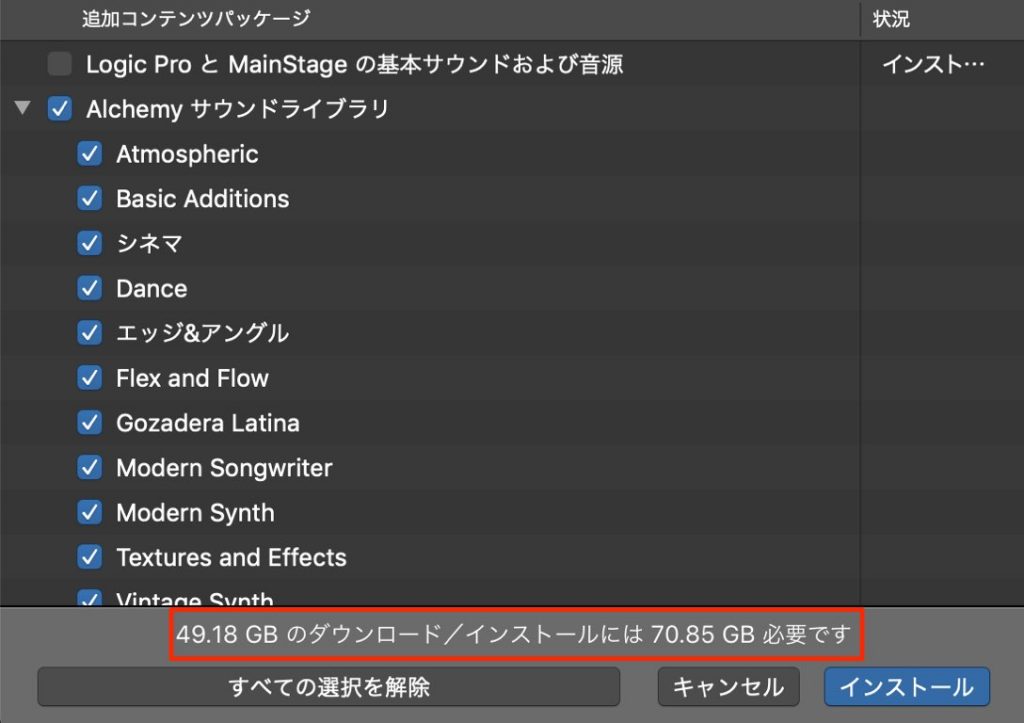
requires quite a lot of HDD space.
In previous versions, unless you used a somewhat unusual method such as a symbolic link, all instruments and effects ended up being installed on the main HDD.
With this update, you can specify where instruments and effects are installed.
This lets you offload them to an external HDD, greatly reducing the space used on your main HDD.
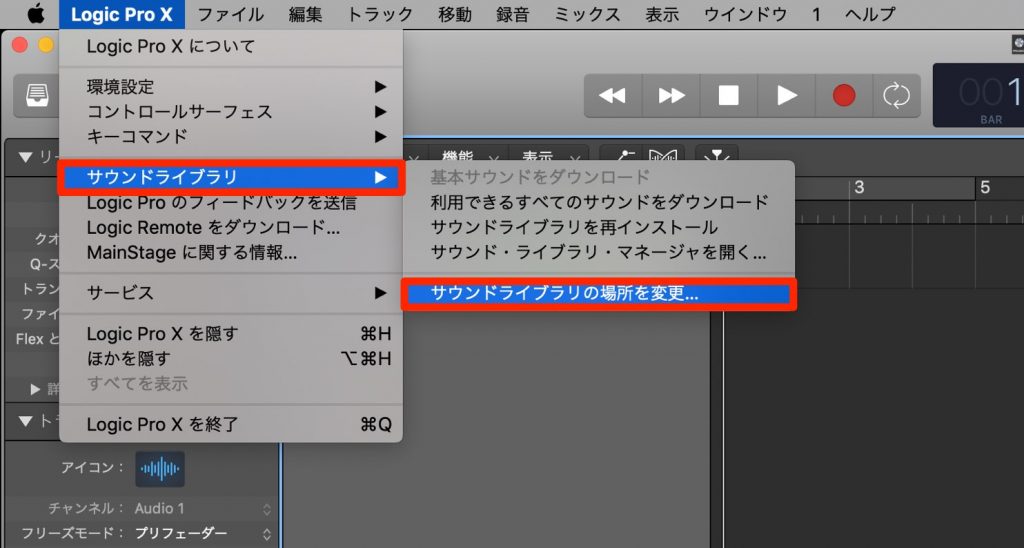
From the top menu, select "Logic Pro X" → "Sound Library" → "Relocate Sound Library."
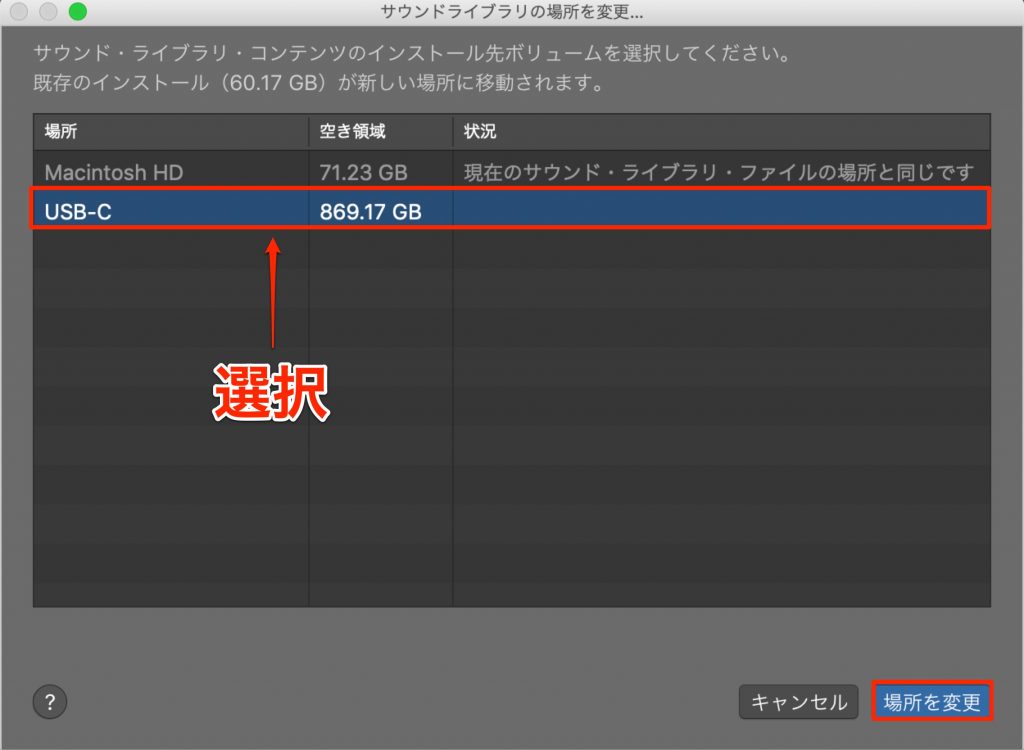
Select the HDD to move the library to and click "Relocate."
The move takes a little time.
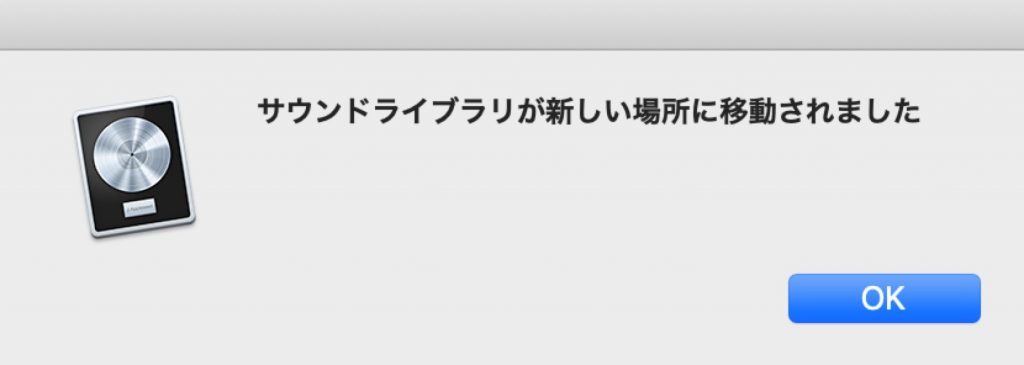
When it's finished, a dialog like this appears, and the instruments, loops and effects are removed from the main HDD.
A New Mixer Mode That Shines with Send/Return
This update makes it easier to see and operate sends and returns in the mixer.
It's especially handy when routing reverb and delay via buses.
For more on send/return, see the video and article below.
You can now control each track's send settings very clearly from the faders and knobs.
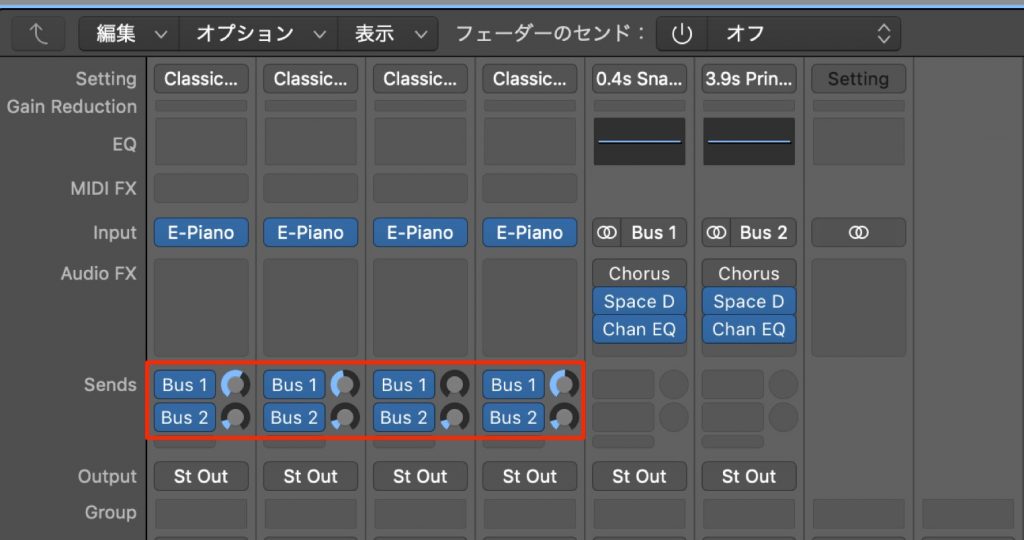
If you've set up send/return using a bus like this,
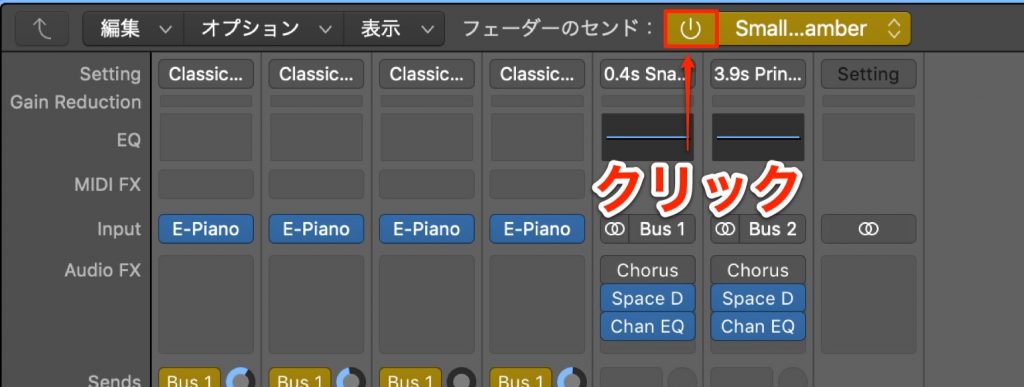
click "Sends on Faders" in the Mixer window.
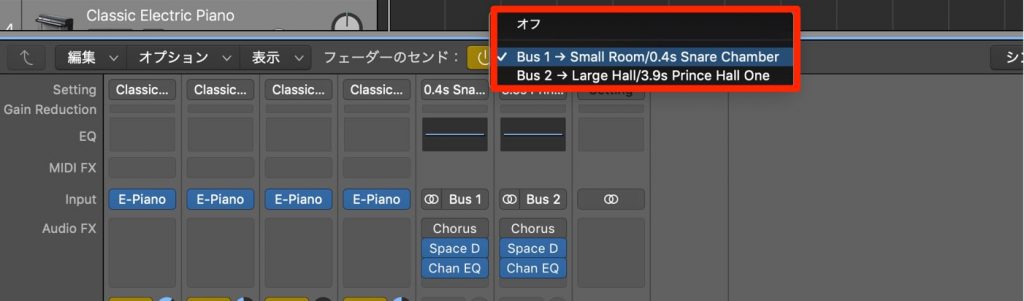
The buses in use are displayed, so select the send destination you want.

The send amounts and faders for the specified bus light up in yellow like this, letting you control each value very clearly.
Frequently Asked Questions
Q1. How much storage is needed to install all of Logic Pro X's bundled sounds?
The article doesn't give a specific size, but it requires quite a lot of HDD space. With 10.4.2 you can move them to an external HDD, greatly reducing the space used on your main HDD.
Q2. How long does it take to move the sound library to a new location?
The article says "the move takes a little time," but doesn't specify how long. It depends on the size of the library and the speed of the HDD.
Q3. In what situations is the new send/return feature especially useful?
It's handy when applying reverb or delay to multiple tracks via buses. You can see and control each track's send amount with the faders shown in yellow, making effect processing more efficient.
NEW ARTICLES
Latest English Articles