
Logic Pro's delay function is a handy tool for fine-tuning the timing of notes when programming. It solves the problem of notes sounding off even though you programmed them exactly on the bar, which happens especially with slow-attack sounds such as strings. From the Inspector, you can move notes earlier or later in ticks, which is far more efficient than correcting timing by hand. Positive values delay and negative values advance the notes, and you can adjust per region or for an entire track at once, making it a function useful to everyone from DTM beginners to advanced users.
When Note Timing Is Slightly Off

When programming, even though you placed notes exactly on the bar,
some sounds have a slow attack and the timing just does not feel right...
This is especially common with slow-attack sounds such as strings,
and the function that helps in such cases is the delay function.
Despite the name, it is not the delay effect.
It lets you make the selected notes sound earlier or later.
Timing adjustments that take a long time to correct by hand can be finished in an instant.
- Logic X
- Logic 8/9
Logic X: How to Set the Delay
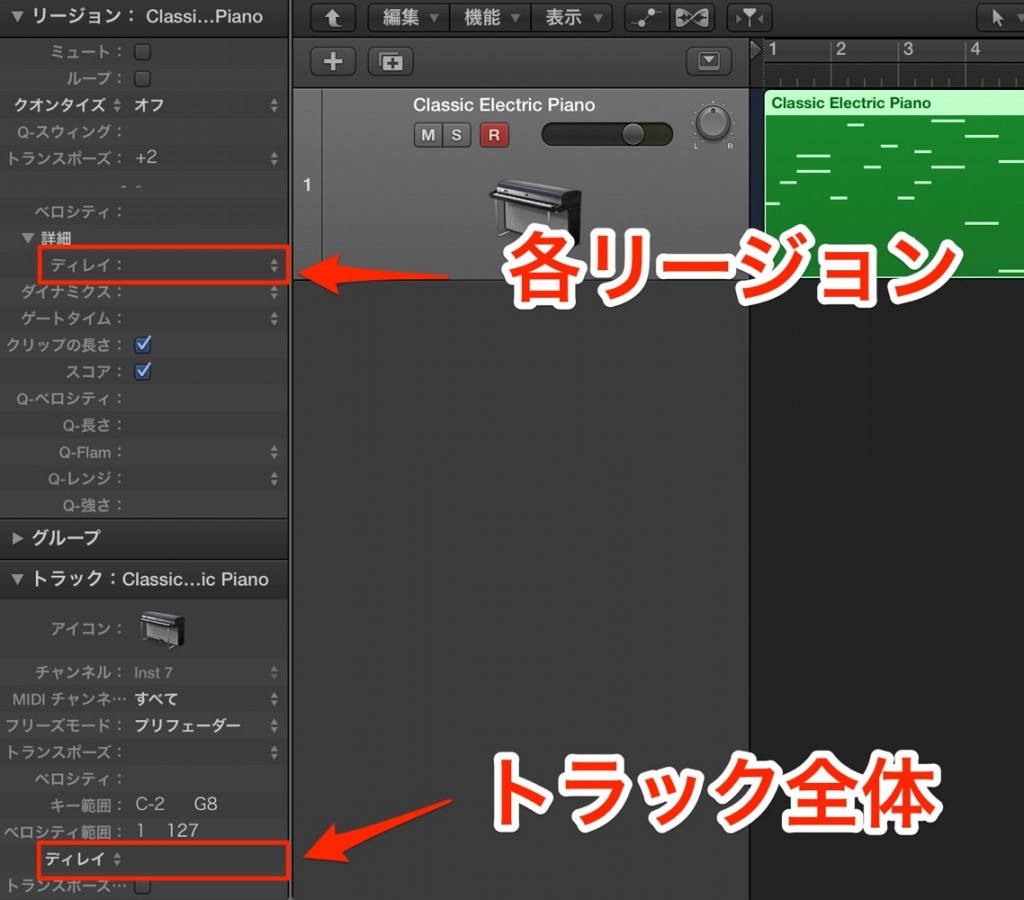
Adjust the Delay in the Inspector on the left.
Top: Select the region on the track whose timing you want to adjust, then adjust it.
The value is applied only to the selected region.
Bottom: You can adjust the delay of the entire track at once.
A positive number makes the notes sound later, and a negative number makes them sound earlier.
The unit is ticks.
Tick Explained
As you can see, it is easy to use,
so try adjusting the number in various ways until you get the timing you want.
Logic: How to Set the Delay

↑ Select the region on the track whose timing you want to adjust
and adjust the Delay in the Inspector on the left.
A positive number makes the notes sound later, and a negative number makes them sound earlier.
The unit is ticks.
Tick Explained
Adjust it while listening to the song until you get the timing you want.
As you can see, it is easy to use,
so try adjusting the number in various ways until you get the timing you want.
- Logic X
- Logic 8/9

Frequently asked questions
Q1. Is Logic Pro's delay the same as a delay effect?
No, they are completely different. The delay function is not an effect; it shifts the timing of the selected notes themselves. Rather than adding echoes like the effect does, it purely adjusts where the notes start.
Q2. Isn't adjusting in ticks difficult?
No, it is very easy. Just adjust the number in the Inspector up or down, and you can experiment while listening to the song until you get the timing you want. No complicated calculations are required.
Q3. Can I adjust both the whole track and individual regions?
Yes, both are possible. You can adjust only specific regions or adjust the entire track at once, allowing flexible editing.
NEW ARTICLES
Latest English Articles











