
Logic Pro's group function is an important tool for streamlining DTM production. By combining multiple tracks into a single group, you can manage volume, pan, editing, and solo/mute settings together. Because you can operate related tracks simultaneously, such as the drum kick and bass, multiple backing vocal tracks, or many high-frequency instruments, it greatly reduces the effort of mixing and improves your efficiency. It is available in Logic X and Logic 8/9.
- Logic X
- Logic 8/9
The Group Function: Handy for Changing Multiple Tracks Together (Logic X)
You can combine tracks into one with a group for a more comfortable workflow.
You can link settings such as volume, pan, editing, and solo/mute within the group you set up.
For example,
we recommend it for the drum kick and bass, multiple backing vocal tracks, and top-line parts that tend to multiply.
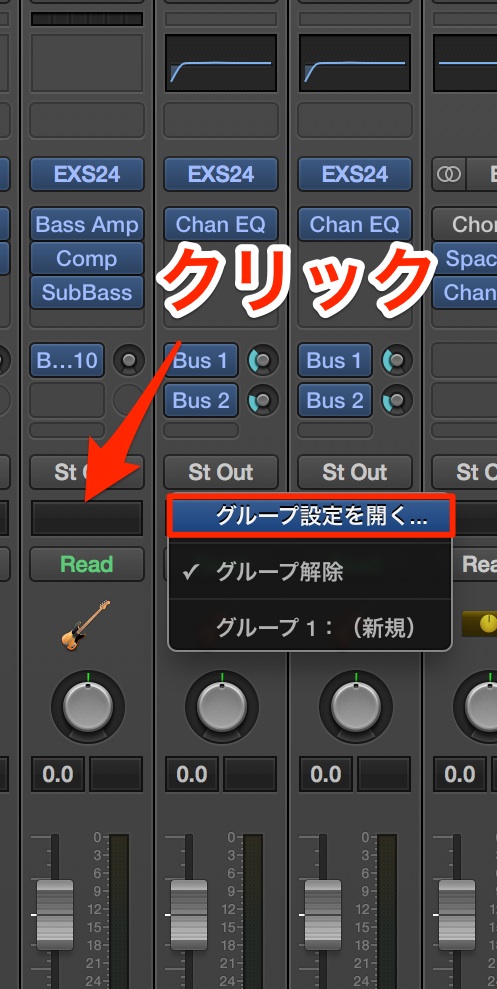
Click the area circled in red and choose "Group Settings."
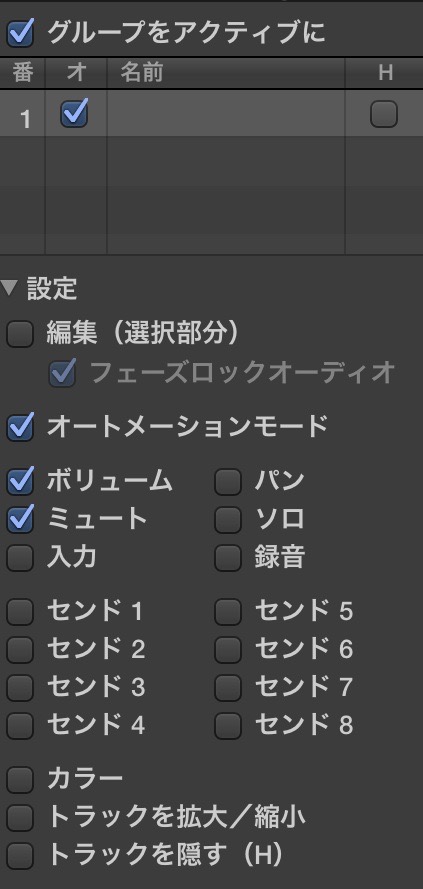
Set the group name, the parameters to link, and so on.
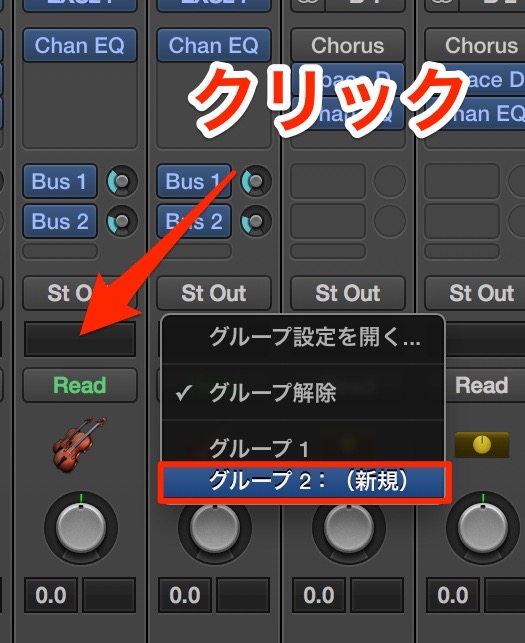
The group you set up has been created.
Assign the tracks you want to operate together to the same group, and the setup is complete.
The Group Function: Handy for Changing Multiple Tracks Together (Logic)
You can combine tracks into one with a group for a more comfortable workflow.
You can link settings such as volume, pan, editing, and solo/mute within the group you set up.
For example,
we recommend it for the drum kick and bass, multiple backing vocal tracks, and top-line parts that tend to multiply.

Click the area circled in red and choose "Group Settings."
Set the group name, the parameters to link, and so on, then click the red-circled area again.
The group you set up is now available,
so click the red-circled area on each track you want to group and assign it.
- Logic X
- Logic 8/9
Frequently asked questions
Q1. What is the difference between the group function and folder tracks in Logic Pro?
The group function links the operating parameters of multiple tracks, letting you control settings such as volume and pan simultaneously. Folder tracks, on the other hand, are for organizing tracks visually.
Q2. What parameters can be set for a group?
You can link major parameters within a group, such as volume (fader), pan (left/right position), editing, solo, and mute. Choose the ones you need for your purpose.
Q3. Can I delete a group?
Yes. Group settings can be changed or deleted as you like. Remove the group from the tracks and delete it in the group settings panel to return to individual track control.
NEW ARTICLES
Latest English Articles











