
Logic Pro's color function lets you color-code multiple tracks and regions so you can work more efficiently with a clearer visual overview of your song. Organizing by instrument type, date worked on, player, and so on makes session management much easier and also boosts your motivation. There is also a professional benefit: when you hand song files to others, it gives the impression that you know what you are doing.
Keep Your Tracks Visually Clear and Neatly Organized
Use the color function to color and manage tracks and regions.
When handling many tracks, takes, and regions,
color-coding lets you work efficiently.
A neatly organized session also raises your motivation.
There is also the bonus that people will think you are skilled when you hand them a session (lol).
- Logic X
- Logic 8/9
Logic X: How to Use the Color Function
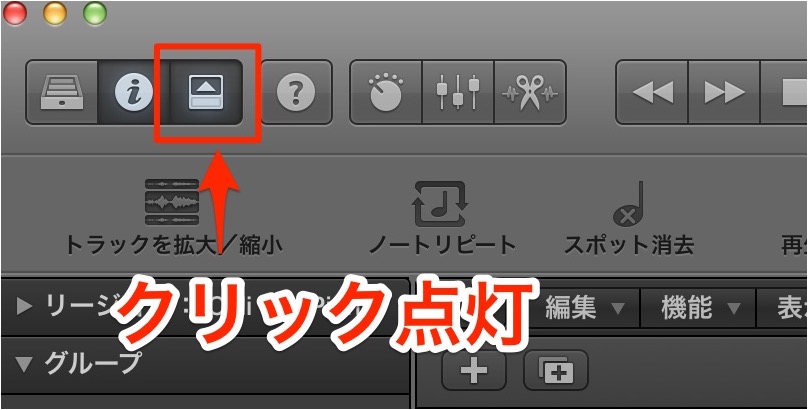
Turn on the toolbar icon.
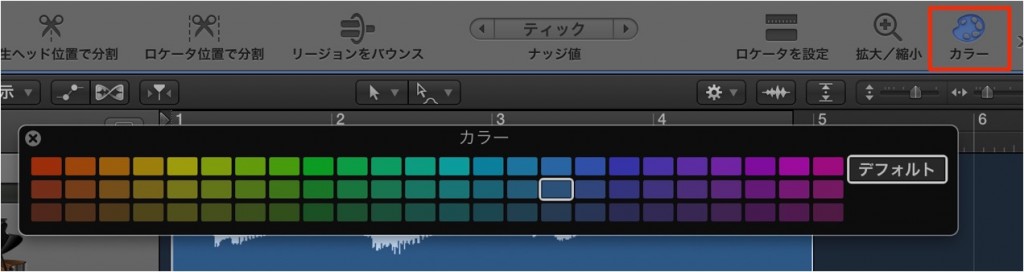
Click "Colors" in the toolbar to display the palette.
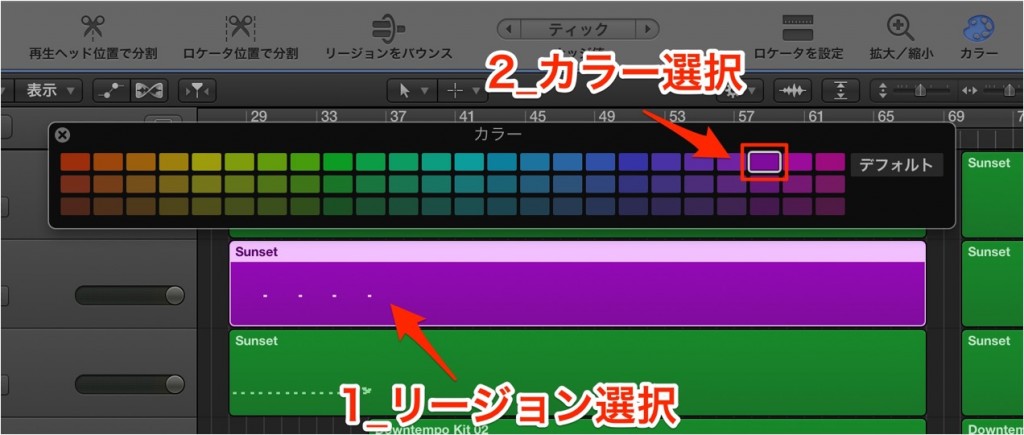
- 1_Select the region whose color you want to change
- 2_Select the color you want
You can also select multiple regions to change their color all at once.
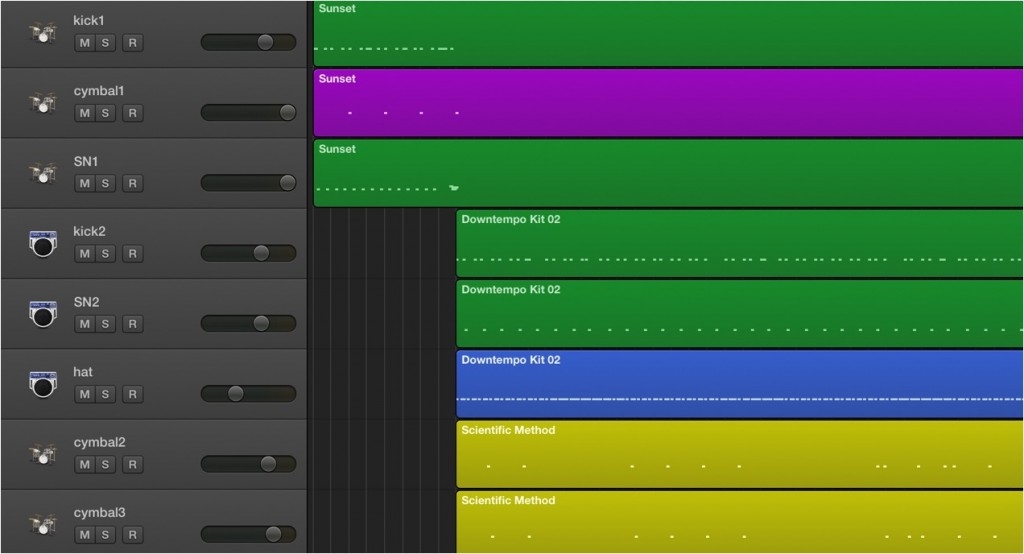
Changing colors by instrument type is the standard approach.
It is now neatly organized.
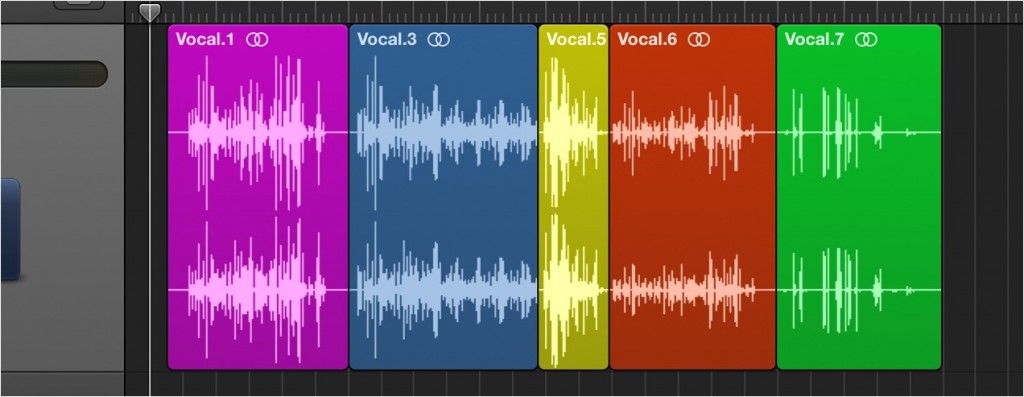
By splitting regions,
you can give individual colors to regions on the same track.
- Dates worked on
- By player
- By pattern
- Favorite/unfinished takes
With a little ingenuity, it can be very useful in many ways.
Logic: How to Use the Color Function

Click "Colors" in the menu bar, outlined in red.

↑ After selecting the region whose color you want to change, click the color you like in the color palette.
That is all there is to it.
You can also select multiple regions to change their color all at once.

↑ Changing colors by instrument type is the standard approach.
It is now neatly organized.

↑ By splitting regions,
you can give individual colors to regions on the same track.
- Dates worked on
- By player
- By pattern
- Favorite/unfinished takes
With a little ingenuity, it can be very useful in many ways.
- Logic X
- Logic 8/9

Frequently asked questions
Q1. How do I color regions in Logic Pro?
Click "Colors" in the toolbar to display the palette, select the region whose color you want to change, and then select the color you want. You can also change the color of multiple regions at once.
Q2. What are some effective ways to organize with colors?
Organizing by instrument type is the most basic, but with a little ingenuity you can organize in many ways, such as by date worked on, player, pattern, or favorite/unfinished takes.
Q3. Can I use different colors within the same track?
Yes. By splitting regions, you can give individual colors to regions on the same track. This allows flexible color management.
NEW ARTICLES
Latest English Articles











